
Mention Files and Resources
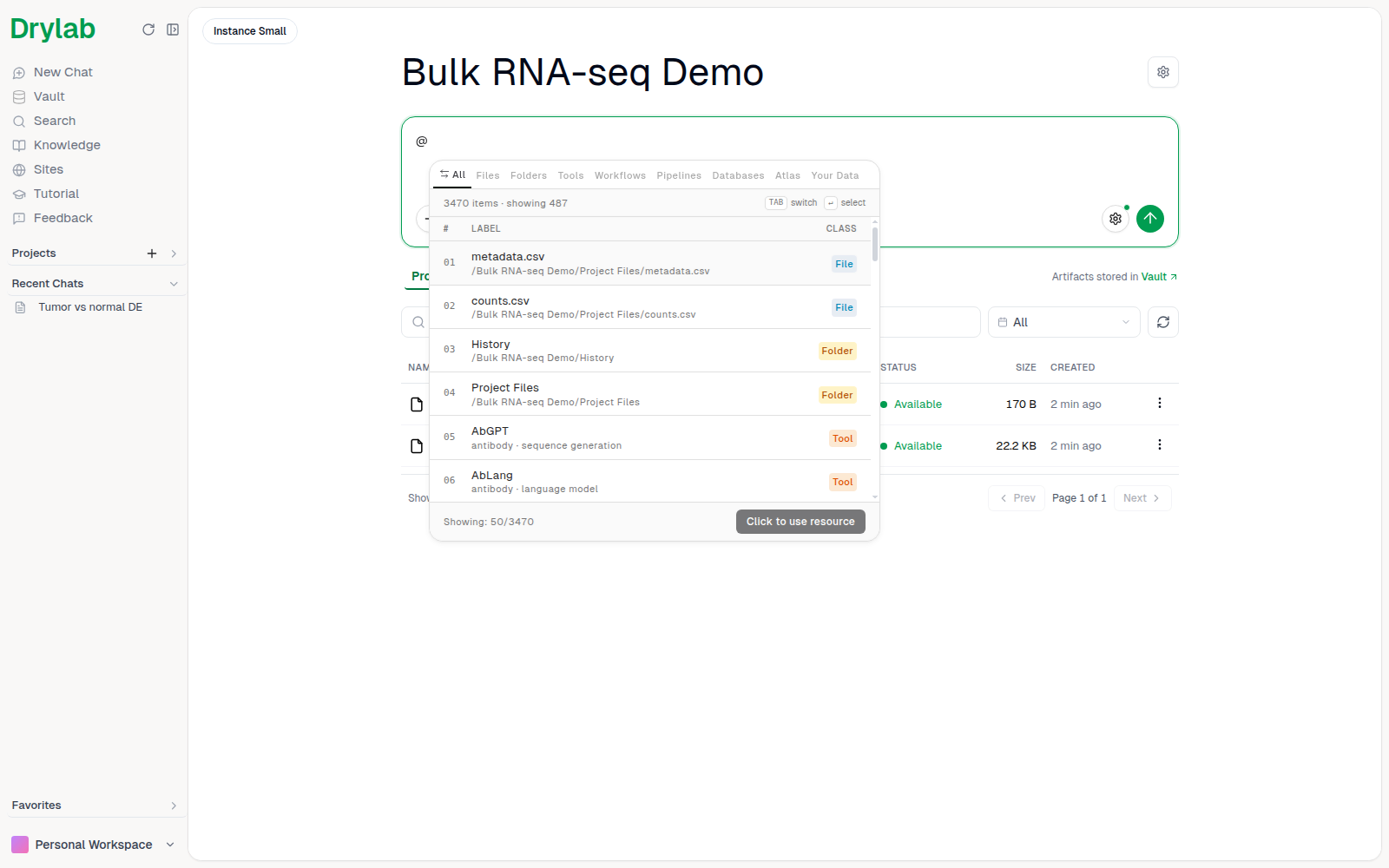
Type @ in the chatbox to point Drylab at your files and at built-in tools, workflows, pipelines, databases and atlases.
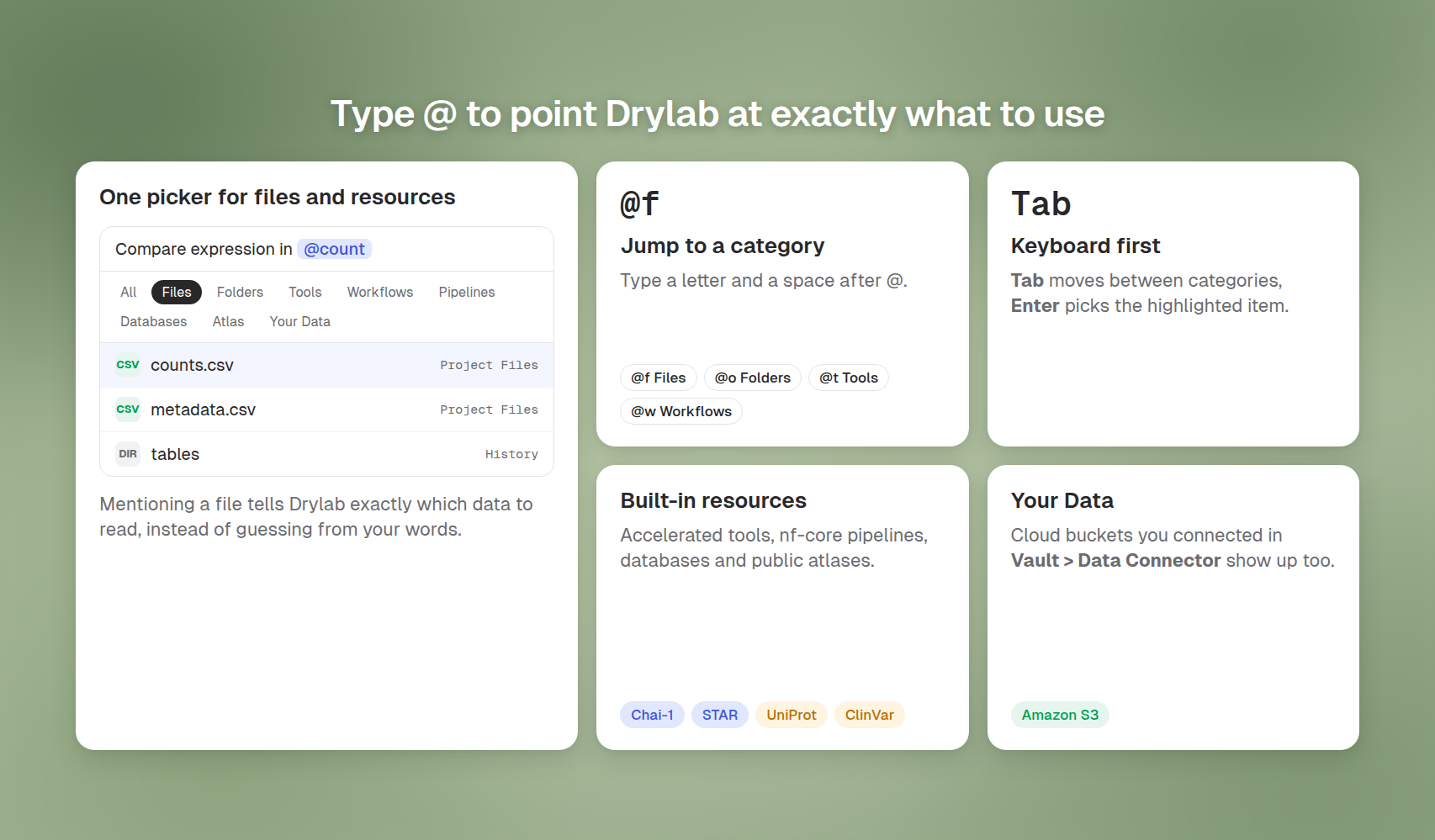
Type @ in the chatbox to open the resource picker. Mentioning a resource tells Drylab exactly which file, tool or dataset to use, which gives faster and more accurate results than describing it in words.
Why mention instead of describe
Compare "load my counts file" with "load @counts.csv":
- No guessing. Drylab uses the exact file, folder or tool you picked, even if several have similar names.
- The right tool, first time. Mentioning Boltz2 or an nf-core pipeline makes Drylab use that tool instead of choosing one itself.
- Faster runs. Drylab doesn't spend time searching your project or the catalogue, so it starts working sooner.
- Easier to reread. Mentions appear as chips in your message, so you can see at a glance what each analysis used.
Categories
The picker has one tab per category. Press Tab to move to the next tab.
| Tab | What it lists | Mention it when you want to... |
|---|---|---|
| All | Everything below in one list | Search across everything |
| Files | Files in the current project | Analyze a specific file |
| Folders | Folders in the current project | Work on a whole folder, such as a run of FASTQ files |
| Tools | Accelerated tools such as Boltz2, Chai-1 or STAR | Use a particular tool, often on a GPU |
| Workflows | Guided, step-by-step analyses (see Structured Workflows) | Run a validated analysis that asks you at the key decisions |
| Pipelines | nf-core pipelines for raw sequencing data | Process raw reads with a standard pipeline |
| Databases | Biological databases such as UniProt, ClinVar or CellxGene | Look up or pull reference data |
| Atlas | Curated public datasets that Drylab reads in place, with no download (see Drylab Atlas) | Compare your data with a published dataset |
| Your Data | Cloud storage buckets you connected in Vault > Data Connector | Analyze data that stays in your own bucket |
What's built in
Besides your own files, the picker gives you Drylab's built-in library. You don't install or configure any of it.
Databases
130+ biological databases you can query in plain language, without API keys or scripts: gene and protein information, structures, variants, pathways, drugs and expression.
| Category | Examples |
|---|---|
| Proteins and structures | UniProt, PDB, AlphaFold, CATH |
| Genes and variants | Ensembl, gnomAD, ClinVar, 1000 Genomes, CIViC |
| Pathways and interactions | KEGG, Reactome, BioGRID |
| Drugs and chemistry | ChEMBL, PubChem, BindingDB |
| Cancer | cBioPortal |
| Expression and single-cell | GTEx, GEO, ArrayExpress, CellxGene |
Example: "Query @ClinVar for pathogenic BRCA1 variants and summarize them by exon."
Accelerated tools
About 250 tools run heavy jobs (structure prediction, docking, protein design, alignment, assembly and more) on dedicated GPU and HPC hardware and bring the results back to your chat. See Accelerated Tools for the full list, costs and best practices.
Pipelines
About 80 production nf-core pipelines take you from raw FASTQ files to analysis-ready outputs with standardized, reproducible processing. The jobs run on Drylab's HPC hardware; follow them in HPC Tasks.
| Category | Examples |
|---|---|
| Bulk RNA-seq | nf-core Rnaseq, nf-core Rnavar |
| Single-cell | nf-core Scrnaseq |
| Variant calling | nf-core Sarek |
| Amplicon and 16S | nf-core Ampliseq |
| ChIP-seq and ATAC-seq | nf-core Chipseq, nf-core Atacseq |
| Metagenomics | nf-core Mag, nf-core Taxprofiler |
Workflows, Atlas and Knowledge
- Workflows combine several steps into a guided analysis that stops for your decisions. See Structured Workflows.
- Atlas datasets are curated public studies that Drylab reads in place. See Drylab Atlas.
- Knowledge holds skills: best-practice protocols that Drylab reads and follows automatically when they match your task. Skills aren't in the picker; manage them in Knowledge.
Find what you need
Keep typing after @ to filter. The search matches names, descriptions and keywords, so related items can appear too.
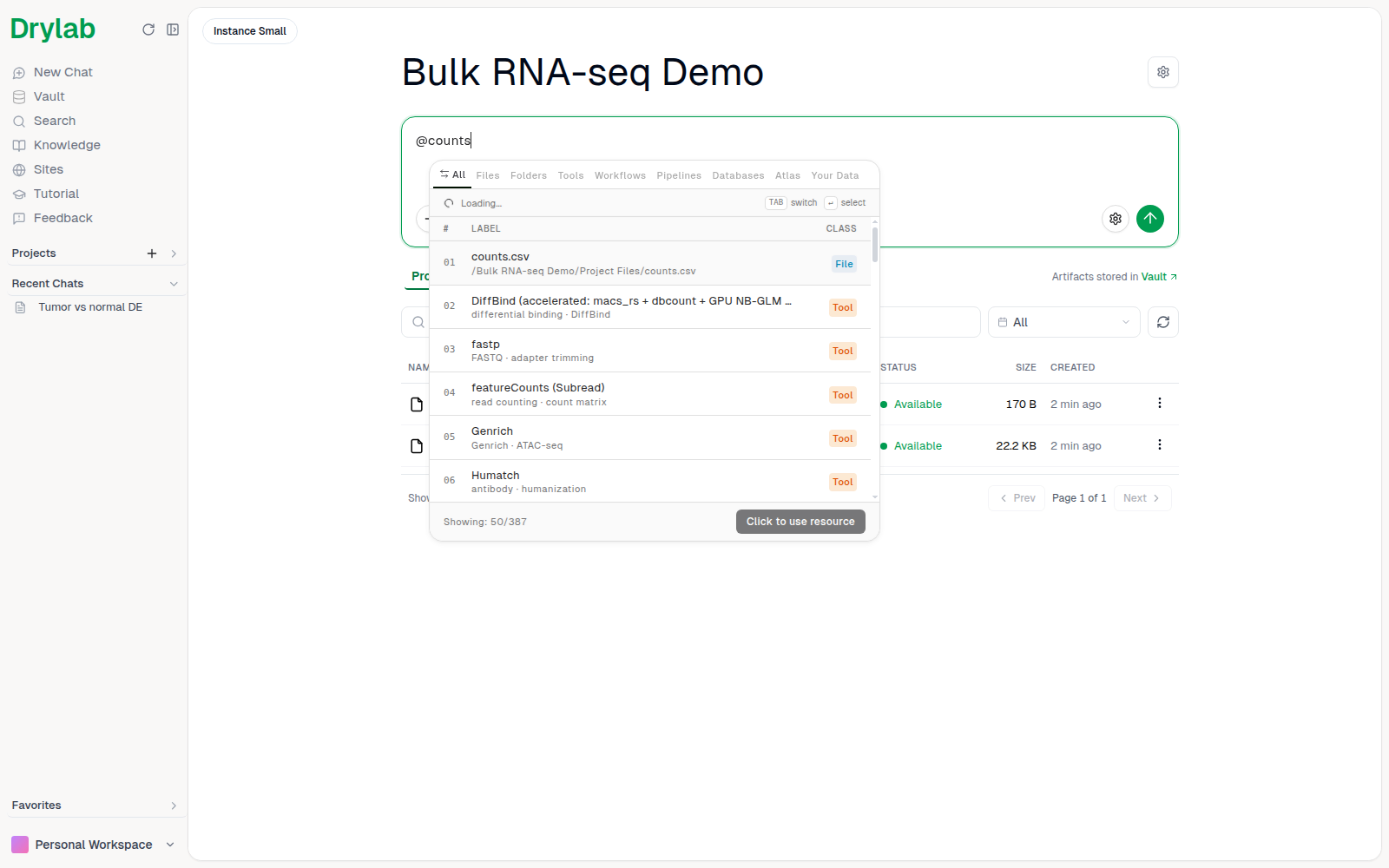
To jump straight to one category, type its letter and a space after @:
| Type | Shows |
|---|---|
@f | Files |
@o | Folders |
@t | Tools |
@w | Workflows |
@p | Pipelines |
@d | Databases |
@a | Atlas |
@y | Your Data |
For example, @t boltz lists tools related to "boltz", with Boltz2 near the top, and @w scrna lists the single-cell workflows.
The footer shows how many items match ("Records: 12"). To see more of a long list, click Load more results at the bottom, or move down with the arrow keys.
Preview a resource
Hover an item to see the Resource Preview on the right: what the resource does, where it runs, its cost per run, keywords and documentation. Workflows also show their numbered steps and the skills they use.
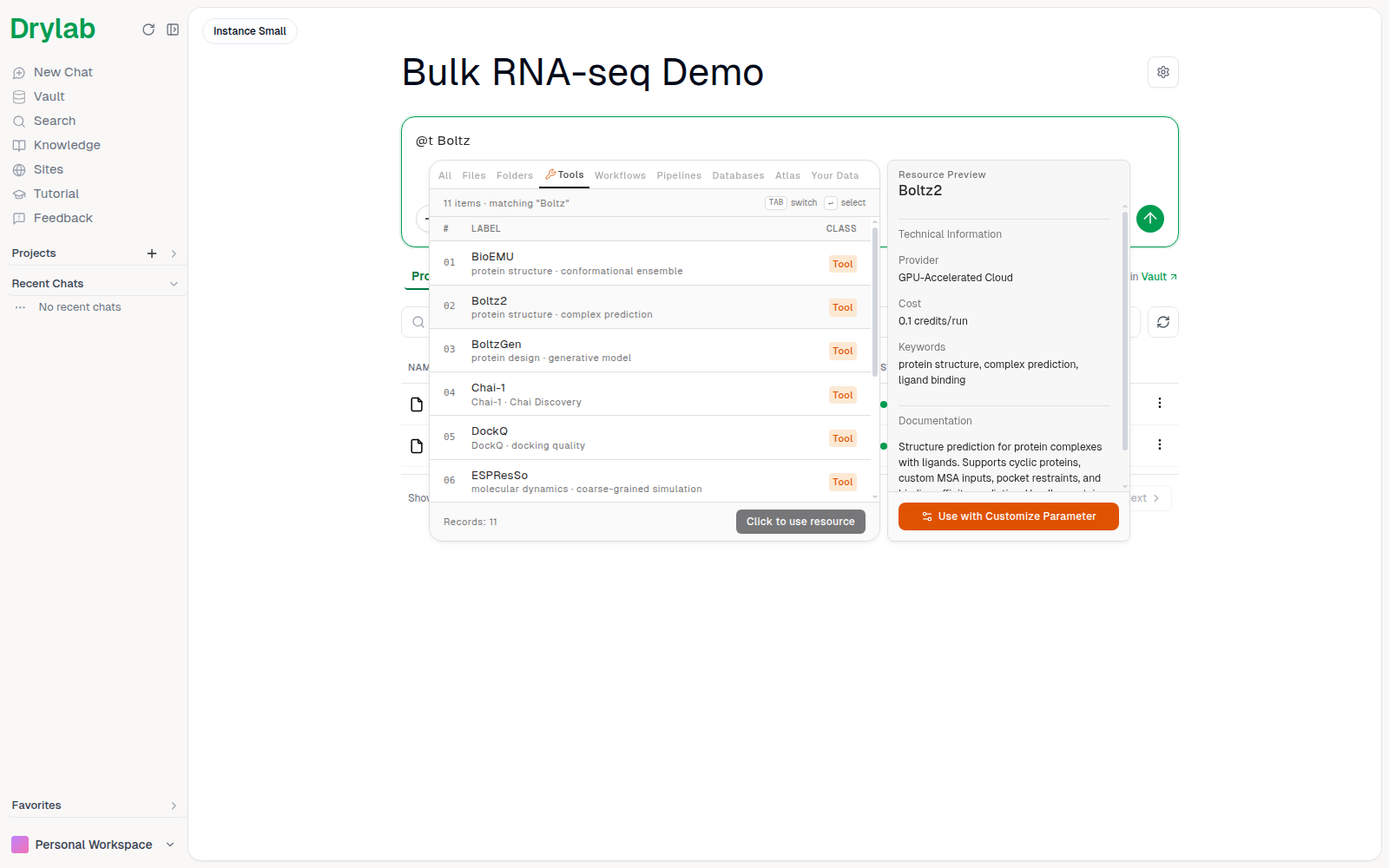
The button at the bottom of the preview depends on the resource:
| Resource | Button | What it does |
|---|---|---|
| Some tools | Use with Customize Parameter | Add the tool and open a form to set its options before you send |
| Pipelines | Launch with Parameters | Add the pipeline and open its parameter form |
| Atlas datasets | View Details | Open the dataset's page on Drylab Data in a new tab |
| Your Data buckets | Open Data Connector | Manage the bucket in the Vault |
For a pipeline, the preview also shows its version, cost per hour and tags.
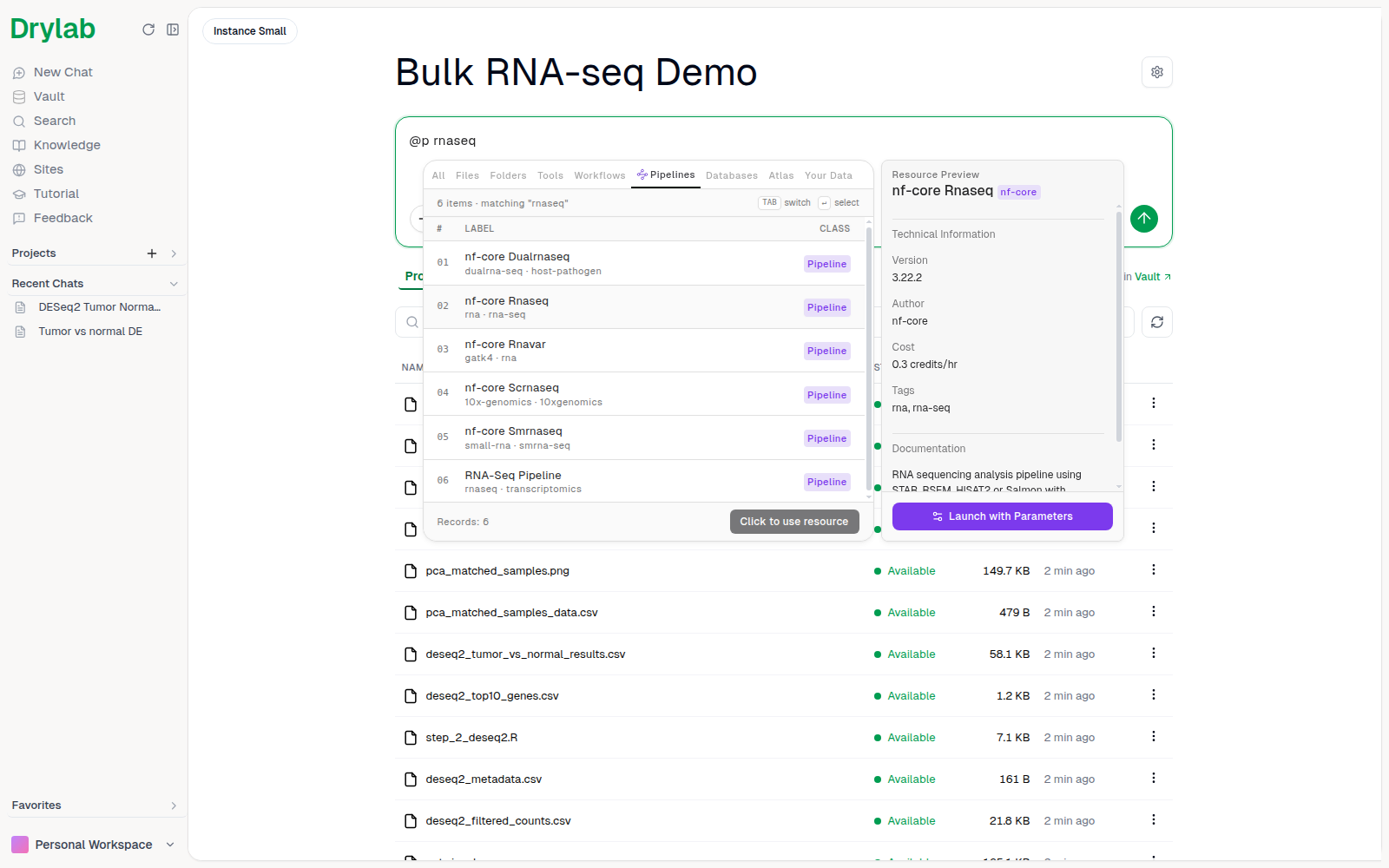
Add one or several resources
- One resource: move to it with the arrow keys and press Enter, or click it and then Click to use resource.
- Several at once: click each item you want. A tick replaces its number and the footer shows how many are staged ("Staged: 3"). Click an item again to unstage it. Then click Click to use resource or press Enter to add them all.
- Close the picker: press Esc.
Each mention becomes a chip in your message. Items you've already mentioned in this message show a grey badge with a count ("Already mentioned 1x"), so you don't add them twice. To remove a mention, click the x on its chip.
Choose files from a dataset or bucket
Some chips open a picker when you click them in your message:
- Atlas dataset: shows the dataset's species, tissue, disease state and files. Tick the files you need, then click Use N files, or Use all files.
- Your Data bucket: browse the bucket's folders and files, tick what Drylab should read, then click Use N items, or Use entire bucket.
The bucket chip shows All or the number of items you picked.
To run the analysis again on a different part of the bucket, click the bucket chip in a message you already sent. The picker opens with that message's selection. Change it, then click Analyze N items or Analyze entire bucket. Drylab adds a bucket chip with the new selection to your chatbox; type your request and send it. The earlier message stays as it was. After you reload the page, the chip in a sent message shows All and the picker opens with nothing ticked. The bucket must still be connected and mounted; otherwise you'll see "This bucket is no longer connected."
A bucket must be mounted before you can mention it. If it isn't, you'll see "Mount this bucket first" with a link to Open Data Connector. See Data Connector.
Examples
@counts.csv load this and show the column names and shape@counts.csv and @metadata.csv run DE of tumor vs normal paired by patient@figure1.png what does this plot show and are there any issues?@Boltz2 predict the complex of this protein with the ligand in @ligand.sdf@scRNA QC + Clustering on my @pbmc.h5ad@p rnaseqthen "run this on the FASTQ files in @fastq_run_01 against the human reference"Compare my clusters in @pbmc.h5ad with a matching dataset from @a pbmc
Use resources together
A typical chain for a single-cell project:
@nf-core Scrnaseqto process raw reads into count matrices.@scRNA QC + Clusteringto set QC cutoffs and pick a clustering resolution.@CellxGeneto pull a reference atlas for annotation.@ChEMBLto look up drugs targeting the marker genes you found.
Not sure what to use? Ask: "I have scRNA-seq data. Which tools and databases should I use for annotation and differential expression?"
Tips
- Files appear in the picker once they are uploaded to the current project. See Upload Files. In the Desktop App, the Files tab searches the files on your computer.
- Choose the project first, so the Files and Folders tabs show the right files. See Projects.
- Mention the data and the method in the same message: "@counts.csv with @DESeq2", not two separate messages.
- The
+button in the chatbox offers Use Resource / Tools, which opens the same picker. - To ask Drylab about a figure in the chat, use Mention on the figure card. See Edit Figures.