
Start an Analysis
Write your request in the chatbox, choose how Drylab runs it with Analysis settings, and steer or pause it while it works.
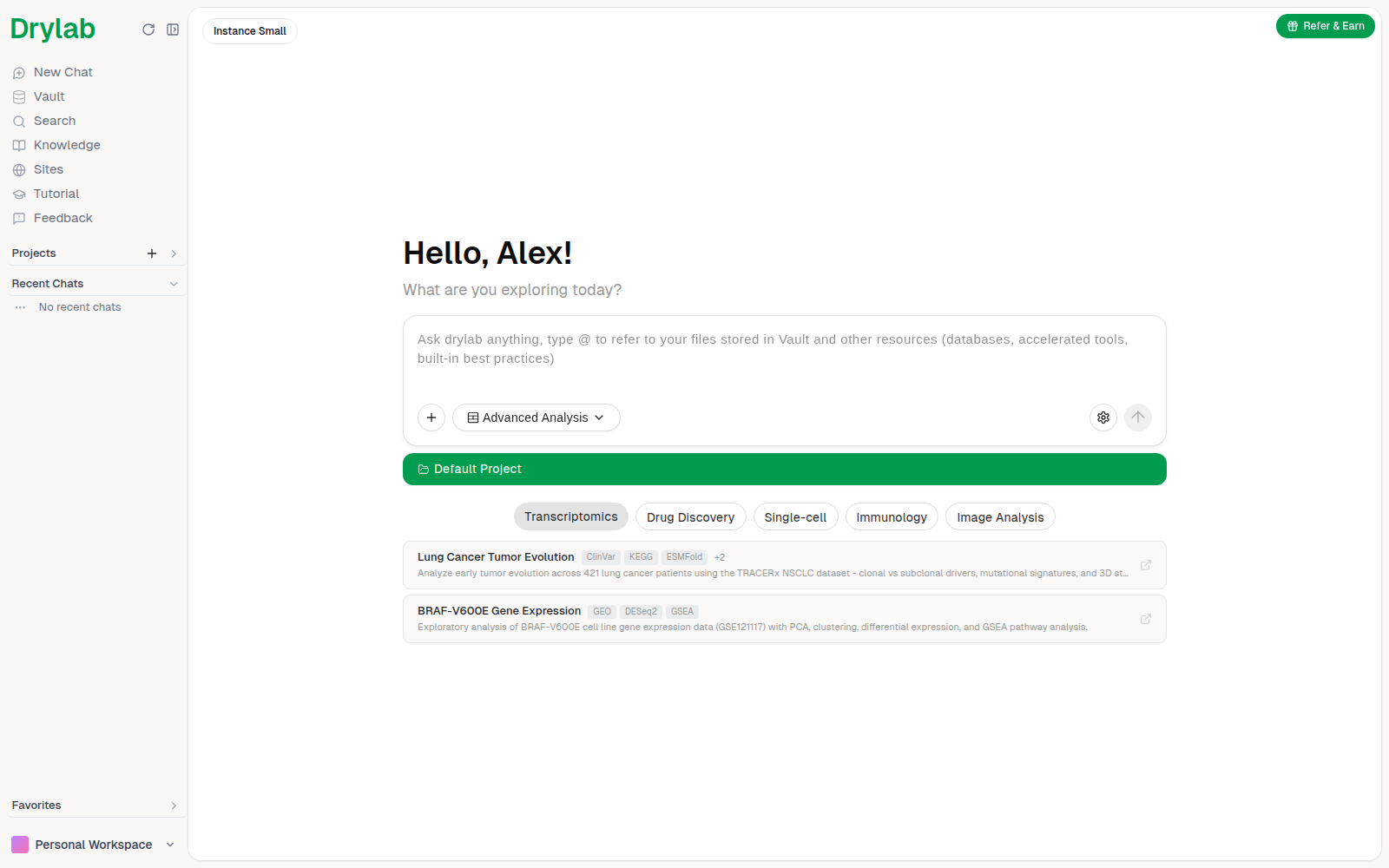
Every analysis starts in the chatbox on the home page or on a project page. Describe what you want in plain language, mention the files and tools to use, and send. Drylab plans the work, runs the code in a notebook and reports back in the chat.
Choose a mode
The mode button in the chatbox shows Advanced Analysis by default. Click it to switch modes, and hover an option to see what it's for and what it typically costs.
| Mode | Best for | Typical cost |
|---|---|---|
| Advanced Analysis | Thorough, novel analysis: discovery tasks, multi-step pipelines, proteomics, genomics, single-cell, spatial, imaging and flow cytometry | 400-1200 token credits, depending on task complexity |
| Analysis | Day-to-day analysis: statistical tests, plots, small bulk RNA-seq, data processing | 50-200 token credits, depending on task complexity |
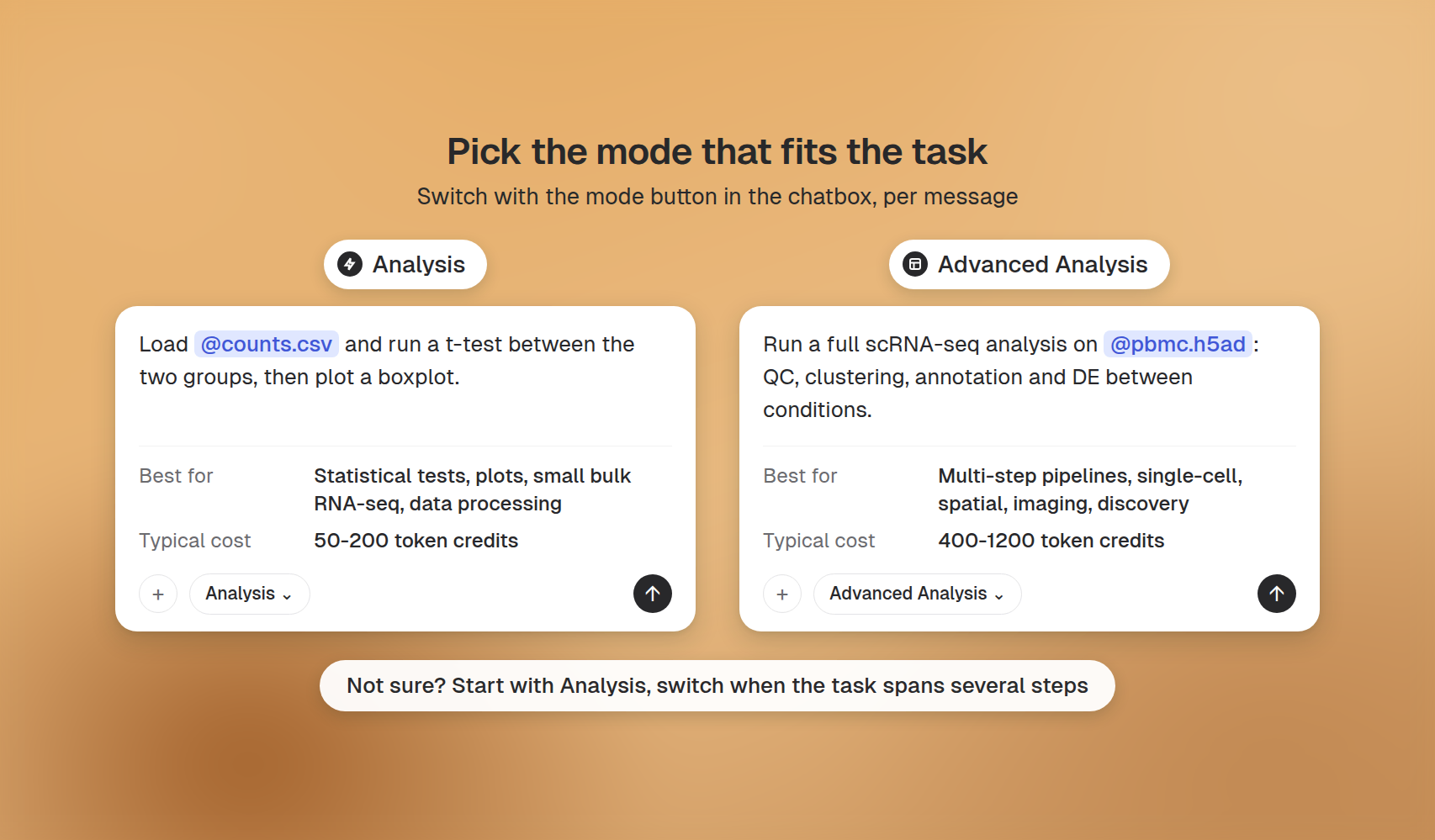
Both modes can plan before they run, use Drylab's databases, accelerated tools and pipelines, and save a reproducible notebook. Advanced Analysis spends more effort reviewing intermediate results and iterating, so it takes longer and uses more credits.
Write your request
- Choose a project first (see Projects) so files and history stay together.
- Type
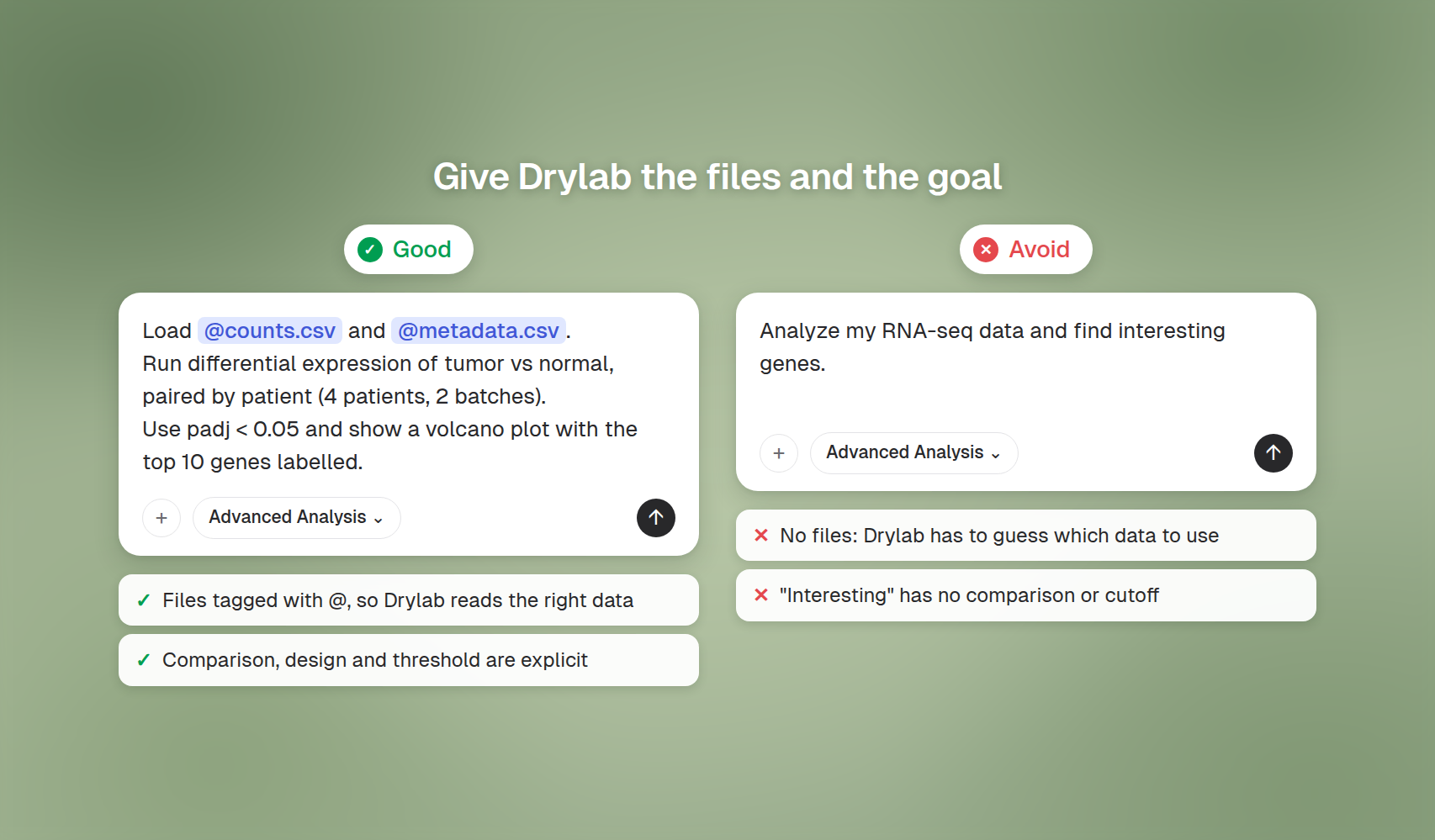
@to attach files from your project or to point Drylab at a tool, workflow, pipeline or database. See Mention Files and Resources. - Describe the goal, the comparison and any thresholds. See Write Good Prompts.
- Click send.
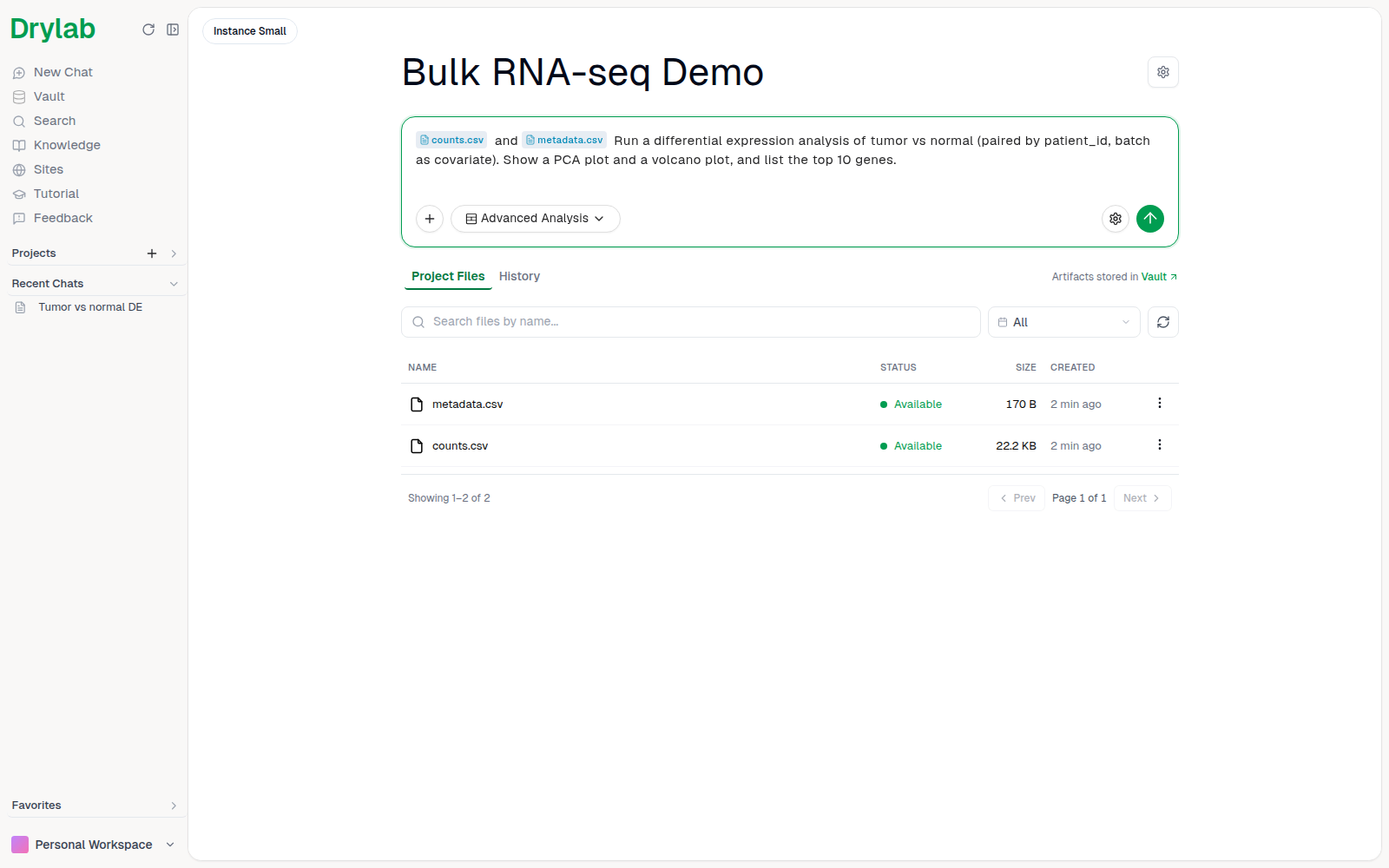
Example prompts:
- "Load @counts.csv and @metadata.csv, run differential expression of tumor vs normal paired by patient, and show a volcano plot."
- "Run a full scRNA-seq analysis on my h5ad file including QC, clustering, annotation and differential expression between conditions."
- "Predict the structure of these 5 protein sequences with Chai-1 and compare their binding pockets."
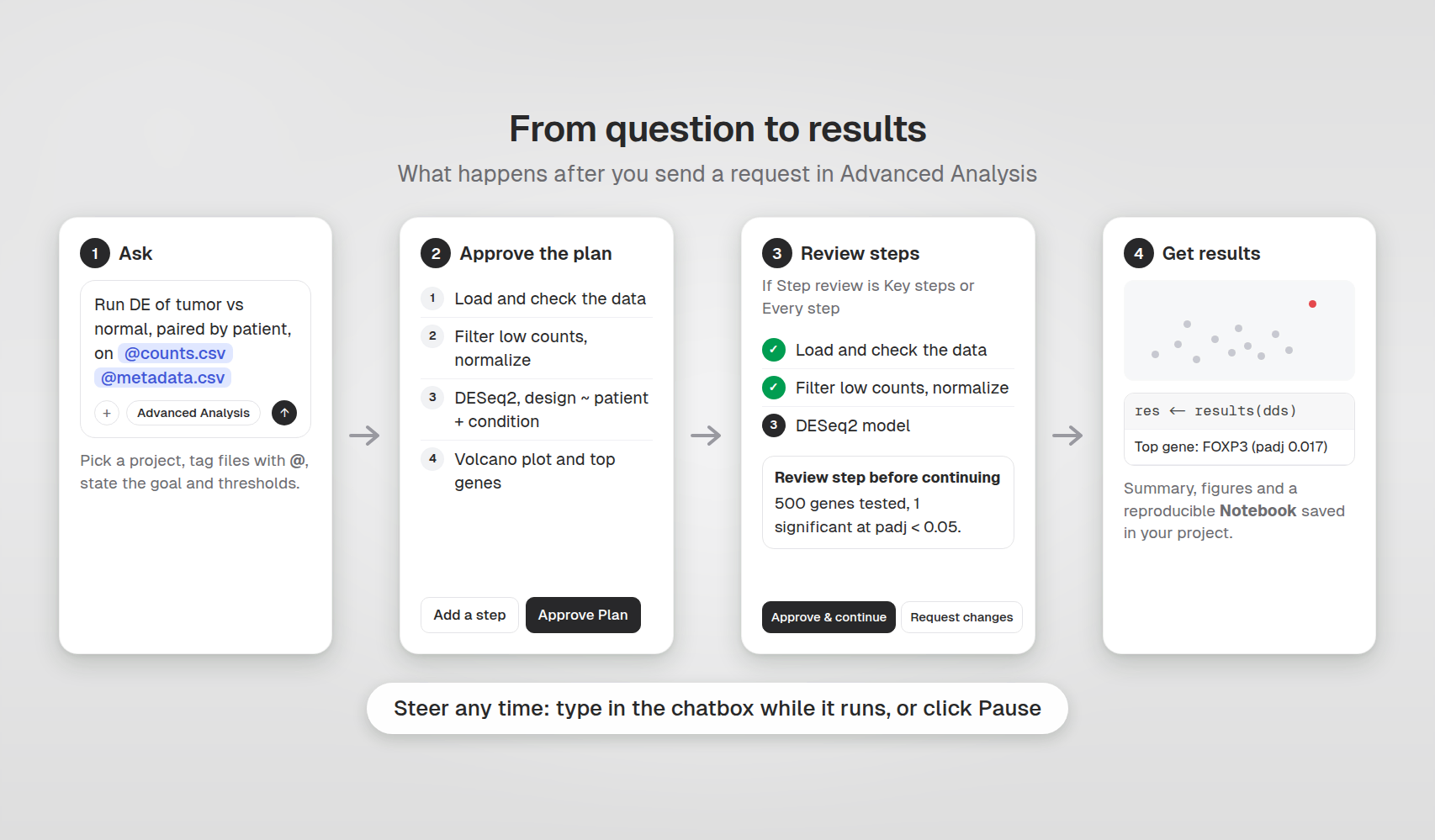
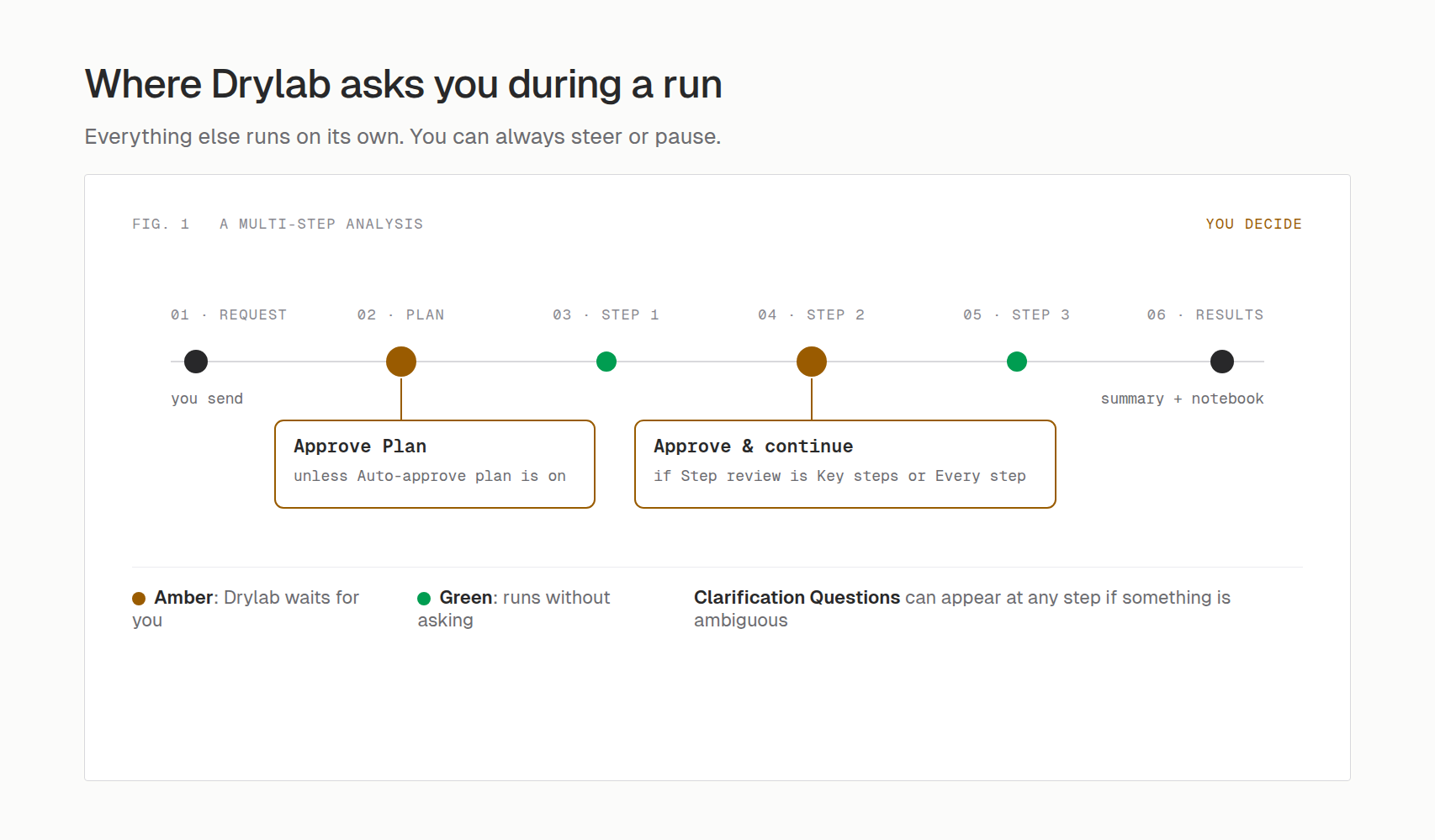
After you send, Drylab usually shows a plan for you to approve, and may ask questions when something is unclear. See Plans and Questions. To follow each step as it runs, see Tracker and Helpers.
Analysis settings
Click the gear icon (Analysis settings) at the right of the chatbox, next to the send button. The settings apply to the next message you send.
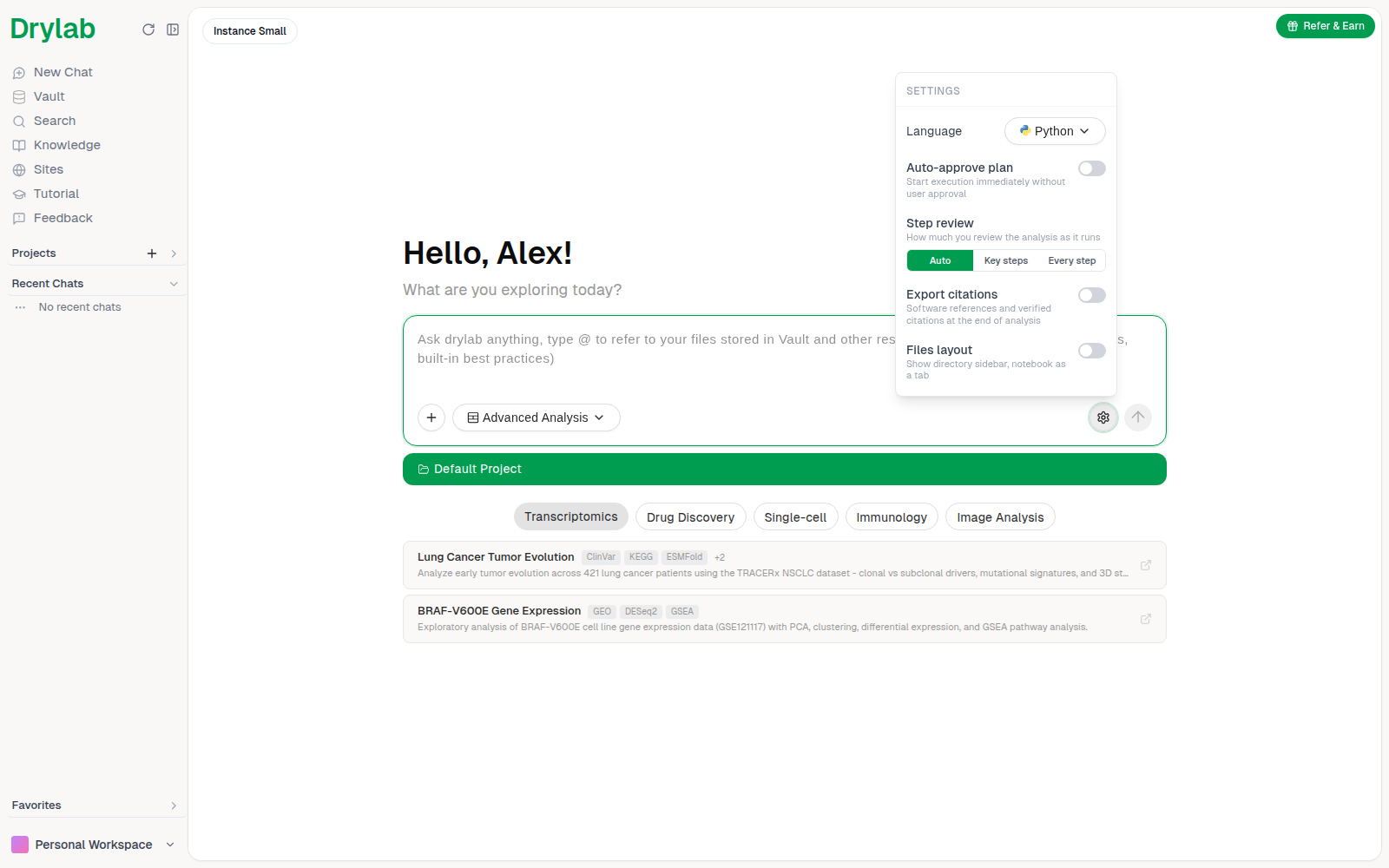
| Setting | What it does |
|---|---|
| Language | The main language Drylab writes in the notebook: Python or R. |
| Auto-approve plan | Start running straight away, without waiting for you to approve the plan. |
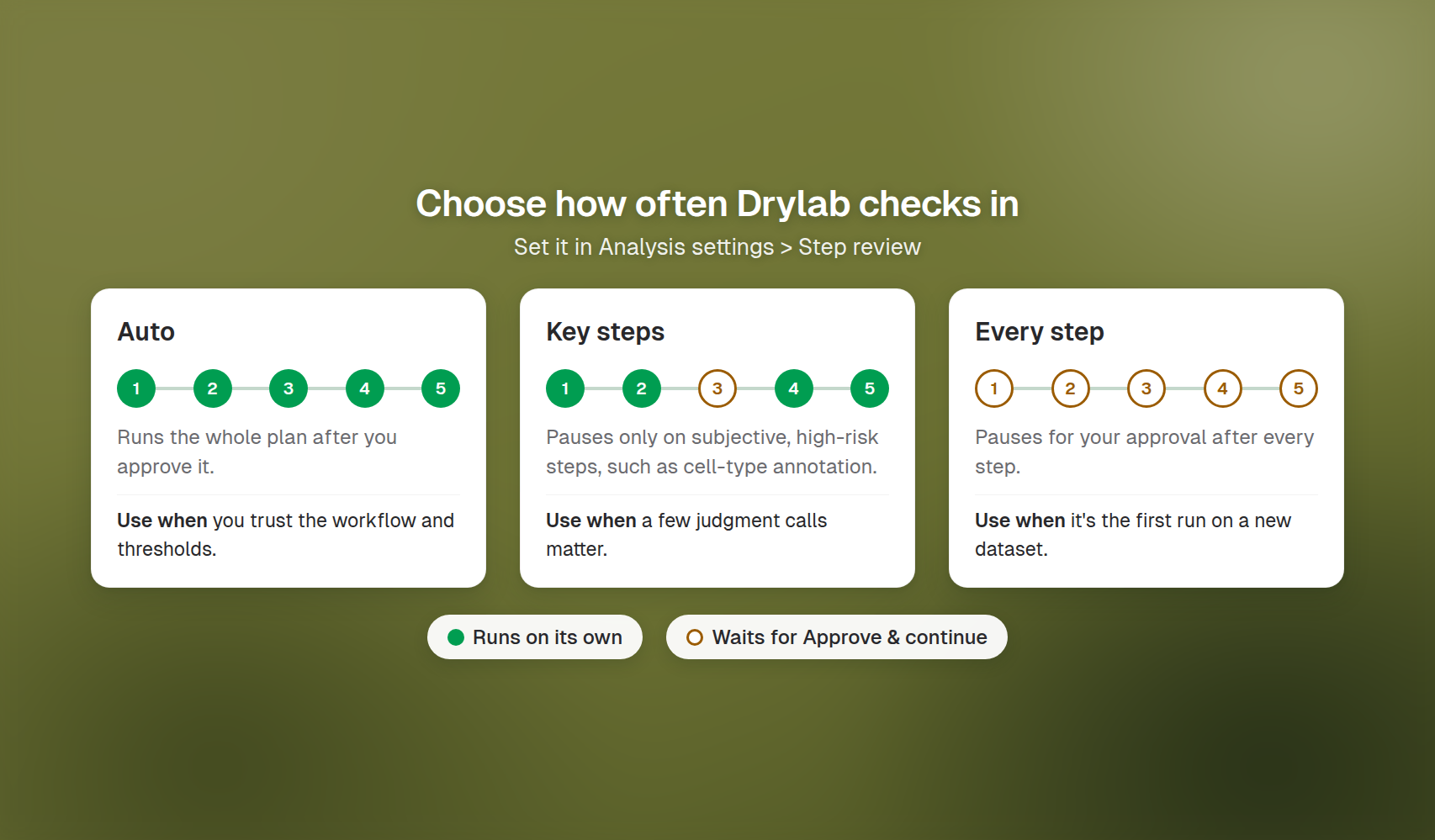
| Step review | How much you review the analysis as it runs. See below. |
| Export citations | Add software references and verified citations at the end of the analysis. |
| Files layout | Show the file directory as a sidebar and the Notebook as a tab. See Notebook and Files Panel. |
Step review
| Option | Behavior |
|---|---|
| Auto | Run the whole plan on its own after you approve it. |
| Key steps | Pause for your approval only on subjective, high-risk steps (for example cell-type annotation). |
| Every step | Pause for your approval after every step. |
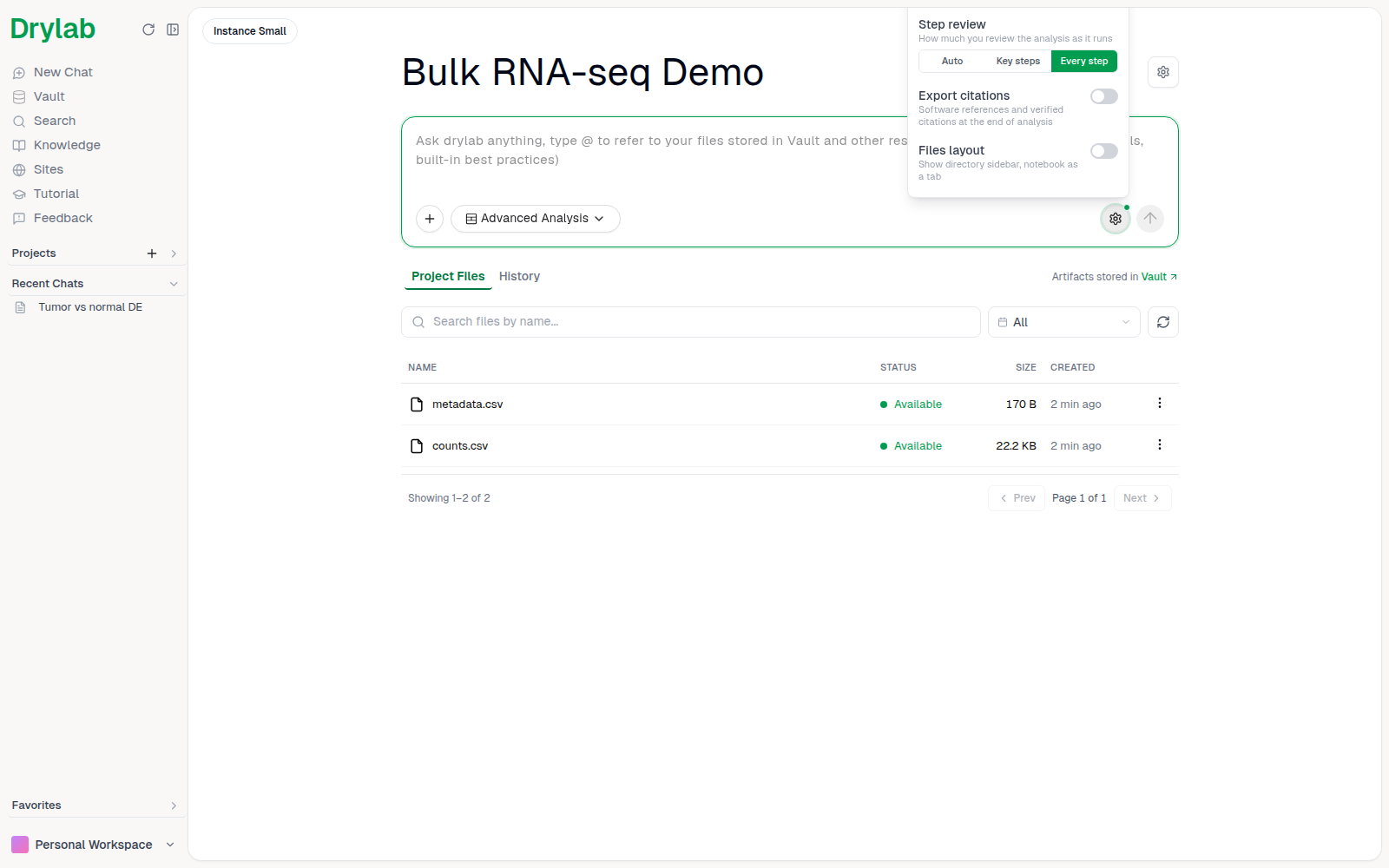
When Drylab pauses, a Review step before continuing card shows what the step did and what comes next. Approve it to carry on, or ask for changes. See Plans and Questions.
Steer or pause a run
While Drylab is working, the chatbox reads "Send a message to steer the analysis...". Type a correction or an extra instruction and send it: the message is queued, and Drylab picks it up at the next opportunity. Click Pause to stop after the current action.
Related
Troubleshooting the Desktop App
Fix common Drylab Desktop problems: install and setup errors, projects that won't open, analyses that won't start and updates.
Mention Files and Resources
Type @ in the chatbox to point Drylab at your files and at built-in tools, workflows, pipelines, databases and atlases.