
Chat History
Find past analyses in Recent Chats or search, then reopen, rename, favorite, share or delete them, or fork a conversation to try another approach.
Every analysis you run is saved as a chat, with its conversation, notebook, figures and files.
Recent chats
Your latest chats appear under Recent Chats in the left sidebar. Click one to reopen it. Click Show more to see all chats.
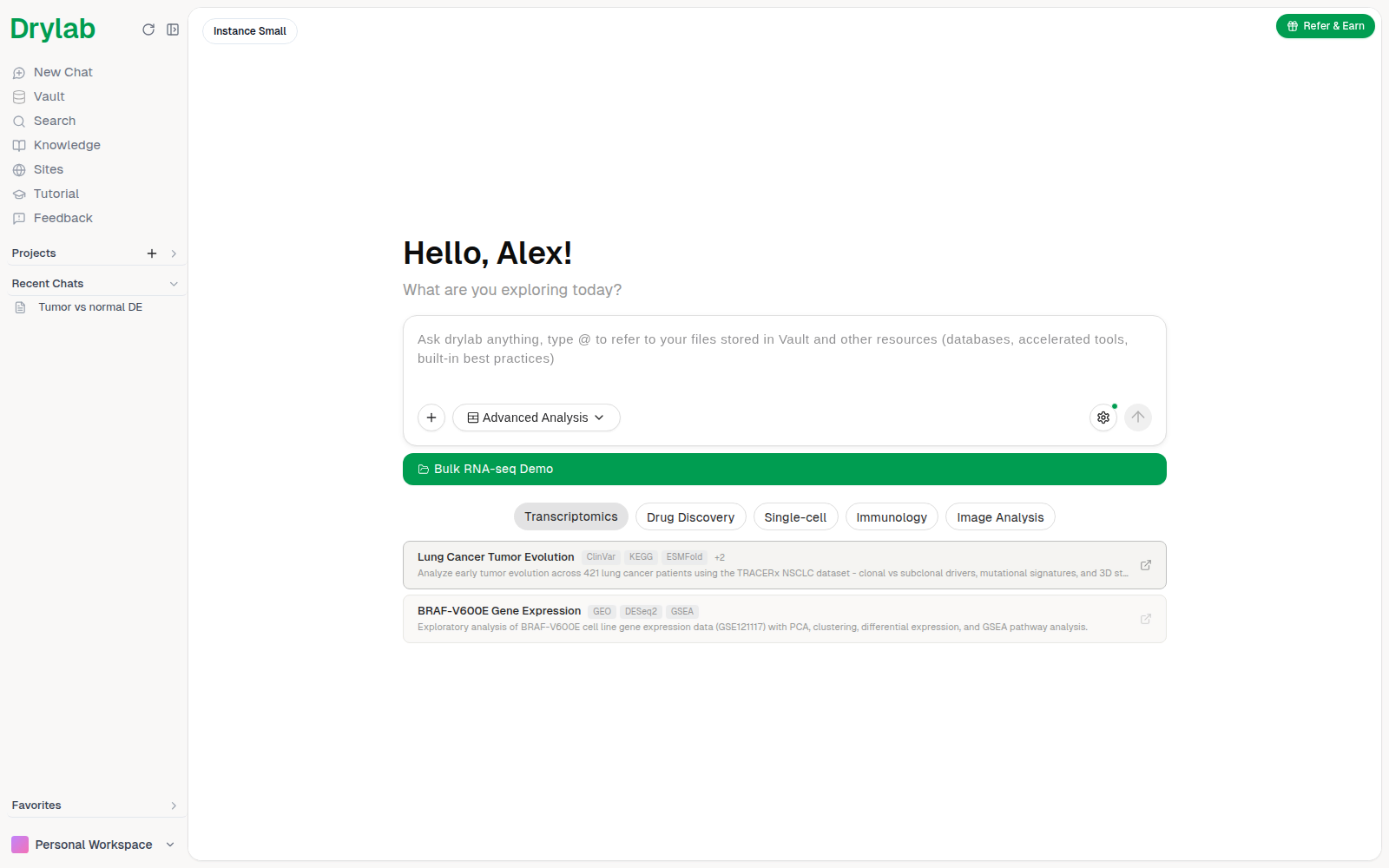
When you reopen a chat, the conversation, notebook and outputs are restored, and you can continue by typing a new message. Drylab keeps the context of what was done before.
Each project also lists its own chats in the History tab of the project page. See Projects.
Search
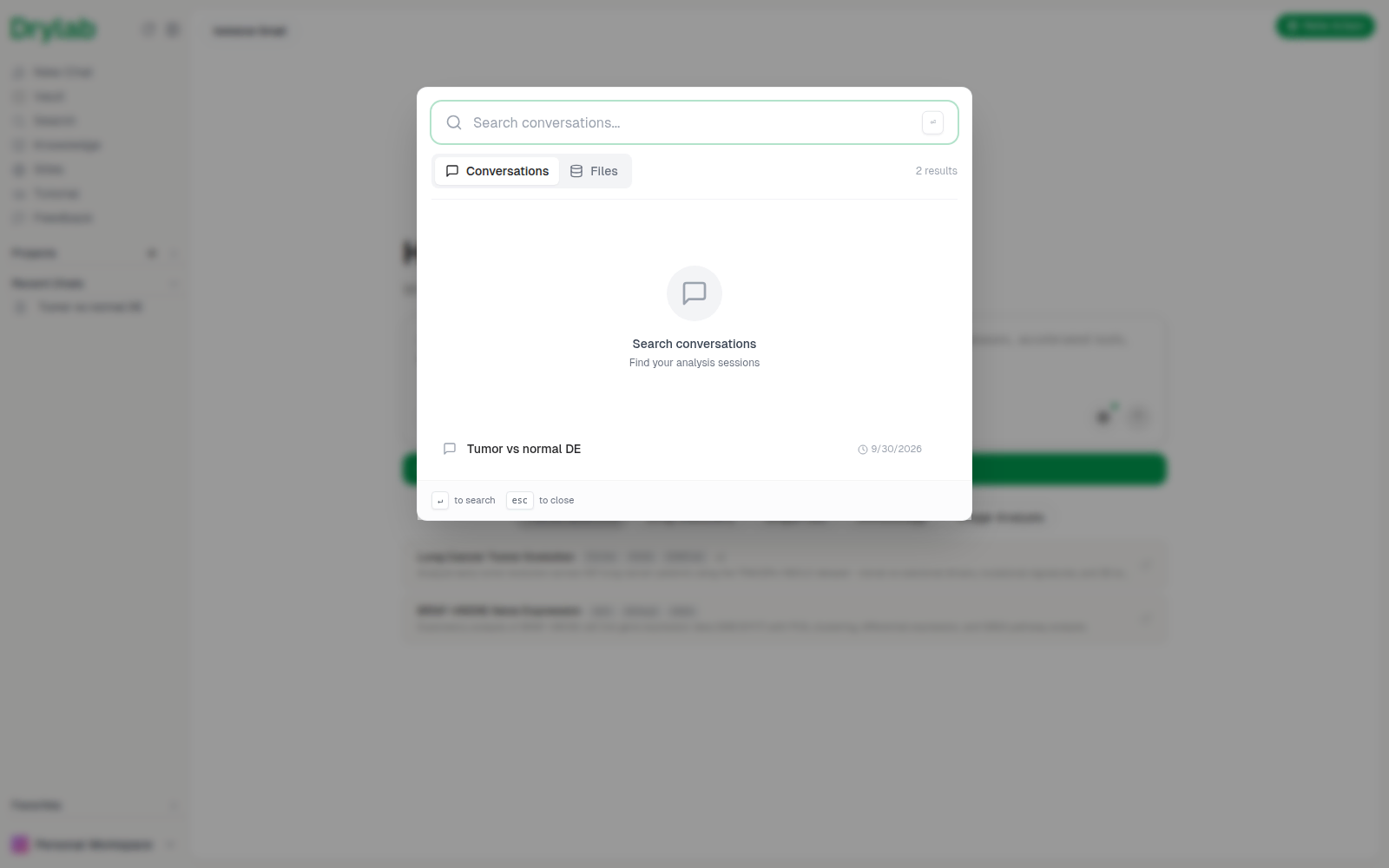
Click Search in the sidebar to find chats by title or content. Use the Conversations and Files tabs to switch between chats and files.
Session actions
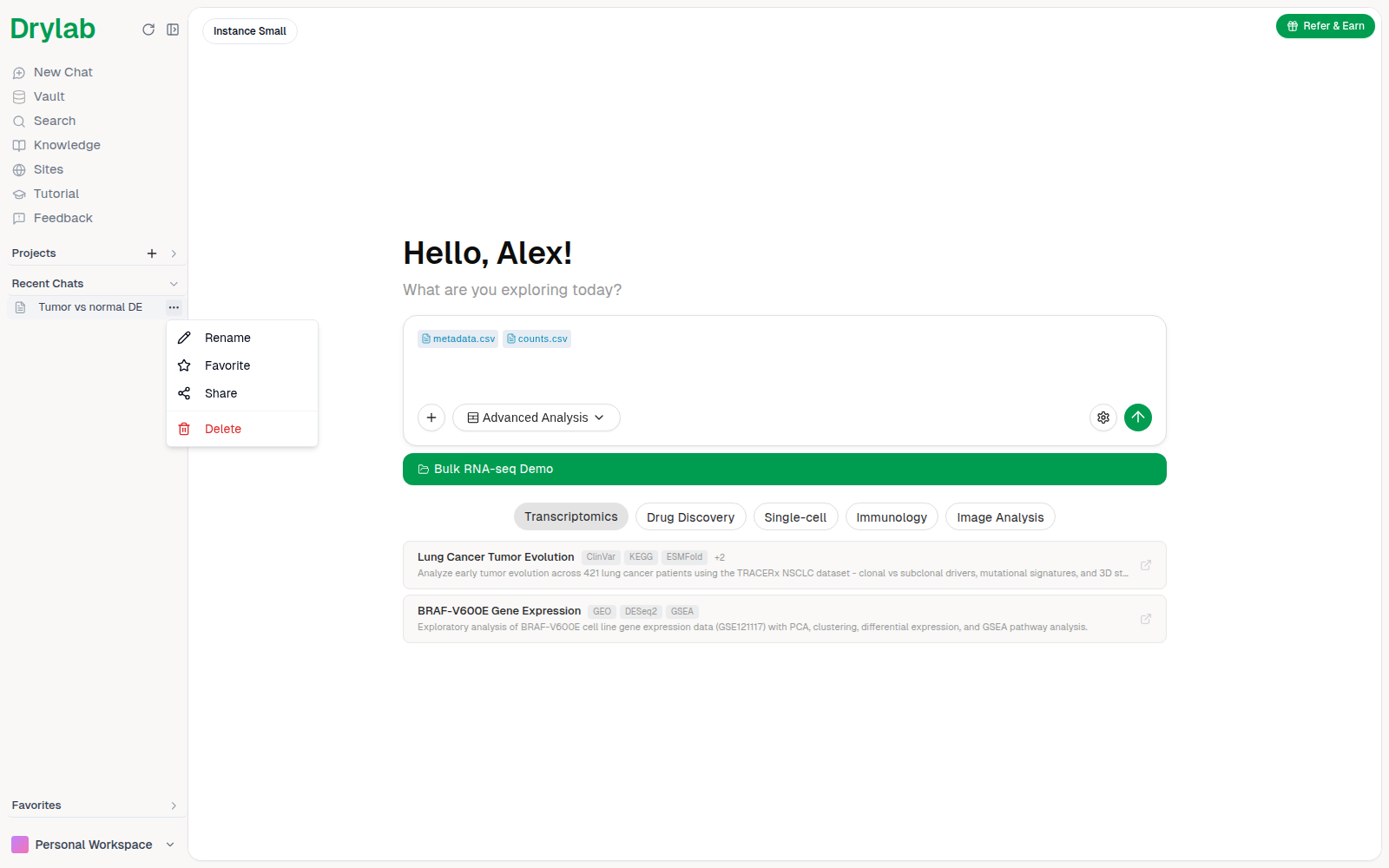
Hover a chat in the sidebar and click the ... (Session actions) button:
| Action | What it does |
|---|---|
| Rename | Give the chat a clearer name. |
| Favorite | Pin the chat under Favorites in the sidebar. |
| Share | Create a link to the chat. See Share. |
| Delete | Delete the chat. You can also choose to delete the files it produced. |
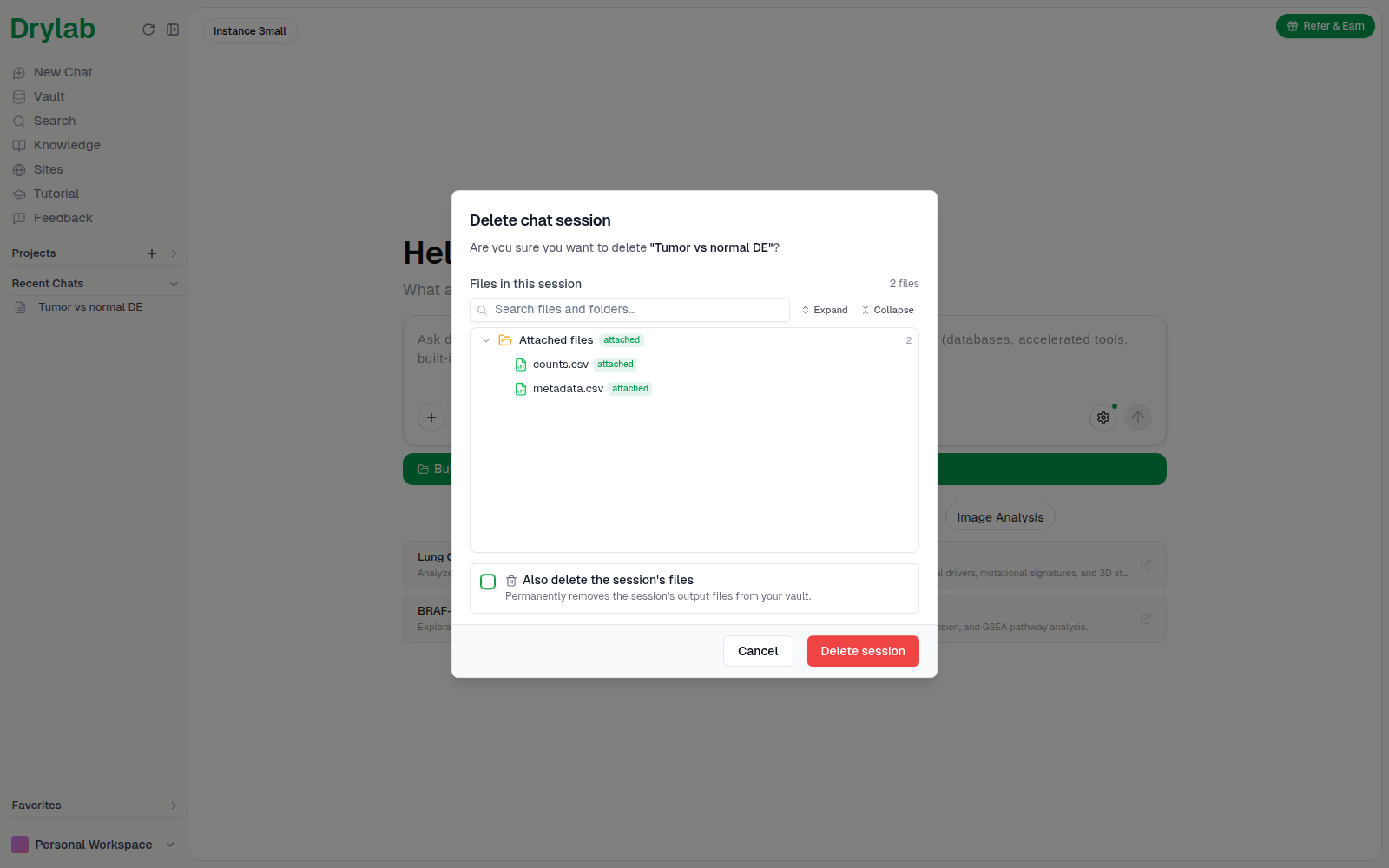
When you delete a chat, Delete chat session lists the files in the session. Leave Also delete the session's files unticked to keep them in your Vault, or tick it to permanently remove the session's output files. Then click Delete session. For chats created in the Desktop App, the checkbox removes the chat's folder from your computer.
Fork a conversation
Under an answer, click Fork. In Fork to new conversation, optionally rename the new chat, choose any extra files or folders to copy, then click Create forked conversation. The notebook and context up to that point are copied, so you can try a different approach without changing the original analysis.
Chats created in the Desktop App can only be forked from the Desktop App, and web chats only from the web app.