
Projects
A Project groups related analyses, files and notebooks. Create one per study so your work stays organized and easy to revisit.
A Project is a named workspace that groups related analyses, files and notebooks. Think of it as a folder for a research topic, experiment or study: everything that belongs to that work lives under one roof.
Why create a project?
- Organized files. Every file you upload to the project goes into its Project Files folder, and every analysis gets its own folder under History, all in your Vault.
- Continuity. Close Drylab, come back days later, and pick up where you left off. Files and notebooks persist between sessions.
- Focused context. The
@picker lists the files of the project you're working in, so it's quick to point Drylab at the right data.
The Default Project
New accounts start with a Default Project. If you don't pick a project, your chats and files go there. It's fine for quick questions and tests, but create a named project for ongoing studies so your files and history don't get mixed together.
| Situation | Create a project? |
|---|---|
| Quick one-off question or test | No, the Default Project is fine |
| Ongoing research study | Yes |
| Multi-step pipeline with real data | Yes |
| Work you'll share with collaborators | Yes |
| Analysis you'll come back to later | Yes |
Create a project
-
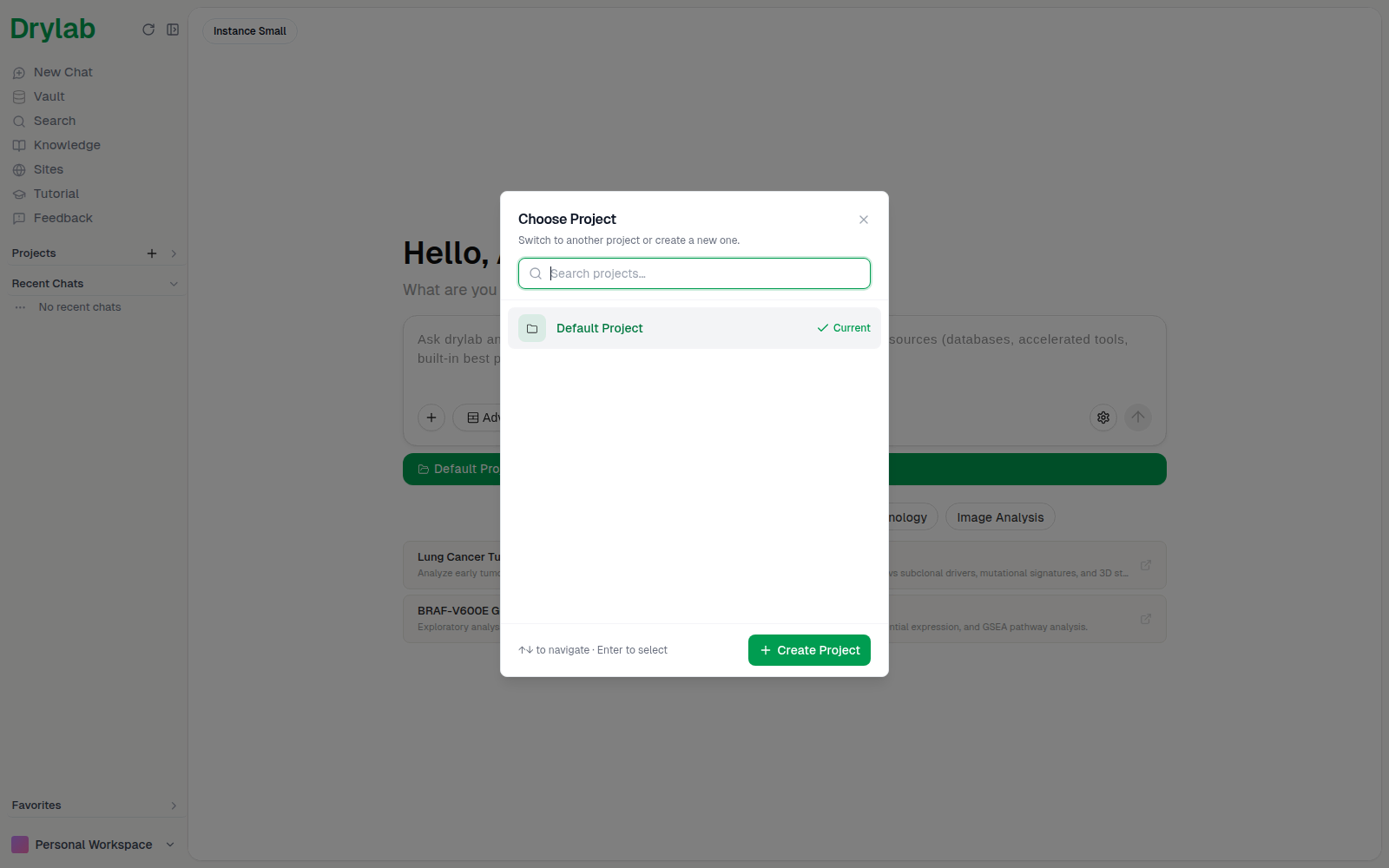
In the left sidebar, click + next to Projects (Add project). The Choose Project window lists your projects.
-
Click Create Project, enter a descriptive name (for example
Bulk RNA-seq DemoorLung Cancer scRNA-seq), and click Create Project. Names must be unique across your projects; if the name is taken, Drylab shows "A project with this name already exists".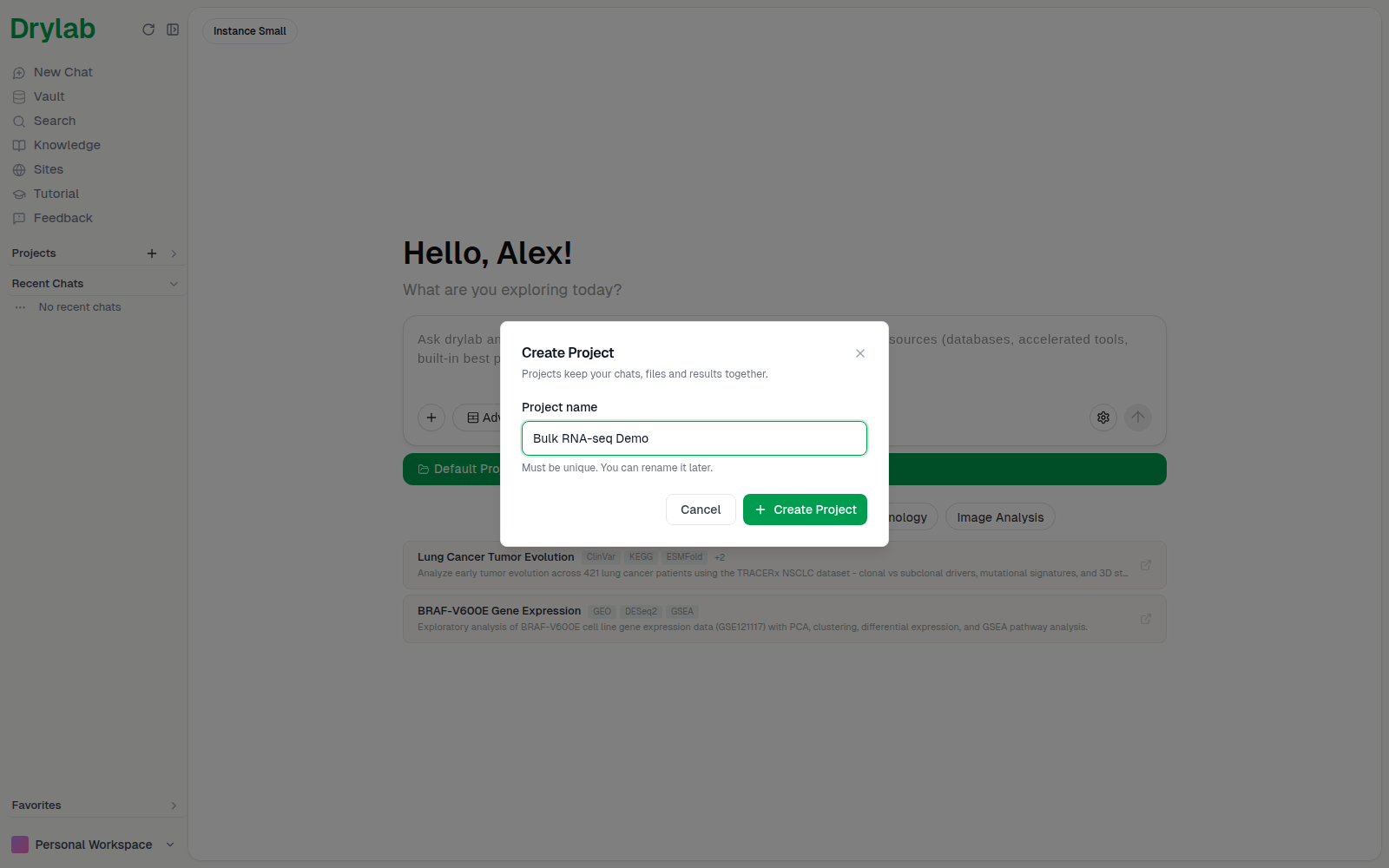
-
Drylab opens the new project page. Anything you start from here is saved in this project.
The project page
The project page has a chatbox at the top and two tabs:
- Project Files: files you uploaded to this project. Use Search files by name... to filter and Reload to refresh.
- History: every chat in this project, with its mode and when it was last updated.
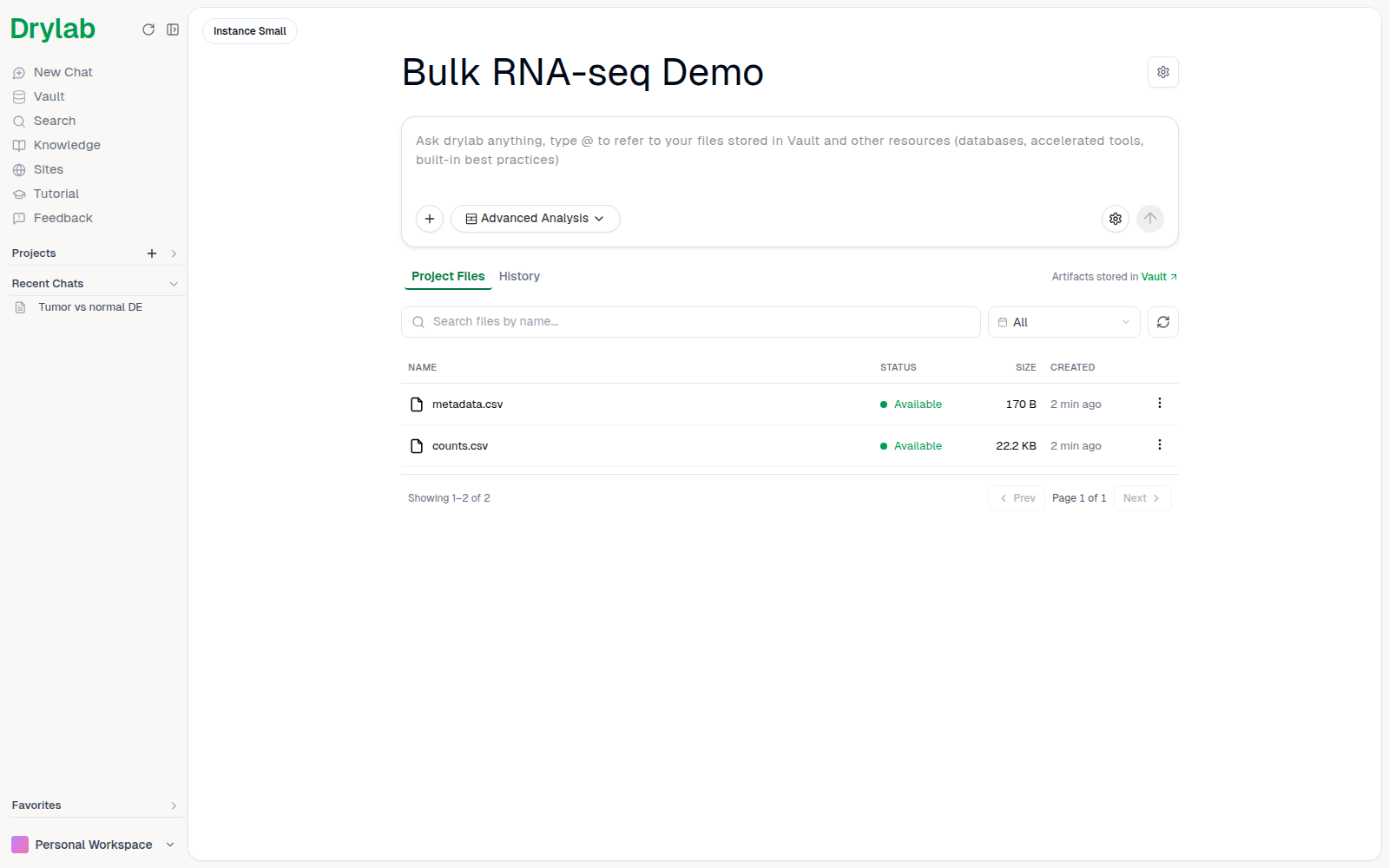
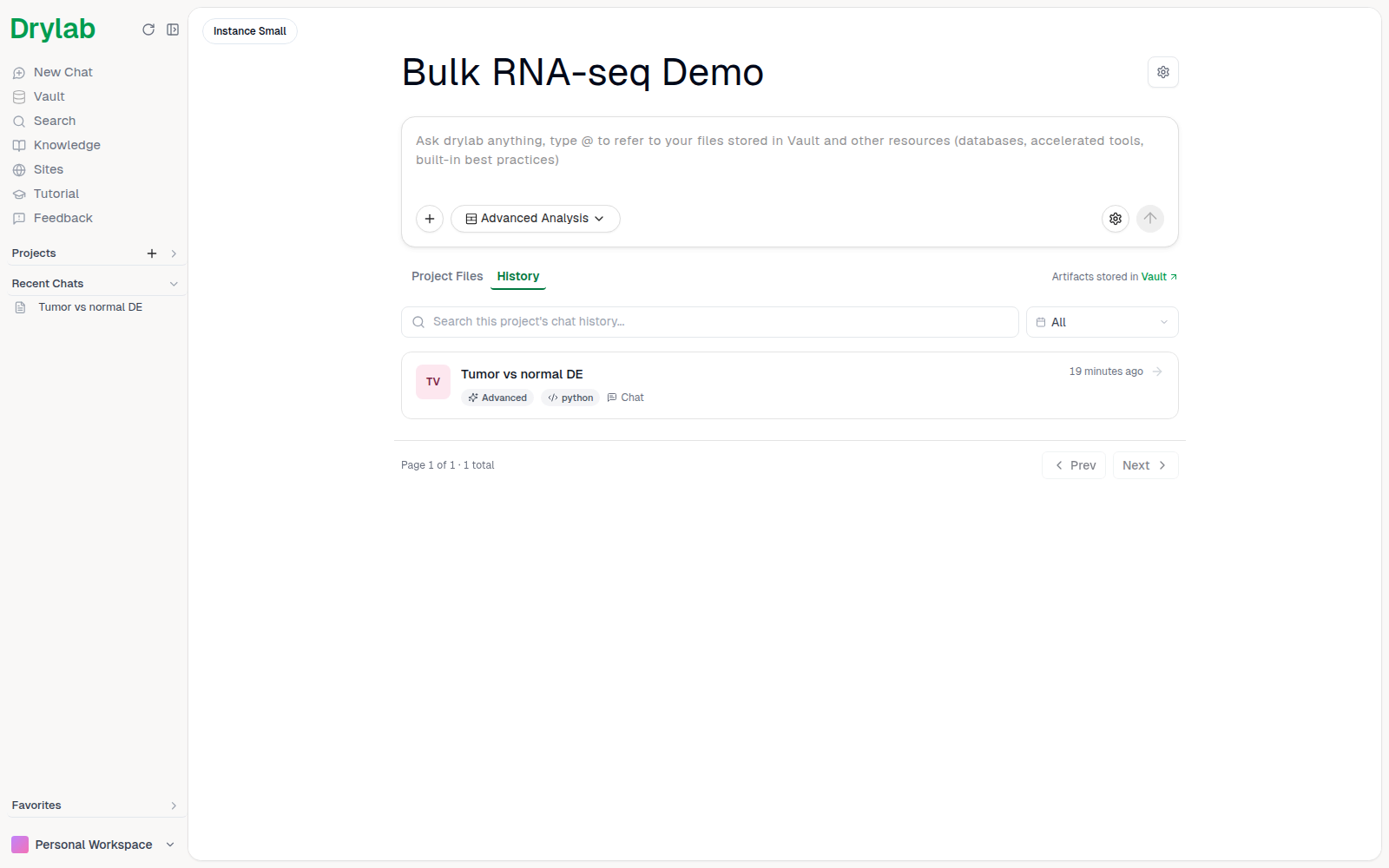
Files are stored in your Vault under the project folder:
Vault
└── Bulk RNA-seq Demo/
    ├── Project Files/        ← files you uploaded to the project
    └── History/
        └── Tumor vs normal DE/   ← one folder per chat, named after its original title
            ├── note.ipynb
            ├── figures/
            ├── tables/
            ├── scripts/
            └── data/
Larger analyses organize their outputs into subfolders such as figures/, tables/, scripts/ and data/; small ones may save files directly in the chat folder.
To switch projects from the home page, click the project name under the chatbox and choose another one.
Project settings
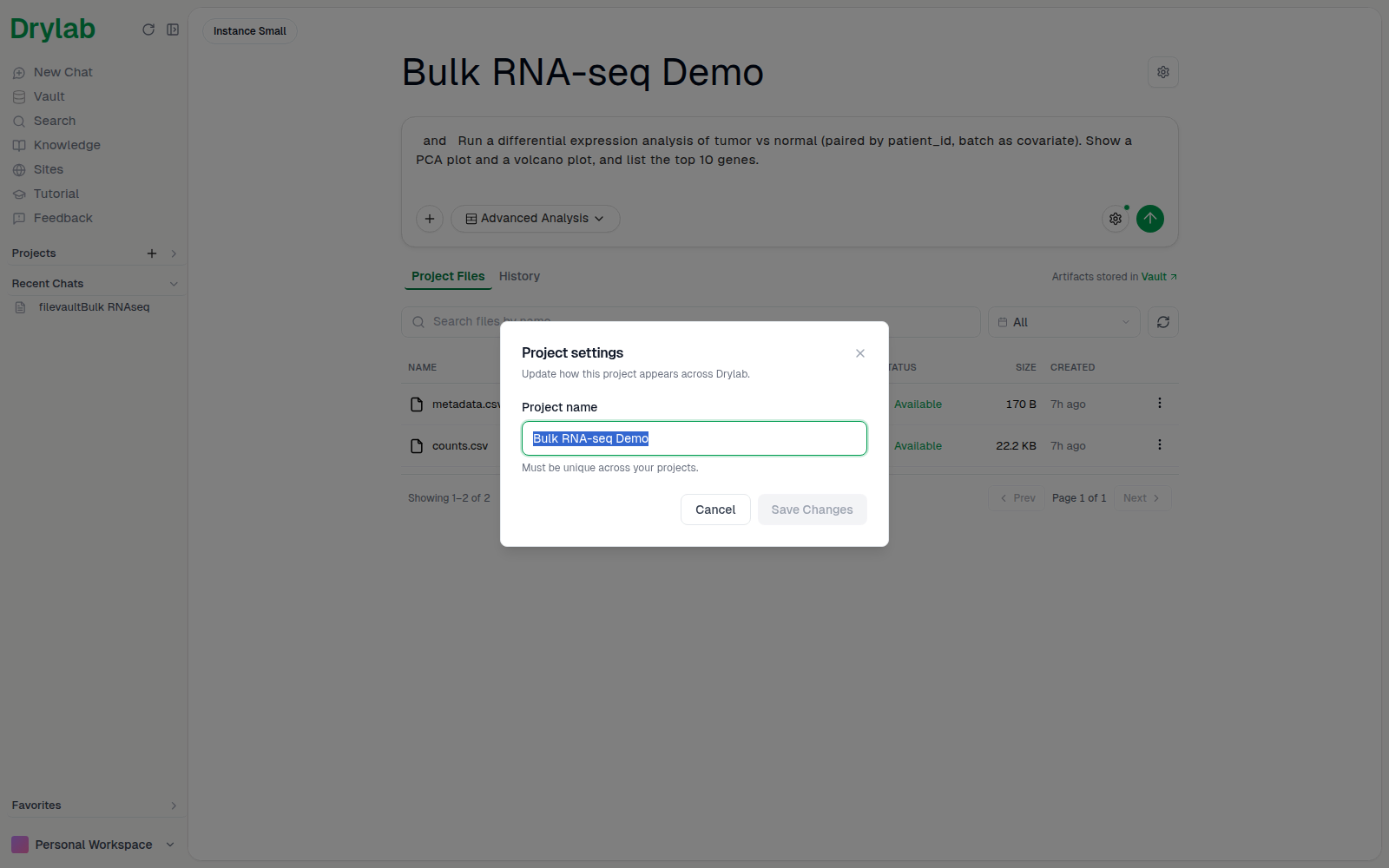
Click the settings icon next to the project name (Open project settings) to open Project settings and rename the project. Renaming changes the name shown in Drylab. The new name can't match another project's name, and can't contain / \ : * ? " < > | or end with a space or a period. The Default Project can't be renamed.
Sharing your work
Projects themselves are private to you. To show your results to others:
- Share a chat as a public or private link.
- Invite collaborators to an organization workspace (on plans that include organizations).