
Share
Send a link to an analysis so others can see the conversation, code, figures and files, and decide who can open it.
Sharing turns a chat into a link you can send to anyone. The people you send it to see how you got your result: your question, Drylab's plan and answers, the code it ran, the figures and the notebook, plus any files you choose to include. You don't need to export figures, zip folders or write up the steps.
Why share a chat
- Show your work. Send your PI or a collaborator the whole analysis, not just the final plot, so they can check each step.
- Back up a paper, poster or talk. Add a link so readers can see how a figure was made.
- Get feedback. Reviewers and core-facility staff can read the code and open the result files without a copy of your data.
- Hand off the work. Signed-in viewers can ask Drylab a follow-up question about your analysis in their own workspace, starting from your conversation.
What a shared link includes
A shared link is a snapshot of the chat at the moment you create it.
| Included | Stays private |
|---|---|
| The conversation up to the moment you share | Messages you add after sharing |
| The code, figures and notebook | Your custom instructions |
| The resources and references Drylab used | Files you don't tick |
| The files you tick when you share | The rest of your Vault and projects |
Viewers can't change your chat. Anything they ask happens in a new chat of their own.
Public or Private?
Every link is either Public or Private. You choose when you create it.
| Public | Private | |
|---|---|---|
| Who can open it | Anyone with the link | Only the people whose emails you add, and you |
| Viewers need to sign in | No | Yes, with an email you added |
| Change who can open it later | Not possible: revoke it and create a new link | Add or remove emails at any time |
| Good for | Papers, posters, talks, public forums | Lab members, collaborators, reviewers |
Not sure which to pick? Choose Private. You can add more people later.
Create a link
- Open the chat and click Share in the top bar. You can also choose Share from the chat's Session actions menu in the sidebar.
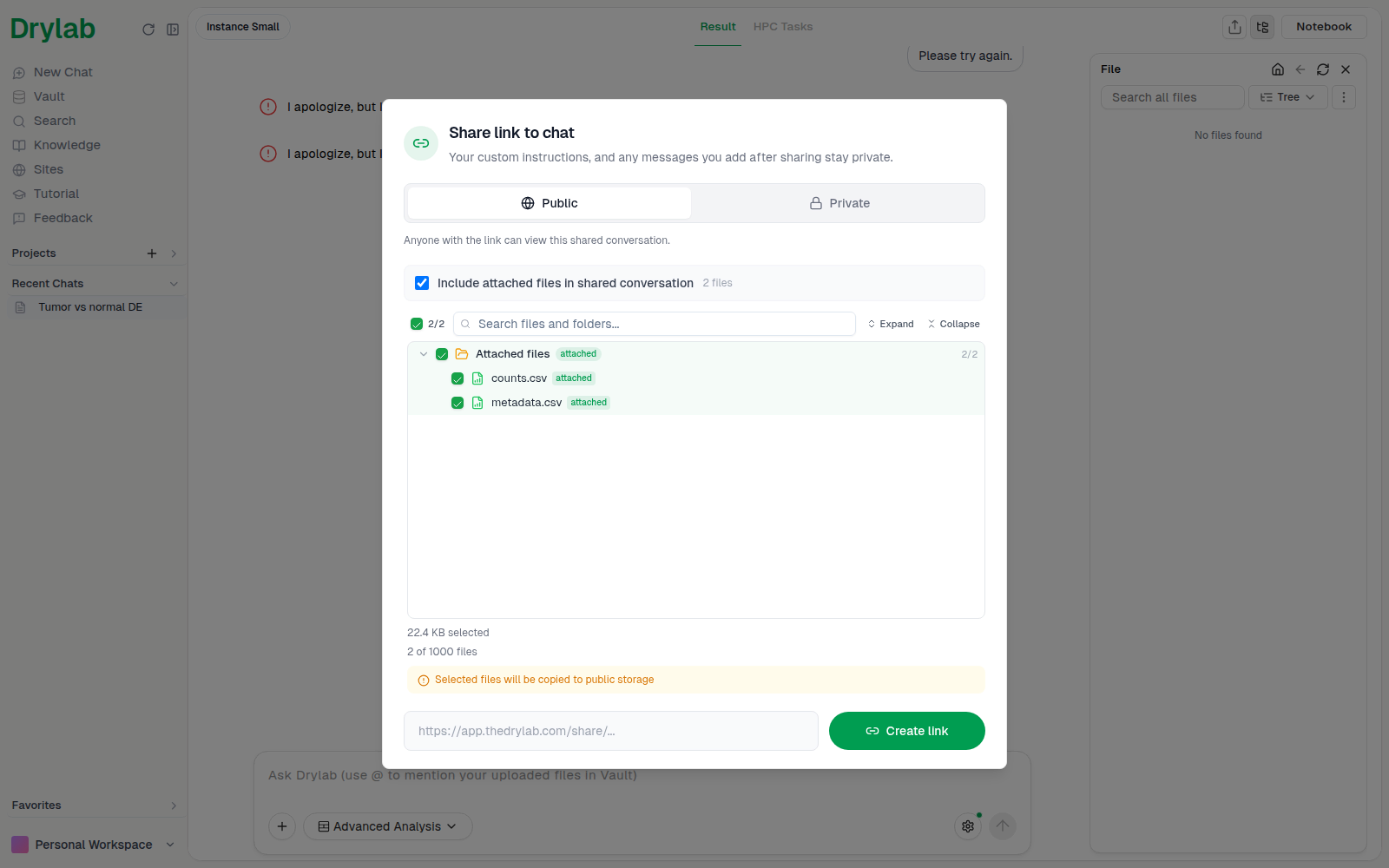
- In Share link to chat, choose Public or Private. For Private, add the viewers' emails under Allowed emails.
- If the chat has files, Include attached files in shared conversation is ticked and every file is selected. Untick the files you want to leave out, or untick the box to share only the conversation. Chats without files don't show this section.
- Click Create link.
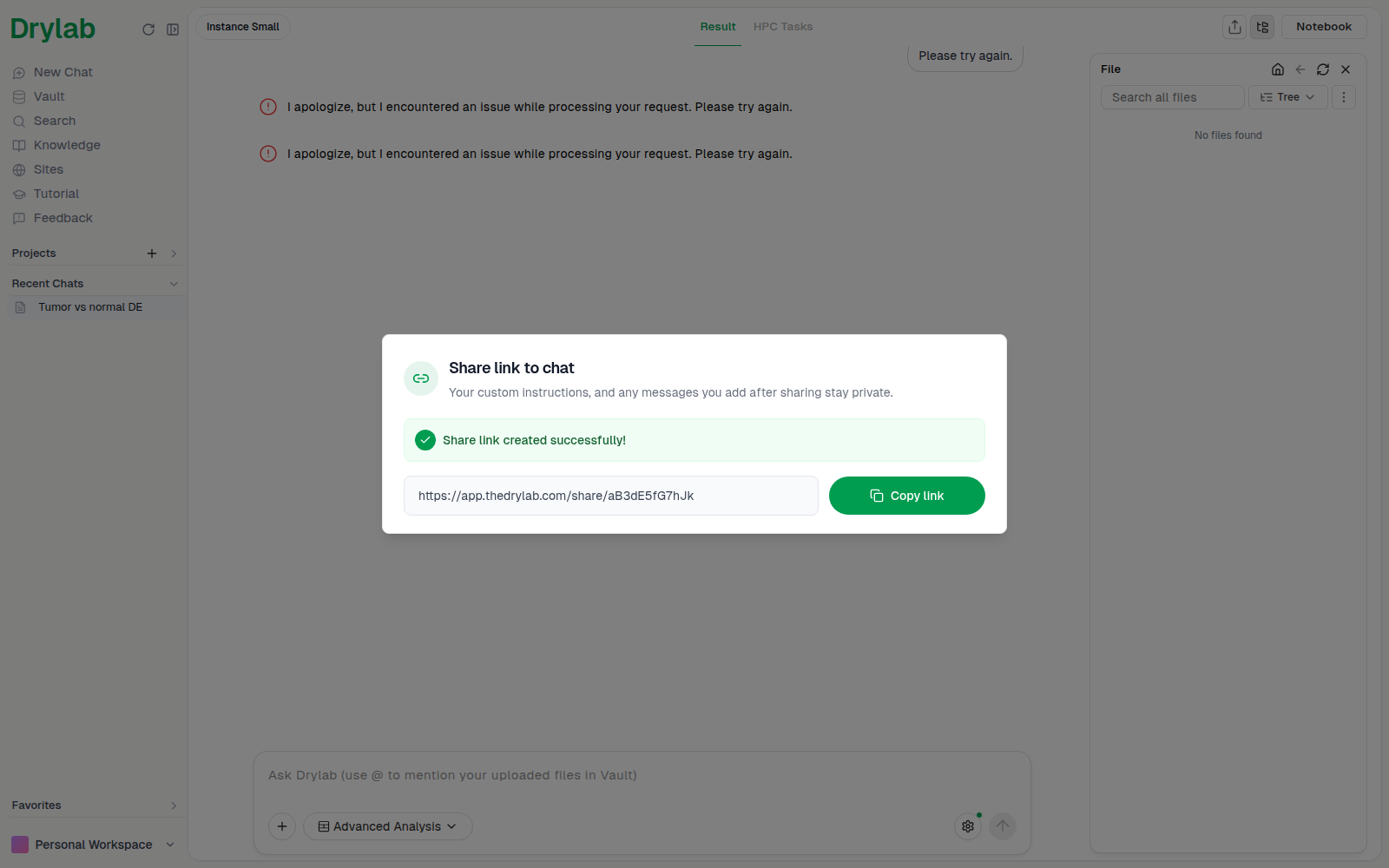
- When you see Share link created successfully!, click Copy link and send the link.
Public links
A public link says "Anyone with the link can view this shared conversation."
- Viewers don't need a Drylab account to read the chat or open the included files.
- Anyone who gets the link can open it, including people it was forwarded to.
- A public link stays public. To limit who can see it, revoke it and create a private link instead.
Private links
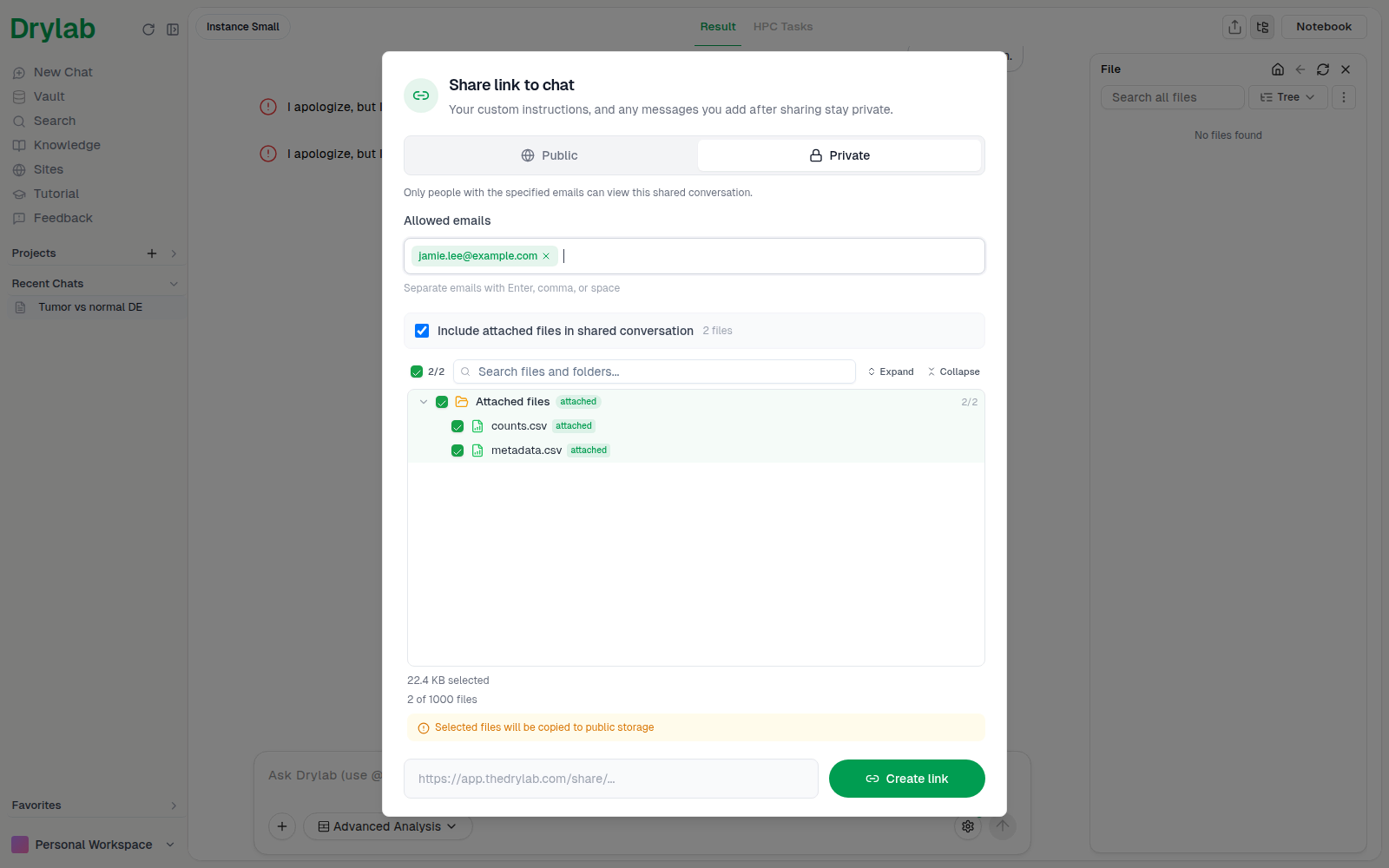
A private link says "Only people with the specified emails can view this shared conversation."
- Click Private.
- Under Allowed emails, type each viewer's email. Separate emails with Enter, a comma or a space; each one becomes a tag. Click the x on a tag to remove it.
- Add at least one email. Create link stays disabled until you do.
How viewers get in:
- Viewers sign in to Drylab with an email on the list. Capital letters don't matter.
- You can always open your own private links.
- Anyone else sees Access Denied: "This is a private share. Please contact the owner to request access." If they have access under another email, they can click Sign In and use that one.
Shared files
Include attached files in shared conversation (ticked by default when the chat has files) lets viewers open and download the files from your chat: figures, tables, notebooks and other results. Leave it unticked to share only the conversation; viewers then see "No resources shared".
- Files are copied into the share. If you change or delete your own files later, the share keeps the copies from when you shared. To send newer versions, update the share.
- The link works while files are still copying. For large selections, Drylab keeps copying in the background. You can close the dialog, and viewers see each file as soon as it's ready.
- Leave out dependency and cache folders. If you tick folders such as
node_modules,__pycache__or.venv, Drylab warns that they make sharing very slow and are rarely useful. Click Deselect these to drop them. - Up to 1,000 files. A share can include up to 1,000 files. If you select more, deselect some to continue.
Chats from the Desktop App
Files from Desktop App chats live on your computer. Share the chat from the Desktop App to include them: the files you select are uploaded securely from your computer so viewers can open and download them. If you share a Desktop App chat from the web app, only the conversation is shared.
Manage a shared link
Click Share again on a shared chat to open Manage shared link. It shows whether the link is Public or Private, the date you shared it, and the link.
- Click Copy to copy the link again.
- Click the Open share link icon to see the share as viewers do.
Change who can open a private link
- Under Allowed users, click Edit.
- Add emails, or click the x on a tag to remove someone.
- Click Save. You'll see "Allowed emails updated".
People you remove lose access the next time they open the link. If you remove everyone, only you can view the share.
Public links have no list to edit. To switch a link between Public and Private, revoke it and create a new one.
Update the files or the chat
For chats created in the web app, click Update share to change what the link includes. The link stays the same and keeps working while files sync.
- Tick or untick files. The summary shows how many are added and removed.
- To show viewers your latest messages, tick Also update the chat to the latest in this session.
- Click Review update, then Update share.
If some files couldn't be copied, click Resync files to try them again.
Revoke a link
Click Revoke share link, then Revoke to confirm.
What viewers see
Viewers see the conversation read-only, as it was when you shared it:
- the messages, code and figures,
- the resources and references Drylab used,
- the notebook and the files you included, which they can preview and download. Files larger than 100 MB can't be previewed, so viewers download them instead.
Follow-up questions
Signed-in viewers can type a follow-up question under the shared chat. It starts a new chat in their own workspace with the context of your conversation, so your chat isn't changed. They can also copy the included files into their own Vault to keep working with them.
Viewers who aren't signed in are invited to sign in first.
Chat History
Find past analyses in Recent Chats or search, then reopen, rename, favorite, share or delete them, or fork a conversation to try another approach.
Overview
Every Drylab chat has a Jupyter notebook that records the code, outputs and notes of your analysis, so you can review, edit, rerun and export it.