
Storage
Upload Files
Upload files to Drylab from the chatbox, a project page or Storage, follow their status until they're ready, and check the size limits.
You can upload from the chatbox (quickest when you're about to ask a question about the file), from a project page, or from Storage (best for organizing data in advance).
From the chatbox
- Click + (Upload files or mention resources) in the chatbox.
- Choose Upload file or Upload folder and select what to upload.
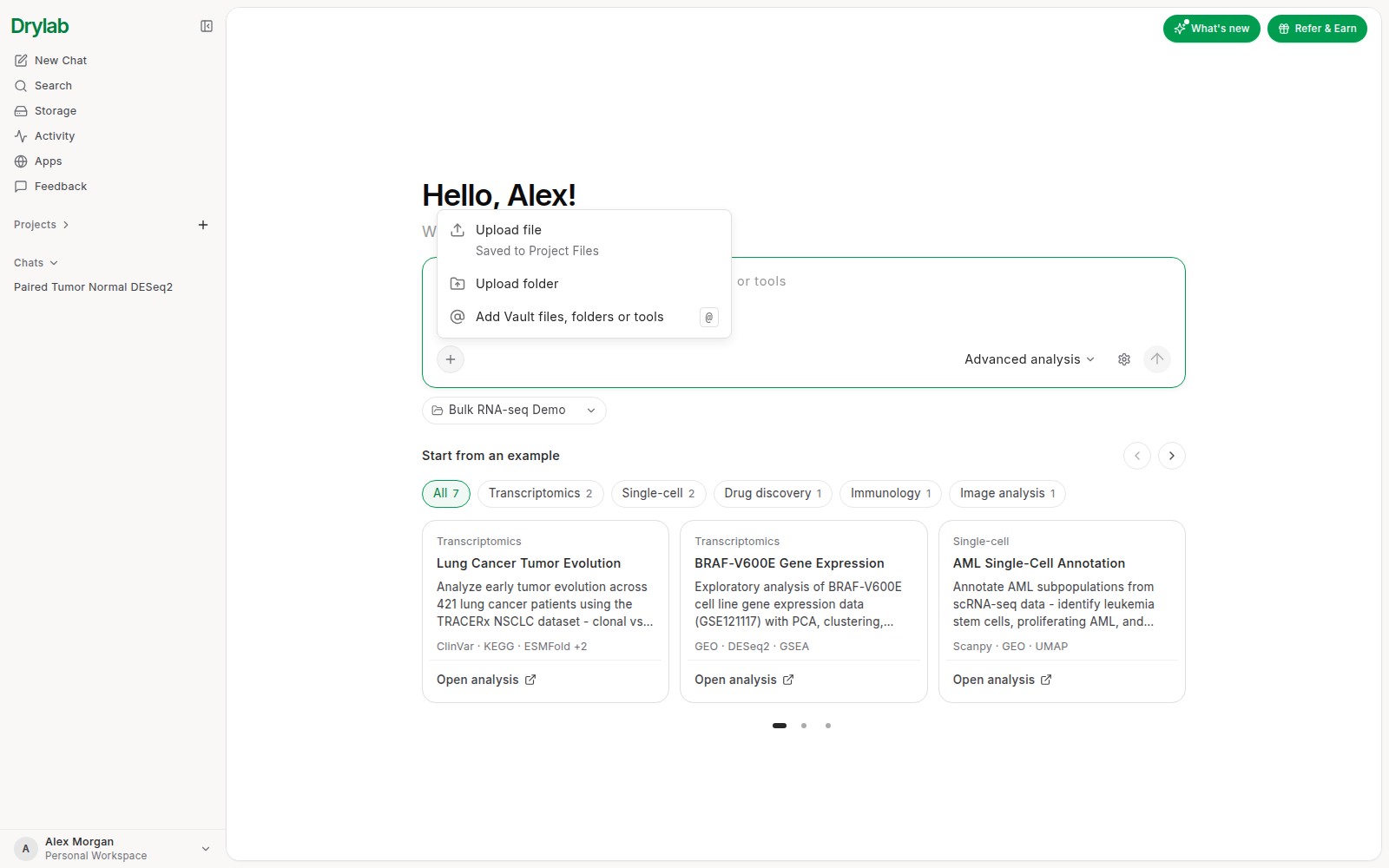
You can also drag files onto the chatbox, or paste images with Ctrl + V (Cmd + V on macOS).
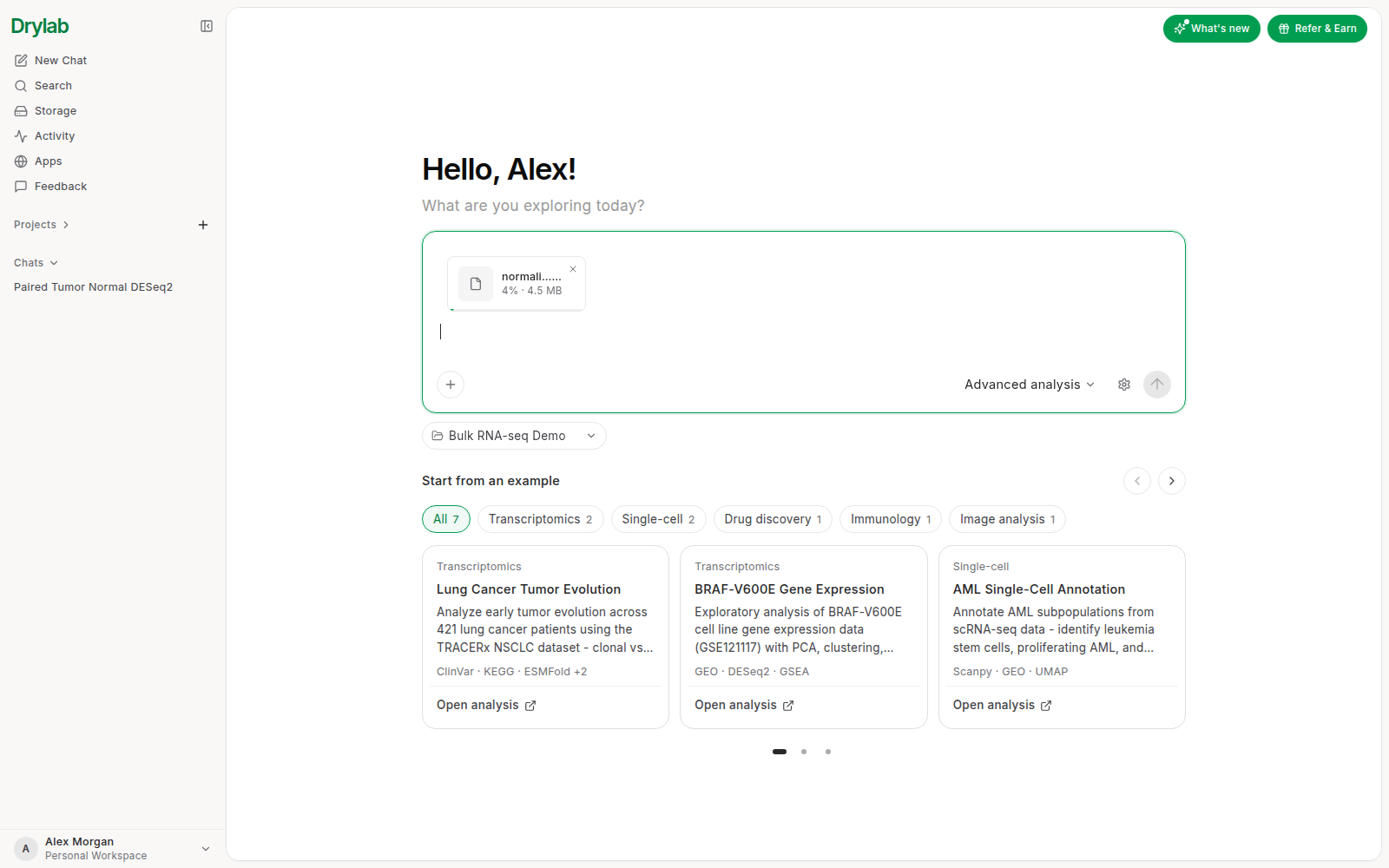
While a file uploads, a card above the text shows its name and progress. When it's done, the card turns into an @ mention of the file in your message, at the place you dropped it.
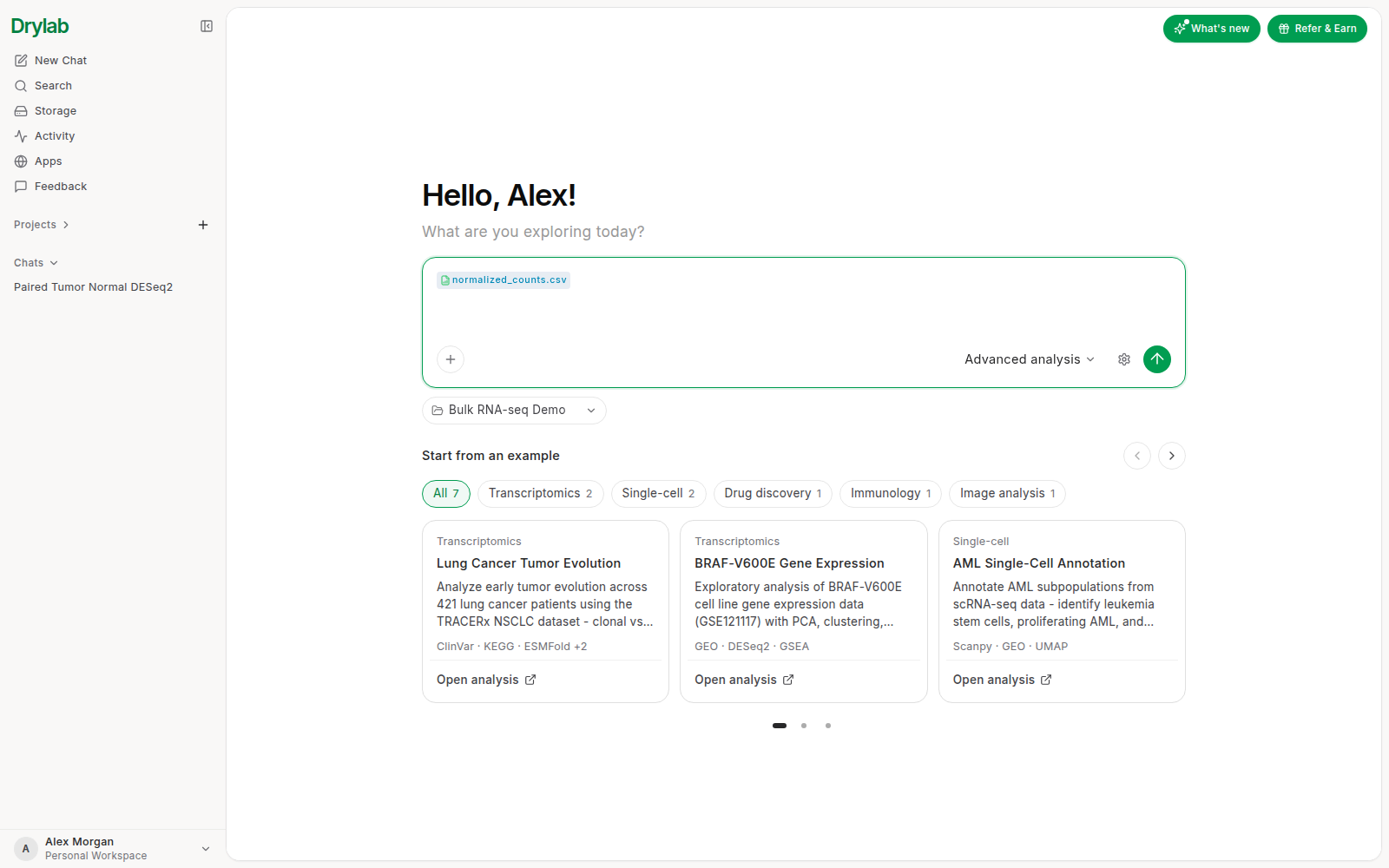
- Pasted images become an image mention too. Drylab still sends the picture itself, so it can look at it. In the sent message, hover or tap the mention to see the image; click it to open it full size.
- If you send before an upload finishes, Drylab waits and tells you, for example "Waiting for counts.csv (40%). Send again when it's ready." Click Send without it to send right away without that file.
- If an upload fails, the card shows a short reason (such as File too large, Storage full or Connection lost). Retry or remove it to send.
Files you upload from the chatbox go into the current project's Project Files folder (the Default Project if none is selected), so they show up in the @ picker for every chat in the project. See Mention Files and Resources.
From a project page
Open a project and click Add files, or open its Sources tab and click Add files there. Files go into the project's Project Files, and new chats in the project read up to 20 of them. See Projects.
From Storage
-
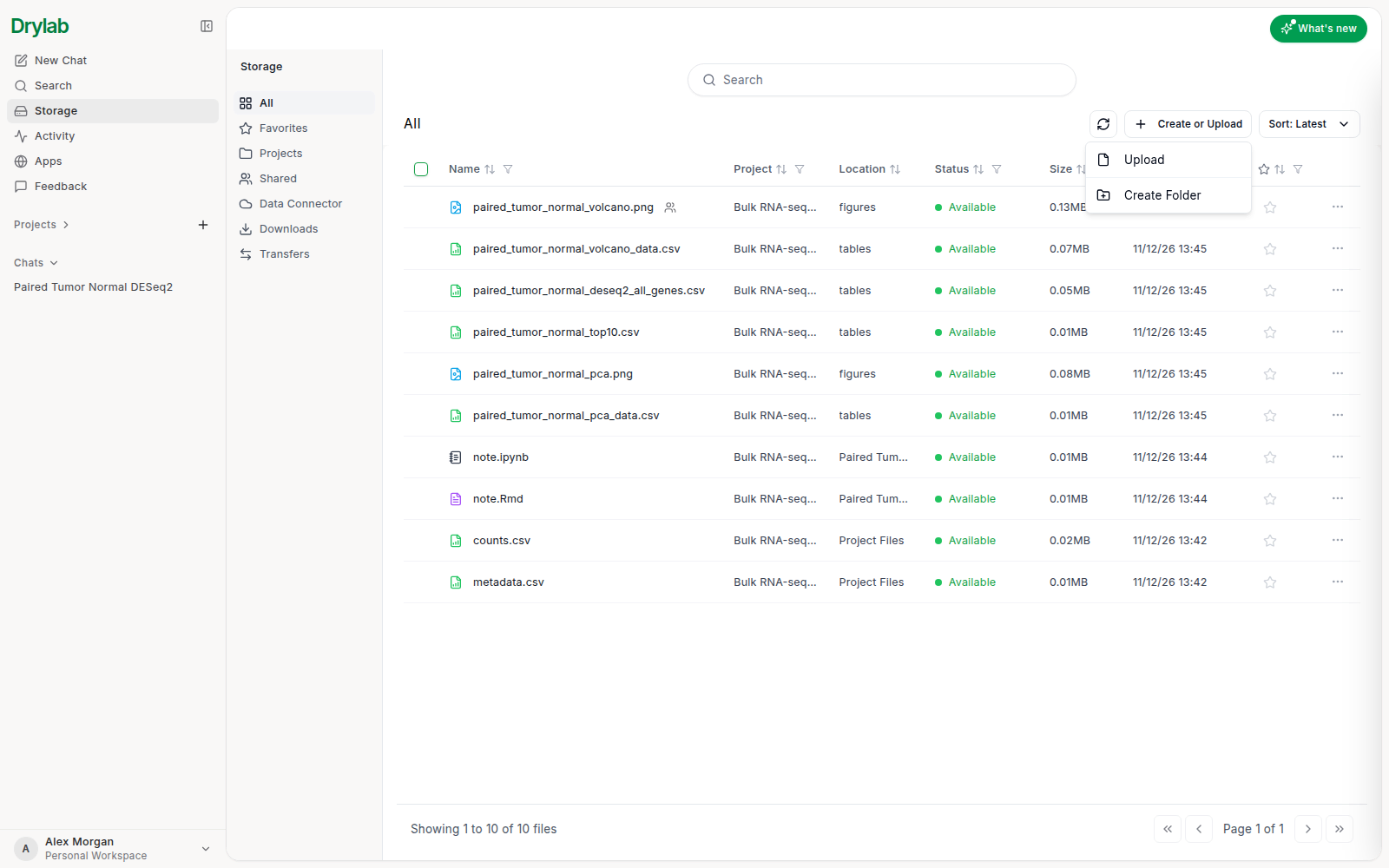
Open Storage and click Create or Upload.
-
Choose Upload (or Create Folder to make a new folder first).
-
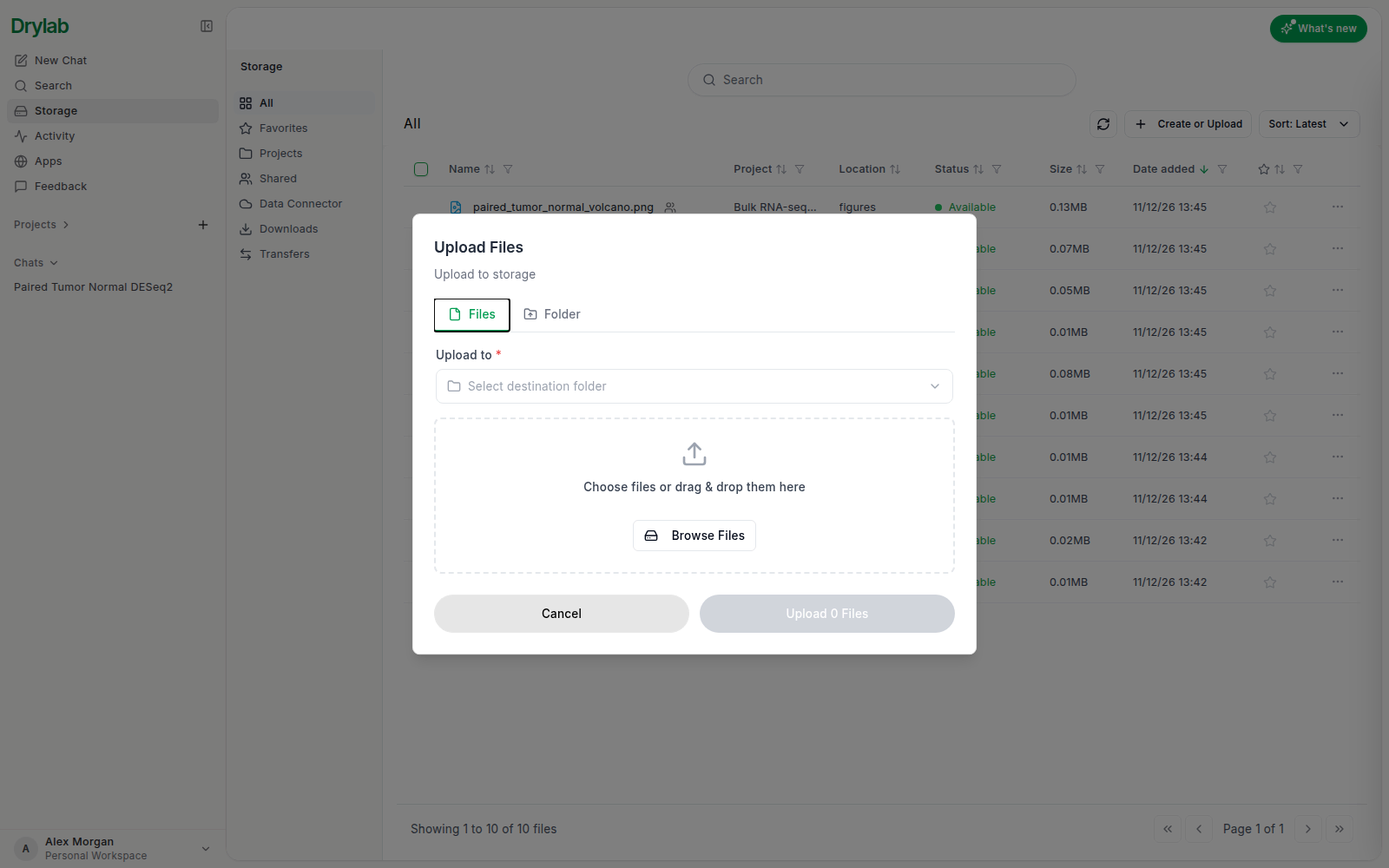
In Upload Files, choose Files or Folder, pick the destination under Upload to, then click Browse Files or drag and drop files into the window.
-
Click Upload N Files (or Upload Folder). New files show Uploading (sometimes Processing or Waiting) until they're ready, then Available.
If a file with the same name already exists
When a file you upload has the same name as one already in that folder, Upload options asks what to do:
- Replace existing file: the upload becomes the newest version of that file, and the old content is kept as an earlier version. When only one file clashes, you can name the new version in Name this version (optional). See File Versions.
- Keep both: the upload is saved as a separate copy with a new name, such as
counts (2).csv. - Skip this file: the file isn't uploaded.
When several files clash, choose one option for all of them (Replace all, Keep all, Skip all) or change it per file (Replace, Keep both, Skip), then click Upload.
Size limits
- Individual files can be up to 30 GB.
- Your plan sets your total storage and the maximum data size per analysis. If you go over, Drylab shows a message such as "Storage limit reached.", "Data size exceeds plan limit." or "File exceeds the upload size limit." See Usage.