
Get Help
Contact support, report a bug, replay a guided tour, or see what's new in Drylab.
Stuck, found a bug, or want to learn a feature step by step? Here's where to go.
Email or book a call
Open Settings > Help & Support: click your workspace at the bottom of the left sidebar, choose Settings, then Help & Support.
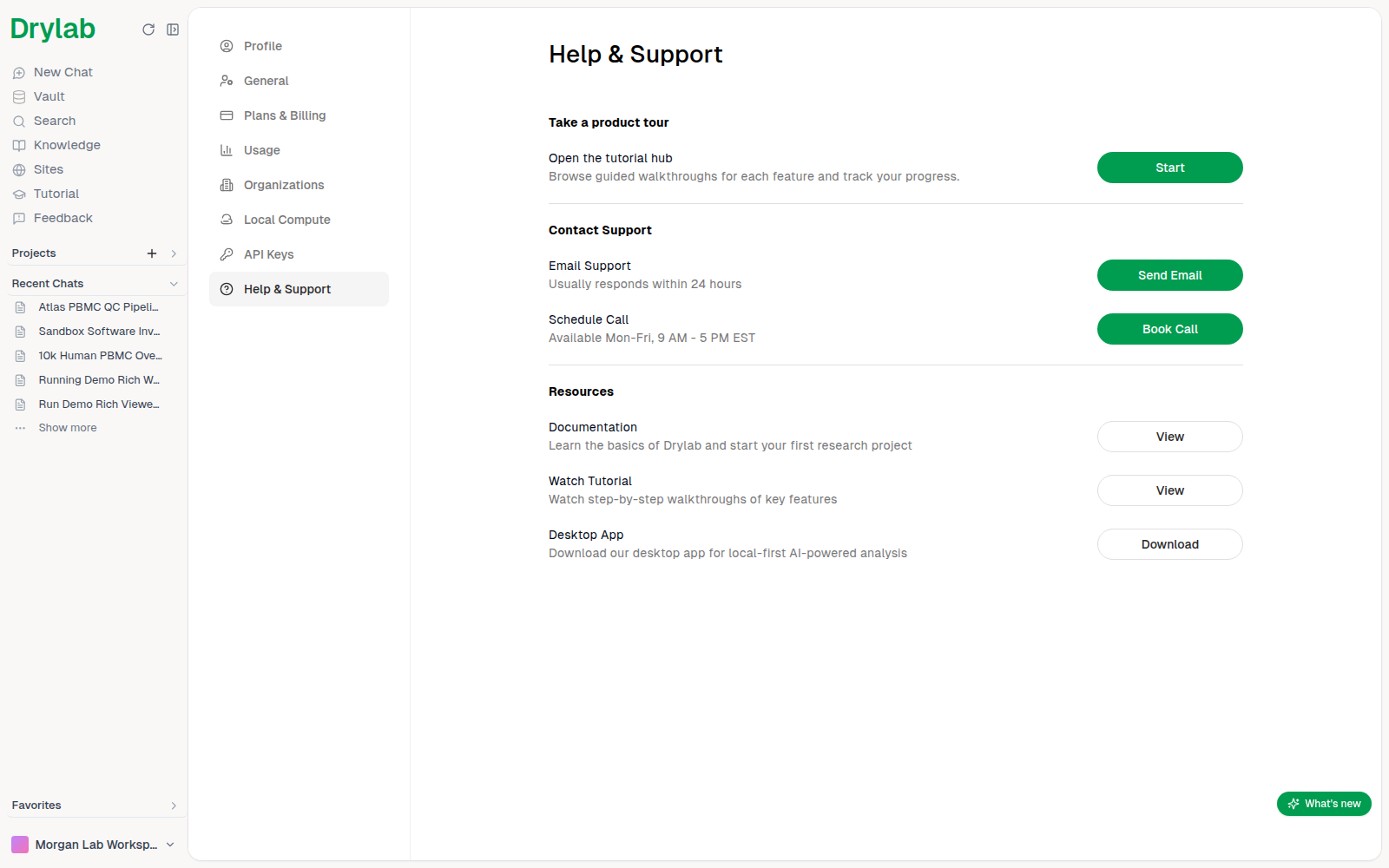
Under Contact Support:
| Option | What happens |
|---|---|
| Email Support | Click Send Email to write to support@thedrylab.com. Usually responds within 24 hours. |
| Schedule Call | Click Book Call to book a 30-minute call with the team. Available Mon-Fri, 9 AM - 5 PM EST. |
You can also email support@thedrylab.com directly. Include the chat name, what you expected and what happened.
Report a bug or share an idea
- Click Feedback in the left sidebar of the web app, or the Feedback & Bug Report button at the bottom right of the window (web and Desktop App, except in the Vault). Feedback & Bug Report opens.
- Describe the issue or your idea in Message.
- Optionally add screenshots: drop, paste (Ctrl/Cmd+V) or click Upload image. You can add up to 5 images, max 5 MB each.
- Click Send feedback.
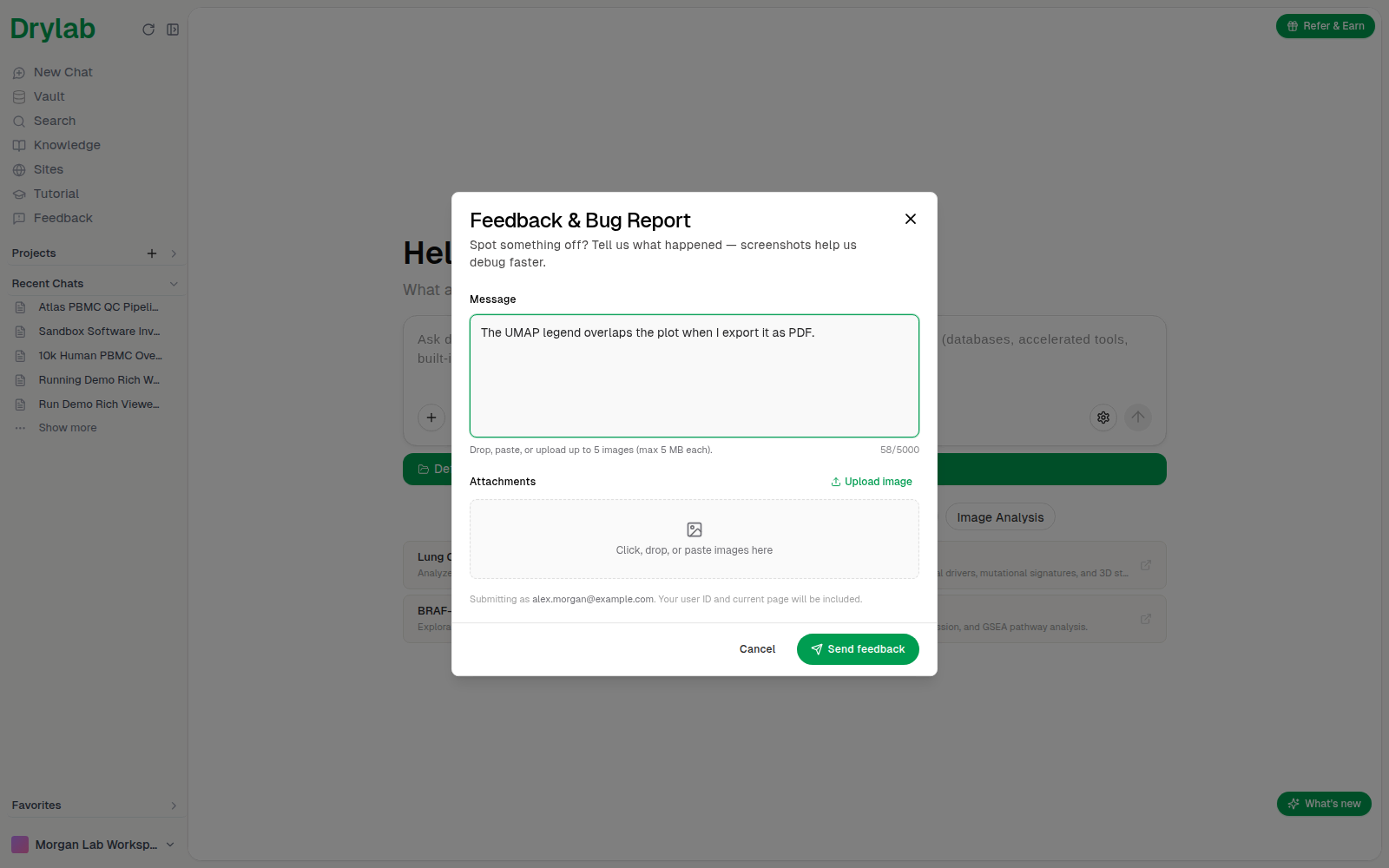
Your user ID and the page you're on are sent with the report, so the team can find the problem faster.
Learn with guided tours
In the web app, click Tutorial in the left sidebar to open Learn Drylab: short, interactive walkthroughs of Assistant & Mentions, Chat & Notebook, Your Vault and Share Your Work. Click a card to start it.
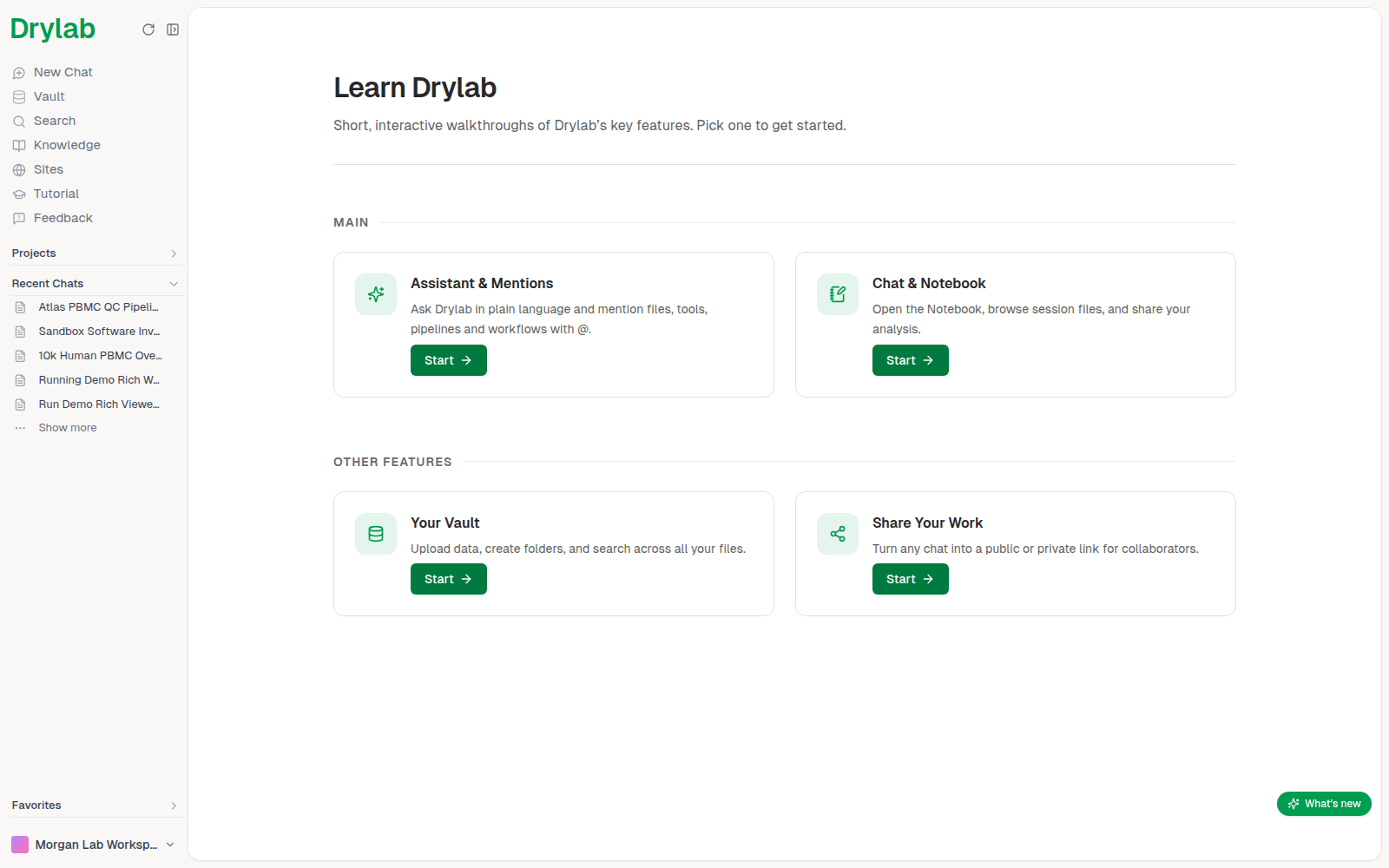
You can also get there from Settings > Help & Support: under Take a product tour, click Start next to Open the tutorial hub.
See what's new
When Drylab ships new features, a What's new window shows them once, with a short animation and how to use each one. Click Next to move to the next feature, and Got it on the last one to close it.
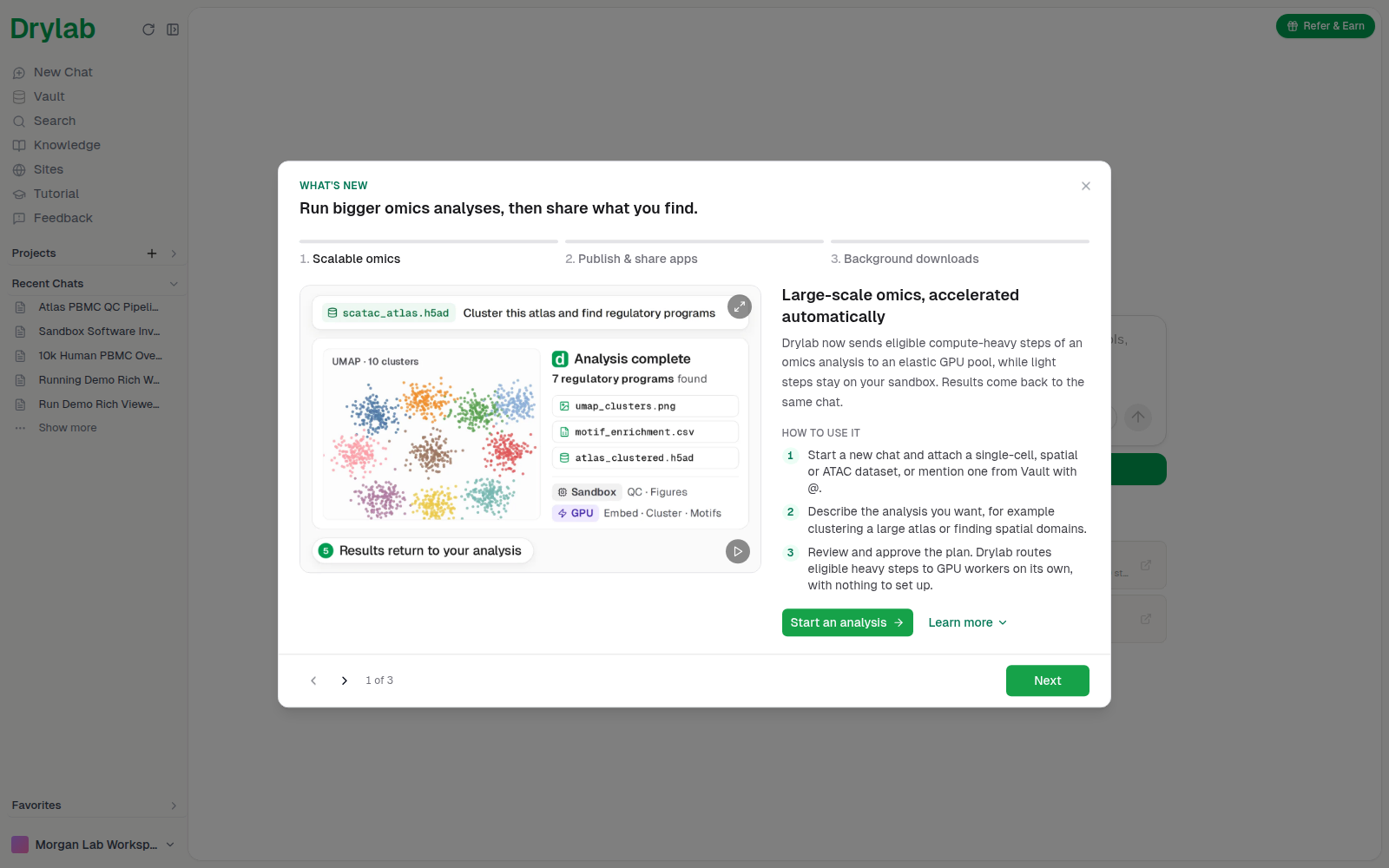
Closed it too soon? Click the green What's new button at the bottom right of the home page to open it again. The button doesn't show inside a chat or in the Vault.