
Organizations
Create an organization to work as a team: add members, cap their usage, review your plan's credits, and switch between workspaces.
An organization is your team space on Drylab. Teammates you add work inside a shared workspace that runs on your plan, and you decide how much each of them can use. Your organization also hosts Portal Apps, which share results with clients.
Organizations are included in the Lab Plus, Lab Pro and Enterprise plans. On other plans, Settings > Organizations shows an Upgrade Plan button instead of Create organization.
Before you start
- Use your own account. Members of someone else's organization can't create one.
- Each Drylab account can own one organization.
| Role | Who they are | What they can do |
|---|---|---|
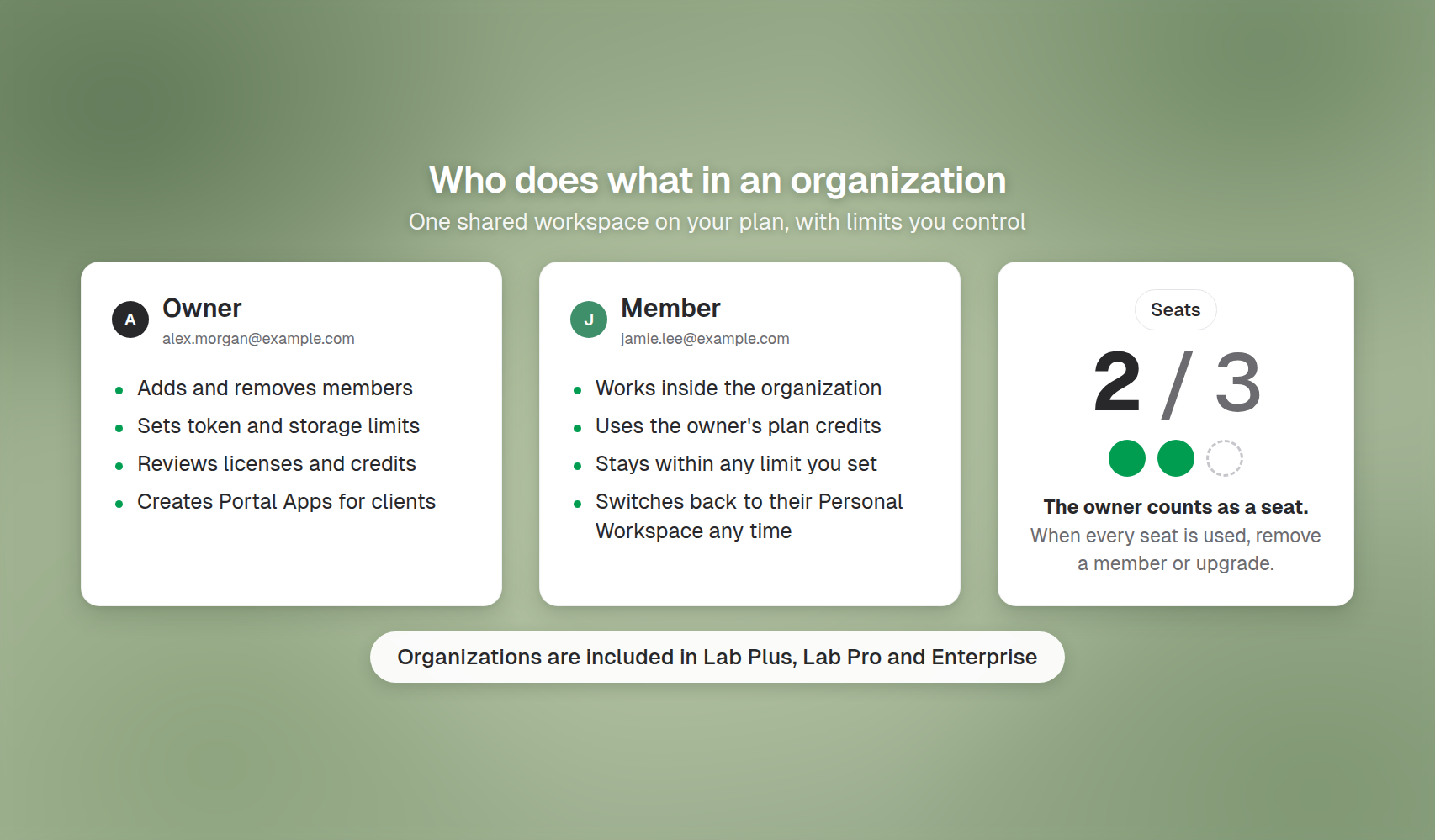
| Owner | You, the person who created the organization | Add and remove members, set usage limits, review credits, create Portal Apps |
| Member | A teammate you added | Works inside your organization and uses your plan's credits, within any limits you set |
Create your organization
- Click your profile in the bottom-left corner and open Settings.
- Select Organizations. If you don't have an organization yet, you see a Create organization button.
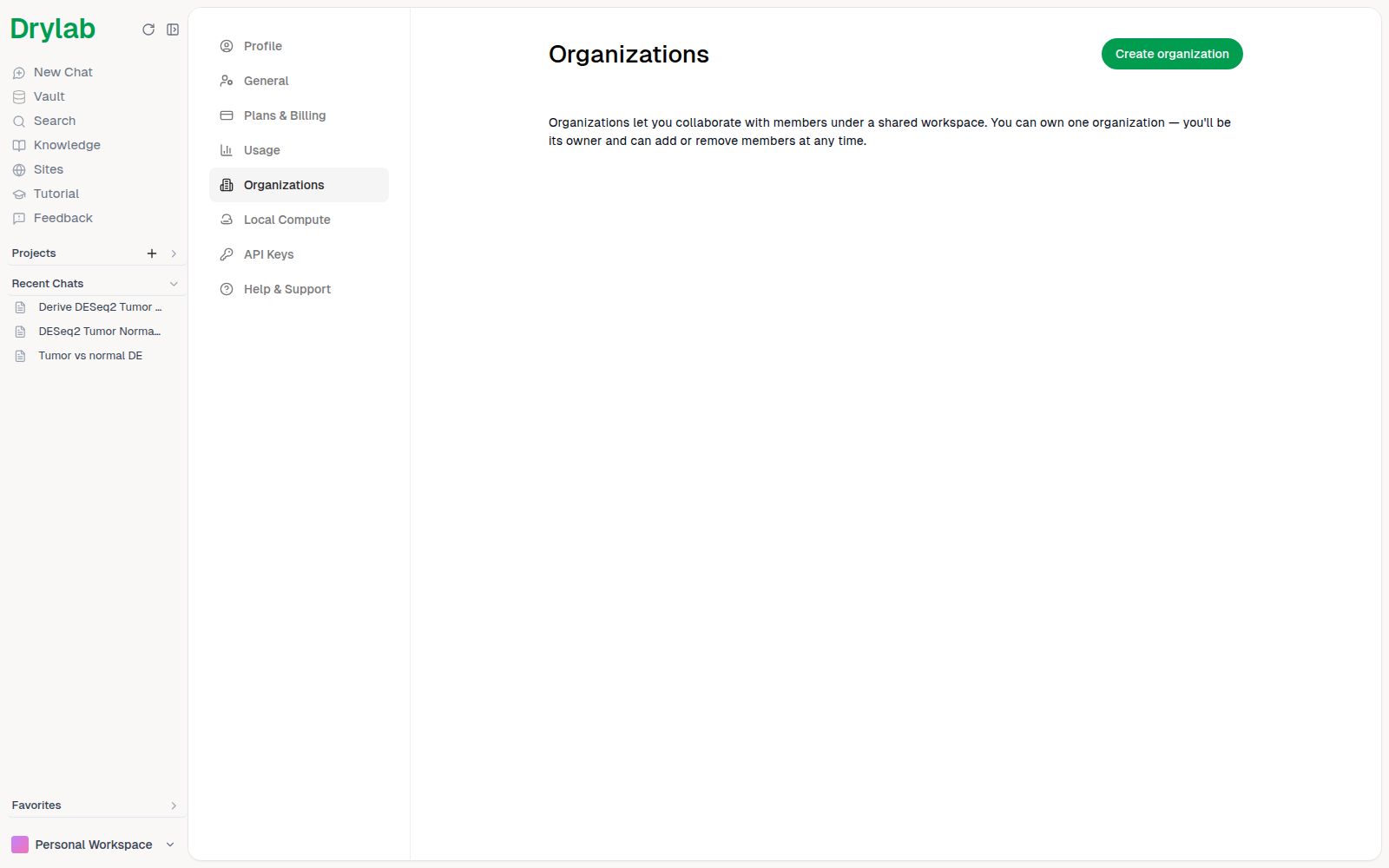
- Click Create organization.
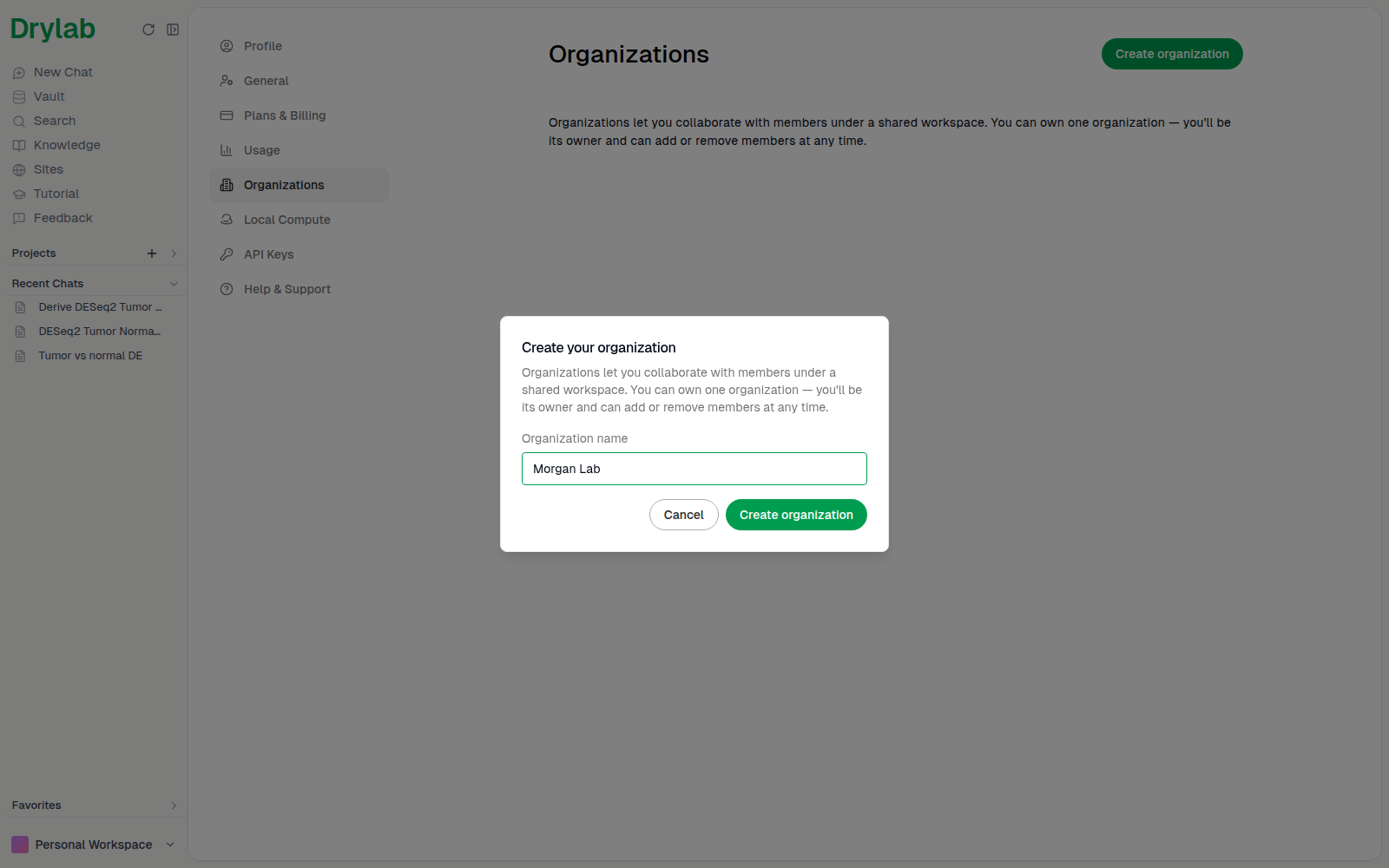
- Enter your Organization name, for example your lab or company name. Members and clients see this name, and it can't be changed later.
- Click Create organization.
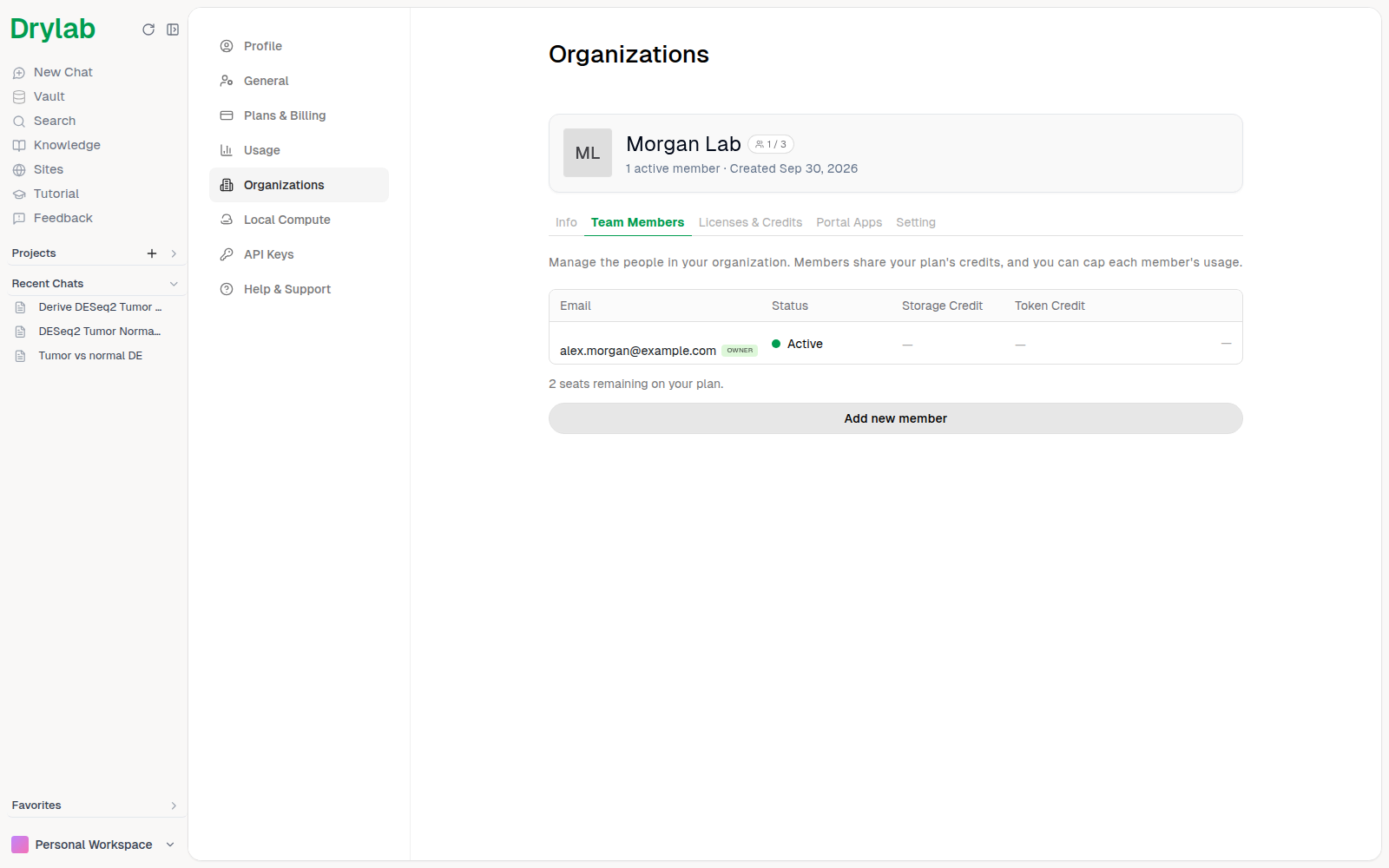
The page switches to your organization. The card at the top shows its name, the seats in use and the creation date, with five tabs below: Info, Team Members, Licenses & Credits, Portal Apps and Setting.
Add team members
- On the Team Members tab, click Add new member.
- Enter your teammate's email address under Invite by email.
- Click Add member.
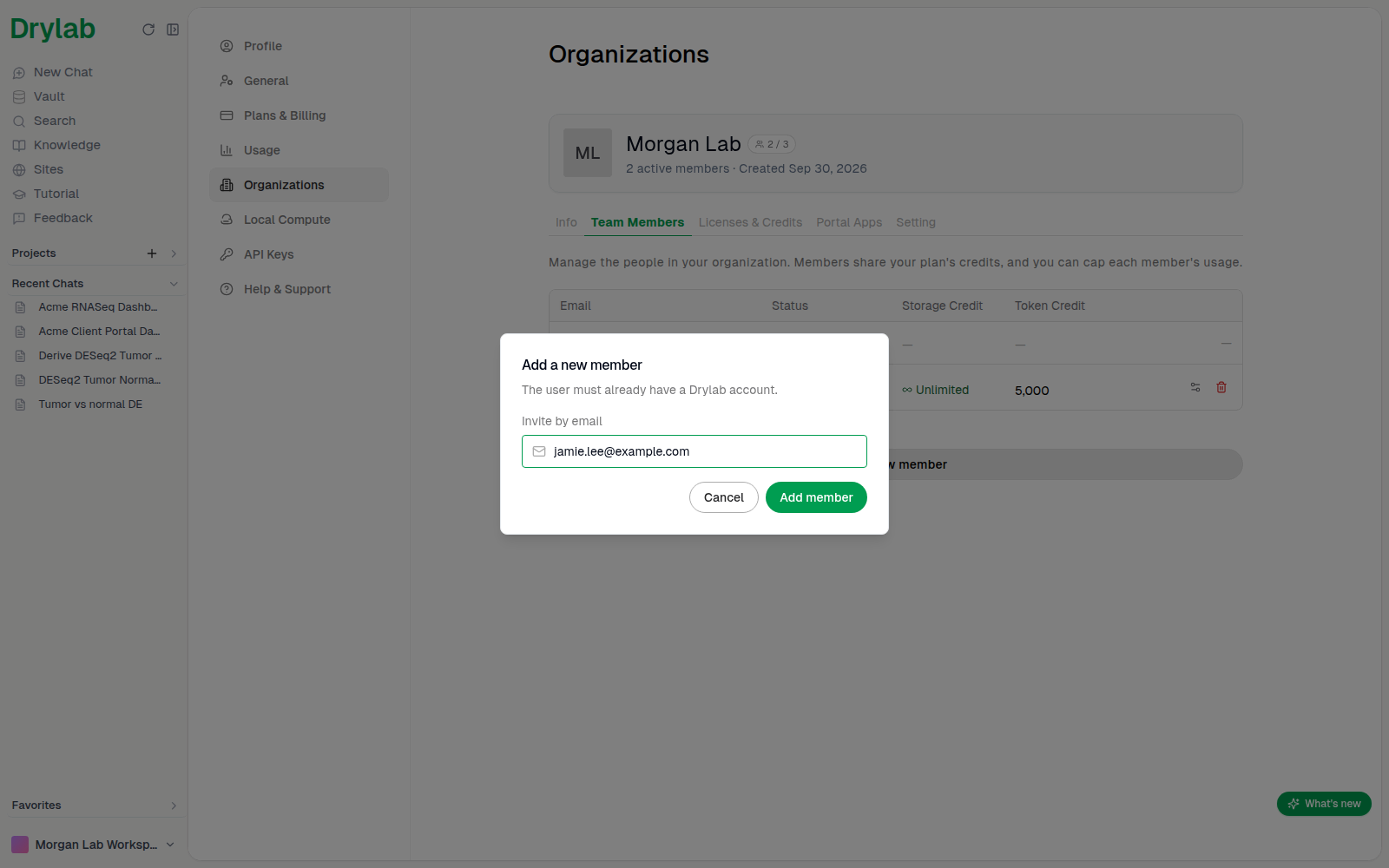
The person must already have a Drylab account. They appear in the table as Active, and by default they can use your plan's token and storage credits without a cap (Unlimited).
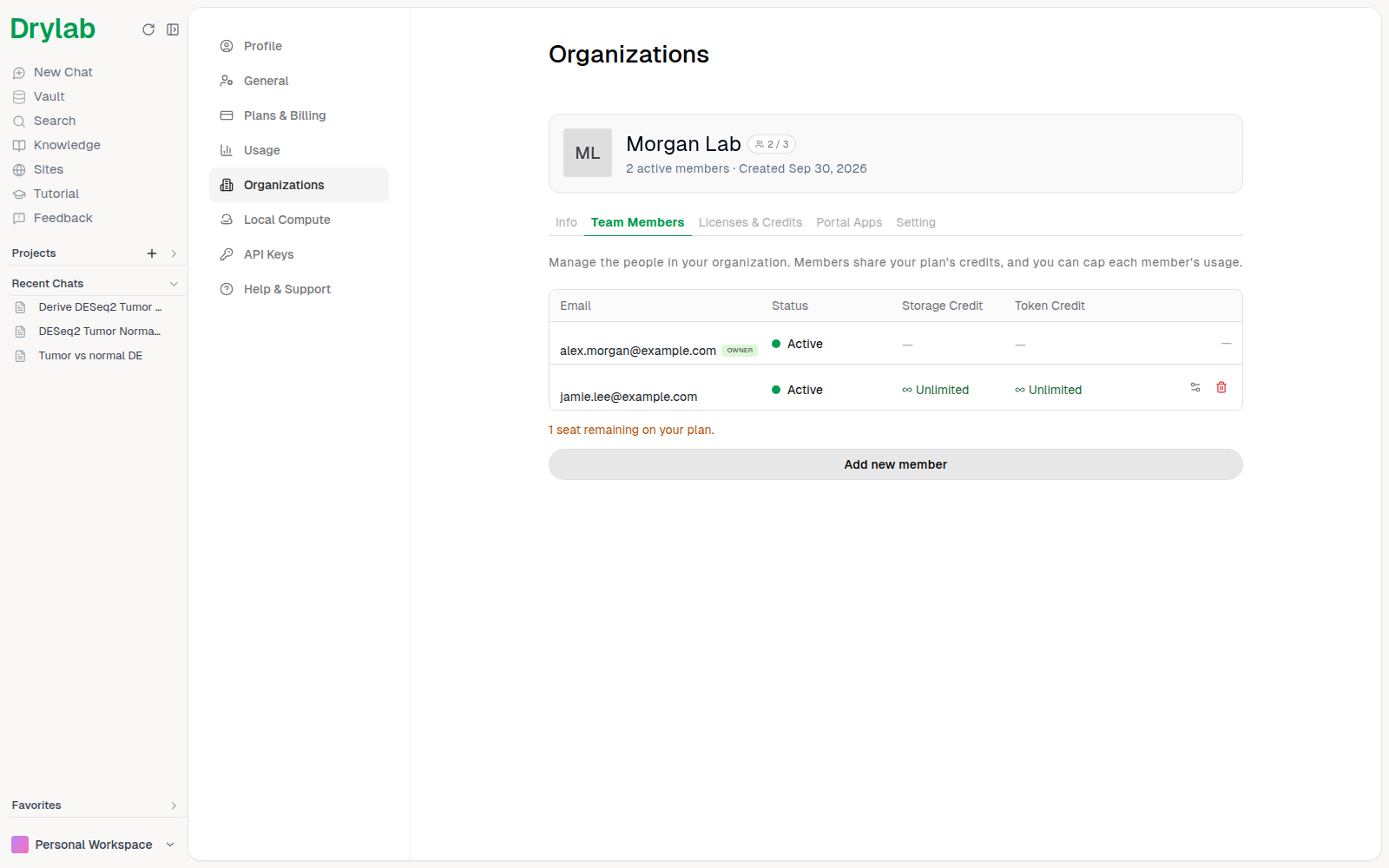
Seats
Your plan sets how many people the organization can have, and you (the owner) count as one seat:
| Plan | Seats |
|---|---|
| Lab Plus | 3 |
| Lab Pro | 6 |
| Enterprise | No fixed limit |
The seat badge on the card shows active / maximum. When every seat is used, Add new member is disabled and you see Member limit reached: remove a member or upgrade your plan to free a seat.
Set usage limits for a member
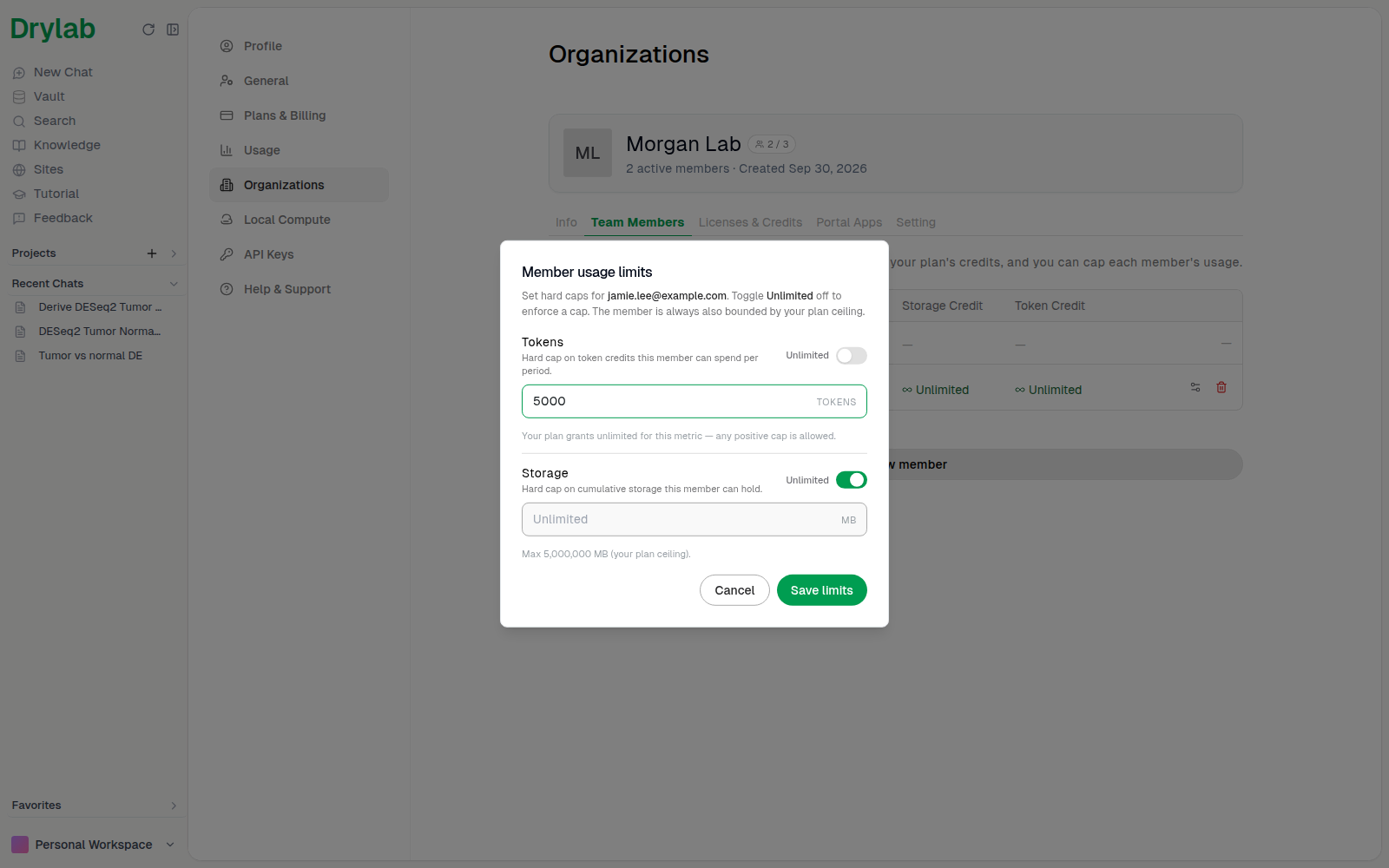
- In the member's row, click the Set usage limits icon.
- Turn off Unlimited for the metric you want to cap: Tokens or Storage.
- Enter the cap. It can't be higher than your plan allows.
- Click Save limits.
The table shows the new cap.
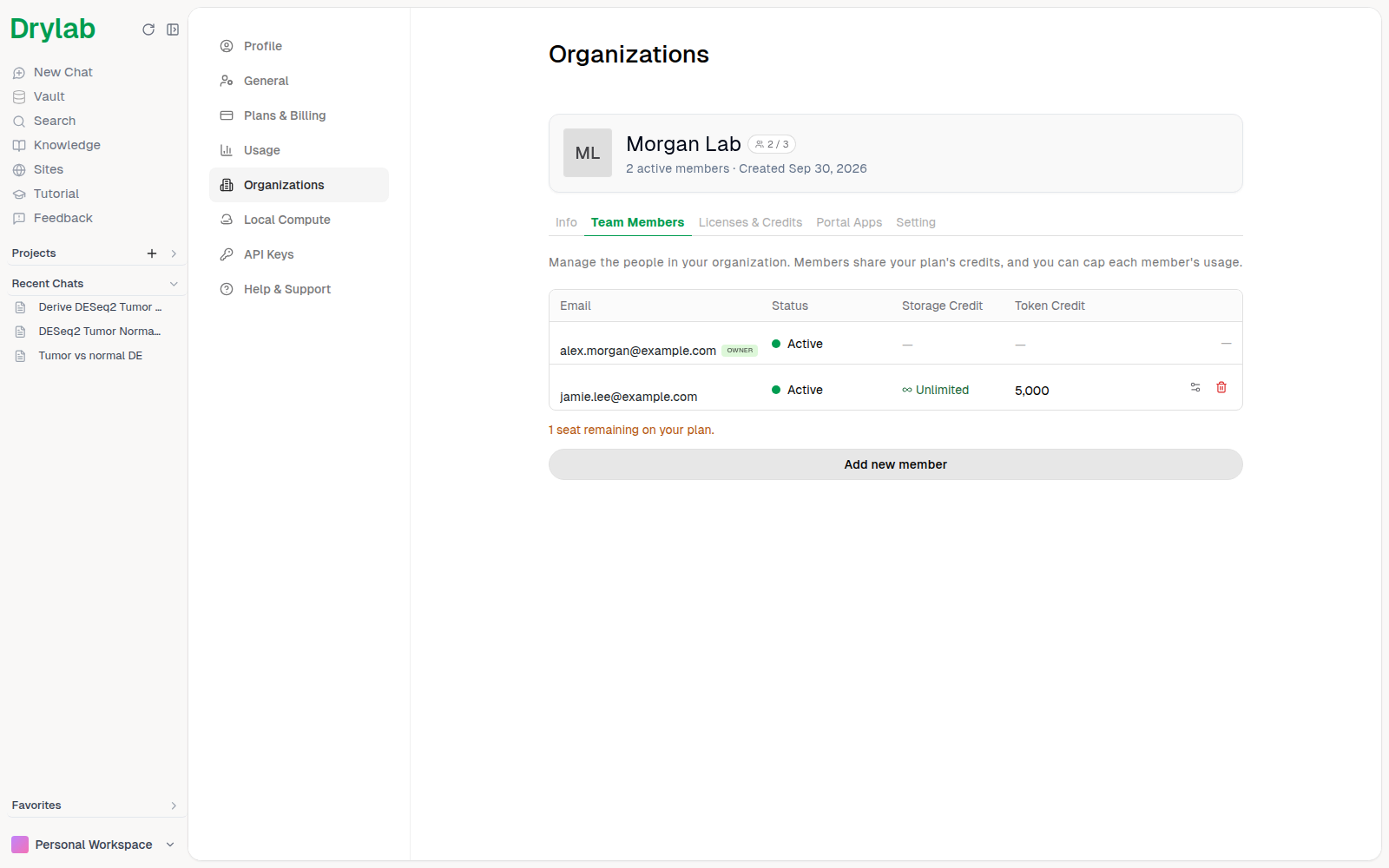
0 means the member can't use that resource at all. It doesn't mean unlimited. To remove a cap, switch the metric back to Unlimited.A member who reaches their limit sees Out of usage: "You've reached the limit set by your organization admin. Please contact your admin."
Remove or reactivate a member
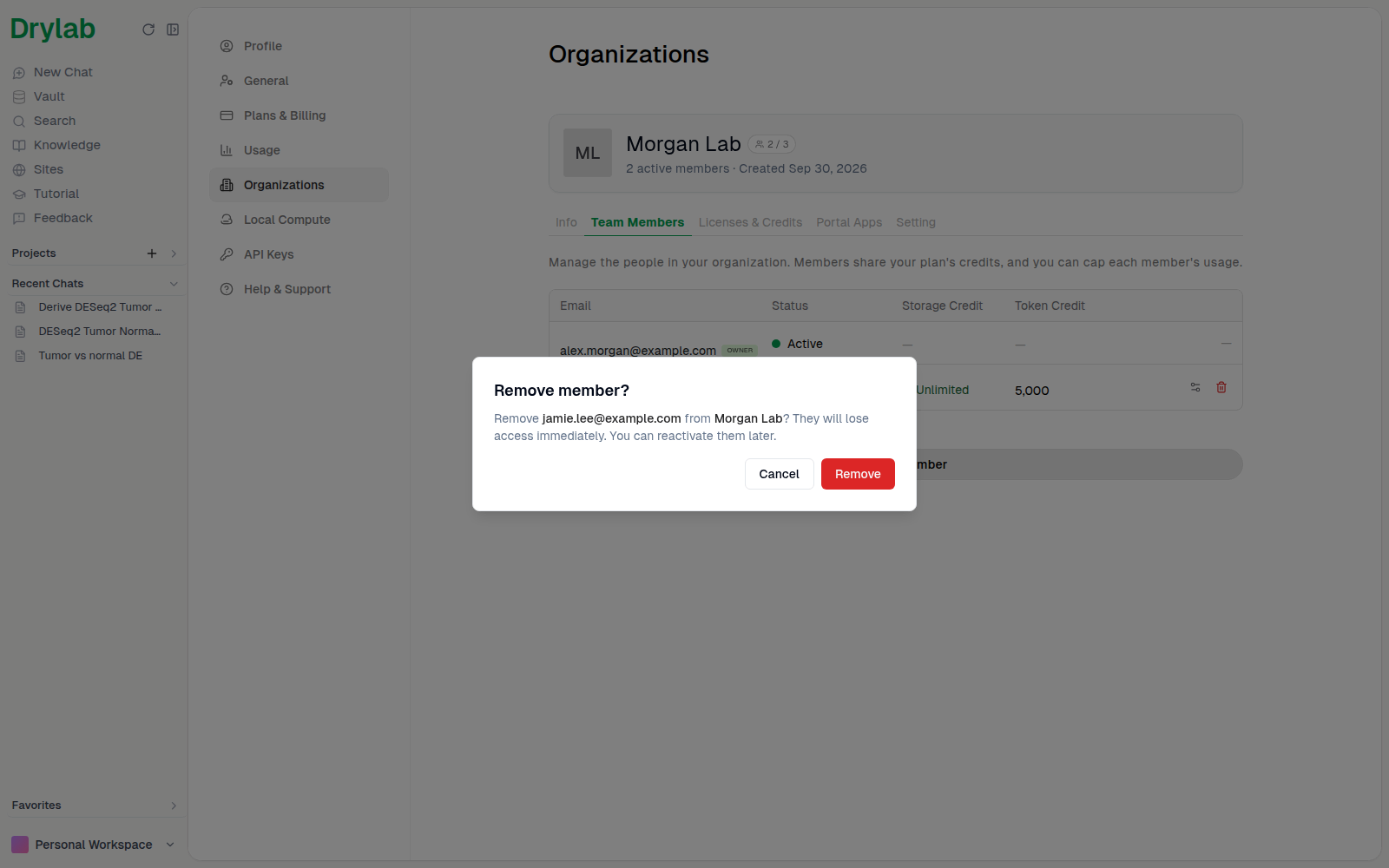
- To remove a member, click the red trash icon (Remove member) in their row, then confirm with Remove. They lose access immediately and stay in the list marked Disabled.
- To bring them back, click the green Reactivate member icon in their row.
The owner can't be removed.
Review licenses and credits
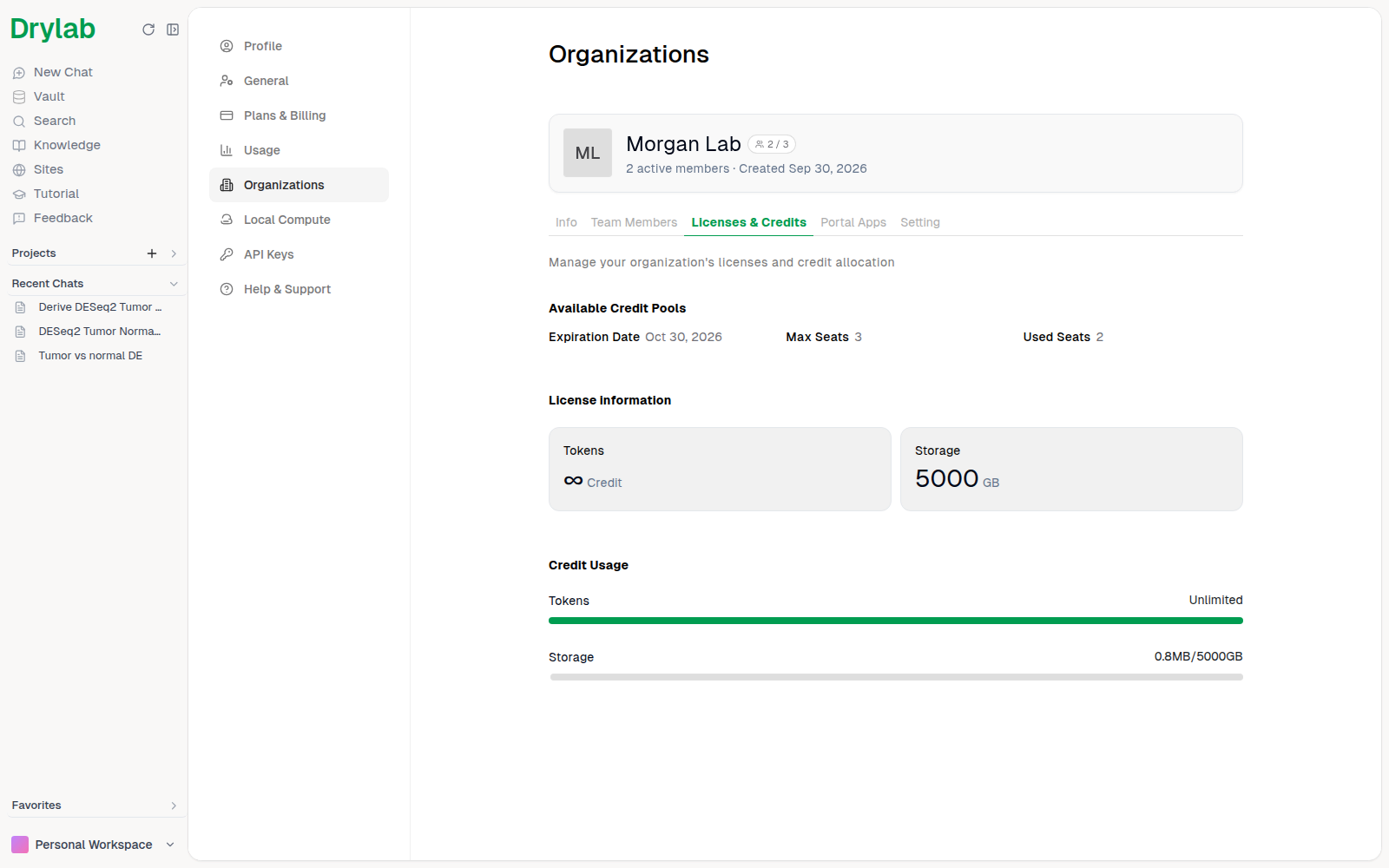
The Licenses & Credits tab shows your plan's Expiration Date, Max Seats and Used Seats, the token and storage credits your plan grants, and how much of each your organization has used this period.
Info and Setting tabs
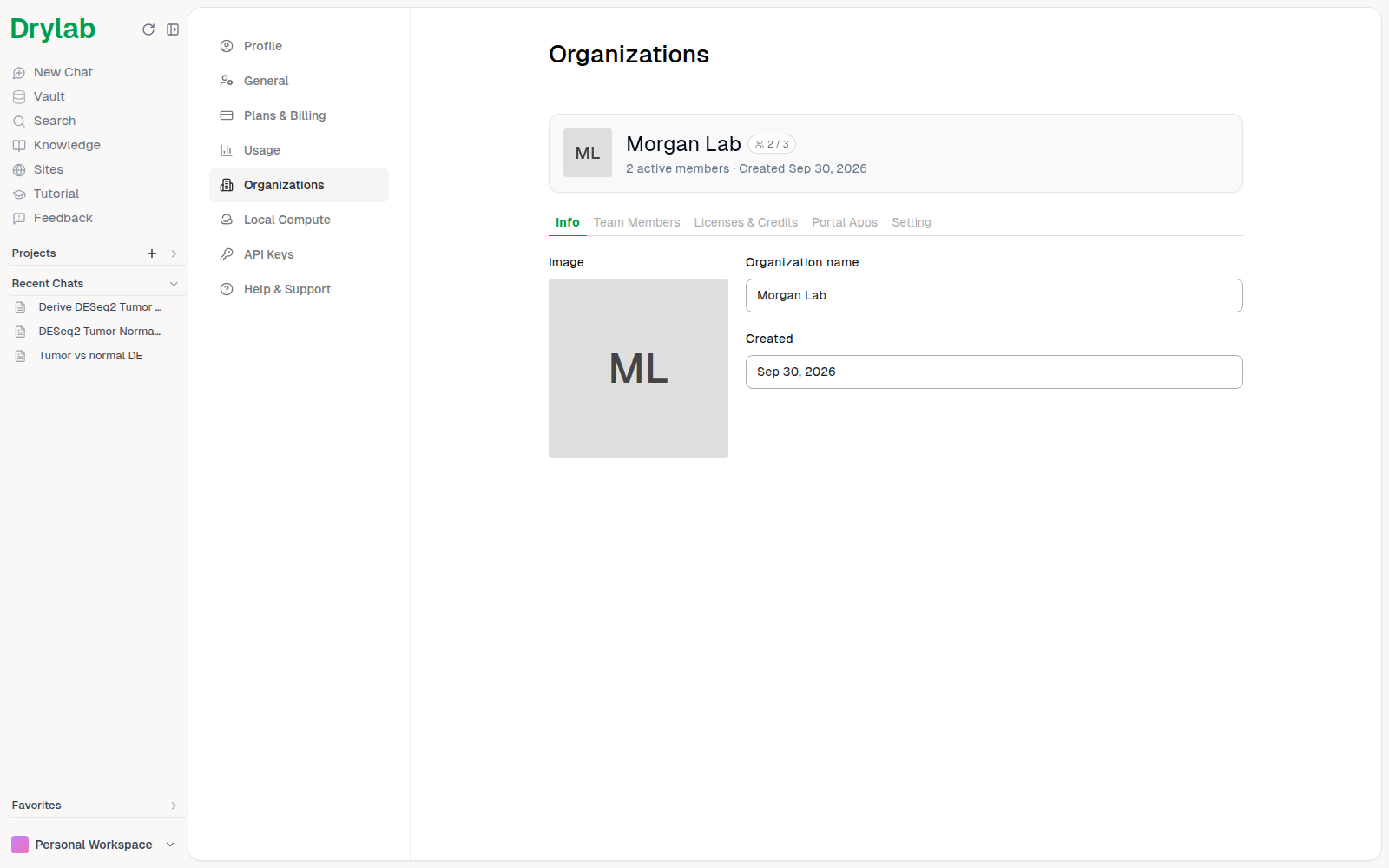
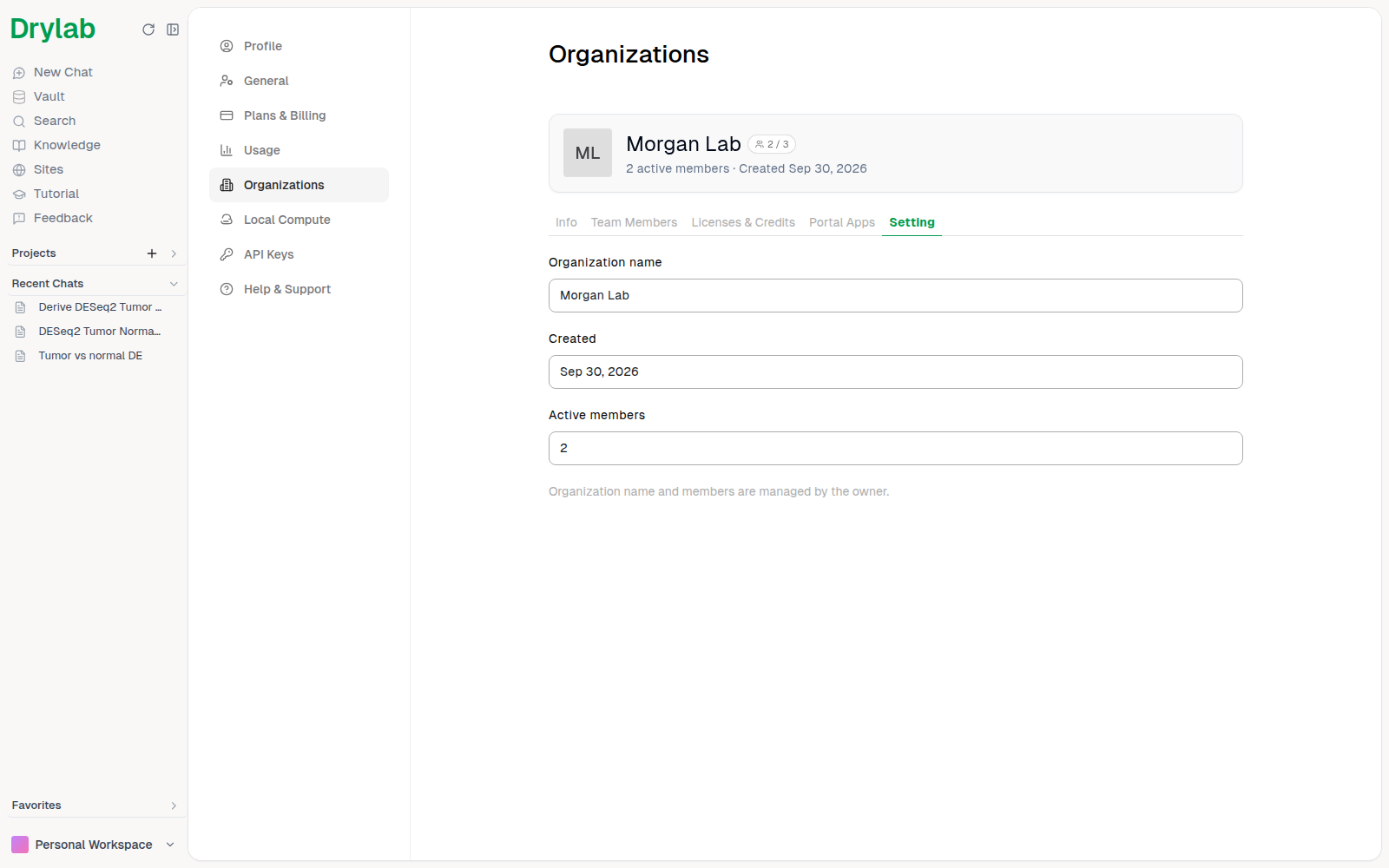
The Info tab shows your organization's name and creation date. The Setting tab also shows the number of active members. These values are read-only.
Switch workspace
A workspace is where your chats, projects, files and usage live. You can belong to more than one: your own, plus the organizations you've been added to. Switch to work in a different one.
- Click your workspace at the bottom of the left sidebar.
- Choose Switch workspace. When you belong to more than one workspace, the number next to it shows how many.
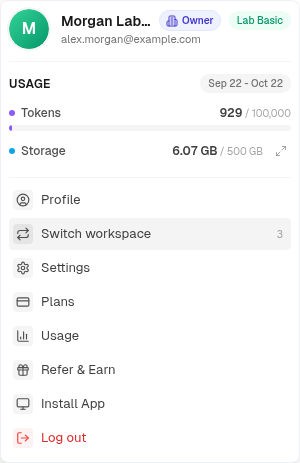
- In Switch workspace, click the workspace you want. Drylab reloads in that workspace.
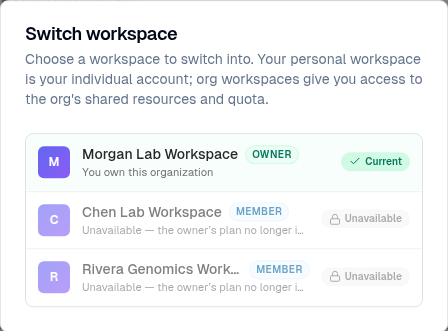
Each row shows your role:
- Owner: "You own this organization". If you own an organization, it is your main workspace, so there's no separate Personal Workspace entry.
- Member: "You are a member of this organization". You work inside it and use its plan's credits.
- Personal Workspace: your individual account. Members who don't own an organization see it at the top of the list.
The workspace you're in is marked Current. If the owner's plan no longer includes organizations, the workspace shows as Unavailable ("Unavailable — the owner’s plan no longer includes organizations") and can't be opened.
Share work with clients
Your organization can host Portal Apps: private client portals that share selected project files and an interactive results dashboard with people outside your team. Open the Portal Apps tab and follow the Portal Apps guide.
Troubleshooting
| Problem | Likely cause | What to do |
|---|---|---|
| The page shows Upgrade Plan instead of Create organization | Your plan doesn't include organizations | Upgrade to Lab Plus, Lab Pro or Enterprise in Settings > Plans & Billing |
| Organizations is missing from Settings, or creating one fails with a permission message | You're working inside another organization's workspace | Switch to your Personal Workspace and try again |
| "You already own an organization" | Each account can own one organization | Use your existing organization |
| Add member says the person has no Drylab account | They haven't signed up yet | Ask them to sign up, then add them again |
| Add new member is disabled | All seats on your plan are used | Remove a member or upgrade your plan |