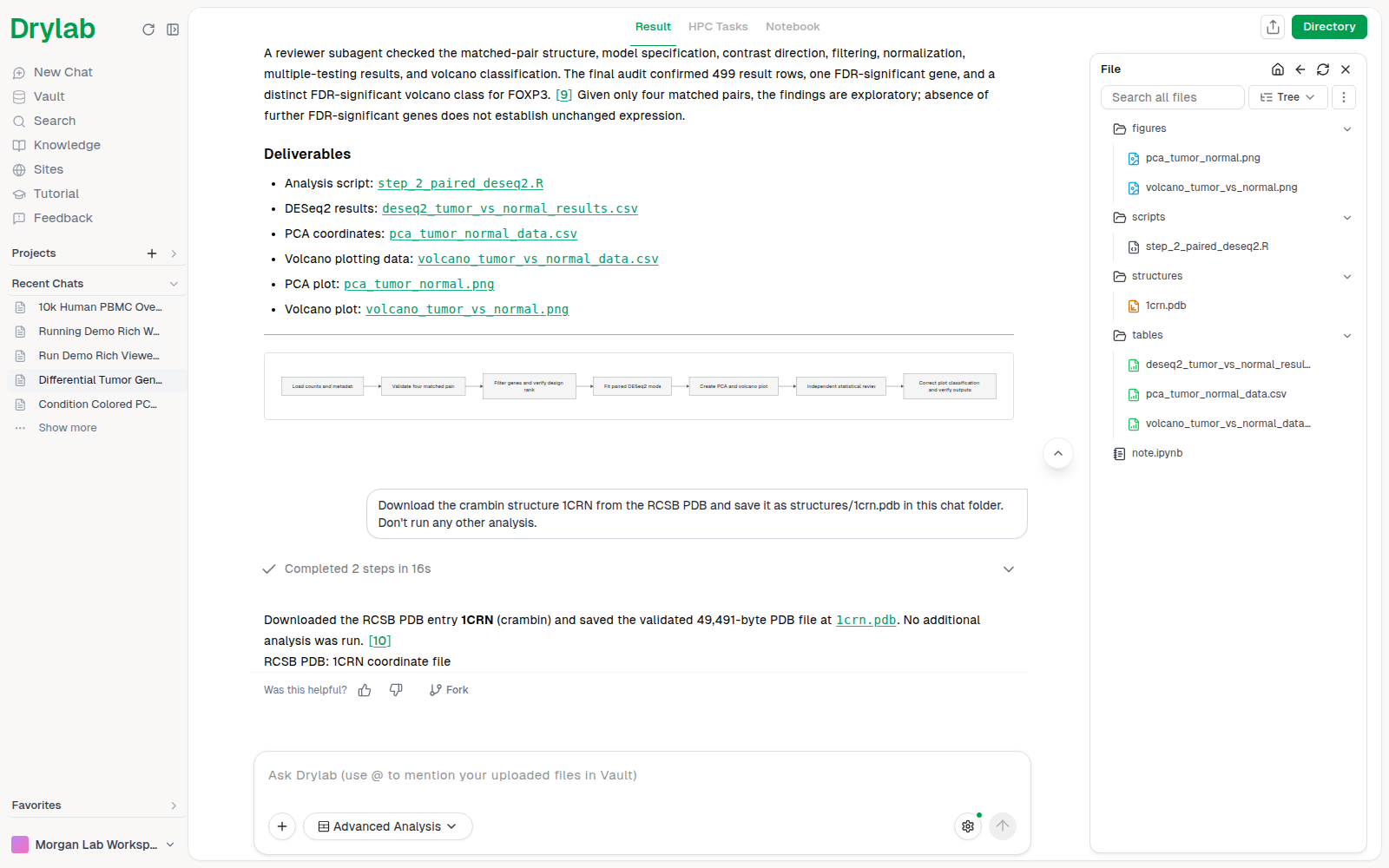
Notebook and Files Panel
Open the notebook and the chat's files beside the conversation, view files in tabs, and switch between the chat's views.
A chat page has two sides. The conversation is on the left. On the right, a panel shows your work: the chat's notebook, its files, and any file you open. You can read Drylab's answer and check the code, figures and tables it produced without leaving the chat.
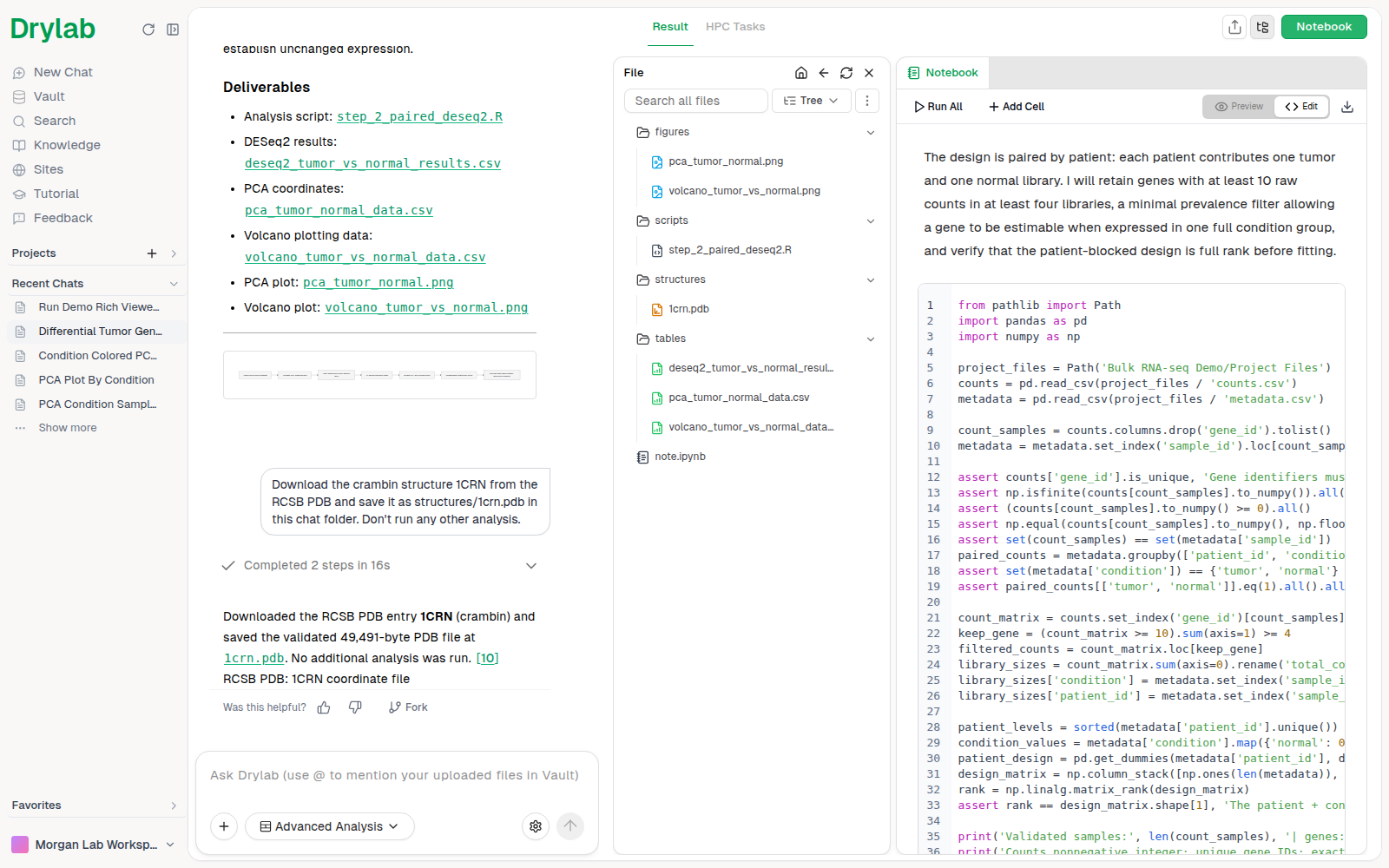
The top bar
The bar at the top of a chat switches what the main area shows:
| Tab | Shows |
|---|---|
| Result | The conversation: your messages, Drylab's answers, its progress and its figures. |
| HPC Tasks | Jobs this chat sent to Drylab's GPU and HPC hardware. See HPC Tasks. A number appears while jobs are running. |
| Site | Apps published from this chat. It only appears once the chat has published one. See Sites. |
On the right of the bar, Notebook opens or closes the side panel, and the folder icon (Show files / Hide files) opens or closes the chat's file list.
Open the notebook
Click Notebook to open the panel with the chat's notebook. It records every step as code and markdown cells with their outputs. Click Notebook again to close the panel. Until Drylab runs code in the chat, the panel shows "No notebook yet".
Everything you can do in the notebook is described in Notebook.
Browse the chat's files
Click the folder icon (Show files) to list the files that belong to this chat, such as the notebook, figures, tables and scripts, in folders. In the list you can:
- Click a folder to open it, and a file to view it.
- Type in Search all files to find a file by name.
- Use the view menu next to the search box to switch the list between:
- Tree: the files in their folders.
- File Type: the files grouped by kind, in Plots, Documents, Tables, Code and Unsorted, with the notebook below them. Empty groups are hidden. Drylab remembers your choice.
- Use More actions to download files: Download All Files, or (in the web app) Select to download to tick specific files first. See Download Files.
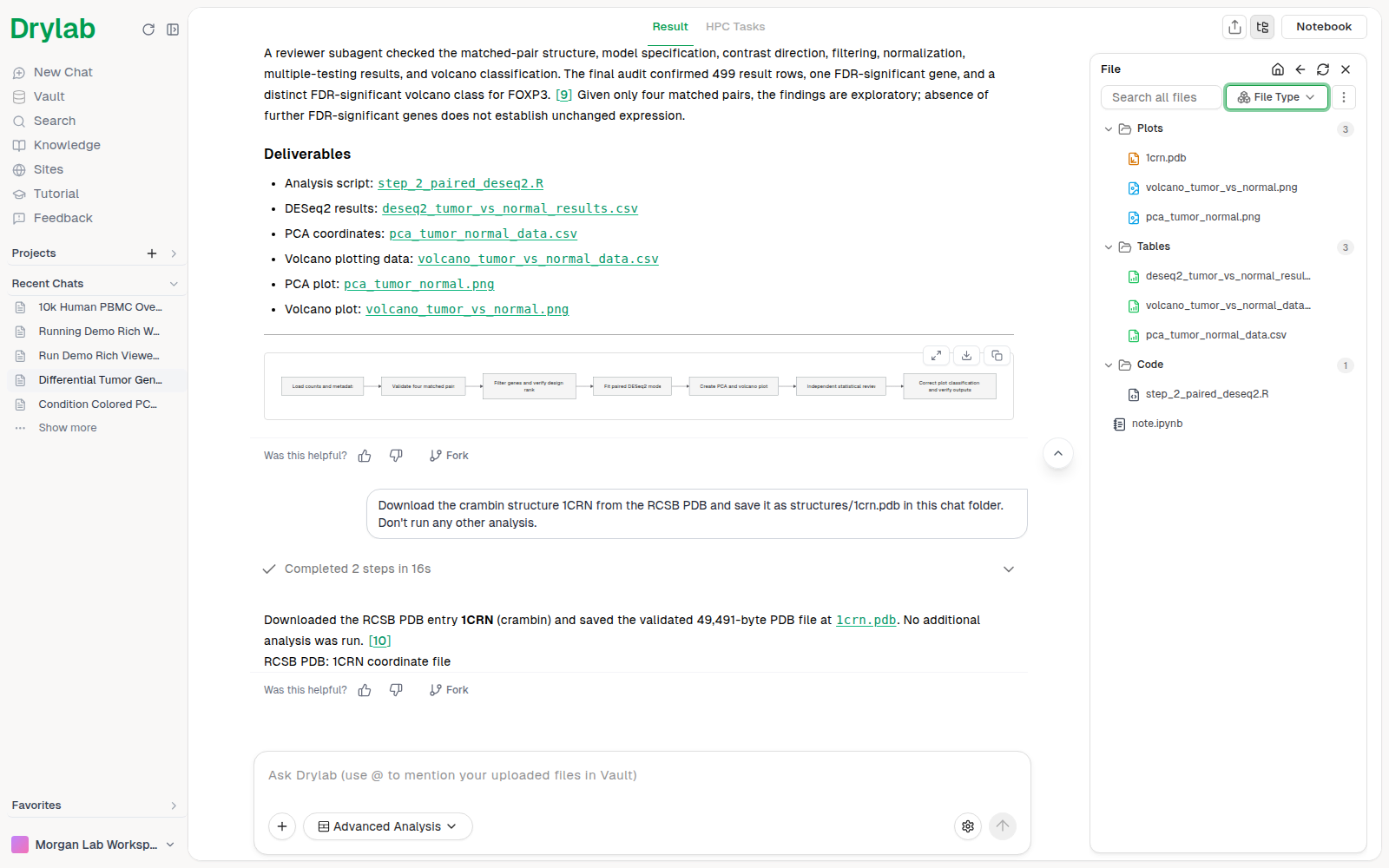
Click the × at the top of the list to close it and give the notebook more room.
View a file in a tab
Click a file in the list, or a file name that Drylab mentions in the chat, to open it in a new tab in the panel. Each tab shows the file name and a close button (×). The Notebook tab always stays first and can't be closed, so you can switch back to it at any time.
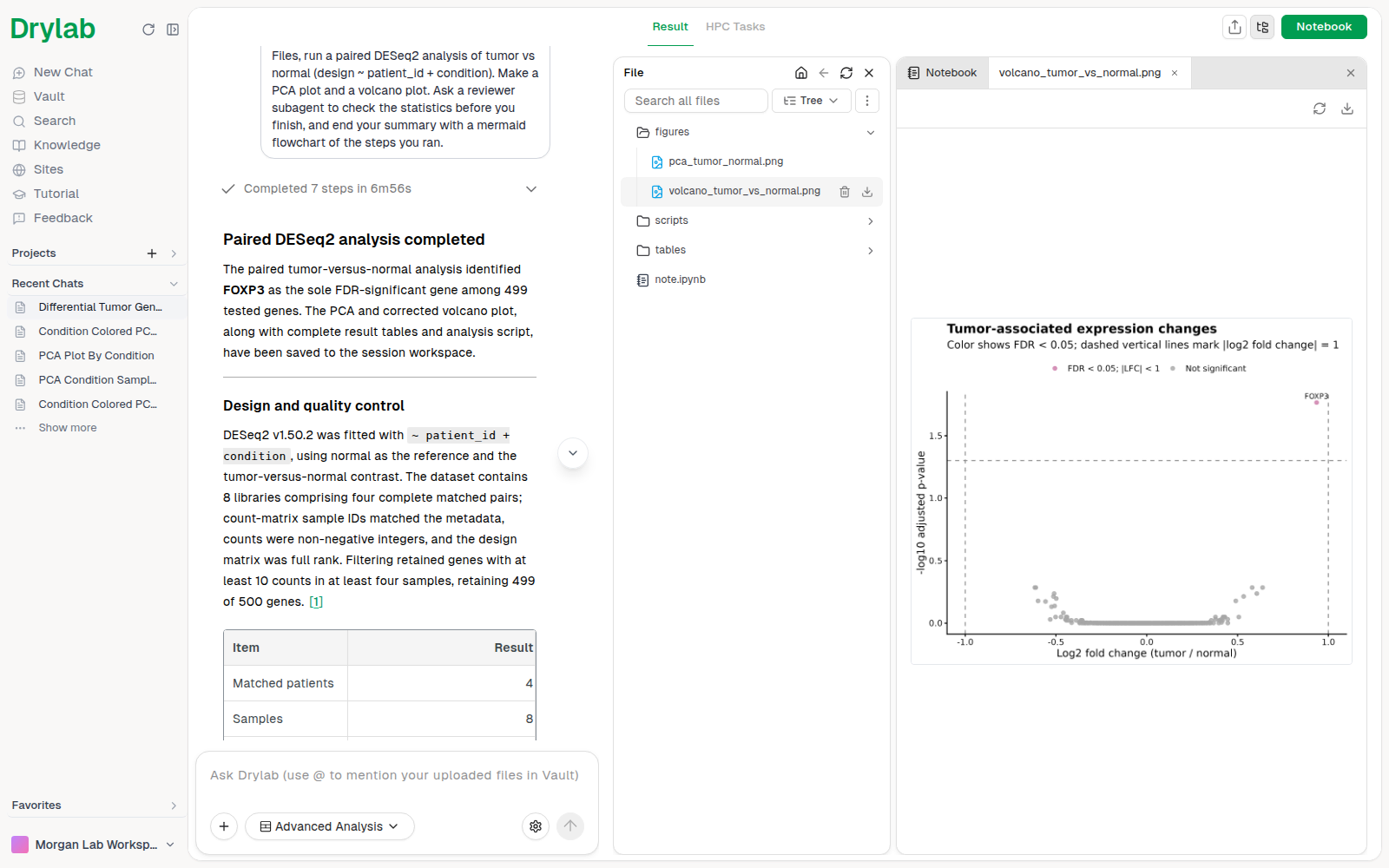
The panel shows most research files directly, including figures, tables, PDFs, Word and PowerPoint files, code, Markdown, sequences, genomics tracks, phylogenetic trees and 3D structures. See Interactive Results for the interactive viewers.
Files over 10 MB can't be opened from the file list. Download them, or open them from the Vault.
Files layout
If you prefer a file browser next to the chat all the time, turn on Files layout in Analysis settings. The file list then becomes a sidebar that you open and close with Directory, and Notebook becomes a tab in the top bar next to Result and HPC Tasks.