
Plans and Questions
Approve the plan, answer Drylab's questions, pick the best plot or mark an image, and review steps as an analysis runs.
Drylab doesn't run a long analysis blindly. It shows you the plan before it starts, asks when your request is unclear, and stops at the scientific choices that only you can make, such as which clustering looks right. Each of these moments appears as a card in the chat. Answer it there and Drylab carries on.
Why Drylab stops to ask
- You stay in control. Nothing runs until you approve the plan, and the choices that shape your results are yours.
- Fewer reruns. A quick answer before a step runs is cheaper than redoing the analysis afterwards.
- Decisions with evidence. When Drylab asks you to choose, it shows the plots or numbers you need to decide.
Here is when each card can appear:
| Card | When | What you do |
|---|---|---|
| Clarification Questions | Before or during a run, when your request leaves something open | Pick an answer for each question, then Submit Answers |
| Plan | Before a multi-step analysis starts | Check the steps, then Approve Plan |
| Structured workflow detected | When your request matches a validated workflow | Choose Interactive or No workflow |
| Decision needed | In the middle of a step that needs your judgment | Make your choice, then Continue |
| Review step before continuing | After a step, if Step review is set to Key steps or Every step | Approve & continue, or Request changes |
Review the plan
For multi-step work, Drylab first turns your request into a plan: a title, a short overview and numbered steps such as "Step 1 — Load and check the data". Each step is written in plain language so you can see what will happen before anything runs.
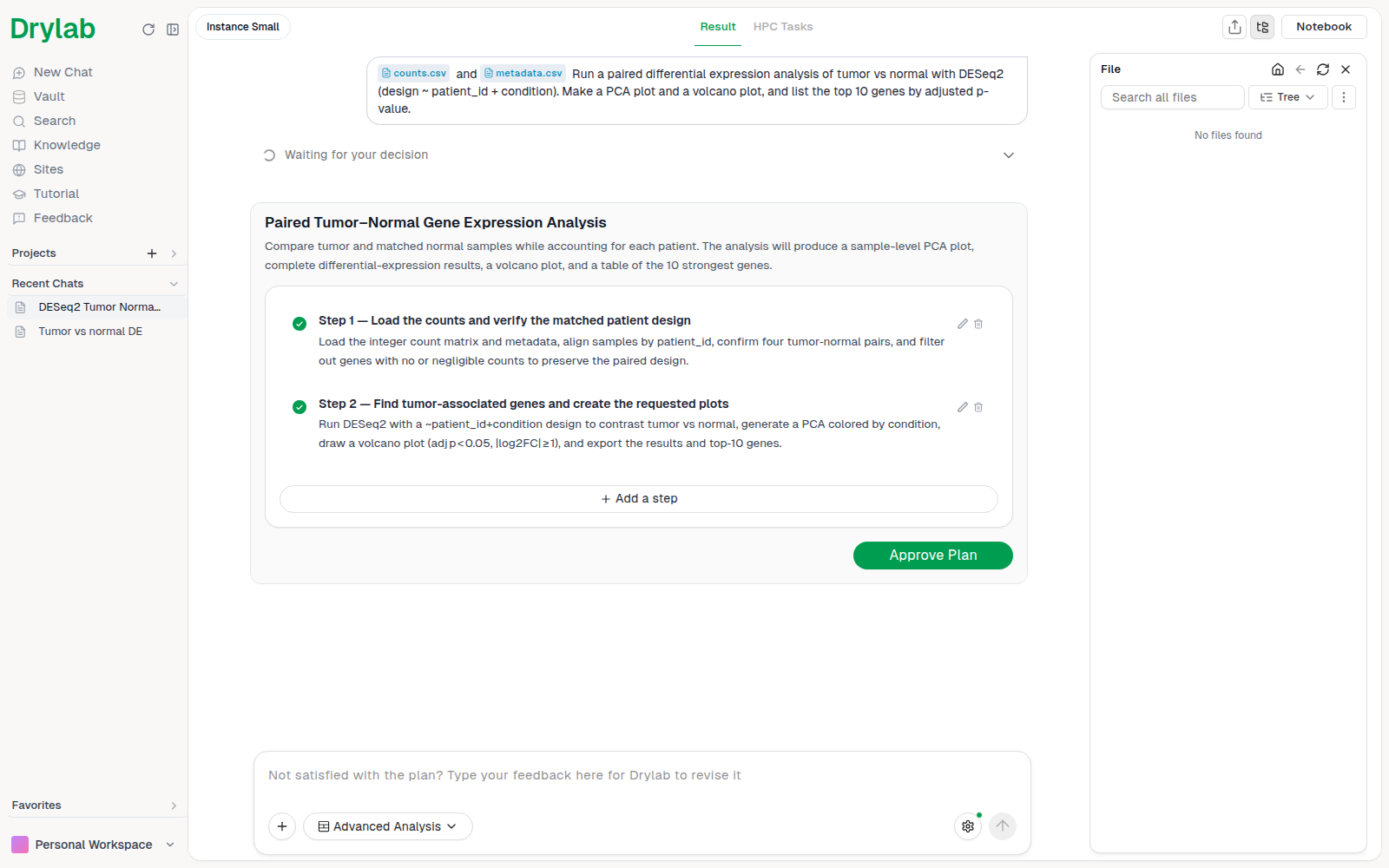
You can change the plan before approving it:
- Edit a step: click its text or the pencil icon, change it, then click Save (or press Ctrl/Cmd + Enter). Press Esc or click Cancel to keep the original.
- Skip a step: click the circle next to it to untick it. Only ticked steps run.
- Delete a step: click the bin icon (Delete step).
- Add a step: click Add a step at the bottom of the plan and describe it.
Then click Approve Plan. The card collapses to "Plan approved" and Drylab starts. At least one step must be ticked.
If Drylab thinks the analysis needs a bigger machine, a More Memory Recommended card appears under the plan with the reason and the recommended instance (for example Instance Medium). Click Approve with ... to switch to that machine and start, or Approve Plan to keep your current one. If Drylab doesn't name a machine, the card reads High Memory Recommended instead: click Switch to Cloud to open the sandbox selector, or Maybe later to dismiss it. If a GPU Acceleration Available card appears, click Maybe later: cloud GPU sandboxes aren't offered right now, and Drylab already sends heavy GPU steps to GPU workers.
To rethink the plan instead, type your feedback in the chatbox ("use DESeq2 instead of a t-test", "add a pathway analysis"). Drylab writes a new plan; the old one shows "Plan feedback provided".
To skip plan approval completely, turn on Auto-approve plan in Analysis settings.
Answer clarification questions
When your request leaves something open that would change the analysis, Drylab asks first. A Clarification Questions card shows a short reason, then 1 to 5 numbered questions.
- For each question, click one of the suggested answers.
- If none fits, click Other and type your own answer in "Please specify your answer...".
- Click Submit Answers. It stays disabled until every question has an answer.
The card then collapses to, for example, "3 questions answered", and Drylab continues with your answers. Questions can come before the plan (to shape it) or in the middle of a run (when a step needs more information).
Questions that need a file
Some questions ask for data, for example "Upload the sample metadata file". These questions show an Upload files to project button:
- Click it to choose files, or drag files onto it ("Drop files here").
- Click the x next to a file to remove it.
- An attached file counts as your answer, so you don't have to pick an option as well.
When you click Submit Answers, the files are added to your project and Drylab uses them straight away.
Answering in the chatbox instead
You can always ignore a card and type in the chatbox. Drylab reads your message instead, and the card is greyed out with "Skipped - user provided a message instead". Use this when your answer doesn't fit the options or you want to change direction.
Use a structured workflow?
If your request matches one of Drylab's structured workflows, a Structured workflow detected card asks how to proceed:
- Interactive: run the validated workflow, with pauses at the scientific decisions.
- No workflow: continue without it.
Tick Remember my choice for future sessions to stop being asked. You can change this later in Settings > General > Structured workflows.
Make a decision during a run
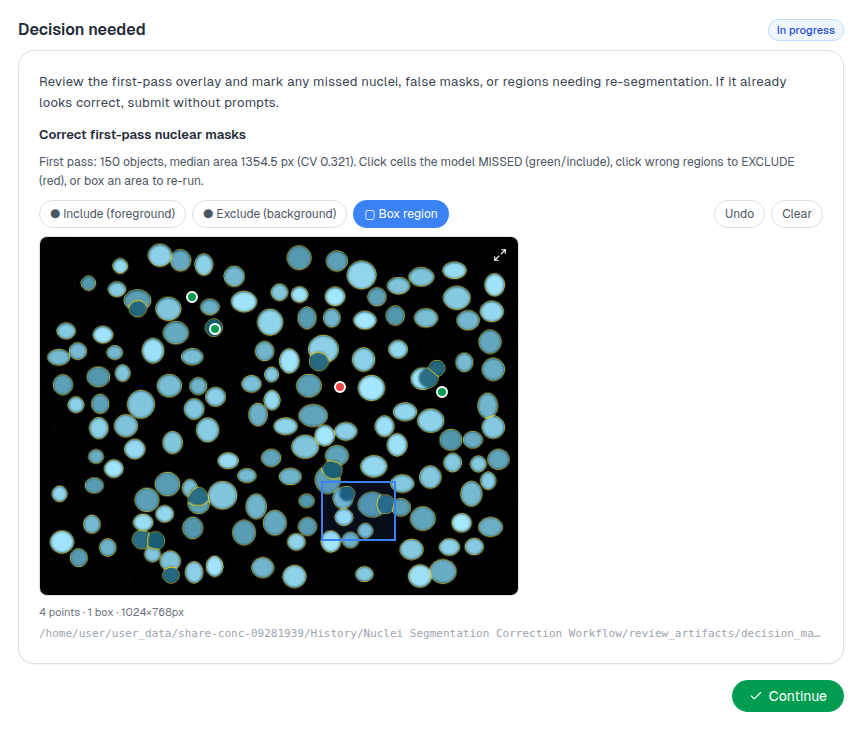
Some choices can only be made once Drylab has computed something, for example which QC cutoff keeps enough cells. Drylab then pauses in the middle of the step with a Decision needed card (marked In progress). It explains the choice and shows the evidence, with its own recommendation already selected.
Adjust the choice if you want to, then click Continue. Drylab finishes the same step with your choice; it doesn't skip ahead in the plan.
| What you see | What you do | Example |
|---|---|---|
| A list of options | Pick one, or tick several | How strictly to remove doublets; which assembler to use |
| A slider | Drag to set a cutoff, or both ends of a range | Minimum genes per cell; minimum and maximum object size |
| A short form | Fill in a few parameters | Organism and the results to deliver for a genome assembly |
| An editable table | Correct values in the cells | Rename cell-type labels per cluster |
| Gates on a scatter plot | Adjust the gate bounds | Flow cytometry gating |
| Image thumbnails | Pick the best image | Clustering resolution |
| An image with drawing tools | Click points or draw boxes | Fix a cell segmentation |
The last two are explained below.
Choose or mark on an image
Pick the best image
When the right answer is easier to see than to describe, Drylab shows candidate images side by side, for example UMAPs of your cells clustered at several resolutions. This step appears in workflows such as scRNA QC + Clustering, scRNA Cell-Type Annotation and Spatial Domain Detection & Annotation.
- Compare the thumbnails. Each one has a short label underneath, such as the resolution.
- Click the expand icon (Expand) on a thumbnail to see it full size without selecting it.
- Click the image you want. It gets a green border.
- Click Continue.
Drylab carries on with the version you picked, for example the clustering you chose.
Mark an image
Sometimes Drylab needs you to point at things on an image, for example to fix a cell segmentation in the Microscopy Segmentation workflow. The card shows the image with Drylab's result drawn on top, and a small toolbar:
| Tool | Use it to |
|---|---|
| Include (foreground) | Click objects Drylab missed |
| Exclude (background) | Click areas Drylab wrongly marked |
| Box region | Drag a box around an area to redo |
| Undo | Remove your last mark |
| Clear | Remove all marks |
Add as many marks as you need, then click Continue. Drylab refines the result using your marks.
Review a step
With Step review set to Key steps or Every step in Analysis settings, Drylab pauses after steps with a Review step 3 before continuing card. Key steps pauses only on subjective, high-risk steps (for example cell-type annotation); these cards are marked High-risk step.
The card shows an Overview or Summary of what was done, an Interpretation of the results, the Artifacts produced (tables, plots, files) and the Next step. Choose:
- Approve & continue to run the next step.
- Approve all remaining to run the rest of the analysis without pausing again.
- Request changes, then describe what should be changed or redone and click Send feedback. Drylab redoes the step before moving on.
Tips
- Answer in the card when there is one. Options, sliders and images send Drylab exact values; the chatbox is for when you want something else.
- Changed your mind? Type in the chatbox at any time to steer the analysis, or click Pause. See Start an Analysis.
- Long plans: when you approve a plan with more than three steps, Drylab offers to notify you when it finishes (Email me when done), so you don't have to watch it run.
- Leave it running. Drylab waits at a card until you answer, so you can come back to it later.