
HPC Tasks
Follow the accelerated tool and pipeline jobs that a chat submits to Drylab's GPU and HPC hardware.
When an analysis uses an accelerated tool (for example Boltz2 or DiffDock) or an nf-core pipeline, Drylab submits a job to dedicated GPU/HPC hardware instead of running it in your sandbox. HPC Tasks lists those jobs for the current chat.
Open HPC Tasks
In a chat, click HPC Tasks in the top bar.
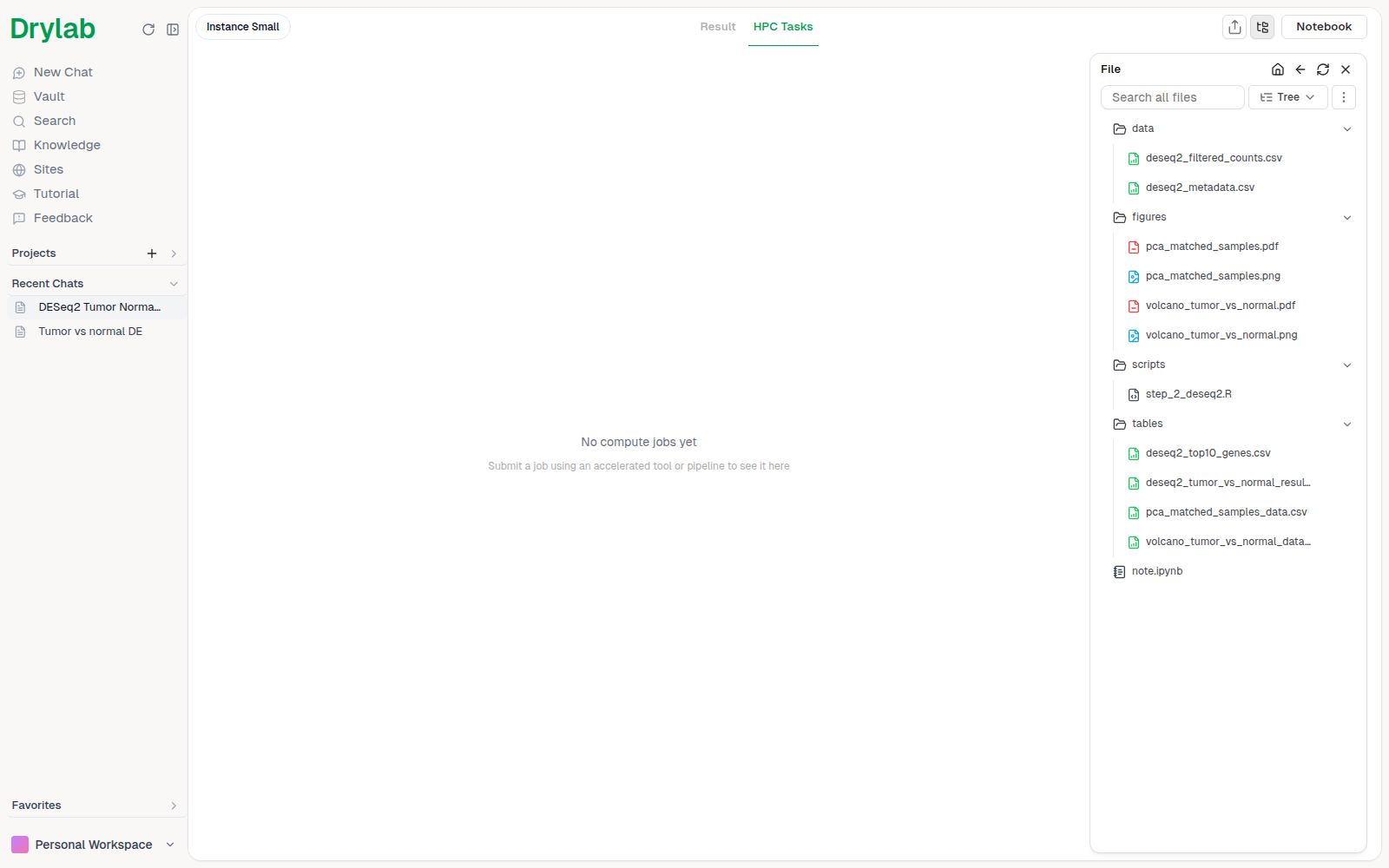
Until the chat submits a job you'll see "No compute jobs yet". Once jobs run, click a job to see its details:
- Tool jobs show when the job was created, its duration, Cost and GPU Usage, with Log, Input and Output Files tabs.
- Pipeline jobs show General, Tasks, Parameter and Metrics tabs.
Results are saved to your Vault. Drylab copies the key outputs into the chat's folder; full pipeline outputs are kept under the nextflow-pipelines folder. To stop a job, ask Drylab in the chat to cancel it.
Submitting a job
You don't submit jobs by hand. Mention the tool or pipeline, or just describe the task, and Drylab submits the job as part of the plan. For example:
- "@Boltz2 predict the structure of this protein with ATP bound."
- "Run @nf-core Rnaseq on the FASTQ files in my project with GRCh38."
Jobs are part of the plan Drylab proposes, so you see which tool or pipeline it will run before you approve the plan.
Access and cost
- Accelerated tools are included in Lab Basic, Lab Plus, Lab Pro and Enterprise. On other plans, Drylab tells you which plans include them.
- Each tool and pipeline shows its price in the
@picker's Resource Preview, per run or per hour.
See Usage & Consumption.