
Mount Cloud Storage
Attach a cloud bucket you already own to Drylab, so analyses read your data in place without copying it.
Mounting attaches a bucket you own to the space where your analyses run. Drylab reads the files where they are, so nothing is copied and nothing counts toward your Vault storage. This suits large datasets and data that must stay in your own cloud account.
| Provider | Status |
|---|---|
| Amazon S3 | Available |
| Google Cloud Storage | Coming soon |
| Azure Blob Storage | Coming soon |
Connect an Amazon S3 bucket
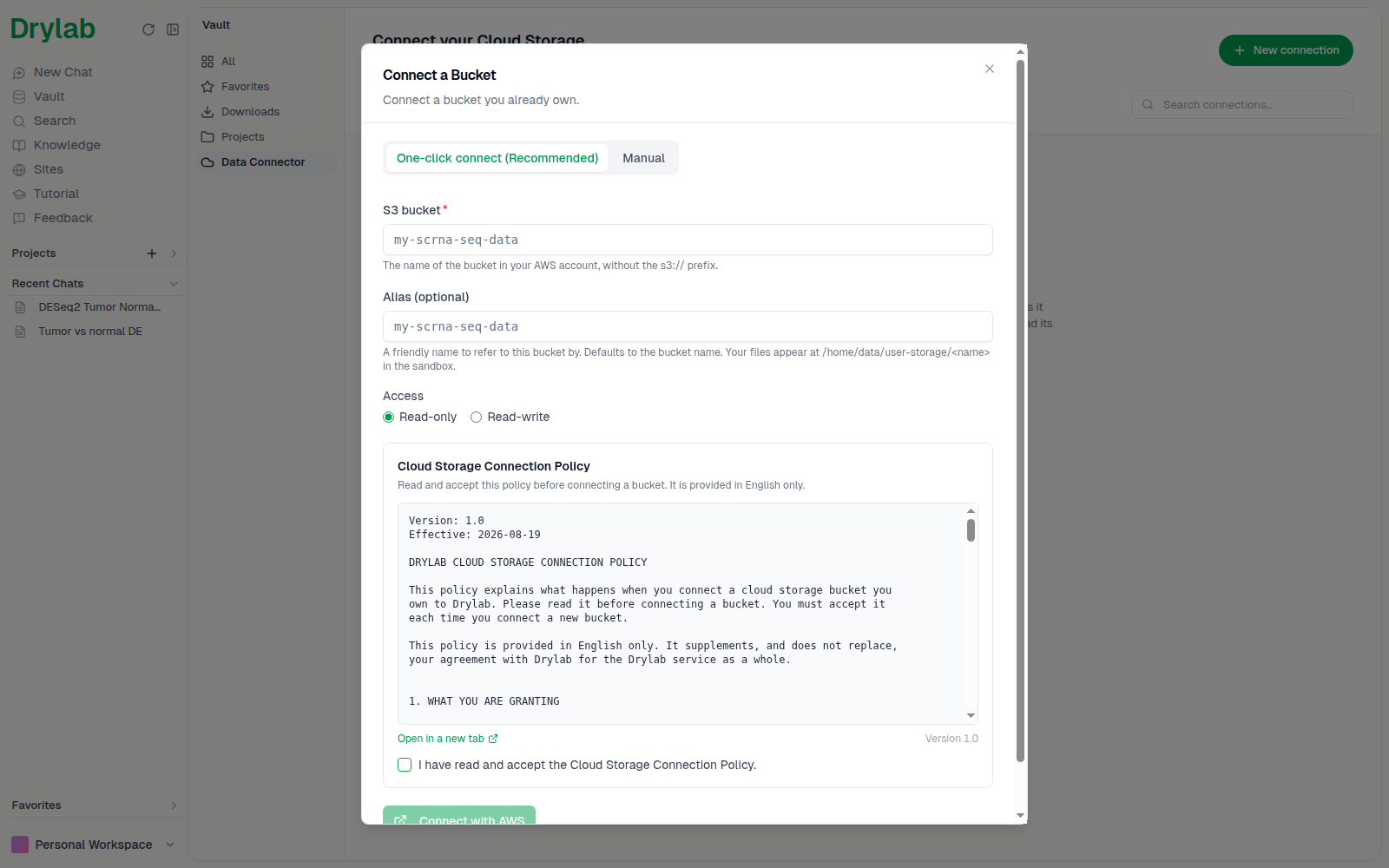
- Open Vault > Data Connector, click New connection and choose Amazon S3.
- Pick One-click connect (Recommended) or Manual setup. Both create a role in your AWS account that lets Drylab reach only the bucket you name.
- Enter the S3 bucket name (without
s3://) and, optionally, an Alias: a friendly name for the bucket. It defaults to the bucket name. - Choose Access: Read-only (recommended) or Read-write.
- Read and accept the Cloud Storage Connection Policy, then finish the setup:
- One-click: click Connect with AWS. Drylab explains the next step and opens AWS in a new tab after a few seconds (click Open AWS now to go straight away, or if your browser blocks the new tab). In the AWS tab, scroll to the bottom, tick the acknowledgement and click Create stack. The dialog updates itself once AWS reports back.
- Manual: follow the numbered steps (starting with your AWS Account ID), paste the Role ARN, and click Connect Bucket.
When the bucket is connected you'll see "Bucket connected". Its card in the list shows the access you chose, Read-only (lock icon) or Read-write (pencil icon). If you close the dialog while AWS is still working, the connection waits in your list as Waiting for AWS; click Resume to carry on.
Mount and unmount
Click Mount (or Mount Now right after connecting) to attach the bucket. Its files then appear in your analysis space at /home/data/user-storage/<alias>, so analyses can read them directly. Click Unmount to detach it again.
Only mounted buckets can be used in an analysis. If you mention a bucket that isn't mounted, Drylab shows "Mount this bucket first".
Browse and analyze
Click a connected bucket to browse its folders and files.
- Use Search files and folders… to filter the current folder. Deep search scans every subfolder; on large buckets it can be slow, and each folder it lists is billed to your own cloud account. Click Stop to end it early.
- Tick files or folders, then click Start Analysis to open a new chat with them attached, or Analyze entire bucket to attach the whole bucket.
You can also mention the bucket from any chat: type @y to open the Your Data tab. See Mention Files and Resources.
If mounting fails
Open the connection's menu (...) and click View setup guide. It shows the exact values the bucket's AWS role must use, so you can compare them with your role in the AWS console. Click Test access, in the menu or in the guide, to check the connection again.
Disconnect a bucket
Open the connection's menu (...) and click Disconnect. Drylab loses access to the bucket; your data in the bucket is not touched.