
Sites
Publish interactive apps from your analyses, share them with colleagues, and browse apps others have published.
A site is an interactive web app that Drylab builds from one of your analyses and runs for you, such as a gene explorer, a dashboard or a small tool. You describe the app in a chat, Drylab writes and starts it, and you get a link that opens it in the browser.
What a site is
A figure or a table shows one view of your results. A site lets people choose their own view: search for a gene, change a cutoff, pick a sample, and the plots update on the spot. Nobody has to install anything, write code or ask you for another plot.
- Built from your chat. Drylab makes the app from the data and results in the chat, so it shows your analysis, not a template.
- Opens with a link. It runs in the browser, inside Drylab or in its own tab.
- Private by default. Only you can open it until you ask Drylab to share it.
- Each person gets their own copy. When you share an app, everyone who opens it gets a private copy that uses their own Vault, so nobody sees anyone else's files.
Why use a site
- Let collaborators explore the results themselves. Your PI or a wet-lab colleague can look up their favourite genes or try a different threshold without waiting for you to rerun the analysis.
- Replace a pile of static figures. One app with filters can stand in for dozens of exported plots and spreadsheets.
- Hand over a tool, not just a result. Share a small calculator or a QC viewer that people can run on their own data.
- Share across the whole lab. Publish a useful app to the Gallery so every Drylab user can find it, or browse the Gallery for apps others have made.
Plans
Drylab Sites is included in the Lab Basic, Lab Plus, Lab Pro and Enterprise plans. You need it to publish, share and open apps:
- Your plan doesn't include Sites: you see "Drylab Sites is not included in your plan" with Upgrade plan. You can still browse and open every app in the Gallery.
- Opening someone else's app: if your plan doesn't include Sites, the app shows "Upgrade to open Drylab apps". Gallery apps open on any plan.
- The owner's plan changed: if the owner's plan no longer includes Sites, their apps show "This app is paused" until they upgrade.
See Plans & Billing.
Open Sites
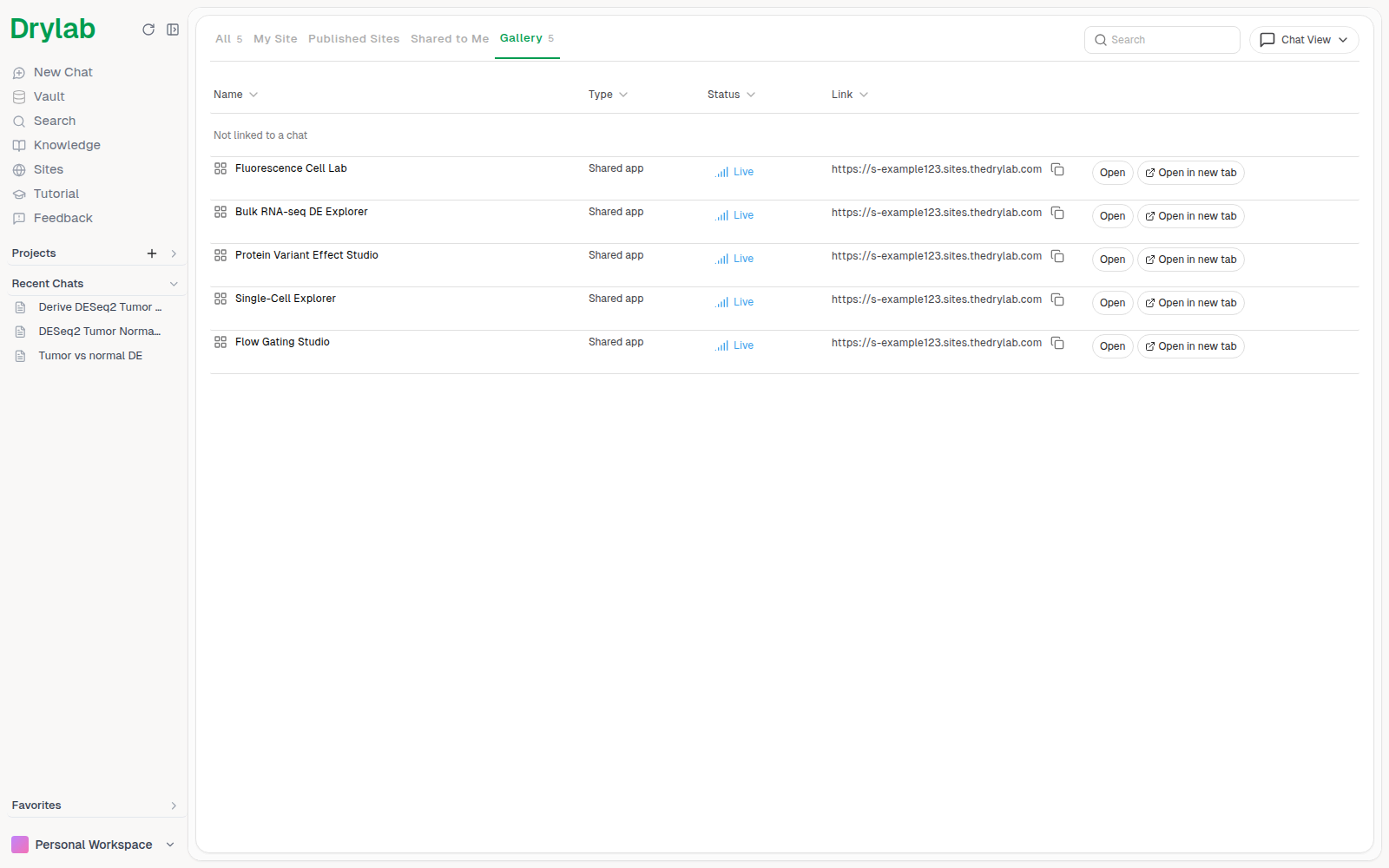
Open Sites in the left sidebar to see every app you can open.
Create a site
Ask Drylab in a chat, for example:
- "Build an interactive app to explore the differential expression results, with a searchable gene table and a volcano plot."
- "Publish the app you just made as a site."
Drylab builds the app in your sandbox and publishes it. It then appears under My Site with its link, and in the chat's Site tab.
Browse your sites
Use the filters at the top:
| Filter | Shows |
|---|---|
| All | Everything you can open |
| My Site | Sites you published from your chats |
| Published Sites | Apps you have shared with others |
| Shared to Me | Apps other people invited you to |
| Gallery | Apps published for every Drylab user |
Long lists are split into pages: the count at the bottom (for example "1-20 of 45") has Previous and Next buttons. Search only looks at the page you're on (typing takes you back to the first page), so if nothing matches, try another page.
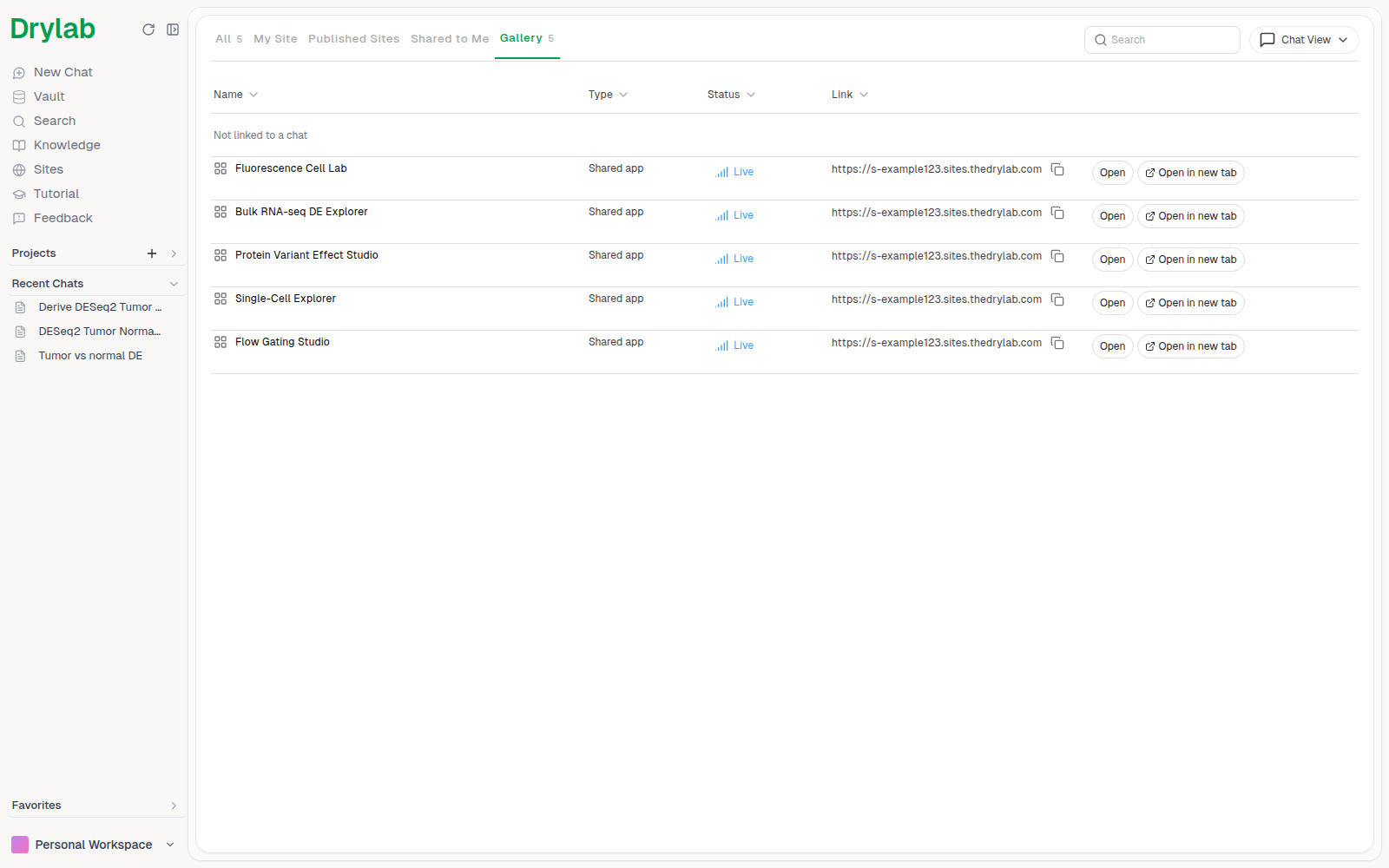
Switch between Chat View (grouped by the chat that created them), List View and Grid View. In Chat View, each row shows the site's type, its status (for example Live) and its link. Click Open to use it in Drylab or Open in new tab.
Sites that aren't live show a different button: Turn on for a stopped site, Restart if it failed to start, or Ask AI to restart once it has expired or failed to start twice in a row. To shut down one of your own live sites, click Stop.
Opening an app
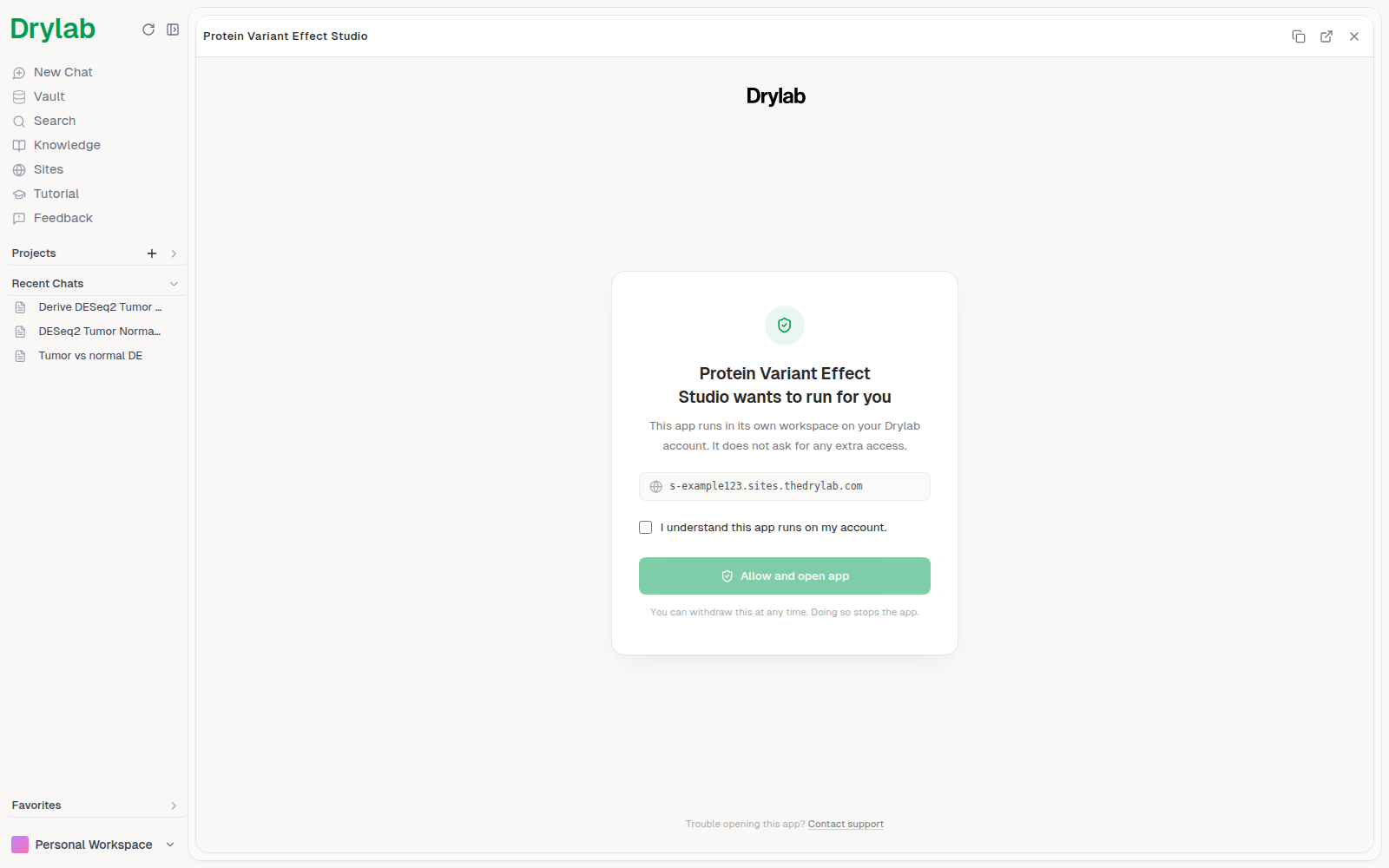
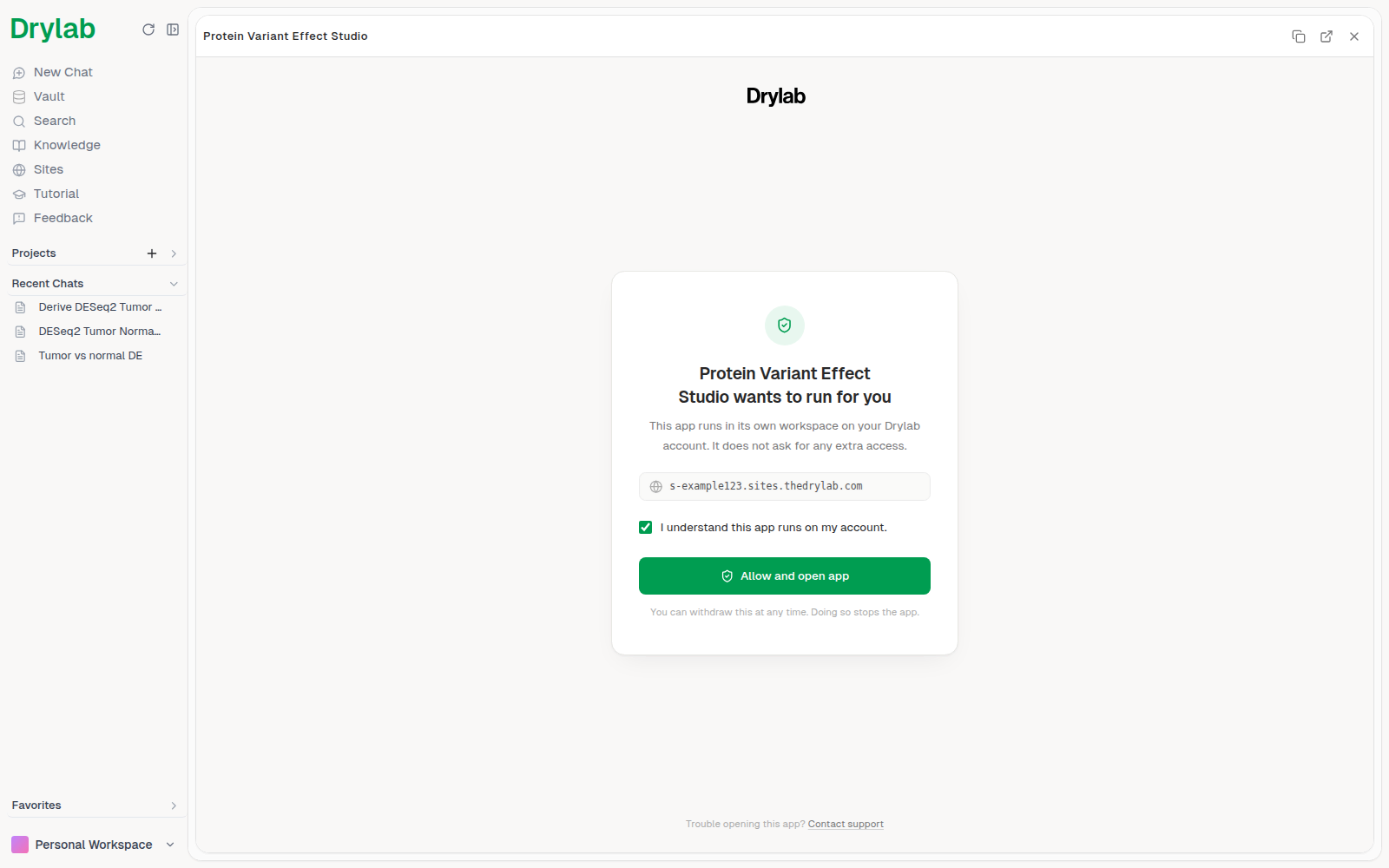
The first time you open a shared app, Drylab explains that it runs in its own workspace on your account. Tick "I understand this app runs on my account." and click Allow and open app. Apps that run tools say "…and the tools it runs use my credits." instead, because their tool runs count toward your usage. You can withdraw this at any time; doing so stops the app.
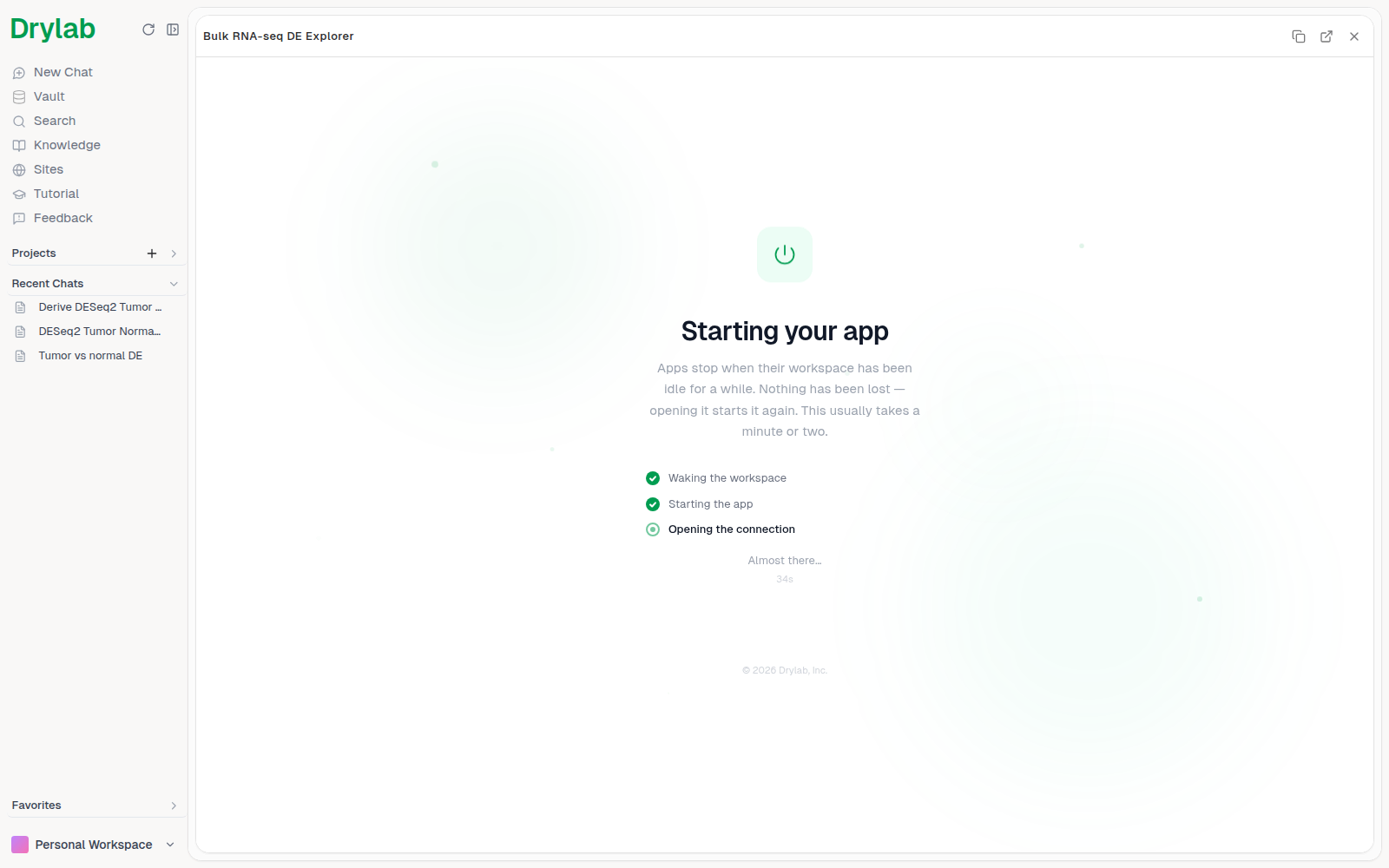
Your copy of an app stops after 6 hours without activity, and after 48 hours at most even while you use it. Nothing is lost: opening it again starts a fresh copy, which usually takes a minute or two.
Each person who opens a shared app gets their own private copy with their own Vault, so your files are never mixed with theirs.
Share an app
Ask Drylab in the chat to share the app, for example "Share this app with alice@lab.org" or "Make this app public". Drylab packages a copy and asks you to approve. The app then appears under Published Sites, and the Published apps section below the list lets you choose who can open it:
| Setting | Who can open it |
|---|---|
| Private (default) | Only you and the people you Invite by email. |
| Make public | Any signed-in Drylab user with the link. Use Make private to undo. |
| Publish to gallery | Listed in the Gallery for every Drylab user. Use Remove from gallery to take it down; the link keeps working. |
Make public and Publish to gallery ask you to confirm. The trash icon (Delete app) removes the app permanently and stops every visitor's copy.