
Overview
Every Drylab chat has a Jupyter notebook that records the code, outputs and notes of your analysis, so you can review, edit, rerun and export it.
Every chat has its own notebook (note.ipynb). As Drylab works, it writes each step into the notebook as code and markdown cells with their outputs: tables, printed results and figures. The notebook is saved automatically, so you can come back later, rerun it, edit it or download it.
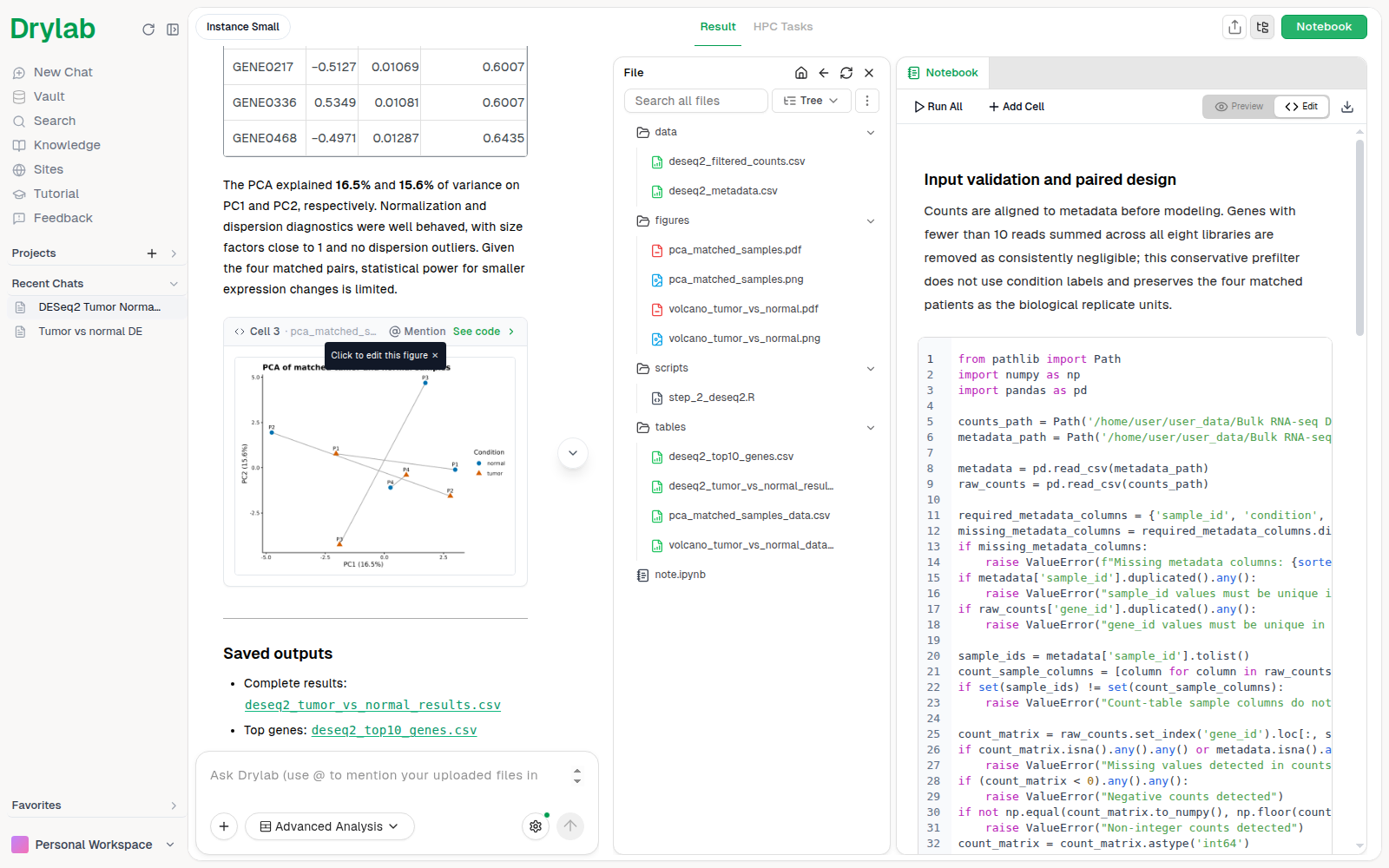
Open the notebook
Click Notebook in the top bar of a chat to open the notebook panel next to the conversation. Click it again to close the panel. Until Drylab runs code in the chat, the notebook panel shows "No notebook yet".
If Files layout is turned on in Analysis settings, the notebook opens as a tab in the main area and the file directory is shown as a sidebar.
The notebook is stored in your Vault with the rest of the chat's files:
<Project>/History/<Chat>/note.ipynb<Chat> is the chat's original title; renaming a chat doesn't rename this folder.
Preview and Edit modes
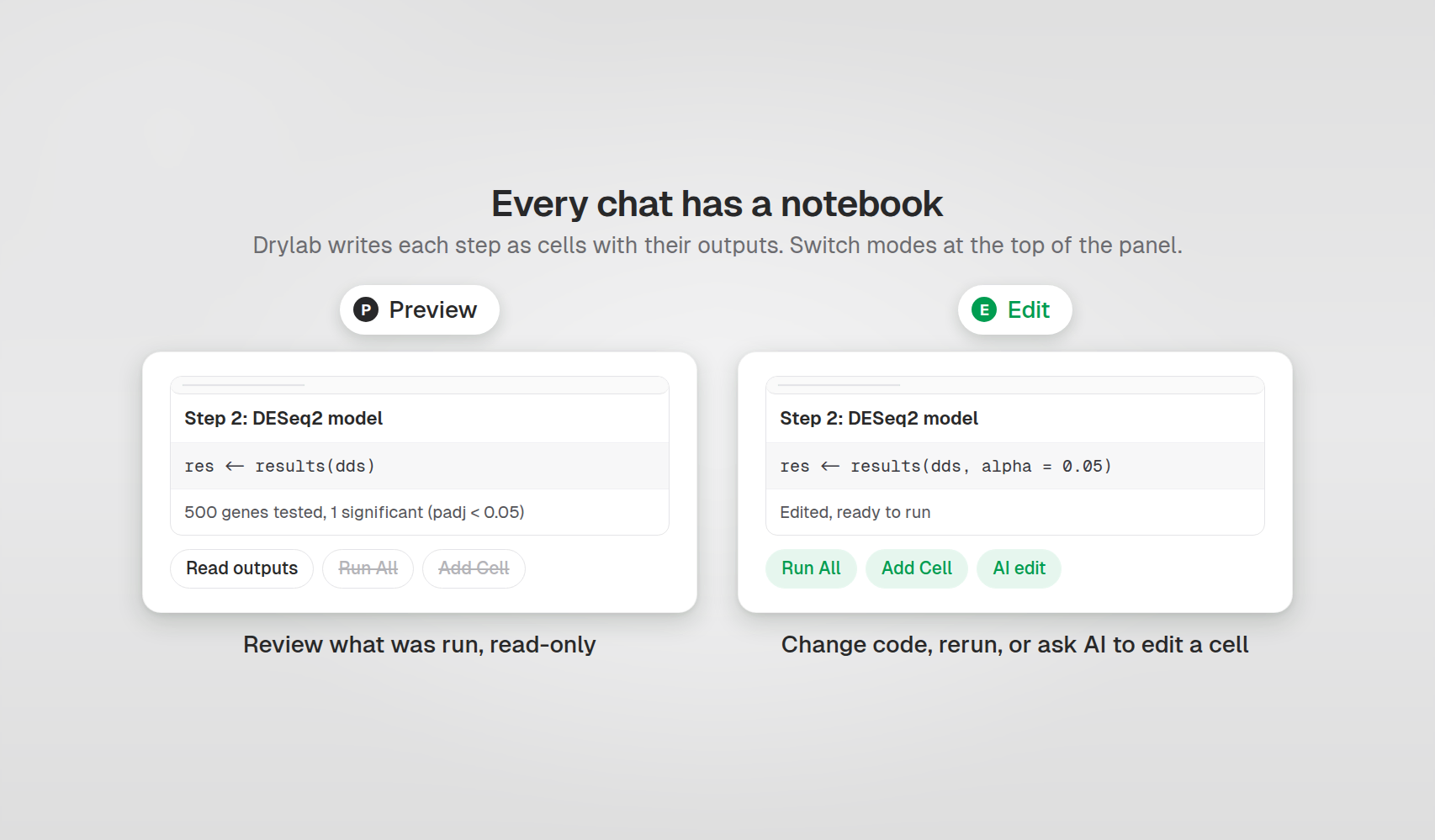
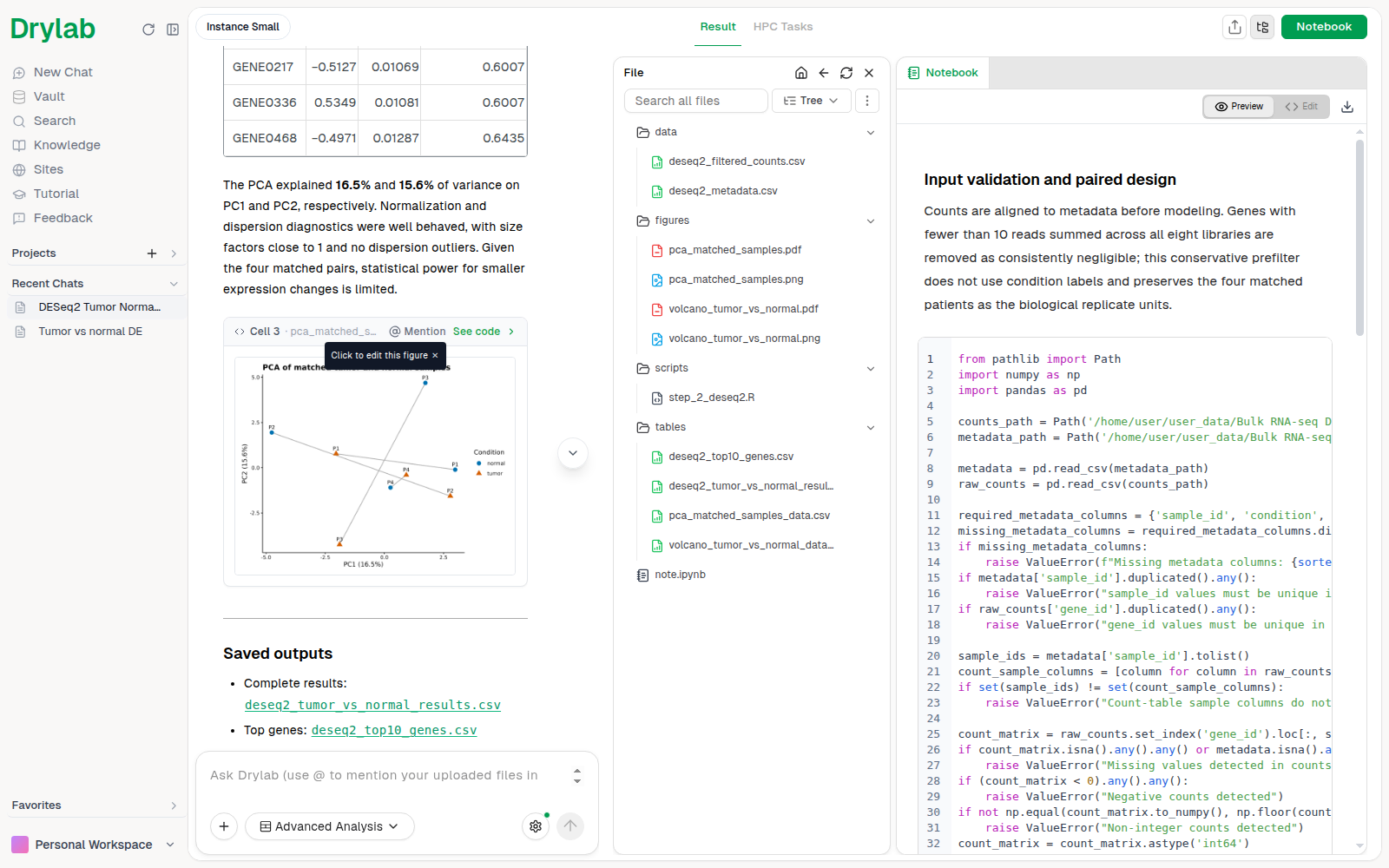
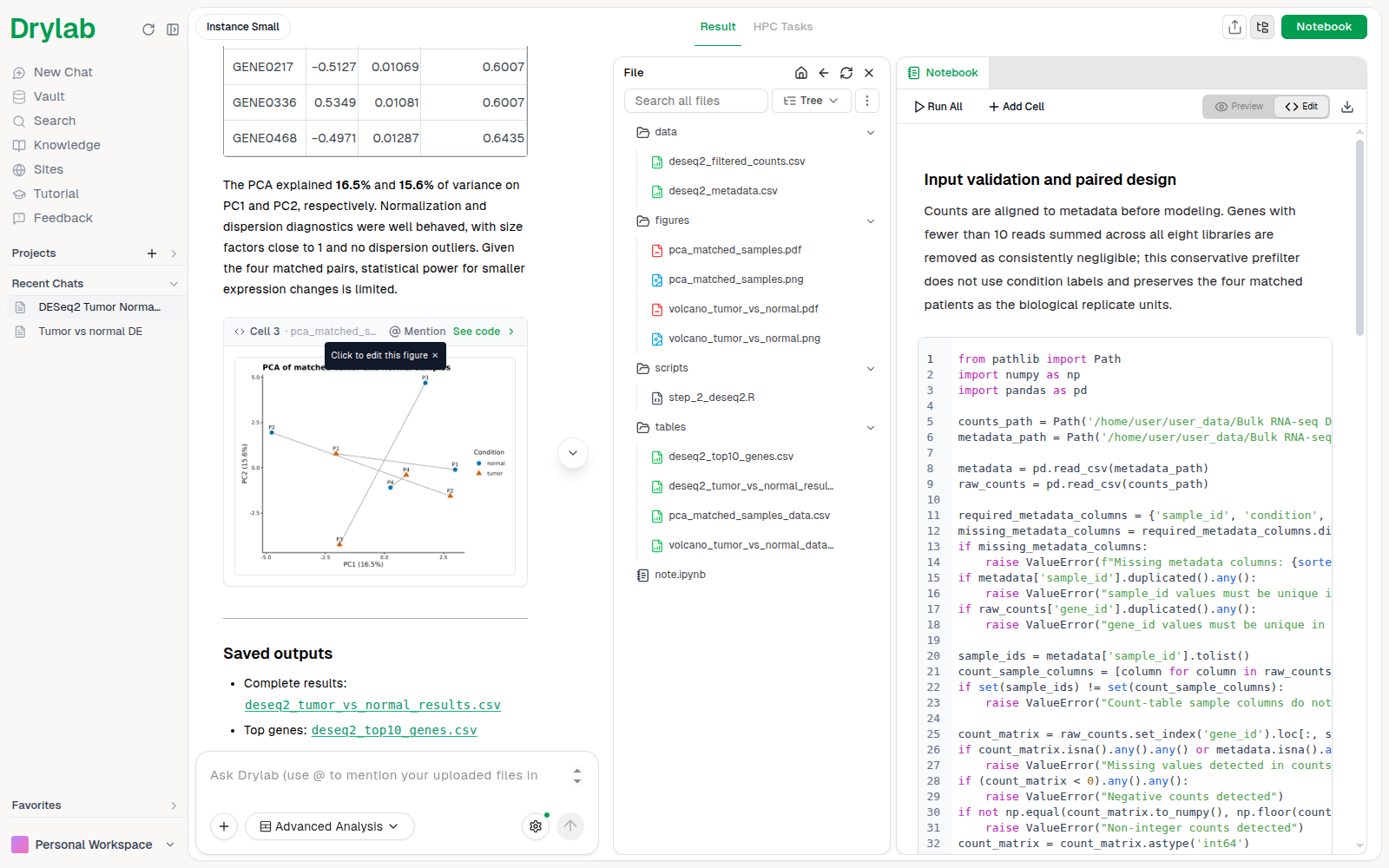
Use the Preview / Edit switch at the top of the notebook panel.
| Mode | What you can do |
|---|---|
| Preview | Read the notebook: rendered markdown, code and every output. Code cells are read-only, and Run All and Add Cell are hidden. |
| Edit | Change the notebook: edit code, add or delete cells, run cells, Run All, and use AI edit. |
Cell types
| Type | Used for |
|---|---|
| Code | Python or R code, depending on the chat's language. Outputs appear under the cell. |
| Markdown | Headings and notes explaining each step. |
What you can do
Run Cells
Run one cell or the whole notebook.
Add a New Cell
Add code or markdown cells yourself or ask Drylab.
AI Code Edit
Change a cell by describing the edit in plain language.
Export a Notebook
Download the notebook as .ipynb or PDF.
Tips
- Drylab aims to keep the notebook runnable from top to bottom: when it fixes a step, it usually replaces the broken cell rather than leaving stale code behind.
- Ask Drylab questions about the notebook in the chat, for example "What analysis has been done so far?".
- Click Fork under an answer to try a different approach from that point without changing this notebook. See Chat History.