
Storage
Share Files
Share a file or folder from Drylab Storage with colleagues by email or with a link, manage who can open it, and save a copy of files shared with you.
You can share any file or folder in your Storage, the way you would in a cloud drive. The people you add can view it, download it and save their own copy. They can't change your files.
To share a whole analysis with its conversation, code and figures, share the chat instead. See Share a Chat.
Share a file or folder
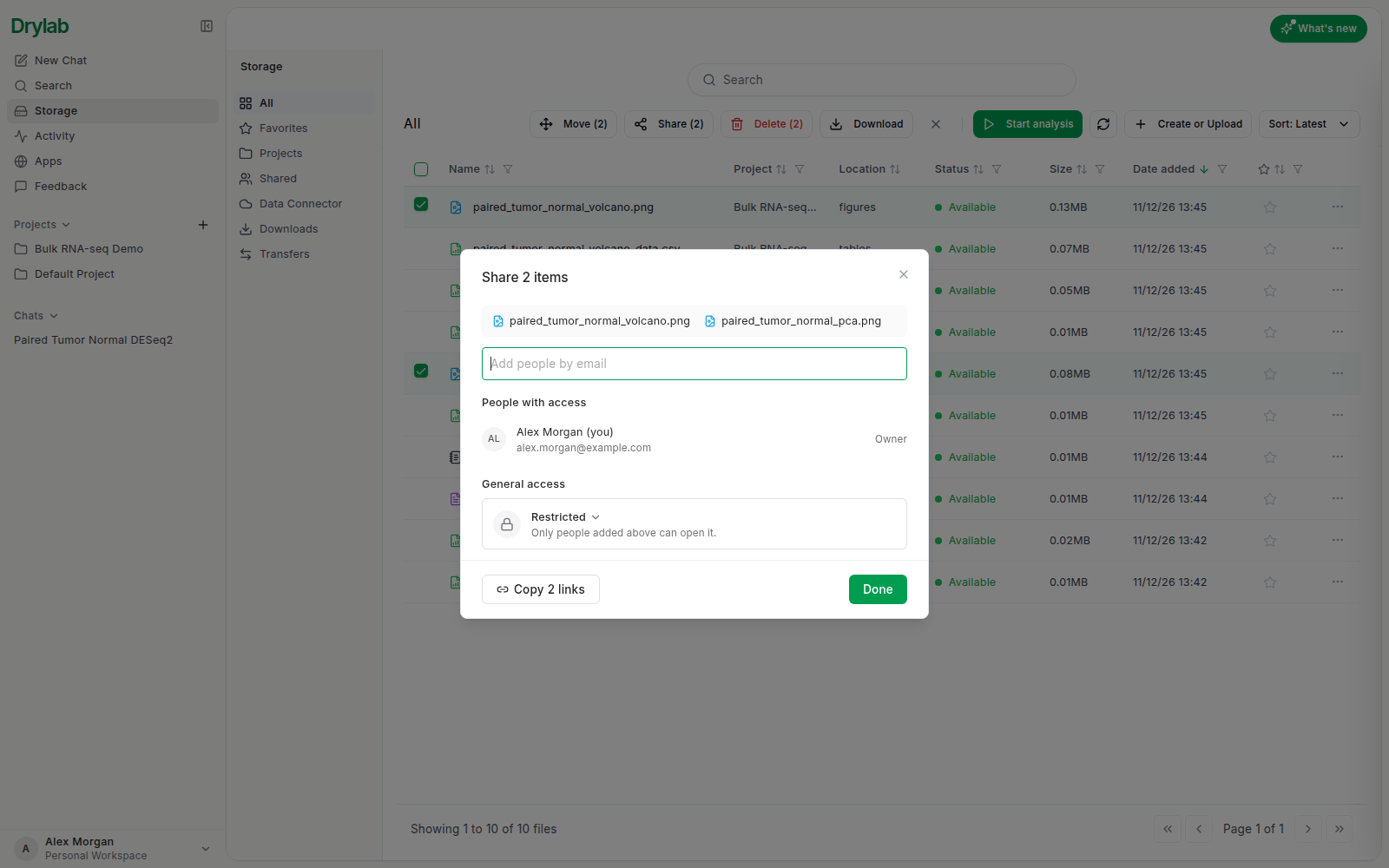
- In Storage, click ... on the row and choose Share. You can also click Share in a file's viewer, or tick several rows and click Share (N) to share them together (up to 50 at a time).
- Under Add people by email, type an email and press Enter. Add as many people as you need.
- Leave Email them a link on to send them an email with the link, and add an optional message. Turn it off if you'd rather tell them yourself; they still find the item in Shared with me.
- Click Send. You'll see "Shared with 1 person" (or the number of people you added).
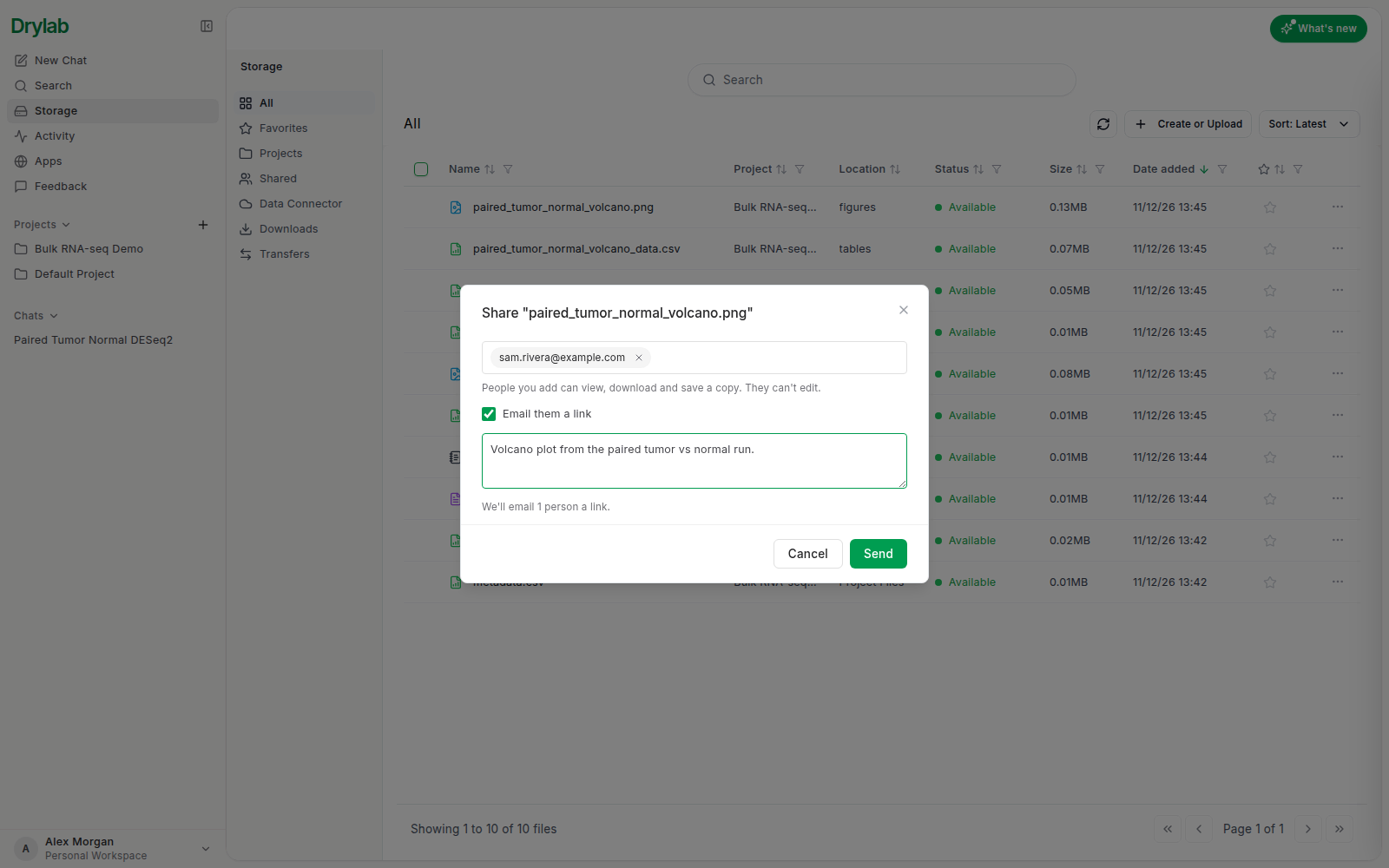
People you add can view, download and save a copy. If someone doesn't have a Drylab account yet, they show as Invited, no account yet until they sign up with that email.
Who has access
Open Share again to see People with access: you (Owner) and everyone you added (Can view). Click the x next to a person to remove them.
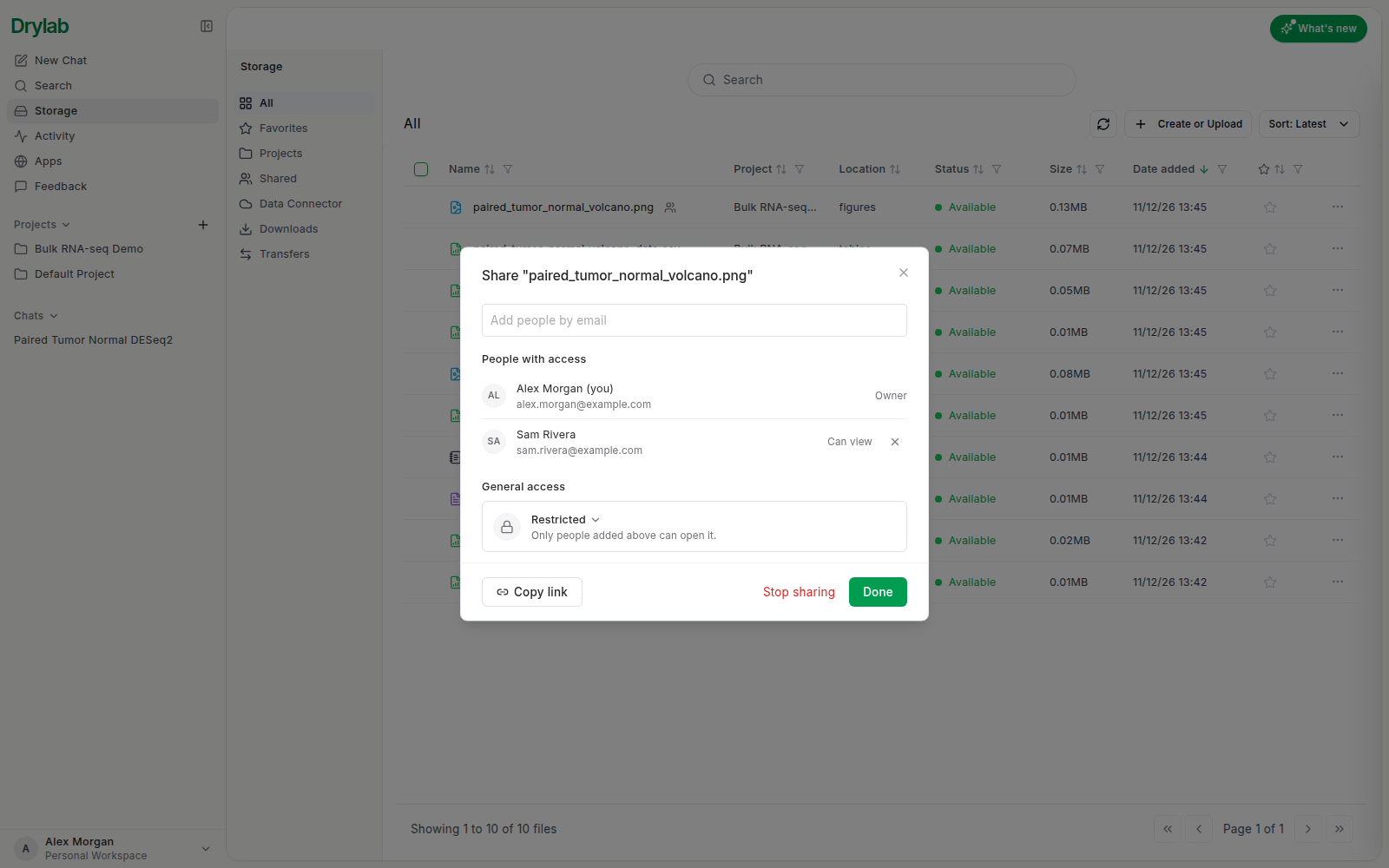
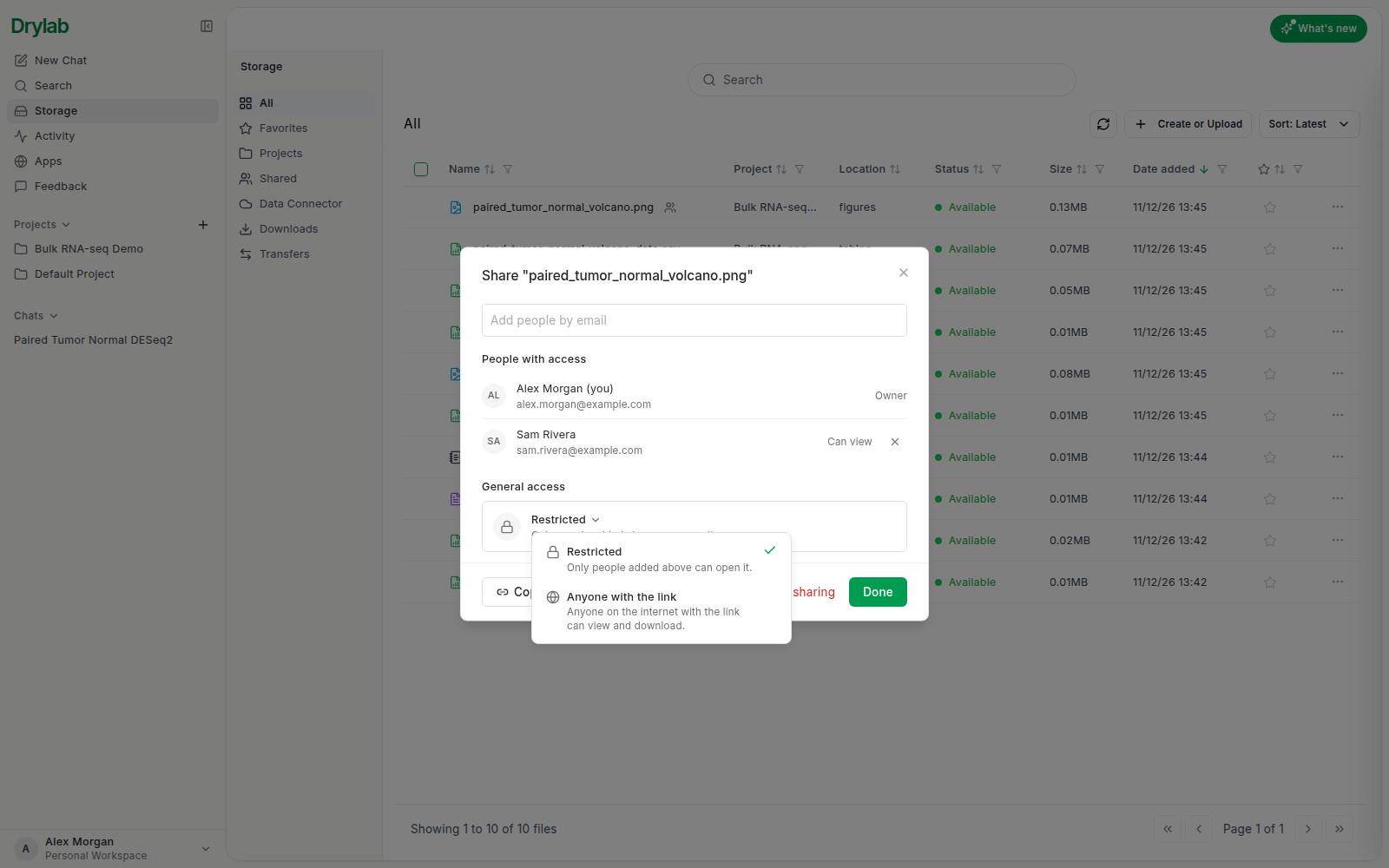
General access sets who else can open it:
| Option | Who can open it |
|---|---|
| Restricted | Only the people you added. |
| Anyone with the link | Anyone on the internet with the link can view and download. |
Click Copy link to copy the link. If the item is Restricted, Drylab first asks "Turn on link sharing?", because copying a link for everyone makes it public. Click Turn on link and copy to go ahead.
When you share several items at once and their settings differ, General access shows Mixed. Pick an option to apply it to all of them.
See what you shared
Open Storage > Shared > Shared by me. Each row shows who can open it and when you shared it.
- Click Manage to open the Share window again.
- Use the row's menu to Copy link or Stop sharing.
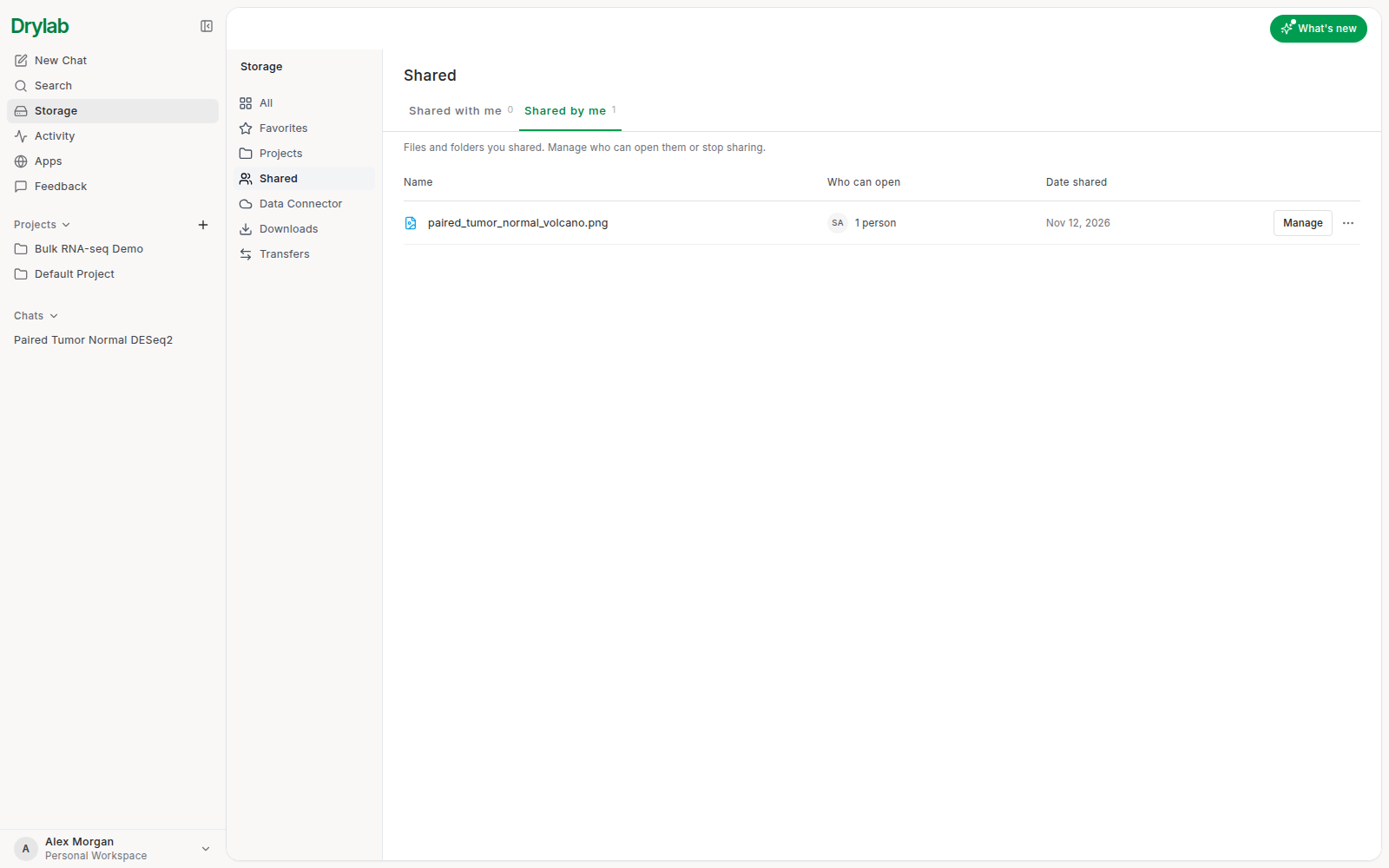
Shared items also show a Shared marker in your Storage lists.
Files shared with you
Open Storage > Shared > Shared with me to see what others shared with you, with who shared it, its size and the date. If someone emailed you a link, it opens the same item.
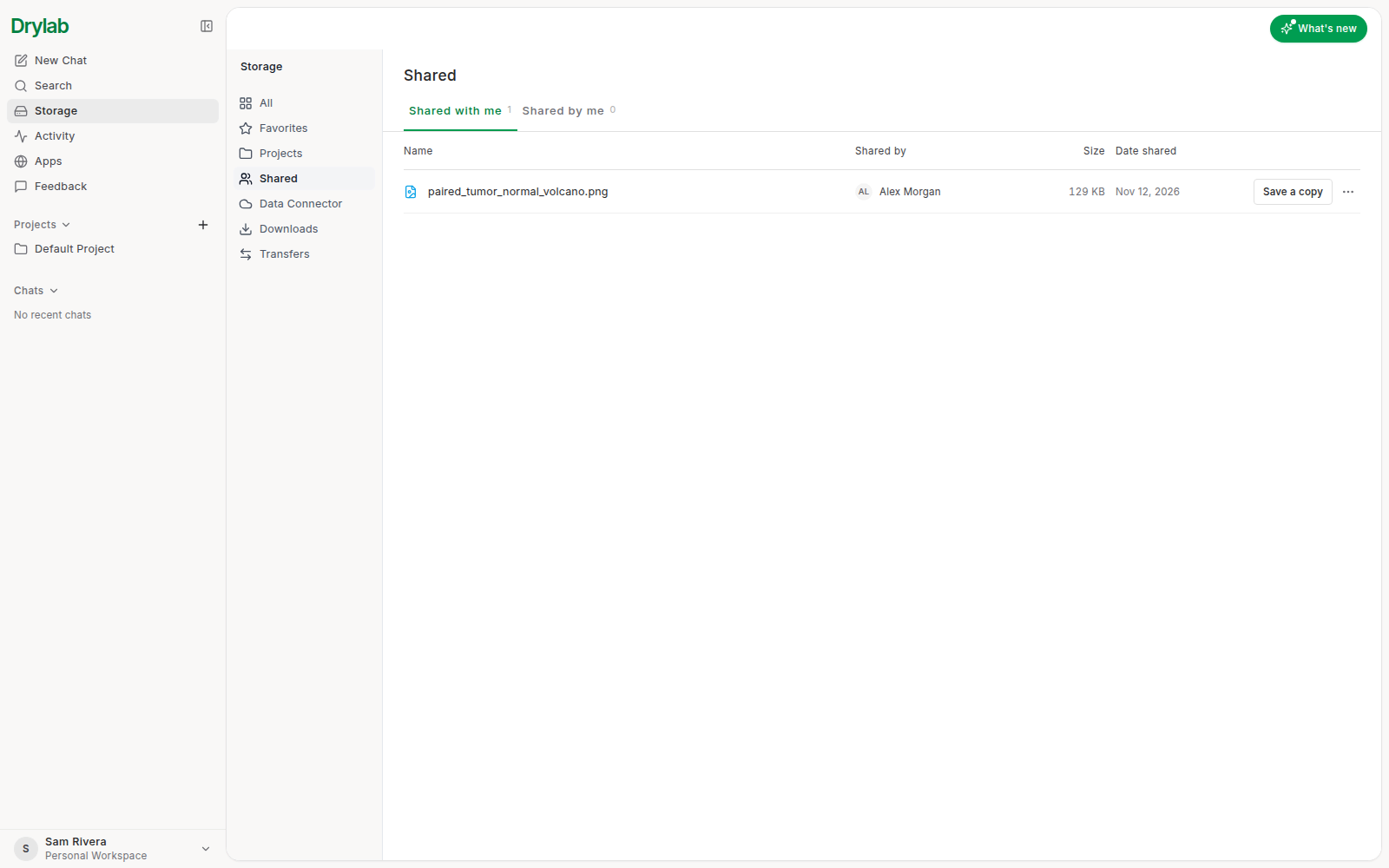
- Click a row to open the file, or to browse a shared folder (read-only).
- The row's menu has Open in new tab, Download and Remove from my list. Removing it only hides it from your list; you can still open it from the invite email.
If a link no longer works, you see "This link no longer works": the owner may have stopped sharing it. If it was shared with your email, sign in with that address.
Save a copy
To keep working with a shared file or folder, click Save a copy. The window shows where the copy goes (a Shared copies project in your Storage), how much space it needs and how much you have left.
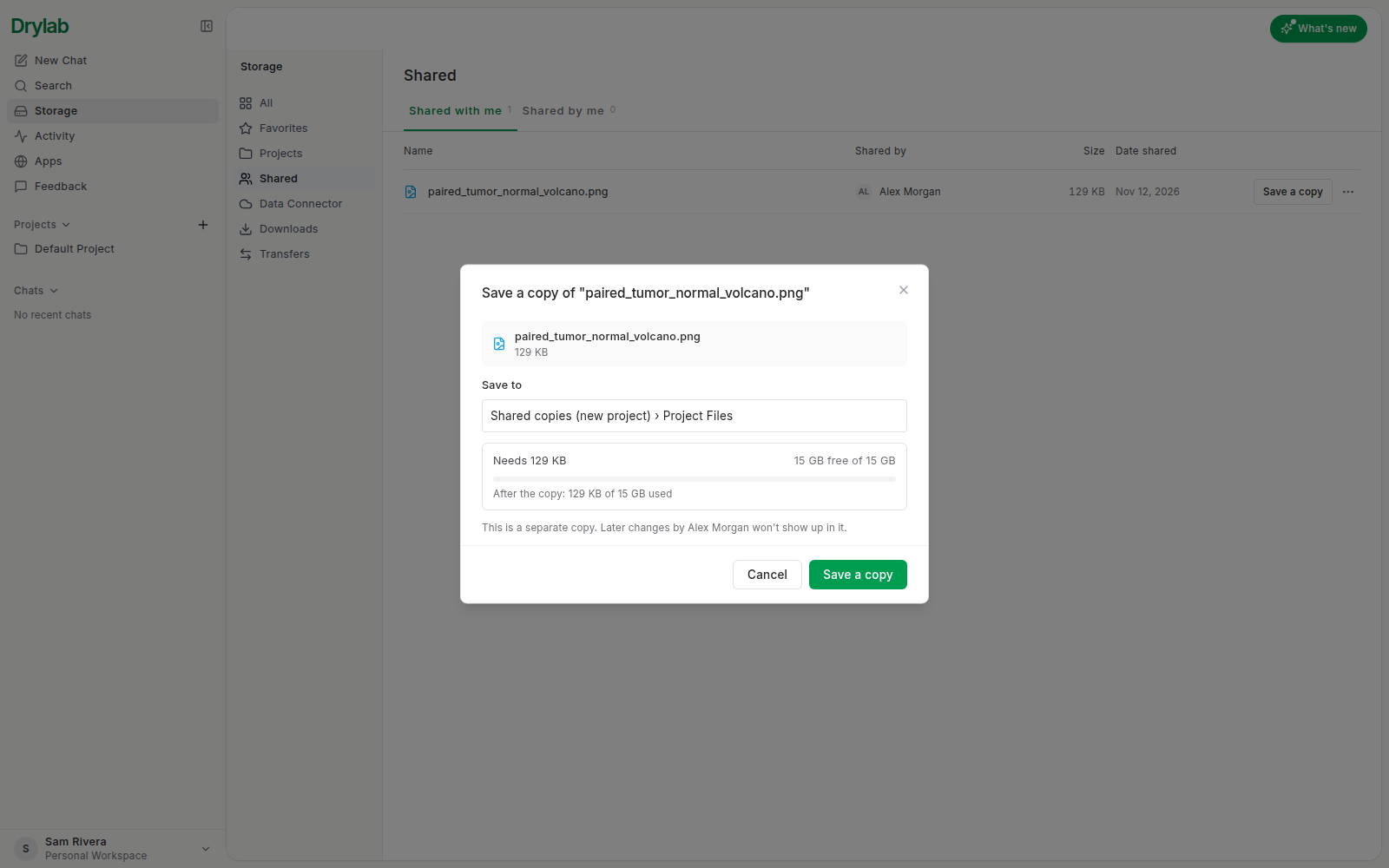
Click Save a copy to start. The copy runs in the background and its progress shows in the bottom-right corner, so you can keep working. When it's done, click Open to go to it.
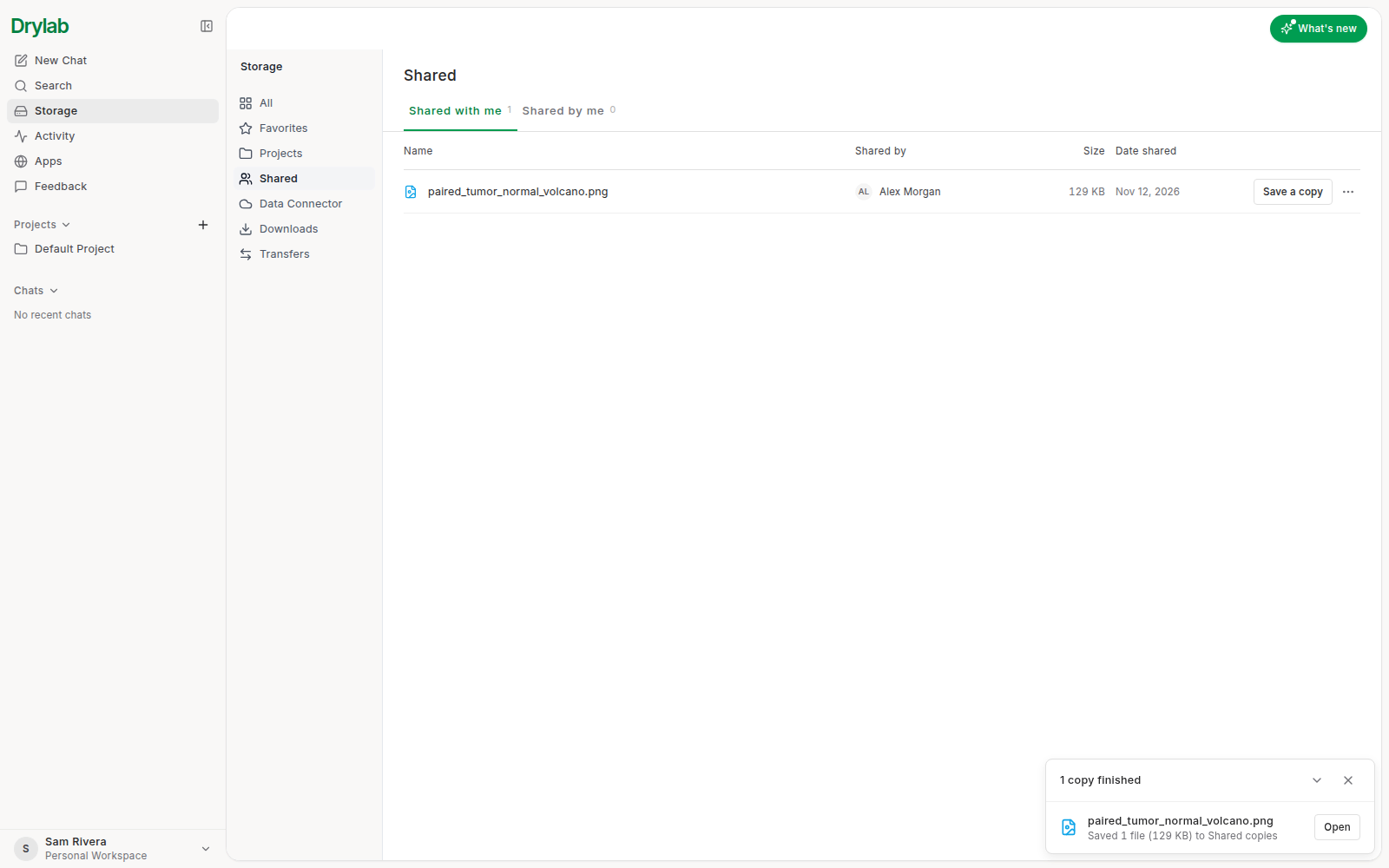
The copy is separate: later changes by the owner don't show up in it. If you don't have enough space, Drylab tells you how much to free up.