
Overview
Why Drylab Desktop exists, how it runs analyses on your own computer, and how it differs from the web app.
Drylab Desktop brings the full Drylab chat and analysis experience to your own computer. You ask questions the same way as on the web, but the code runs on your machine and your files stay in a folder you choose.
Why use the Desktop App
Many labs can't, or would rather not, upload raw data to a cloud service: unpublished results, patient-derived data, data under a data-use agreement, or simply files too large to move. Drylab Desktop is built for that.
| What it means for you | |
|---|---|
| Your data stays on your computer | Your project folder is never uploaded or synced. Drylab's AI sees the output of the code it runs (tables, messages, plots), not a copy of your folder. |
| No upload wait | Analyses start on files that are already on your disk. Put new files in the project folder, or drag them onto the chat box, and they stay local. |
| Use the hardware you have | Analyses use your computer's processor and memory. If your computer has an NVIDIA graphics card and a GPU environment is offered for your system, you can choose it. |
| The same environment every time | Drylab installs a ready-made analysis environment with Python, R and common bioinformatics tools. You don't install or update packages yourself. |
How it works
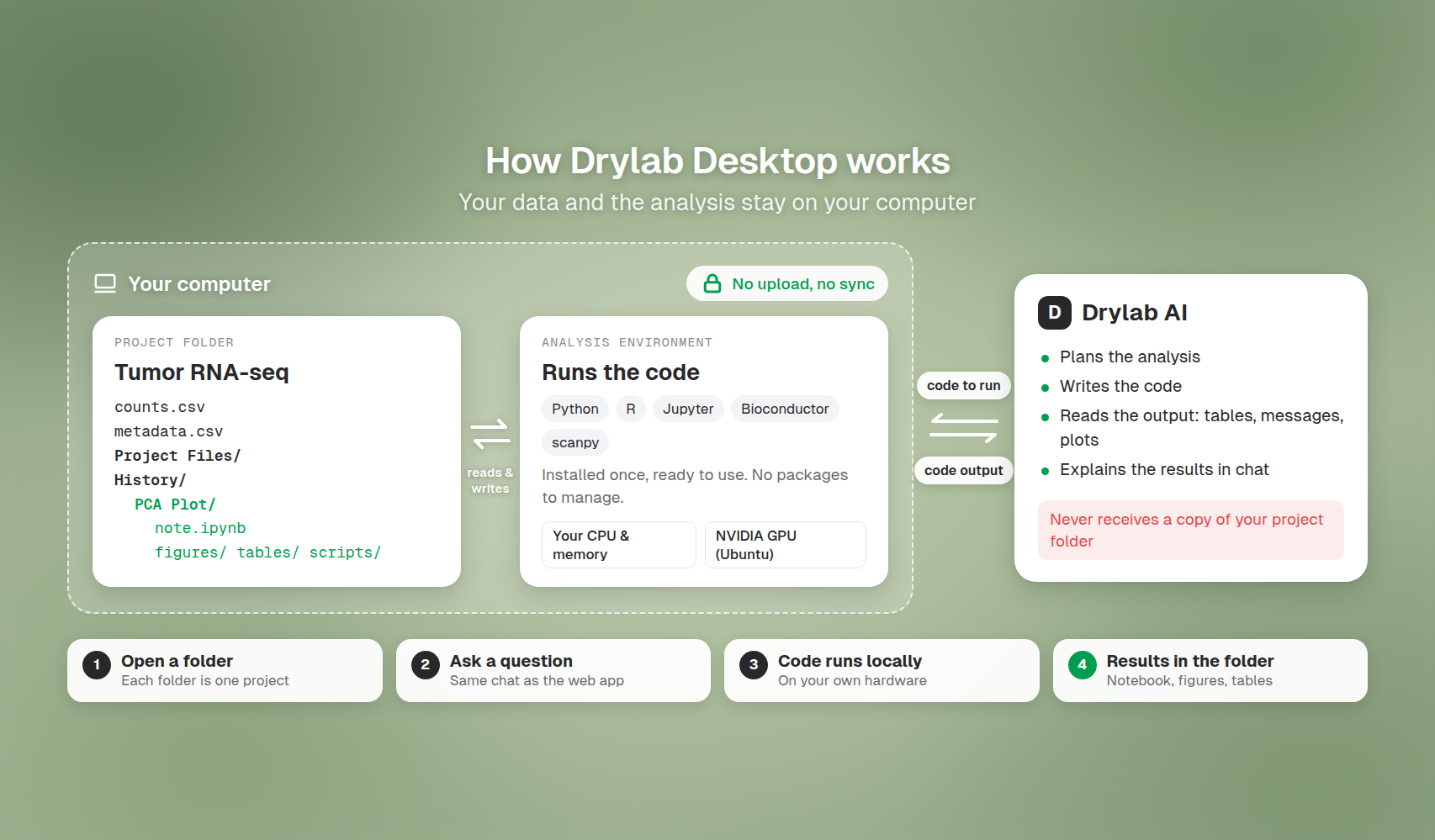
- Open a folder as a project. Each folder you open is one Drylab project. Your data files stay where they are.
- Ask a question. You chat with Drylab exactly as on the web.
- Code runs on your computer. Drylab writes the code and runs it in the analysis environment installed on your machine, which can read and write your project folder.
- Results are saved in the folder. Each chat gets its own folder under
History, with its notebook, figures, tables and scripts. You can open them with any other tool.
The app still needs an internet connection: you sign in with your Drylab account, and Drylab's AI plans and writes the code.
Desktop App vs web app
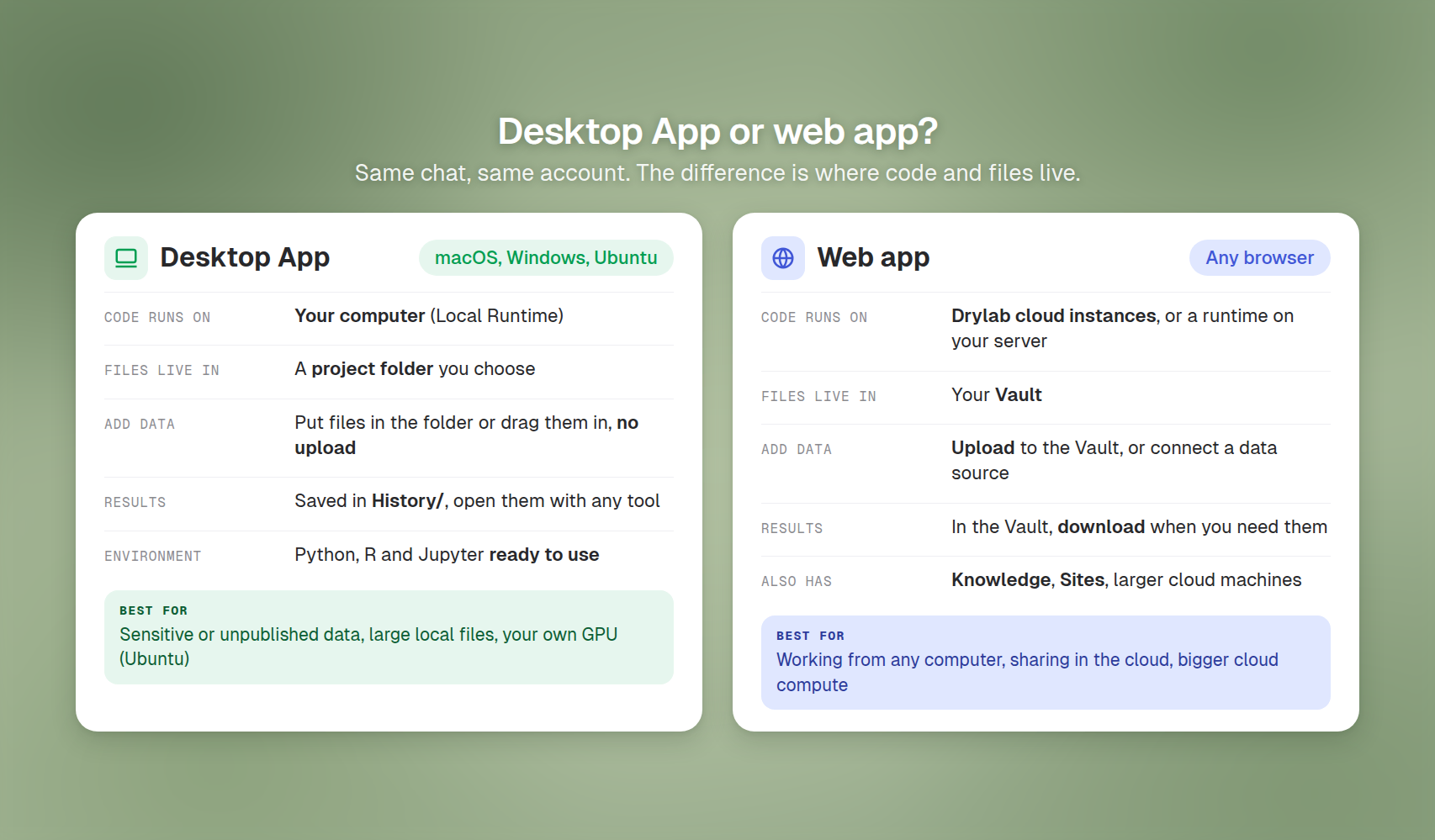
| Desktop App | Web app | |
|---|---|---|
| Where code runs | Your computer (Local Runtime) | Drylab cloud instances, or a local runtime you install on a server |
| Where files live | A project folder on your computer | Your Vault |
| Left sidebar | New Chat, Search, Open new project, Favorites, plus your project's File tree, Analysis Output and Recent Chats | New Chat, Vault, Knowledge, Sites and more |
| Sharing a chat | You choose which local files to include | Shared from your Vault |
Use the web app for cloud instances, Knowledge and Sites. You can use both with the same account; each project lives in one or the other. See Use the Desktop App for what happens when you open a chat in the other app.
Get started
Install
System requirements and step-by-step install on macOS, Windows and Ubuntu.
Use the Desktop App
Projects, results, sharing and the local sandbox.
Work with Local Files
Drag and drop files from your computer, use the File tree, preview files and find results on disk.
Reset and Uninstall
Start over with a fresh environment, or remove the app.
Troubleshooting
Error messages, what they mean and how to fix them.