
Usage & Consumption
How Drylab measures AI tokens and storage, where to see your usage, and how to use them efficiently.
Your plan includes a monthly allowance of AI tokens and a total amount of cloud storage. You can see both at any time.
Where to see your usage
- Profile menu: click your workspace at the bottom of the left sidebar to see tokens and storage for the current period.
- Settings > Usage: the full breakdown.
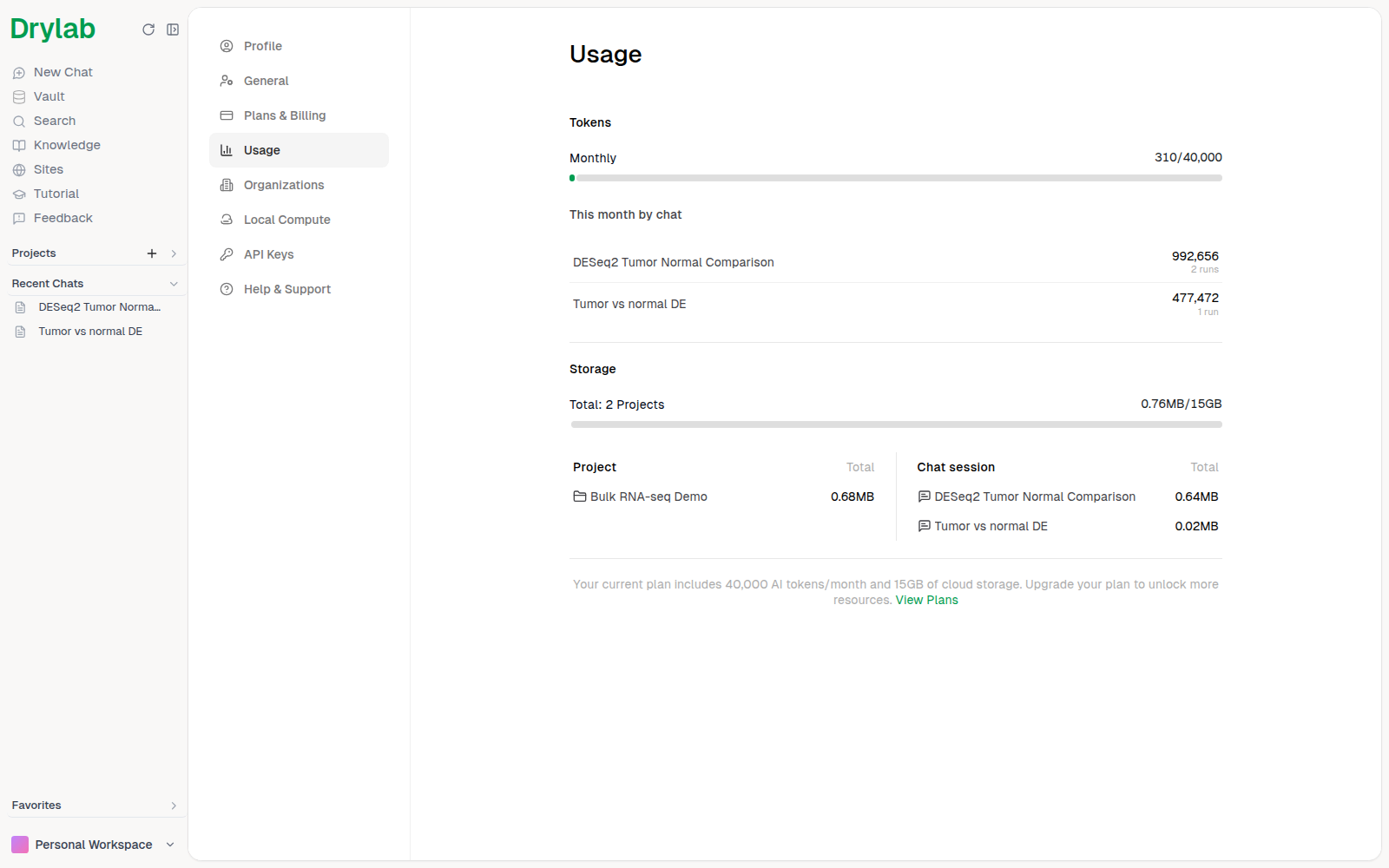
The Usage page shows:
| Section | What it shows |
|---|---|
| Tokens | Tokens used this month out of your plan's allowance. The Free plan also has a daily limit of 30 token credits. |
| This month by chat | Which chats used the most AI tokens, and how many runs each had. These are raw model tokens, so the numbers are larger than the token credits counted in the Tokens bar. |
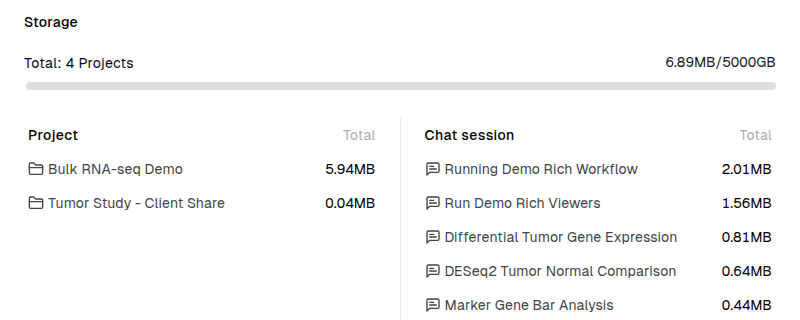
| Storage | Vault storage used out of your plan's total, broken down by project and by chat. |
| Extra Tokens | Tokens you bought or were given (for example from referrals). They're used after your monthly allowance runs out and don't reset. Shown only when you have some. |
Tokens
Tokens measure AI usage: reading your request, planning, writing and fixing code, and interpreting results. The cost of a run depends on the mode and the amount of work:
| Mode | Typical cost |
|---|---|
| Advanced Analysis | 400-1200 token credits, depending on the task |
| Analysis | 50-200 token credits, depending on the task |
Tips to use tokens efficiently:
- Use Analysis for everyday tasks and Advanced Analysis for discovery work. See Start an Analysis.
- Be specific, so Drylab doesn't need extra rounds to clarify.
- Split very large projects into focused chats. See Stay Focused in Long Analyses.
Accelerated tools and pipelines
Accelerated tools and pipelines run on dedicated GPU/HPC hardware (see Accelerated Tools). The Resource Preview in the @ picker shows each one's price (for example "0.1 credits/run" or "0.3 credits/hr"). Accelerated tools are included in Lab Basic, Lab Plus, Lab Pro and Enterprise, with monthly GPU hours set by the plan; see Settings > Plans & Billing.
Storage
Storage is the space your files use in the Vault: uploads plus everything your analyses save.
- Delete intermediate files you no longer need, such as raw alignments after QC.
- Prefer compact formats (
.fastq.gz,.h5ad, Parquet). - Find what takes the most space (web app only): in the profile menu, click the expand arrow next to Storage (View storage breakdown), or open Settings > Usage. The Storage section lists your largest projects and chat sessions with their size. Click a project, or a chat inside a project, to open its files in the Vault.
When you reach a limit
- Tokens: when your allowance (and any extra tokens) is used up, Drylab shows Out of usage: "Upgrade your plan or wait for the next reset to continue."
- Someone else's allowance: in an organization or a shared project, the allowance that ran out may not be yours. Drylab then shows Organization out of usage: "Your organization has run out of usage. Please contact your organization admin." or Project out of usage: "This project has run out of usage. Please contact the project owner." Upgrading your own plan won't help in these cases.
- Storage: when storage is full, Drylab shows Storage limit reached. Click Update Your Plan for more space, or Open Vault (opens in a new tab) to delete files you no longer need. Close dismisses the message. The message appears on the home page and in chats, at most once until you restart your browser, so it doesn't interrupt you on every page.
- Data size: each plan limits how much data one analysis can use. Larger inputs show Data size exceeds plan limit.
- Messages per conversation: on some plans a conversation has a maximum number of messages. Drylab shows This conversation has reached its limit; click Start new conversation and your message is carried over. See Plans & Billing.
- File size: each plan also limits the size of a single uploaded file. Larger files show File exceeds the upload size limit. and aren't uploaded; split the file or upgrade your plan.
To get more, click View Plans on the Usage page.