
Use the Desktop App
Work with local projects in Drylab Desktop: open folders, add files, find results on disk, share chats and pick the local sandbox.
Once the app is installed, everyday work looks like the web app: you chat, Drylab plans and runs the code, and results appear in the chat. The difference is where things live. This page explains how projects, files and results map to folders on your computer.
Projects are folders
Each folder you open in Drylab Desktop is one project. Its chats, notebooks and results are stored inside that folder.
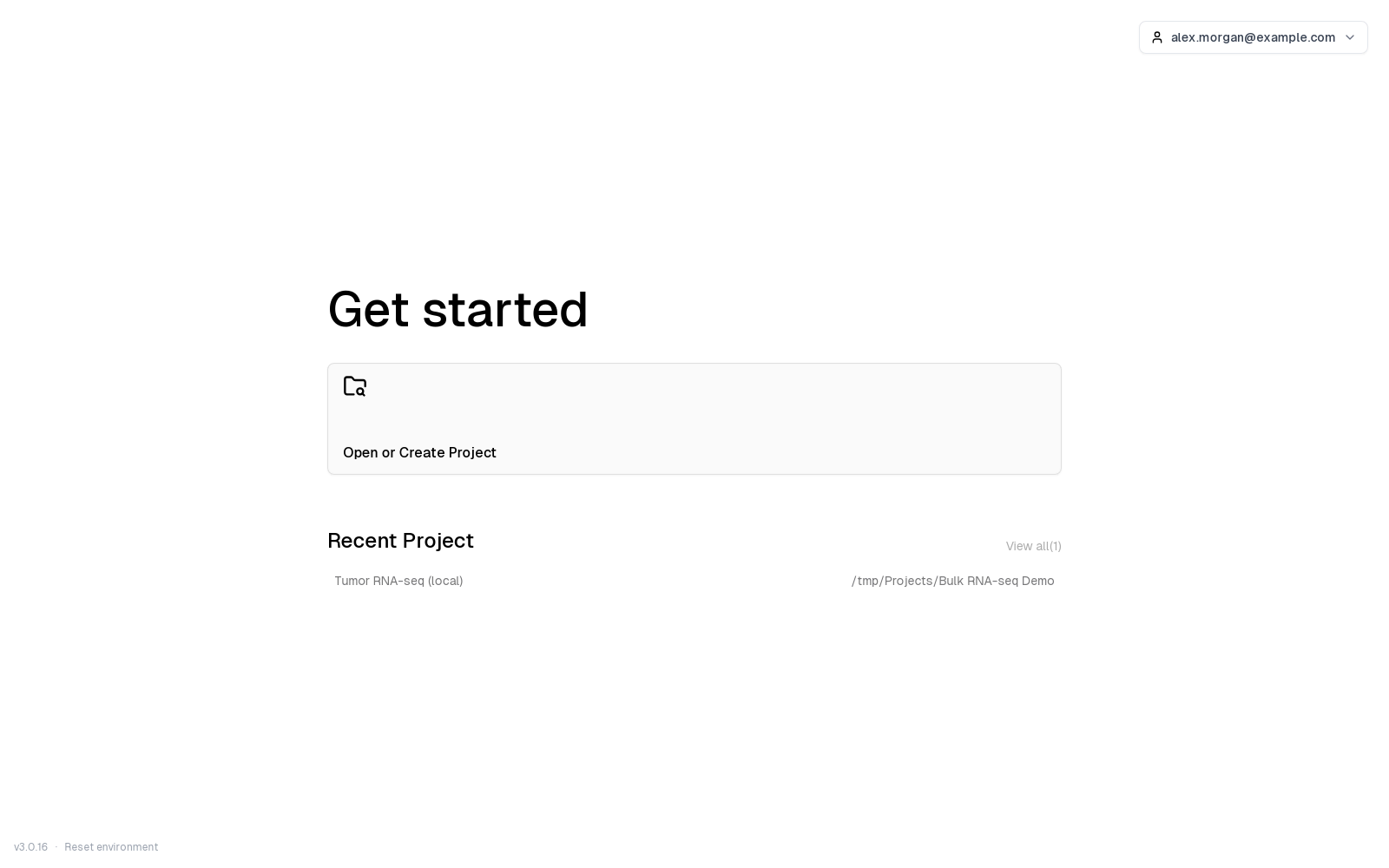
- Open a new project: on Get started, click Open or Create Project and pick a folder. If it isn't a Drylab project yet, fill in Create New Project and click Create Project.
- Switch projects: click Open new project in the left sidebar. It goes back to Get started and opens the folder picker; cancel the picker to choose a project under Recent Project instead. Each row shows the project name and its folder.
- One folder per study: keep each study or experiment in its own folder, just as you would create separate projects on the web.
When a project opens, Drylab adds two folders to it:
| Folder | What goes in it |
|---|---|
Project Files | Files you add to the project from the app. |
History | One folder per chat, named after the chat, holding its notebook (note.ipynb) and the figures, tables, scripts and data it produced. |
Files that were already in the folder stay where they are, and Drylab can use them directly.
Find your way around
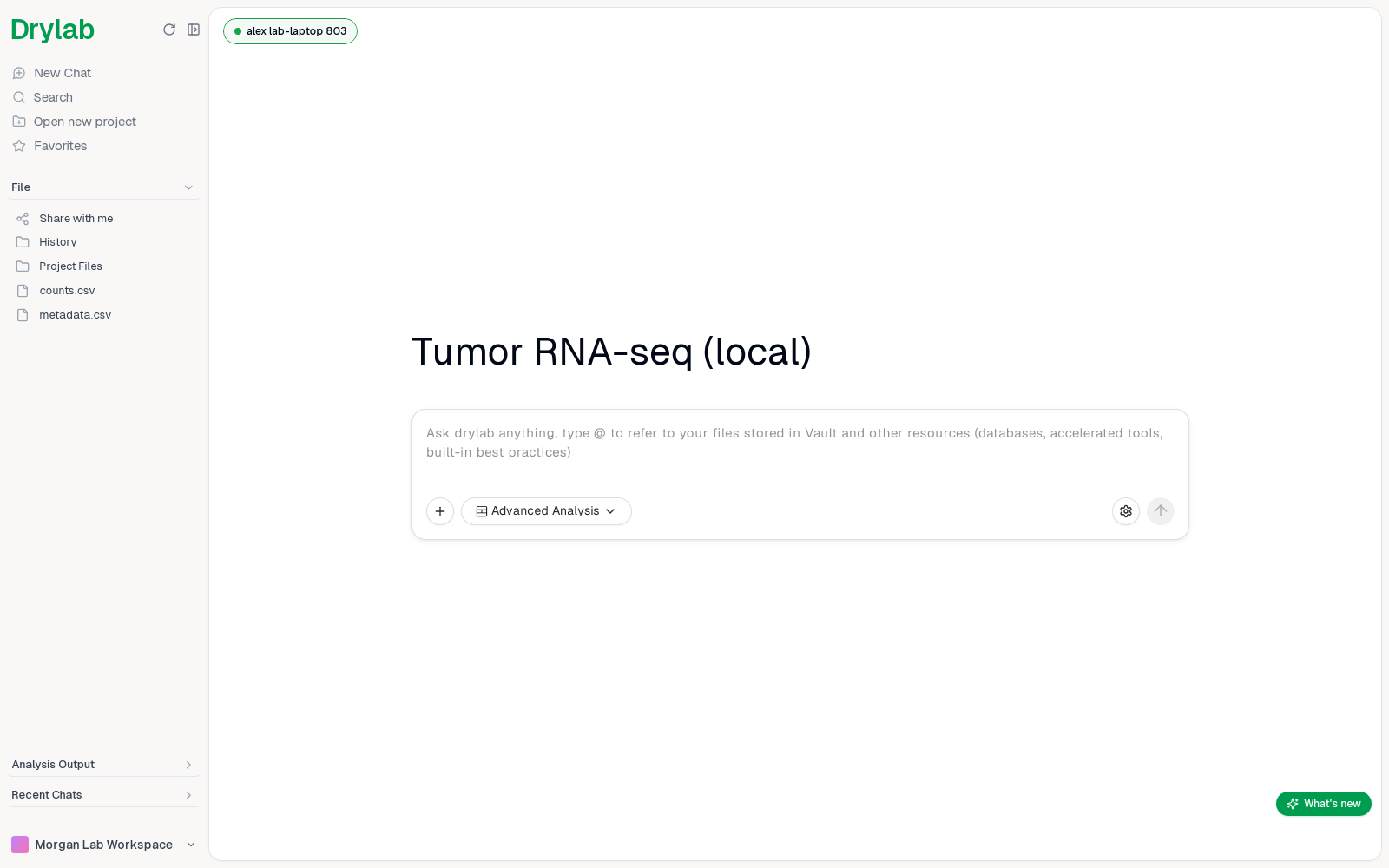
The left sidebar shows your project instead of the web app's Vault, Knowledge and Sites:
- New Chat, Search, Open new project and Favorites.
- File: the folder tree of your project. It updates on its own when files change on disk.
- Analysis Output and Recent Chats for this project.
Add files to a project
Put data in the project folder yourself with Finder, File Explorer or your file manager, or add it from the app without uploading it:
- Drag files from your computer onto the chat box.
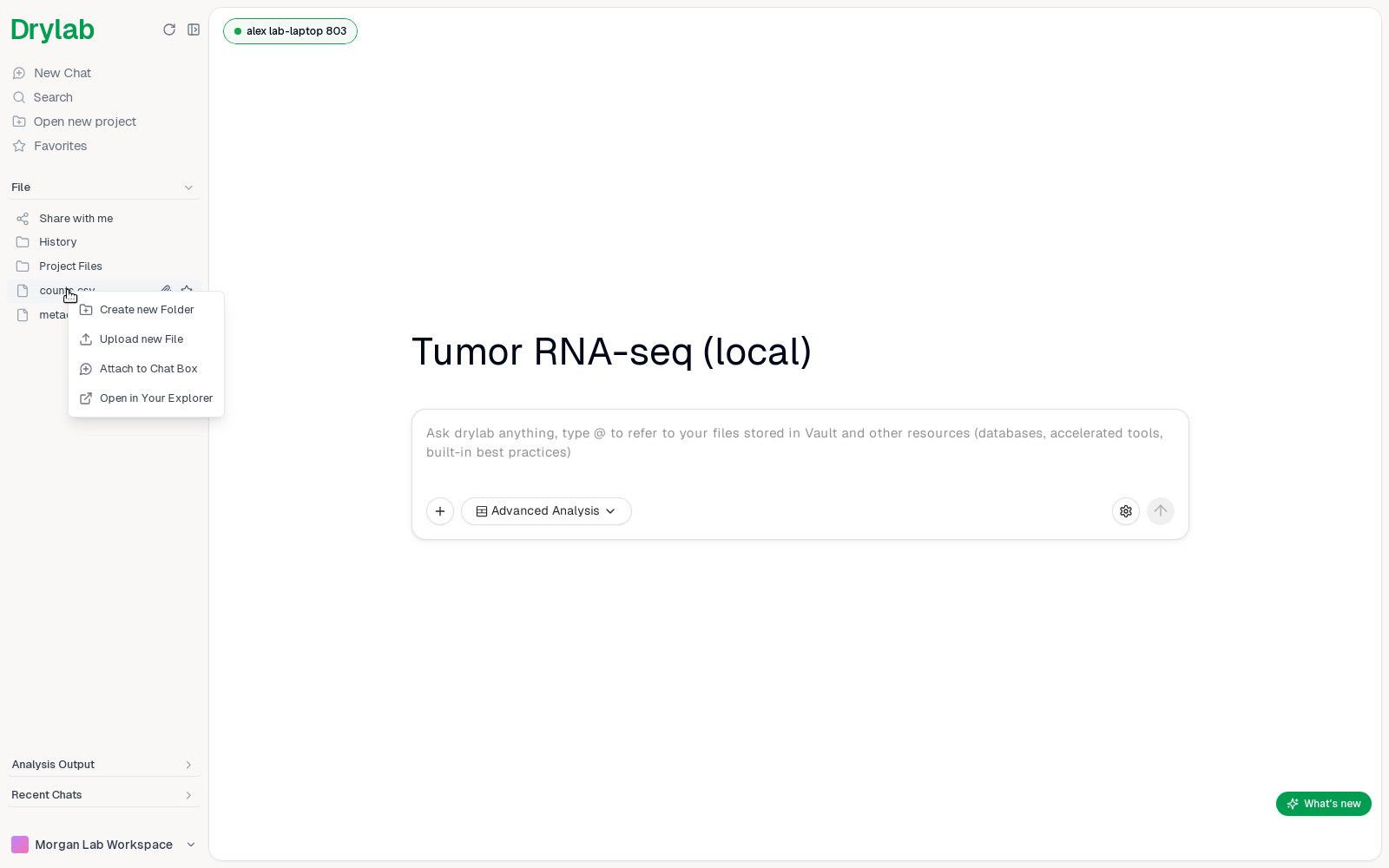
- In the File tree, right-click a folder and choose Upload new File.
The chat box + menu (Upload file, Upload folder) uploads to your cloud Vault instead. For every way to add, find, preview and open files, see Work with Local Files.
Run an analysis
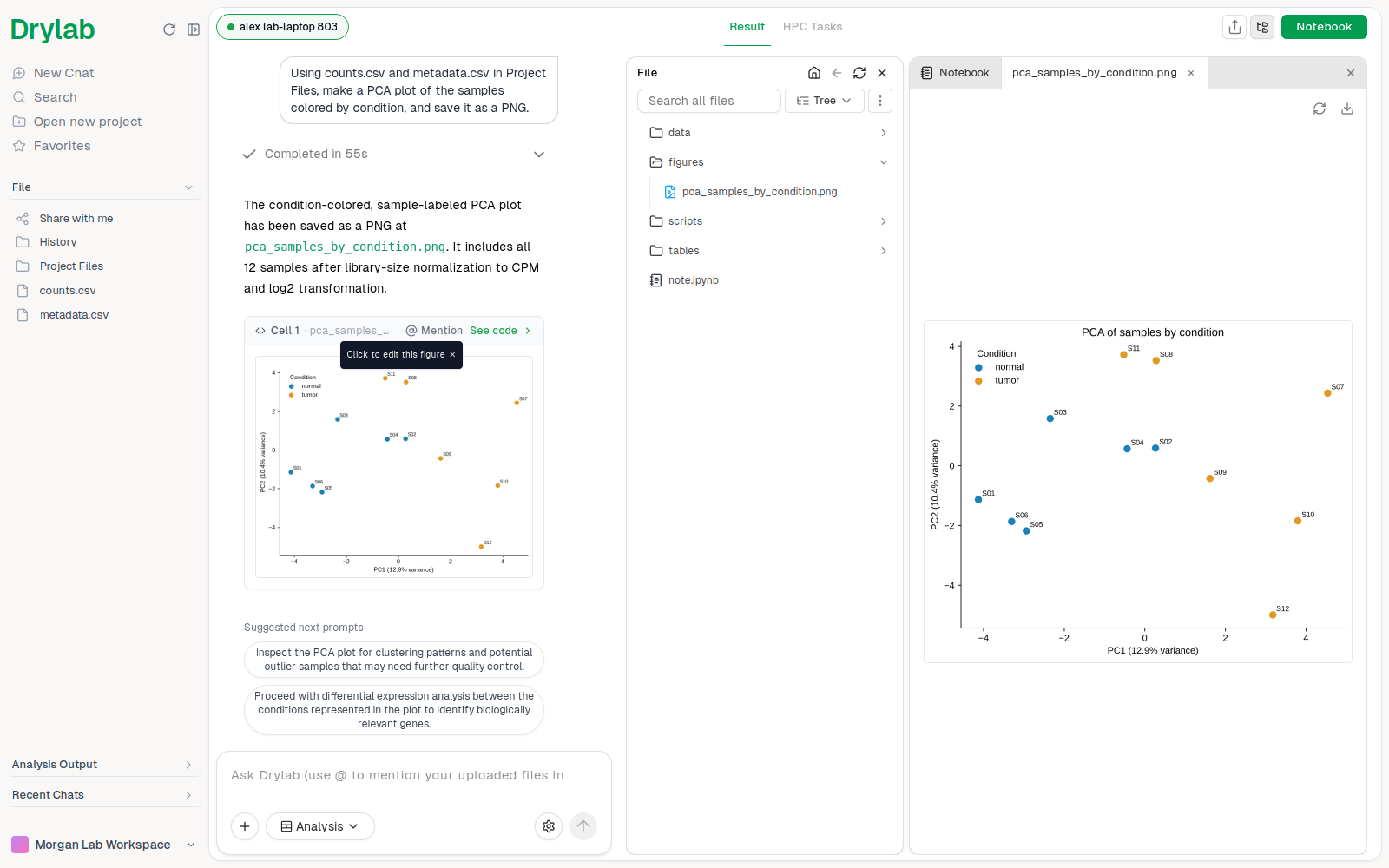
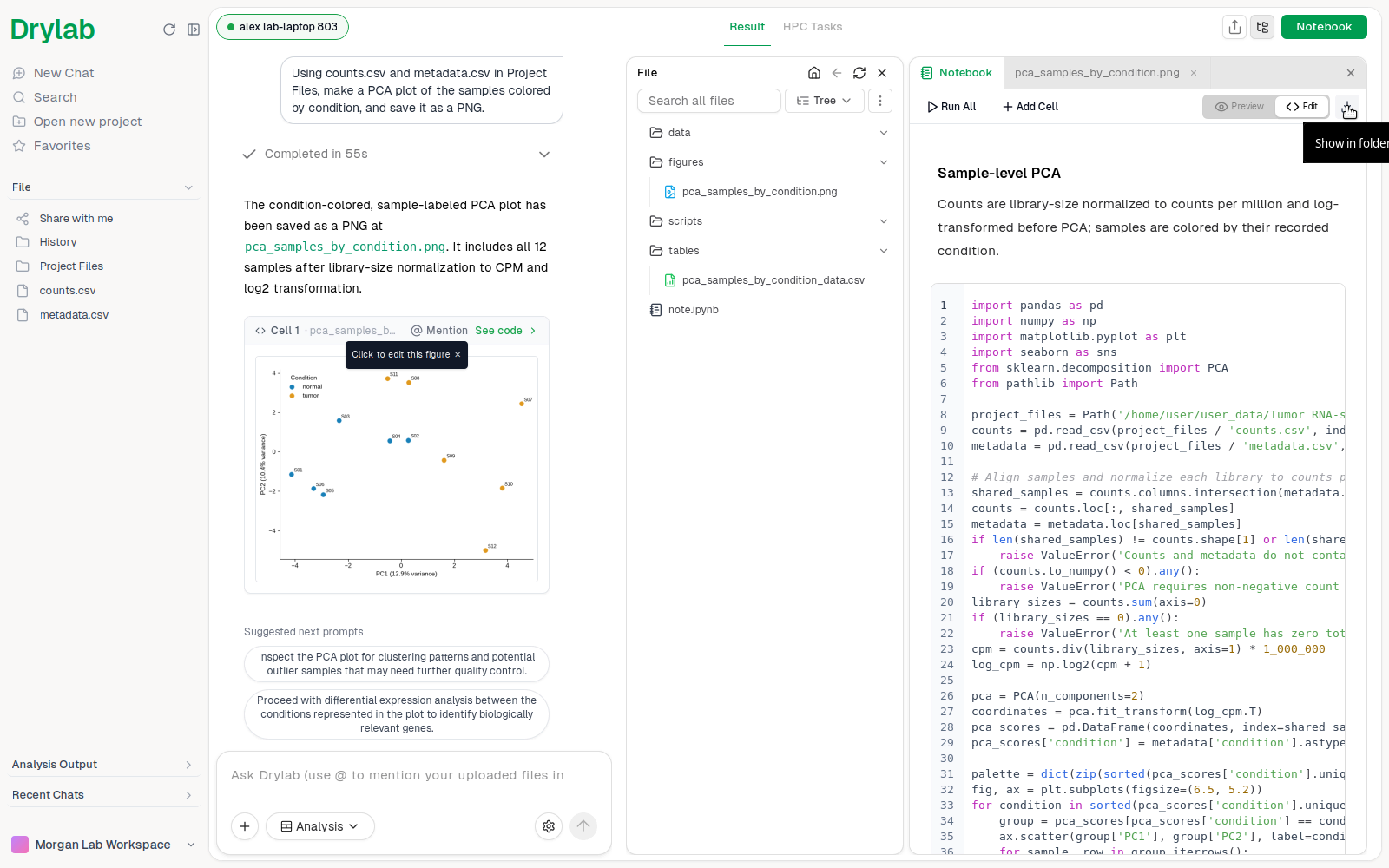
Ask Drylab a question as usual, for example "Using counts.csv and metadata.csv in Project Files, make a PCA plot of the samples colored by condition, and save it as a PNG." See Start an Analysis.
The code runs on your computer. While the analysis environment starts, the sandbox chip at the top of the chat shows its progress, such as Starting sandbox.... When the run finishes, its files are already in the chat's folder under History.
Open results on your computer
Every result is a normal file in your project folder, so you can open it in any other tool.
- In the files panel of a chat, each item has a Show in folder button.
- In the notebook, the download button is replaced by Show in folder, which opens the
.ipynbfile's location. - In the Desktop App, most download buttons for project files show the file in its folder instead of downloading a copy.
The local sandbox
In the Desktop App, analyses run on your computer. Click the sandbox chip at the top left of a chat to open Select Sandbox: it lists your computer under Local Runtime, with a Restart button if the environment needs a fresh start.
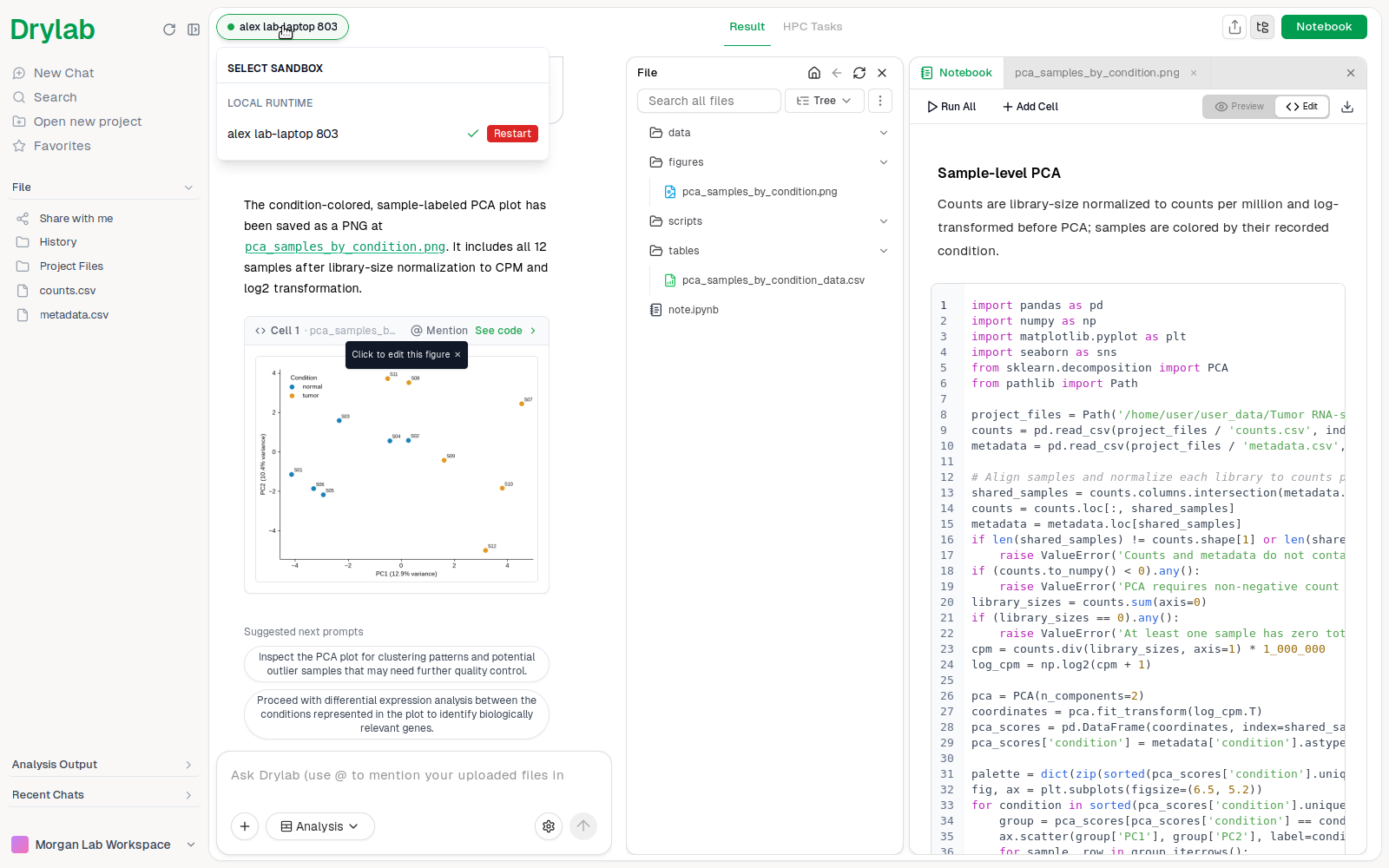
The Desktop App doesn't offer Drylab cloud instances. For a larger cloud machine, use the web app.
Share a chat
Click Share at the top of a chat. For chats from the Desktop App, the dialog says "This is a Desktop App session": the files live on your computer, and only the ones you select are uploaded so the people you share with can view and download them.
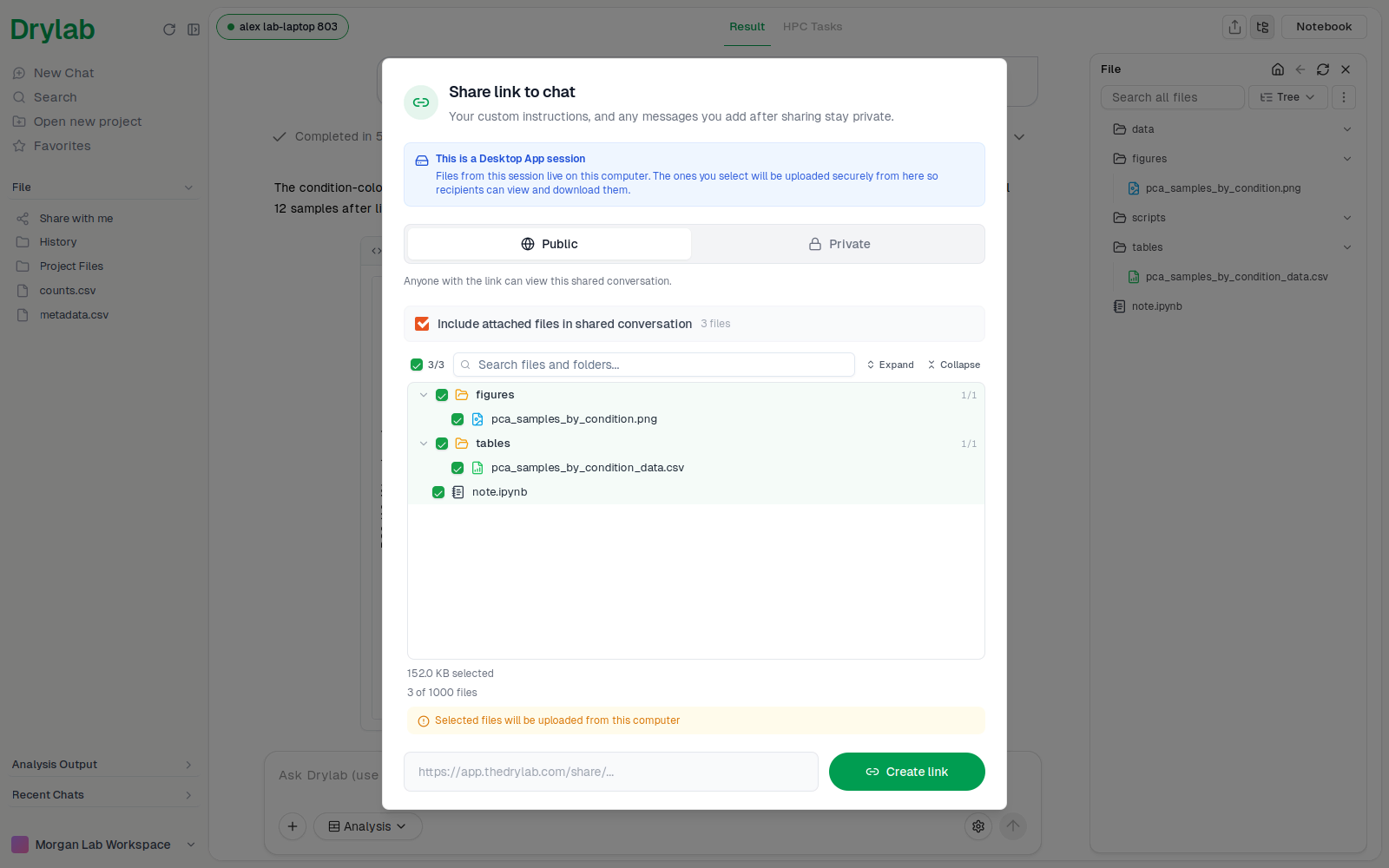
Choose Public or Private, tick the files to include, and click Create link. Your plan sets the total size of the files you can include, and a share can include up to 1,000 files. See Share.
If you open the same chat's share dialog from the web app, the files can't be included: only the conversation is shared.
Chats from the web app
Desktop chats and web chats keep their files in different places, so some actions only work in the app where the chat was created:
- Fork a Desktop chat in the Desktop App. The web app shows "This conversation was created on the Desktop App (local). Switch to the Desktop App to fork it — the Web App cannot access the local session folder." When you fork in the Desktop App, the files are copied locally on your machine.
- Fork a web chat in the web app. The Desktop App shows "This conversation was created on the Web App. Switch to the Web App to fork it — the Desktop App cannot copy Web App-hosted files locally."
- Delete a Desktop chat from the Desktop App if you also want its folder removed from your computer: tick Also delete the session's files when you delete it. Deleting it from the web app only removes the chat record.
App updates
Drylab Desktop checks for updates shortly after it opens, then every 30 minutes while it runs. How an update appears depends on its size:
| Update | What you see |
|---|---|
| Small fix | Nothing. It installs in the background and applies the next time you open the app. |
| Feature update | It installs in the background, then Update Installed appears in a corner. Click Restart Now when you're ready, or skip it. |
| Required update | Update Available blocks the app until you click Update Now. The app then installs the update and restarts by itself after a short countdown; click Cancel auto-restart to restart later. |
| Major version | Update Required blocks the app until you click Download & Install. The app downloads, checks and installs the new version. |
Your project folders are kept. If an update fails, see Troubleshooting.
Close the app
When you close the window, the app shows "Shutting down local environment…" while it stops the analysis environment. Wait for the window to close. Your project folders are kept.
Install
Install Drylab Desktop on macOS, Windows or Ubuntu, finish the first-launch setup, and open your first local project.
Work with Local Files
Add files from your computer to a Drylab Desktop project without uploading them, then find, preview and open them, and the results Drylab saves next to them.