
Account
Settings
A tour of Drylab's settings: your profile, preferences, plan, usage, organization, local compute, API keys and help.
Open Settings from your profile menu: click your workspace at the bottom of the left sidebar and choose Settings.
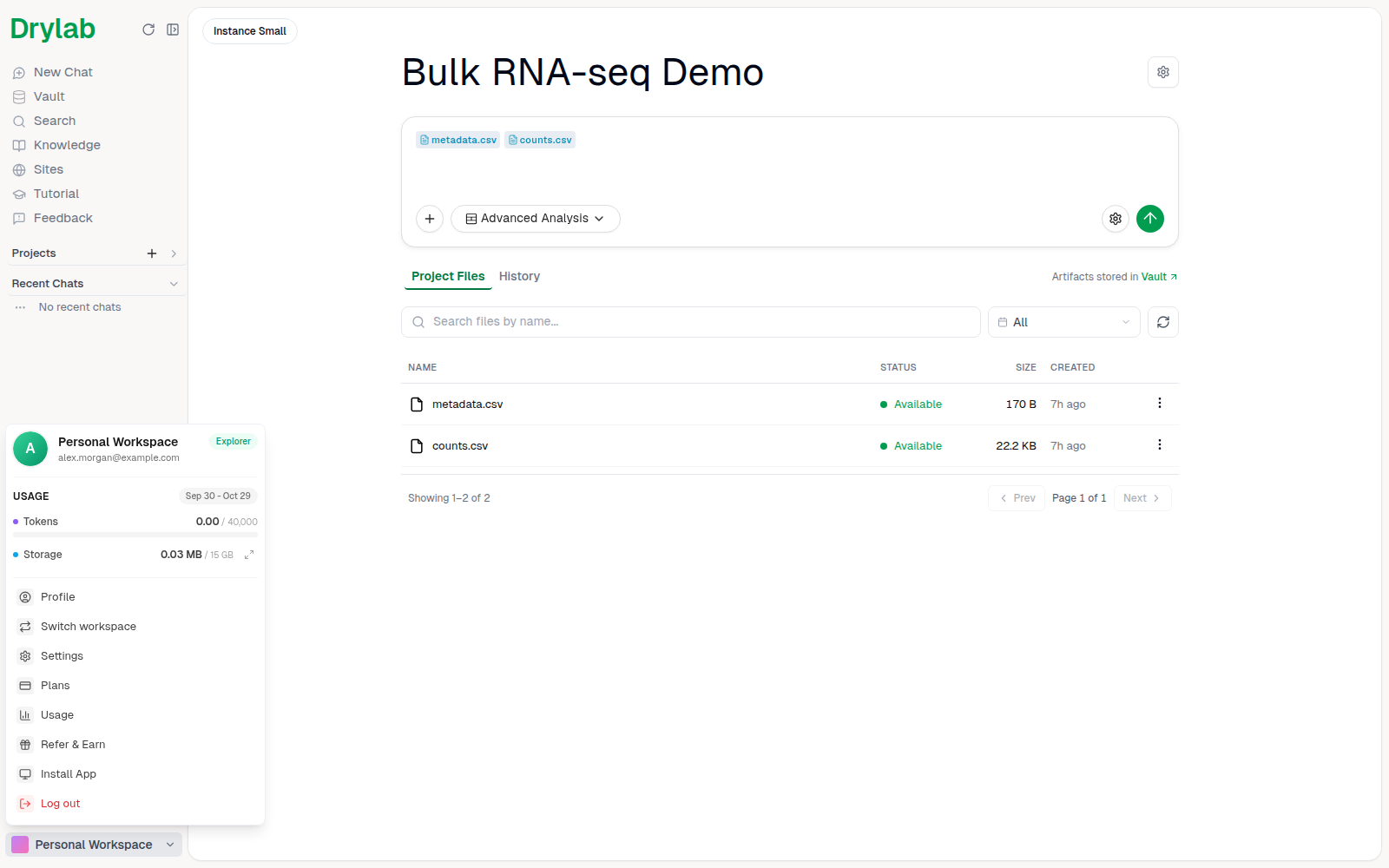
| Section | What you'll find |
|---|---|
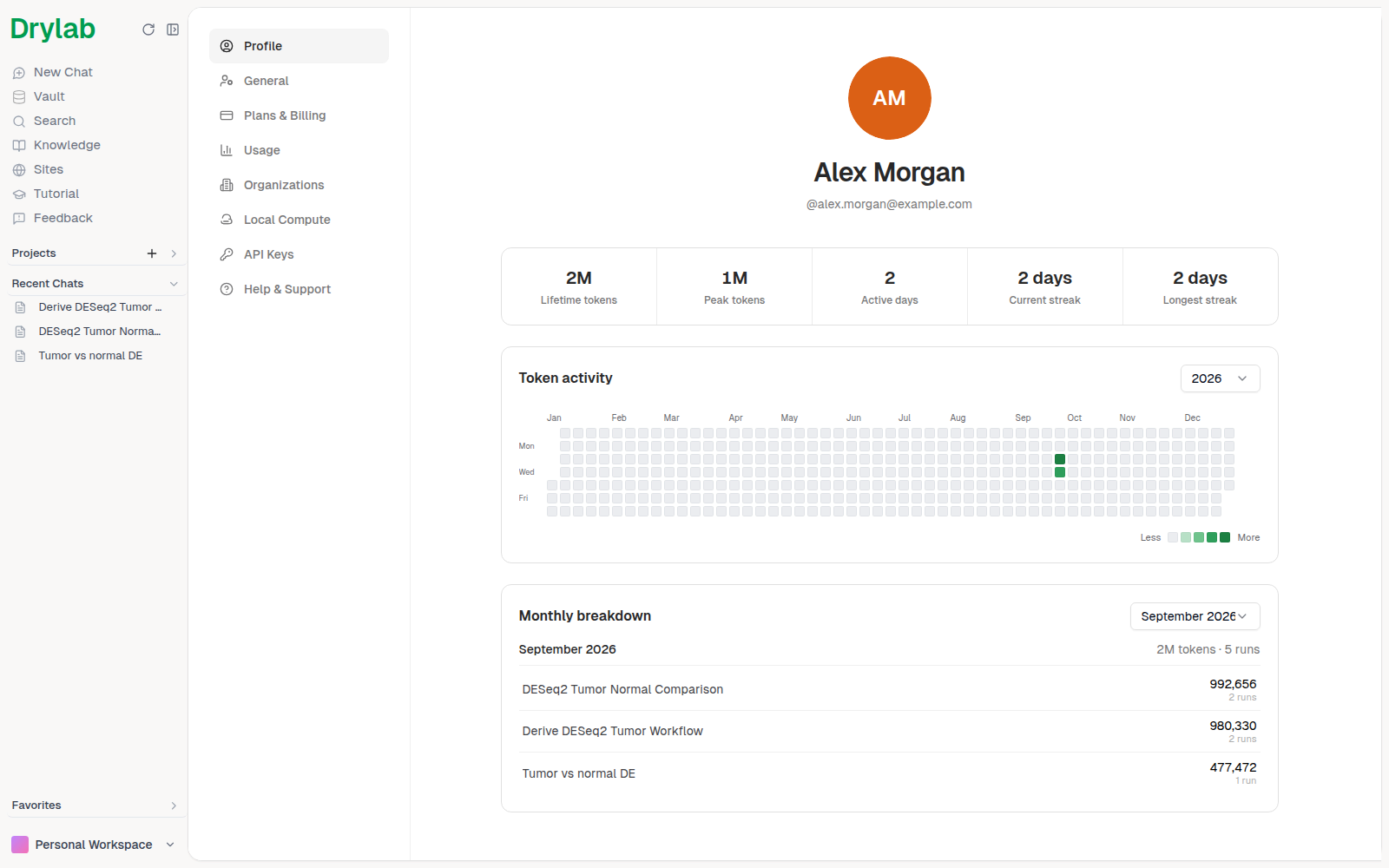
| Profile | Your name and username, token activity over time (lifetime and peak tokens, active days, current and longest streak) and a monthly breakdown by chat. |
| General | First and last name, Change password, language, desktop Notifications, and the default for Structured workflows. |
| Plans & Billing | Your current plan, renewal date, the plan comparison, upgrade options, and billing and cancellation. See Plans & Billing. |
| Usage | Tokens and storage used this period. See Usage & Consumption. |
| Organizations | Create an organization and manage members. The Portal Apps tab is where you create client portals. Hidden while you're working in an organization workspace as a member. See Organizations and Portal Apps. |
| Local Compute | Connect your own machines. Web app only. See Local Runtime. |
| SSH & Slurm | SSH and HPC access. Desktop App only (recent versions). See Connect Servers & HPC. |
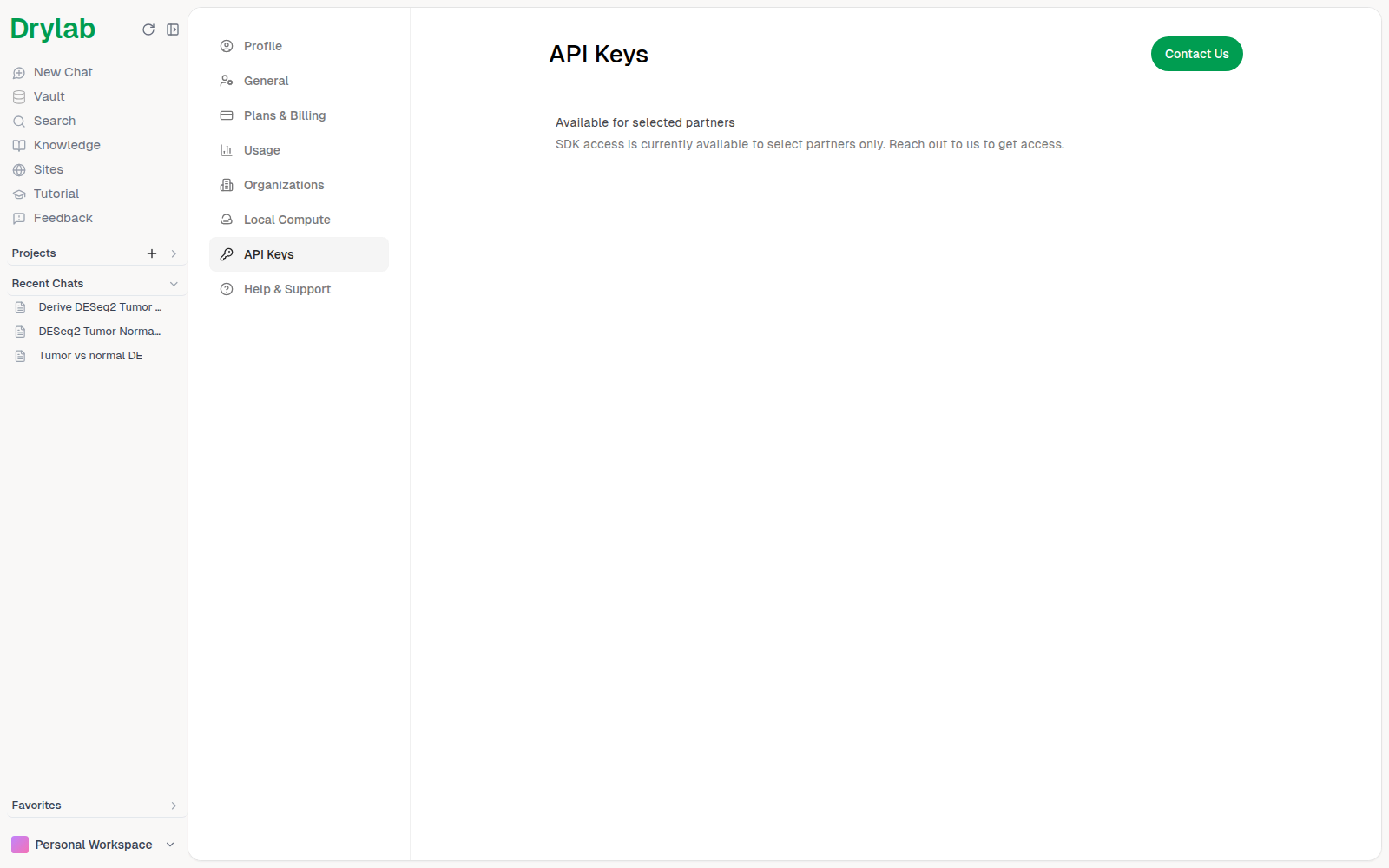
| API Keys | Programmatic (SDK) access, currently available for selected partners; click Contact Us to ask. |
| Help & Support | The tutorial hub, email support, booking a call, and links to documentation, video tutorials and the Desktop App. |
Profile
General
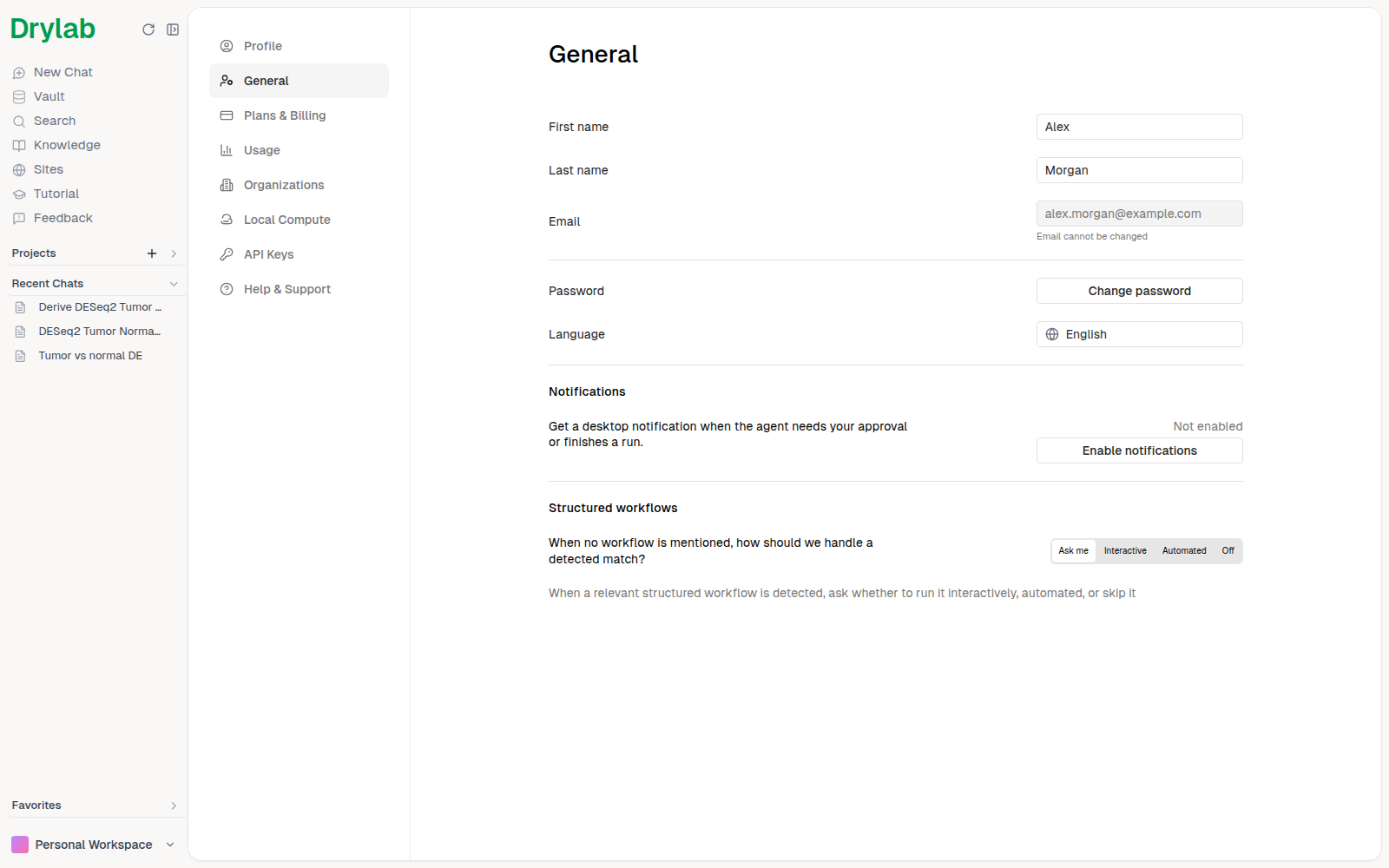
- Notifications: click Enable notifications to get a desktop notification when Drylab needs your approval or finishes a run. Each notification also plays a short chime, and the Drylab browser tab shows a red dot until you go back to it.
- Structured workflows: choose what happens when your request matches a guided workflow: Ask me, Interactive, Automated or Off. See Structured Workflows.
- Change password: see Reset Your Password.
API Keys
Help & Support
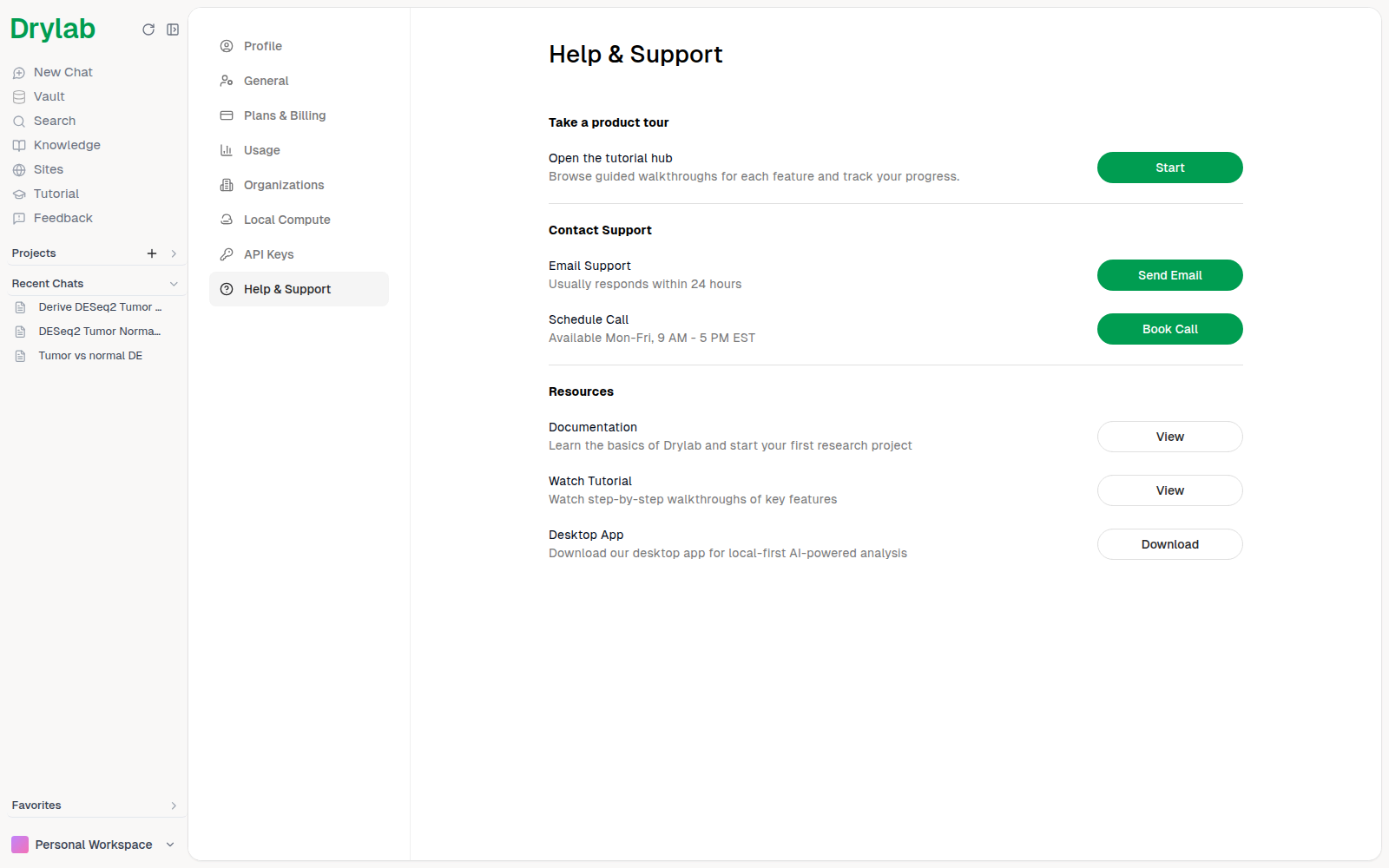
From here you can open the tutorial hub, email support (usually answered within 24 hours), book a call, and open the documentation, video tutorials or the Desktop App download (web only). See Get Help.