
Reset Your Password
Request a password reset link, set a new password, or change your password from Settings.
Request a reset link
- On the sign-in screen, enter your email, click Continue, then click Forgot password?.
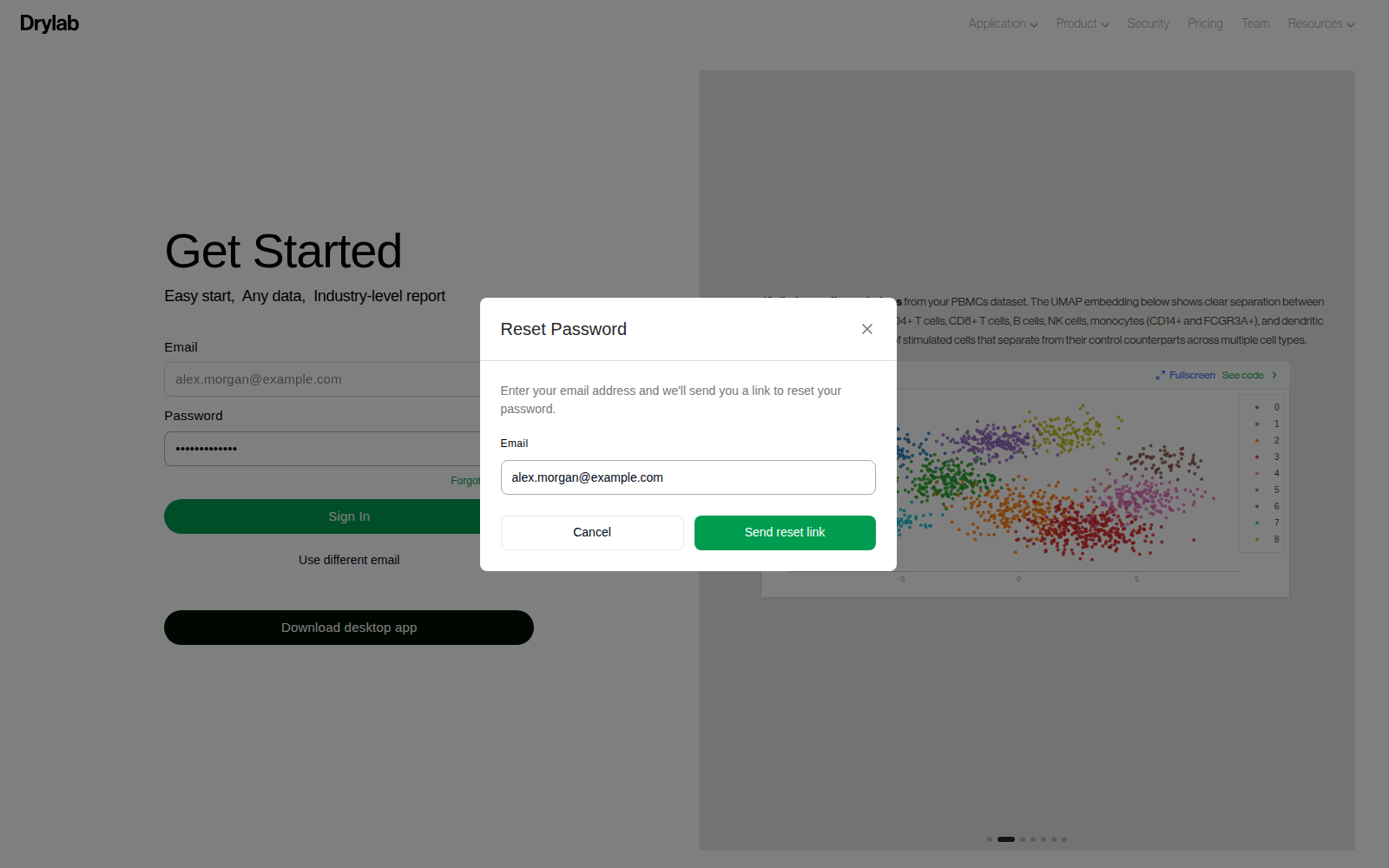
- Check the email address in the Reset Password window and click Send reset link.
- Drylab confirms with Check your email. For privacy, the message is the same whether or not an account exists for that address.
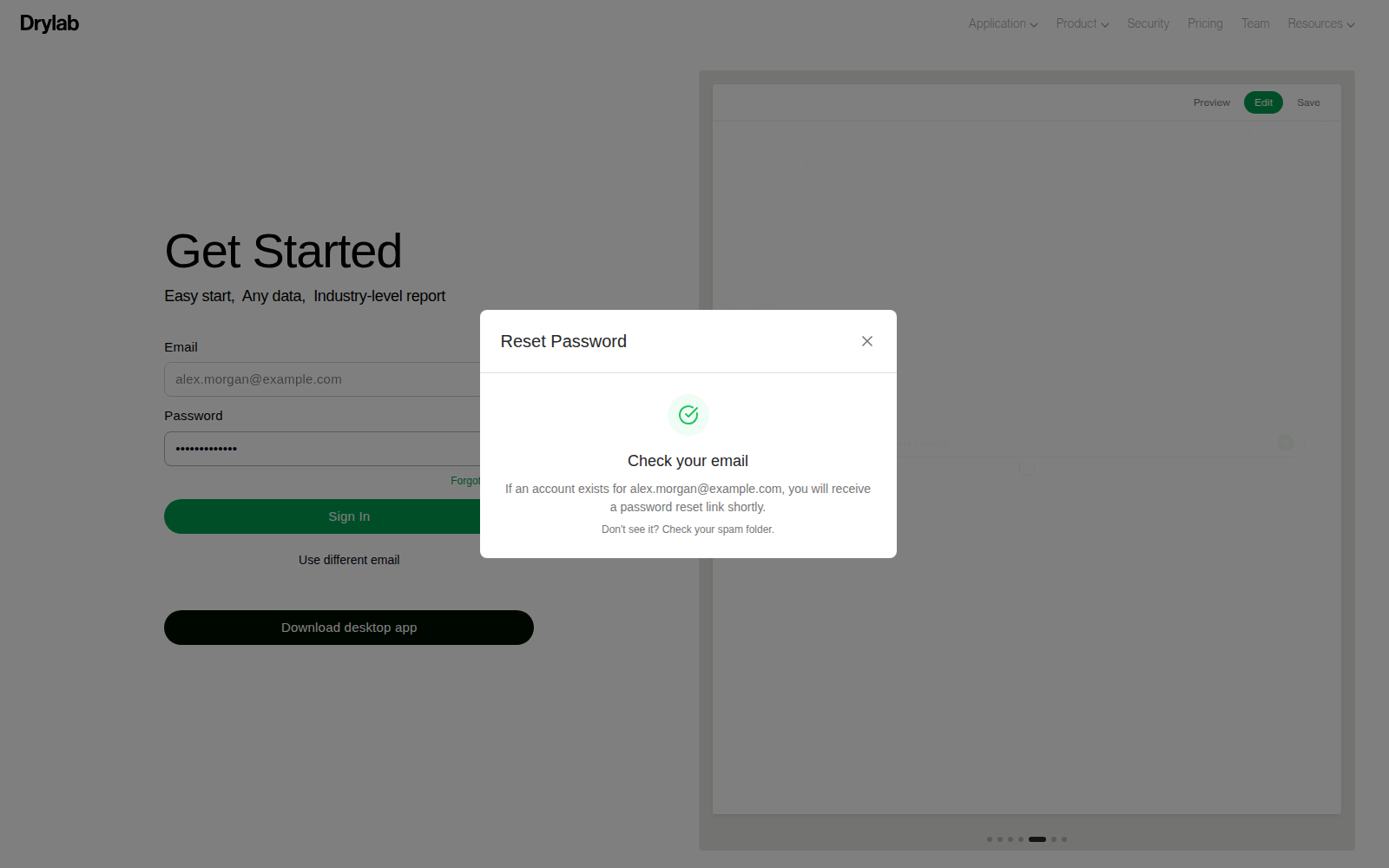
Don't see the email? Check your spam folder, then request a new link.
Signed up with Google? Your account has no Drylab password, so no reset email is sent. Sign in with Continue with Google instead.
Create a new password
Open the email and click the reset link. It is valid for 24 hours and works only once. Requesting a new link cancels earlier ones, so always use the newest email.
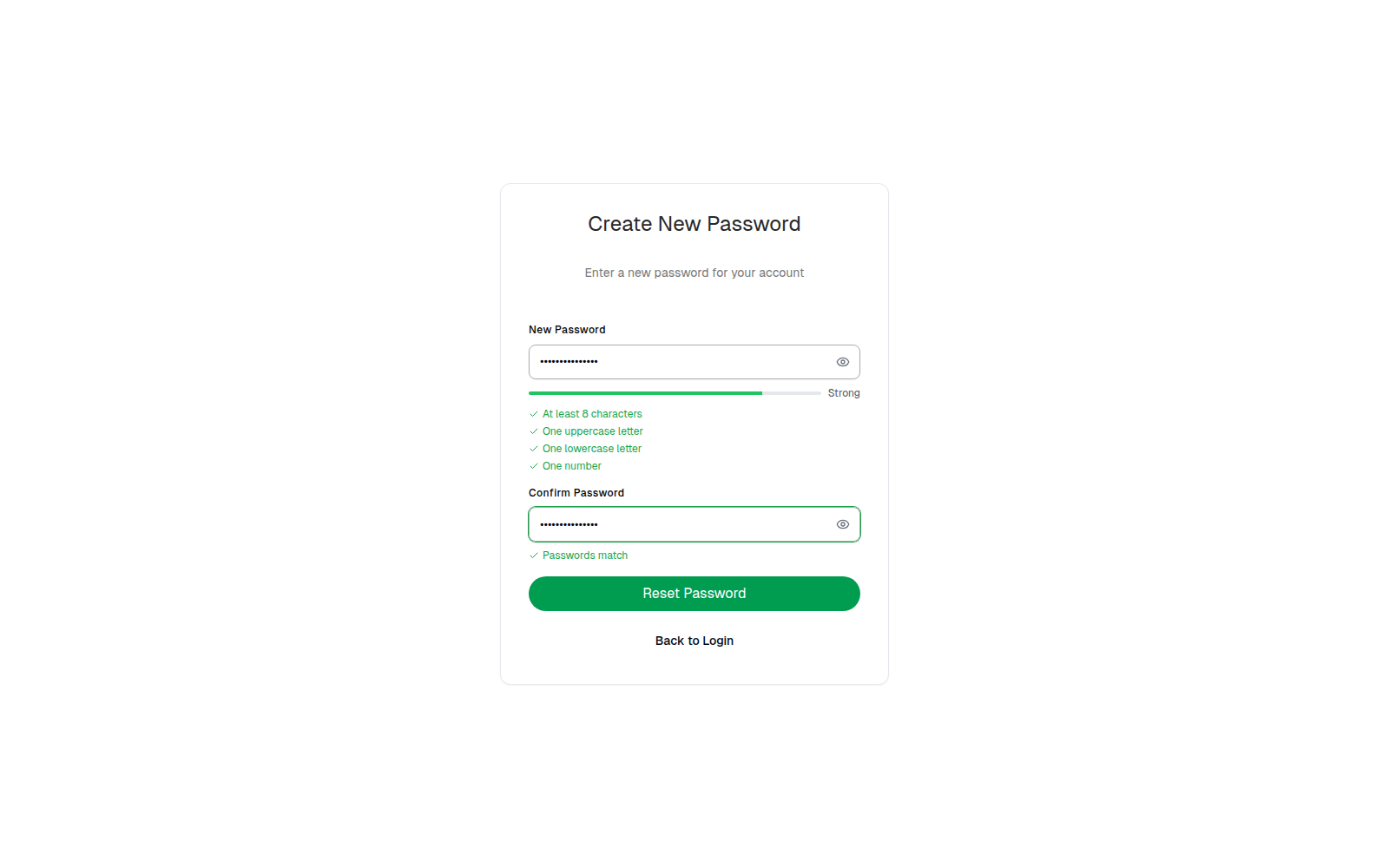
- Enter your new password in New Password. It must be at least 8 characters. The checklist also shows uppercase, lowercase and a number; meeting them makes the password stronger.
- Enter it again in Confirm Password. You will see Passwords match when both fields agree.
- Click Reset Password.
You will see Password Reset Successful! and be taken back to the sign-in screen. Sign in with your new password.
If the page says Invalid Reset Link, or shows "Invalid or expired password reset token" when you click Reset Password, request a new link from Forgot password?.
Change your password while signed in
-
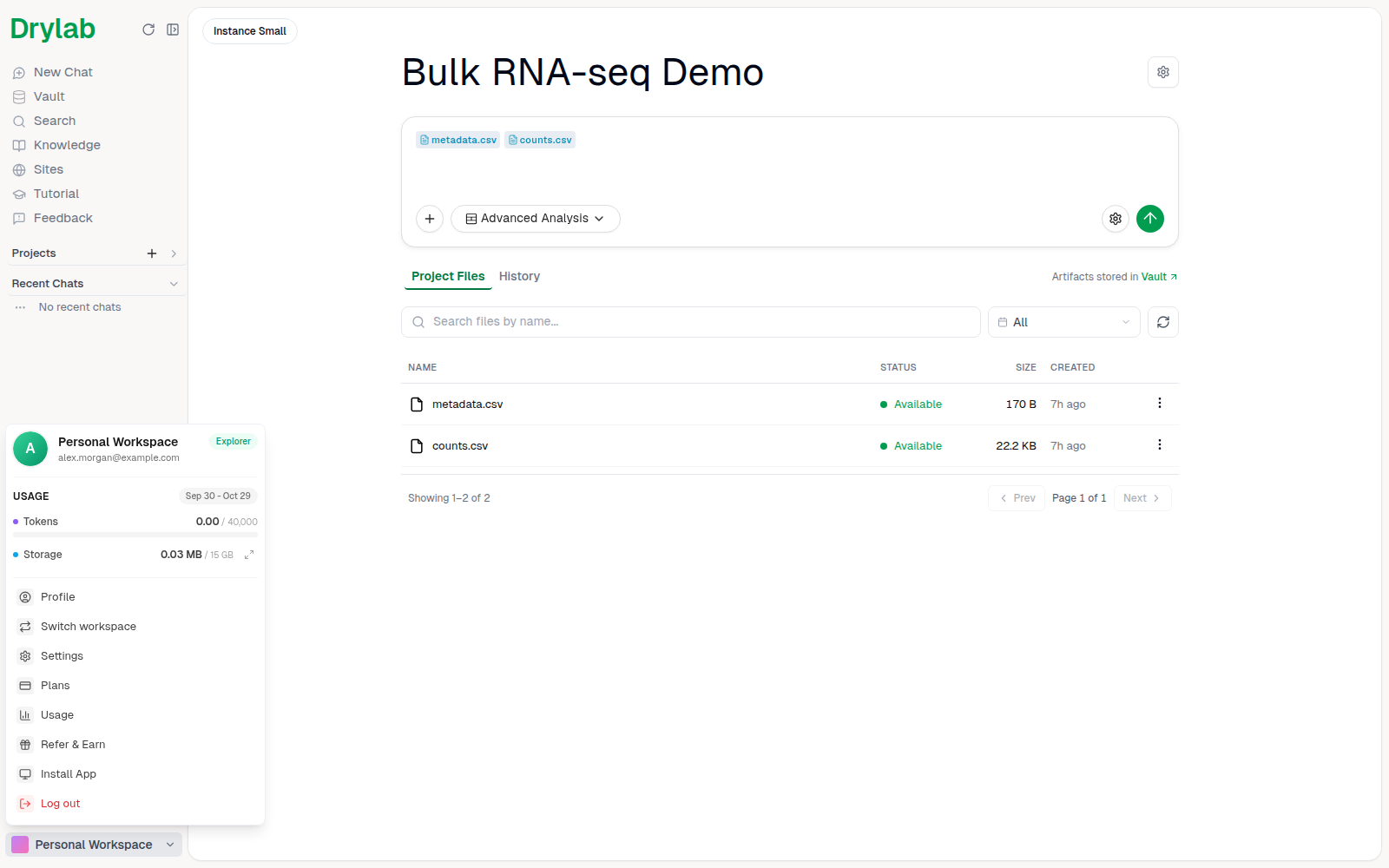
Click your profile at the bottom of the left sidebar and choose Settings.
-
In General, next to Password, click Change password.
-
Enter your current password, your new password, and Confirm new password, then click Update Password.
Accounts created with Google don't have a Drylab password, so the Password row is hidden. Manage your password in your Google account instead.