
Log In
Sign in to Drylab with your email and password or with Google, and fix common sign-in problems.
Sign in with the email and password you used to create your account, or with Google if you signed up with Google.
Sign in with email and password
- Open app.thedrylab.com.
- Enter your email and click Continue.
- Enter your password and click Sign In.
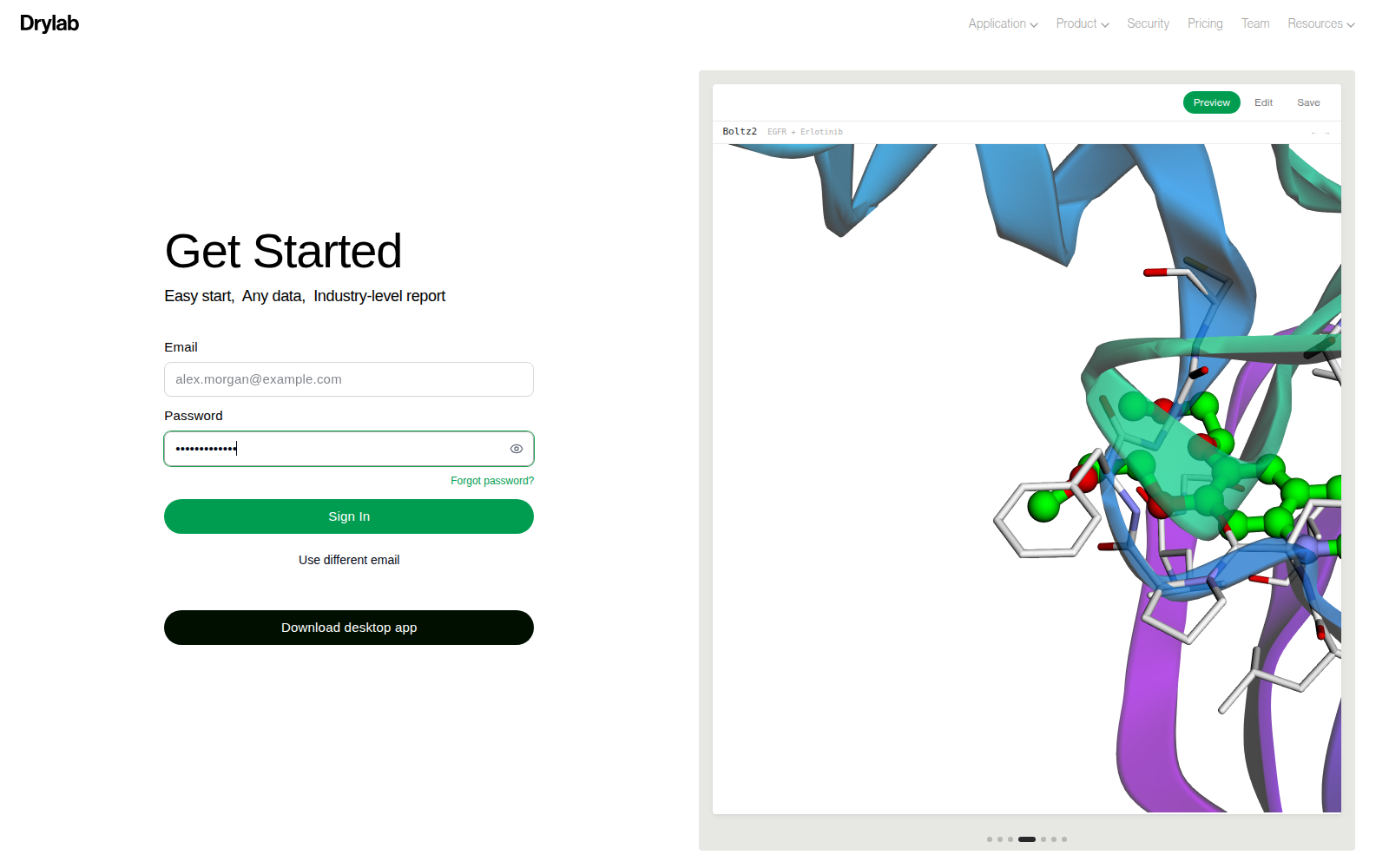
To switch accounts before signing in, click Use different email.
Sign in with Google
If you created your account with Google, click Continue with Google instead of entering a password. If you type a Google-registered email and click Continue, Drylab shows "This email is registered with Google. Please use the Google button."
Email not verified
If you haven't verified your email yet, Drylab shows Email not verified after you enter your password.
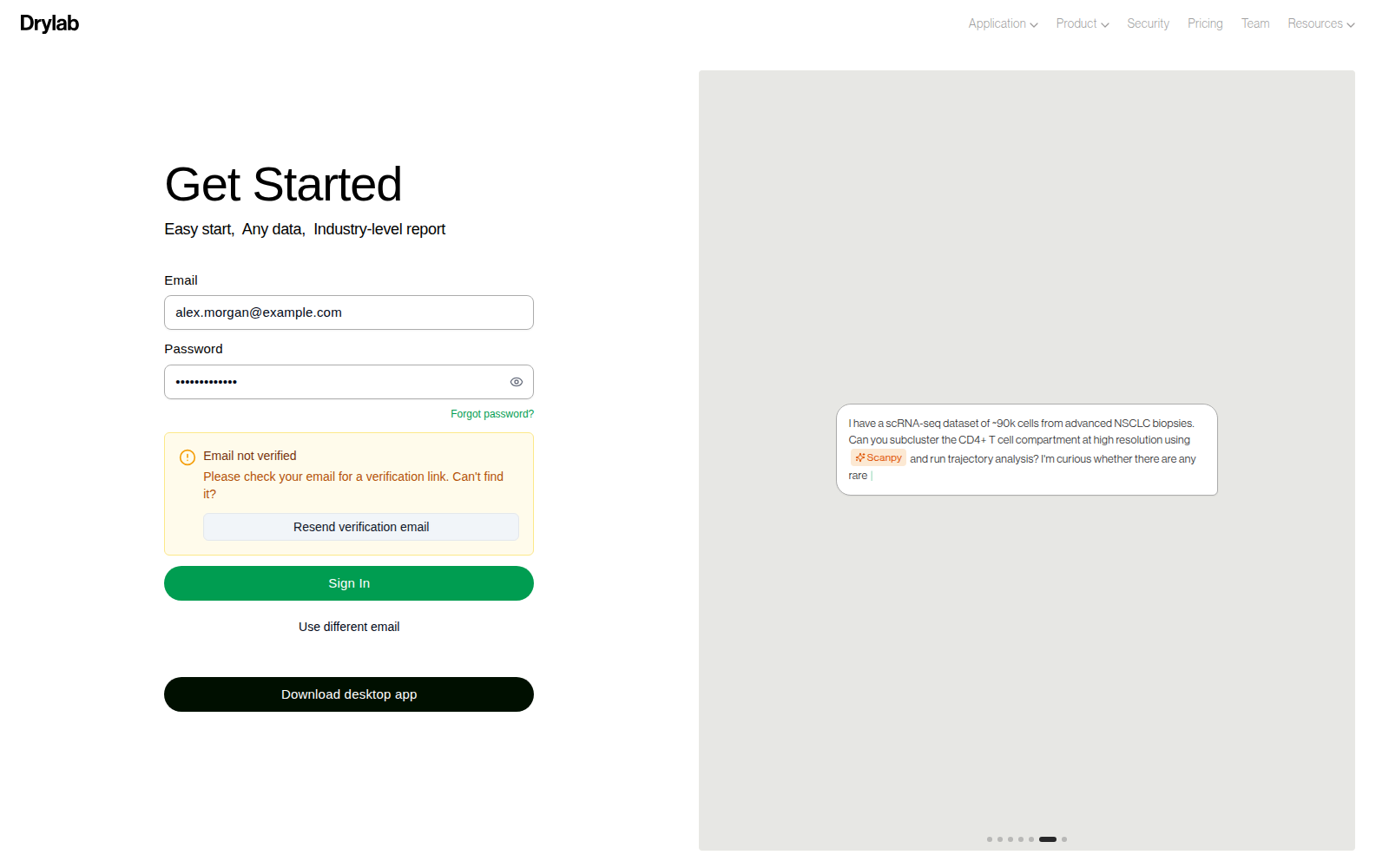
Click Resend verification email, open the new email, and click the link. Then sign in again. See Create an Account for details.
Forgot your password?
Click Forgot password? under the password field. See Reset Your Password.
Verifying from the Desktop App
If you created your account in the Desktop App, the verification link opens your browser, which shows Opening DryLab Desktop... and passes you back to the app to finish. If the app doesn't open, make sure Drylab Desktop is installed and that your system didn't block it, then click the verification link again. See Install the Desktop App.
Troubleshooting
| What you see | What to do |
|---|---|
| "Email not verified" | Click Resend verification email and use the newest link. |
| "This email is registered with Google" | Use Continue with Google. |
| "Incorrect password" | Check for typos or use Forgot password? to set a new one. |
| Authentication Failed after Google sign-in | Click Return to Login and try again, and finish choosing your account on the Google page. |
| Still stuck | Contact support. |