
Download Files
Download single files, folders or everything from a chat, from the chat's file panel or from the Vault.
From a chat
Every chat has a File panel listing the files it used and produced, grouped in folders such as data/, figures/, scripts/ and tables/, next to the chat's note.ipynb.
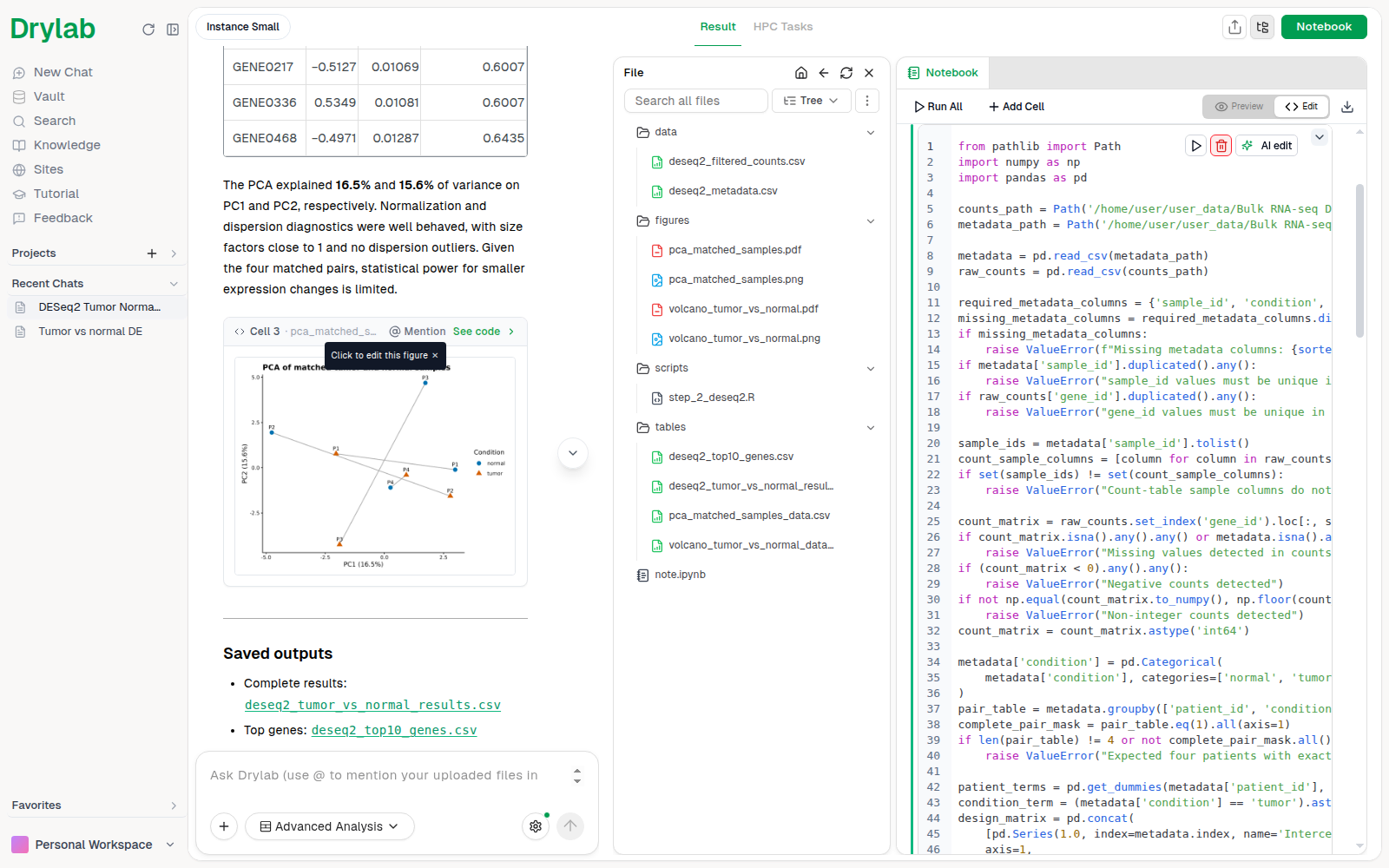
- Hover a file or folder and click its download icon.
- Click More actions (⋮) next to the search box:
- Download All Files downloads everything from the chat.
- Select to download lets you tick specific files first.
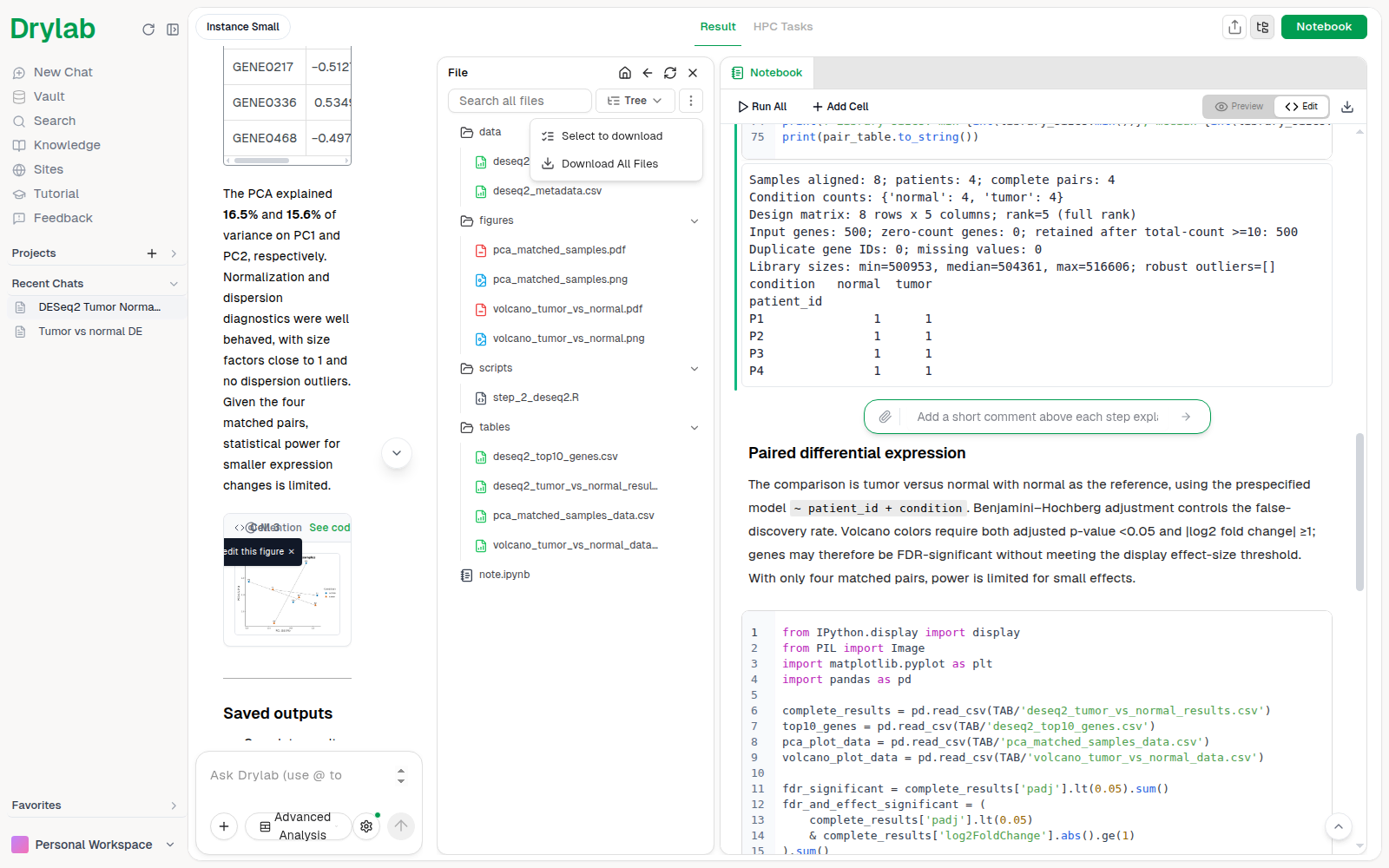
Use Show files / Hide files in the chat's top bar to open or close the panel.
From the Vault
- Choose Download from a file's ... menu.
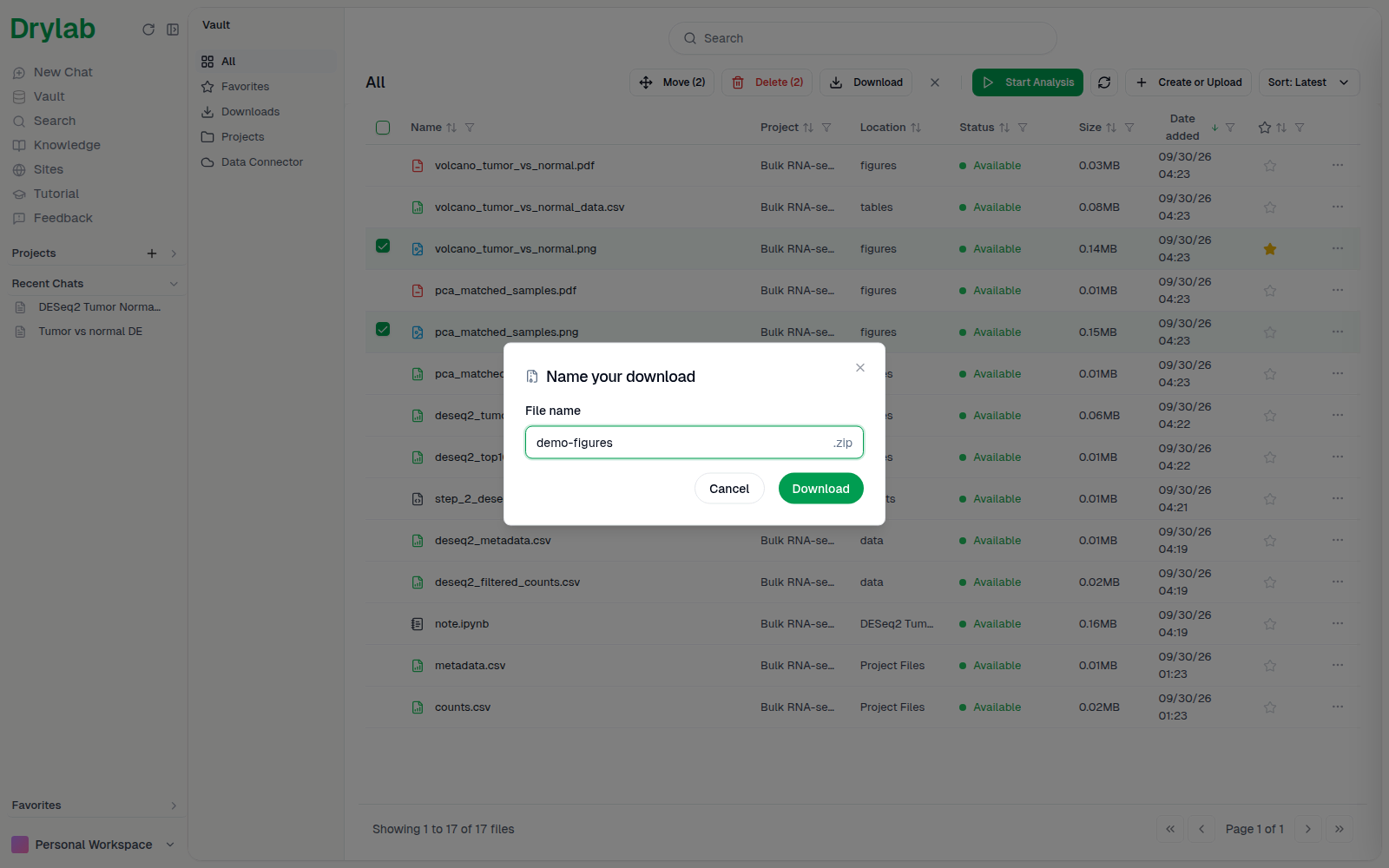
- Or tick several files and click Download. Name the archive in Name your download and click Download.
See Manage Files.
Follow a download
Folders and multi-file selections download as a ZIP. When you download several files or a folder from the Vault, a Downloads tray opens at the bottom right of the window. (From a chat's file panel, most downloads save straight to your computer. A large folder or Select to download selection is prepared in the tray instead.)
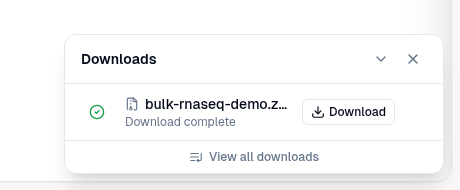
- Small selections are zipped straight away and saved to your computer. The row shows Download complete.
- Larger ones are prepared in the background, so you can keep working. The row shows Queued, then its progress (for example "2.4 GB of 12.6 GB"), then the size and how long it stays available (for example "1.2 GB · Expires in about 20 h"). When it's ready, the tray opens again; if you're in another tab, your browser can also notify you. Click Download on the row to save it. Nothing is saved until you click.
- If some files couldn't be included, the row says how many were skipped. Click Show N skipped files to see which.
- To stop a download that is still being prepared, hover over its row and click the ×. If one failed or was cancelled, hover over it and click the circular arrow (Retry download).
The tray only lists downloads you started in this browser tab, newest first, and shows the latest five. Click View all downloads to see the rest. Use the arrow to collapse the tray, or the × to close it.
Large downloads
From the Vault, very large selections (about 5 GB or more, 5,000 files or more, or more than one ZIP) ask you to confirm first. Preparing a large download shows the size, the number of files and how many ZIP files you'll get. Click Prepare download to start, or Not now to cancel.
Selections over 50 GB or 10,000 files are split into several ZIP parts, each of which downloads on its own. When they're ready, click Download all (N) on the row to save every part. One download can't be larger than about 200 GB; select fewer files if you see "The selected files exceed the maximum total download size".
Everything you prepare is listed under Vault > Downloads, ready to download for 7 days. Download links are created when you click, so they never go stale. Click Clear finished to tidy the list.
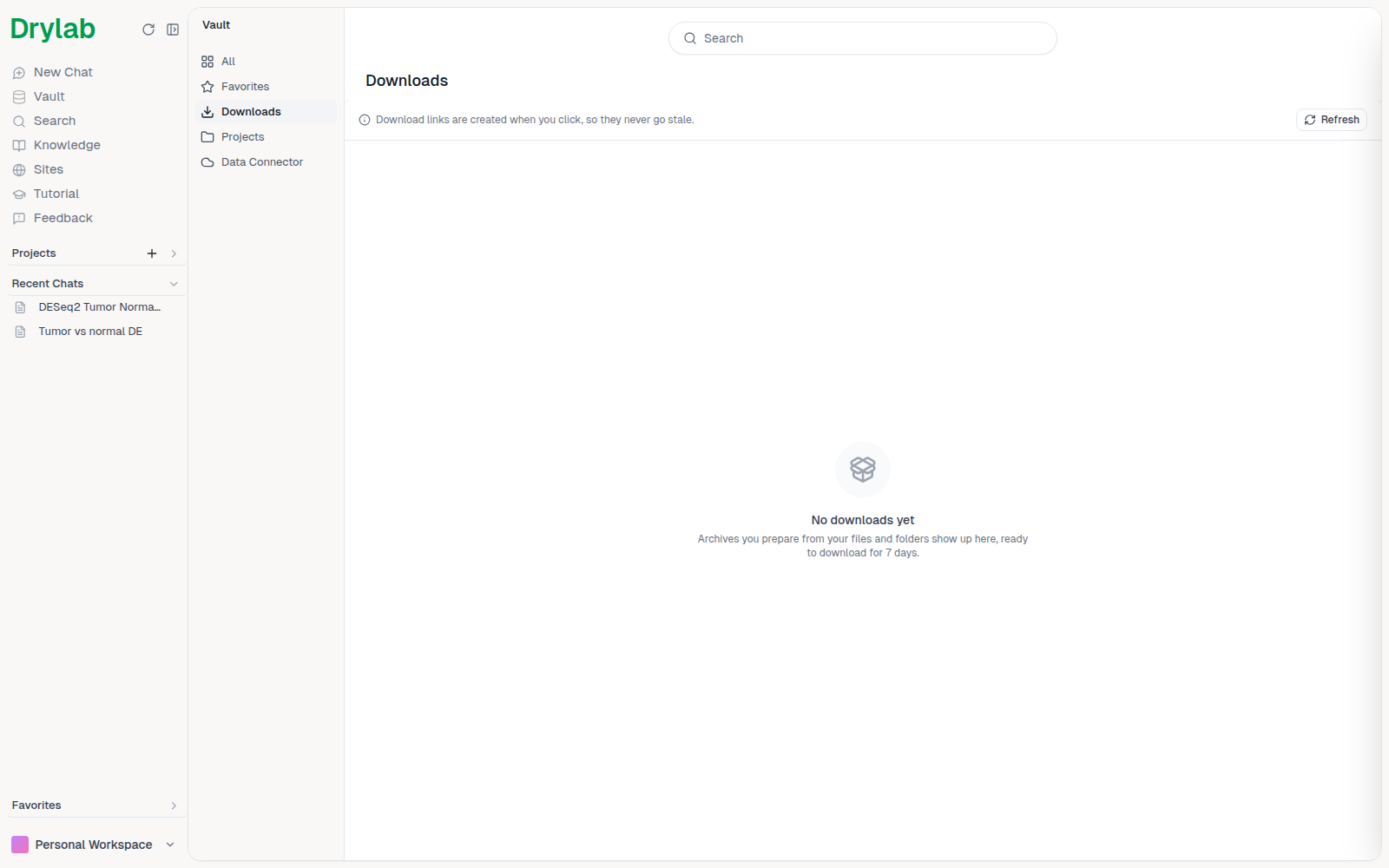
After 7 days the download is no longer available and drops off the list. A row still on screen shows "Link expired · Prepare again to re-download": click the circular arrow, or select the files again.