Manage Files in the Vault
Favorite, sort, download and delete files in the Vault, act on several files at once, and browse them by project.
Every file in the Vault can be starred, previewed, downloaded, moved or deleted.
File actions
Each row in the Vault has:
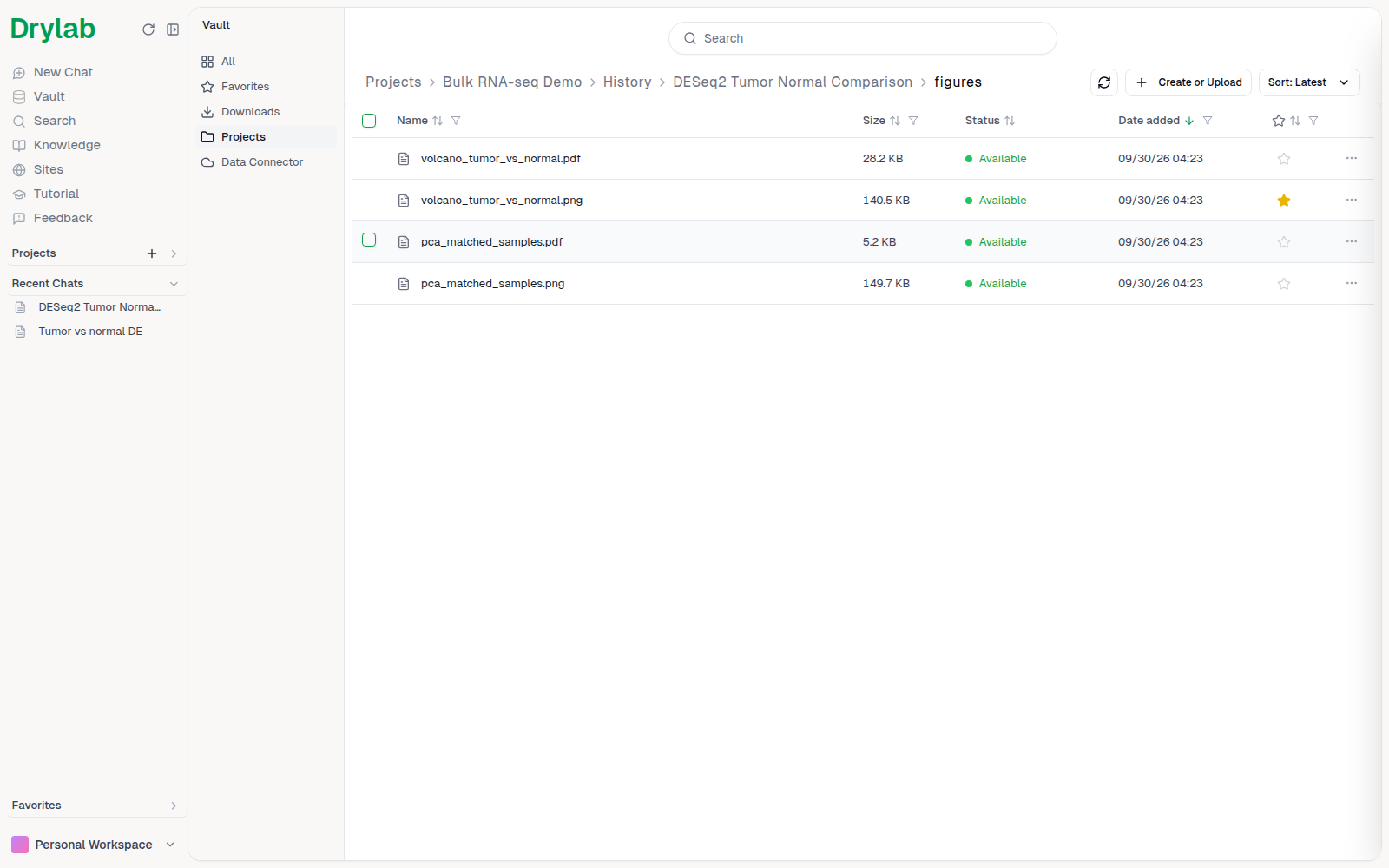
- A star to add or remove the file from Favorites (files only; folders can't be starred).
- A ... menu with Download, View File (or Open Folder for folders) and Delete.
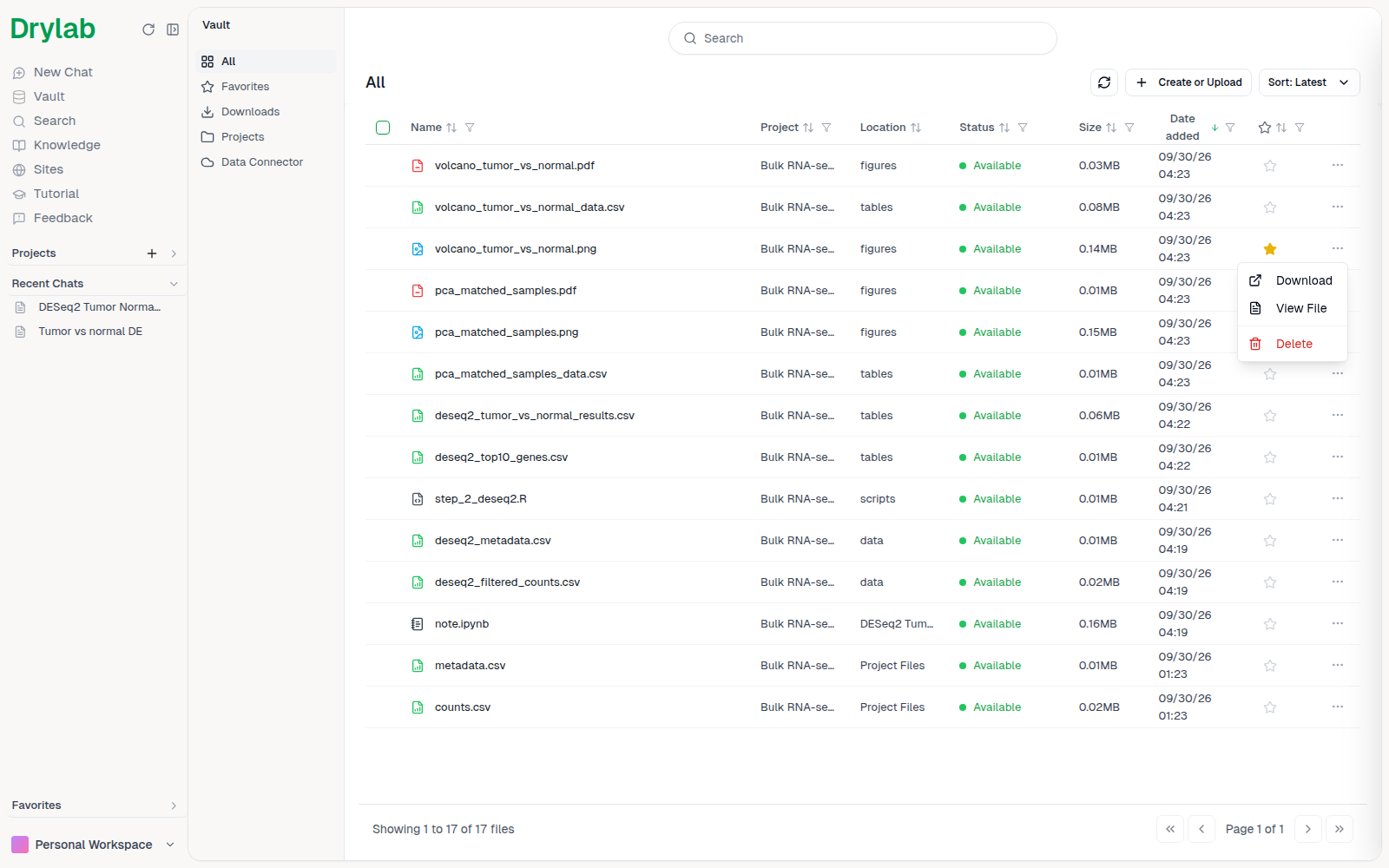
Use Sort to order files by date (Latest, Oldest), name (A-Z, Z-A) or size (Largest, Smallest).
Work with several files
Tick the checkboxes next to files (or Select all) to act on them together:
| Action | What it does |
|---|---|
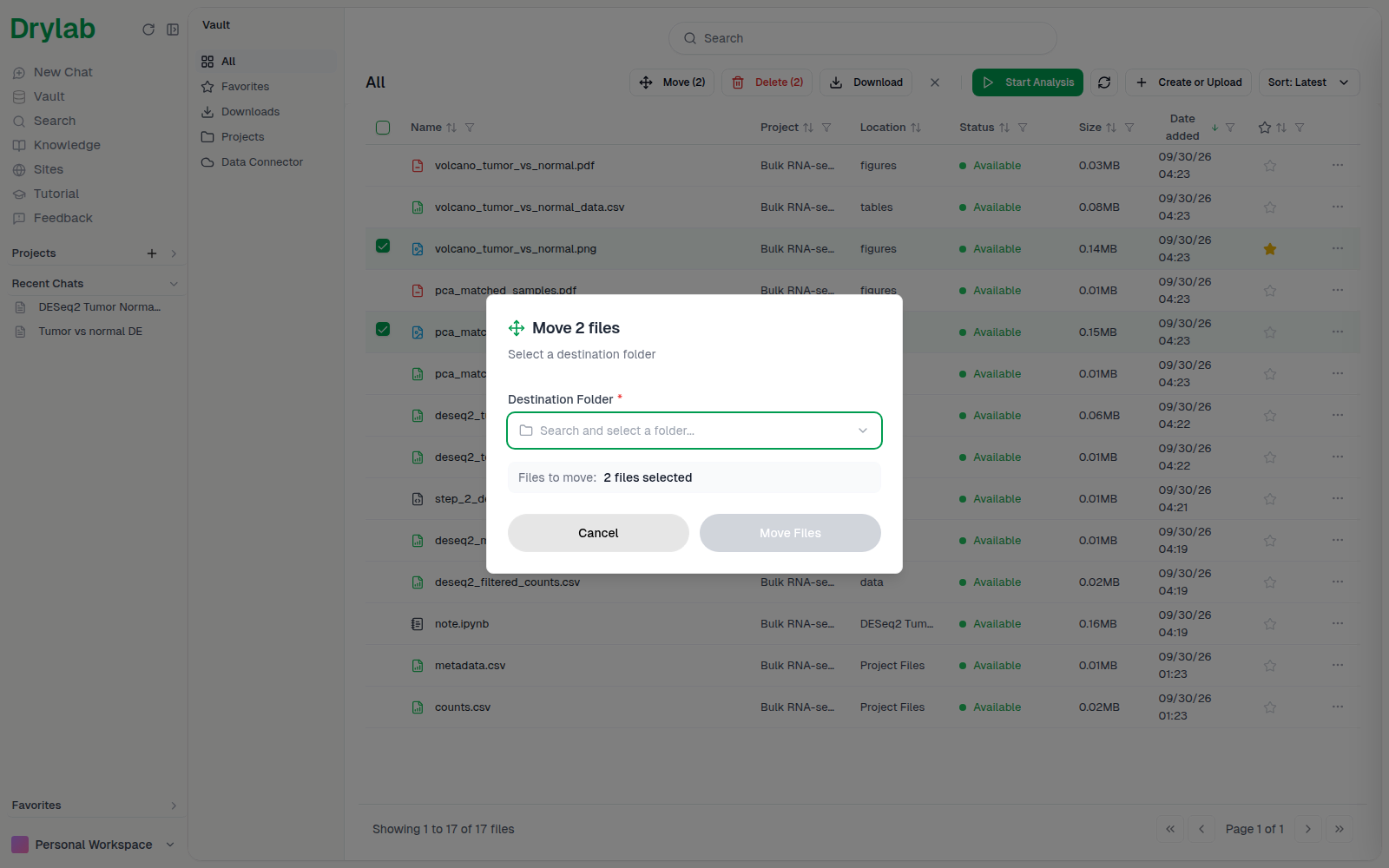
| Move (N) | Move the files to another folder. |
| Delete (N) | Delete the files. |
| Download | Name the download and get the files as one ZIP. Large selections are prepared in the background and appear under Downloads. |
| Start Analysis | Open a new chat with the selected files mentioned in the chatbox. |
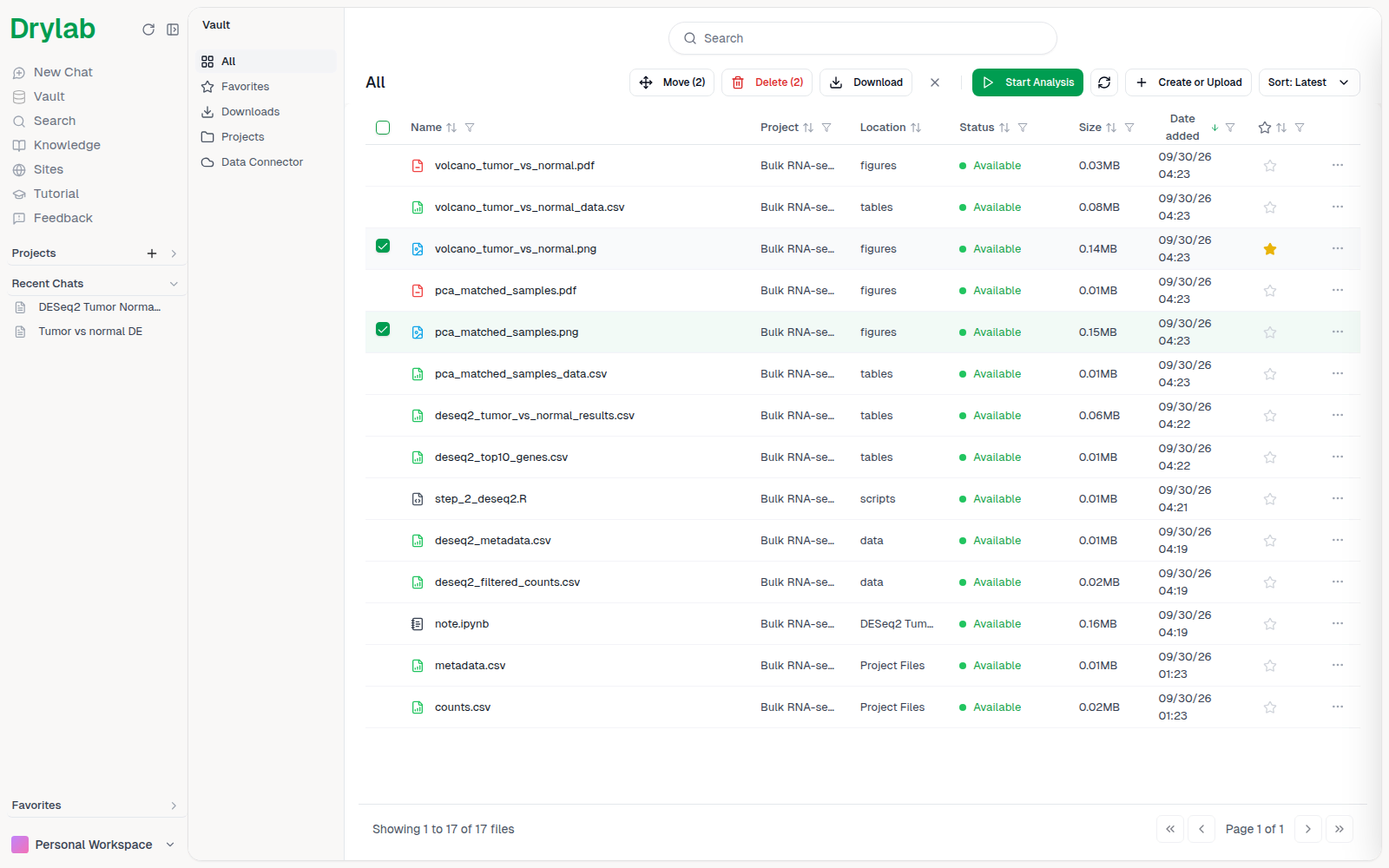
To move files, pick a Destination Folder and click Move Files.
Favorites
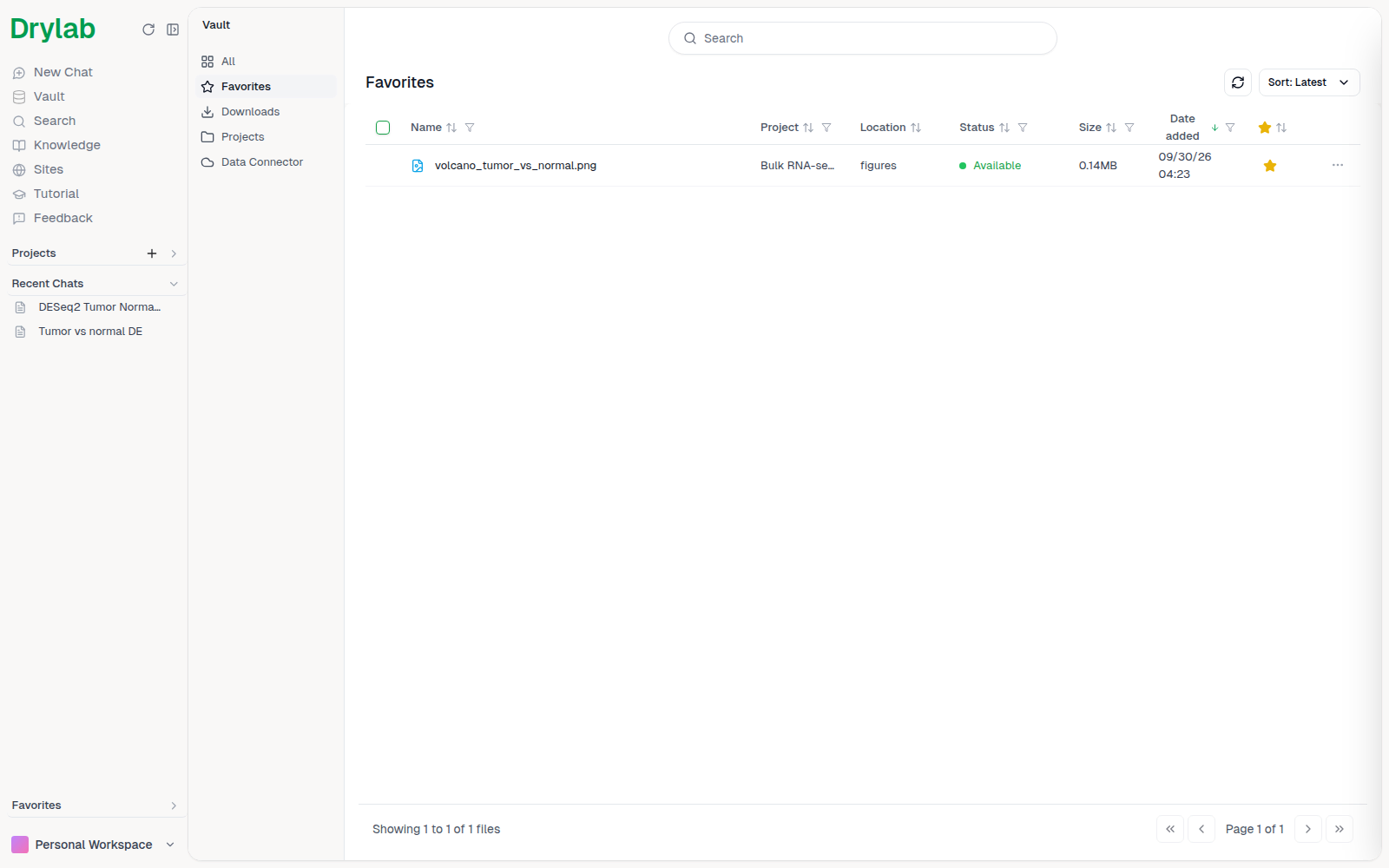
Star the files you use often. They appear under Favorites in the Vault and in the left sidebar, whatever project they belong to. Removing a favorite doesn't delete the file.
Projects
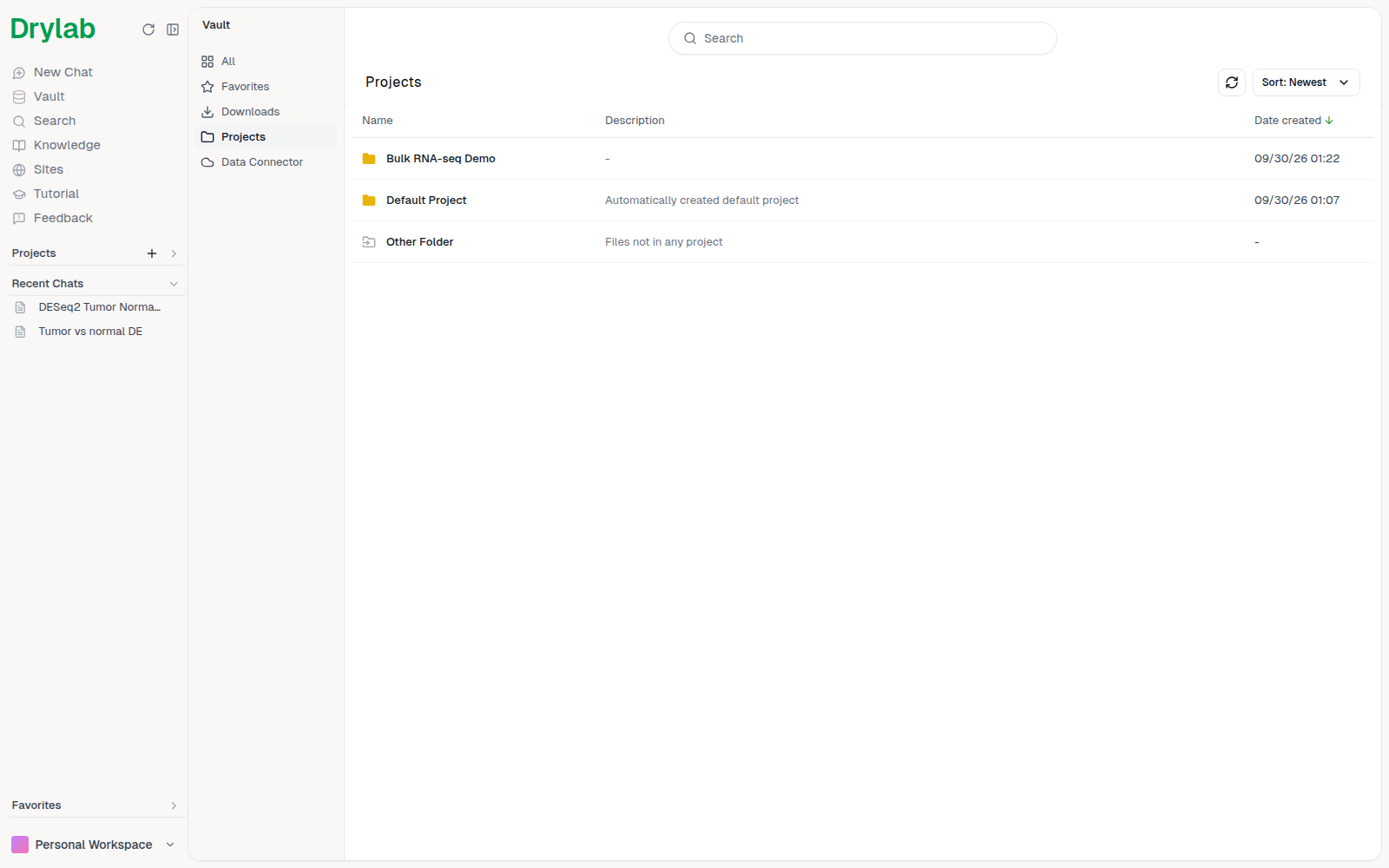
Projects lists each project as a folder, plus Other Folder for files that aren't in any project. Open a project to browse its Project Files and History folders; the breadcrumb at the top shows where you are.