
Storage
File Versions
See every saved version of a file in your Drylab storage, preview or download an older one, give versions names, and restore one without losing the rest.
Each time a file in your storage is replaced, Drylab keeps the previous content as an earlier version. You can go back to any of them: preview it, download it, or make it the current file again. Restoring never deletes anything, so you can always change your mind.
When a new version is saved
A file gets a new version whenever its content is replaced, for example:
- You upload a file with the same name to the same folder and choose Replace existing file.
- An analysis overwrites a file it wrote earlier.
- You restore an older version (the restore itself becomes the newest version).
If you rename or move a file, its history comes with it. Versions from before the rename appear under Before rename or move.
If you delete a file and later upload one with the same name, the new file starts with a fresh history.
Open a file's versions
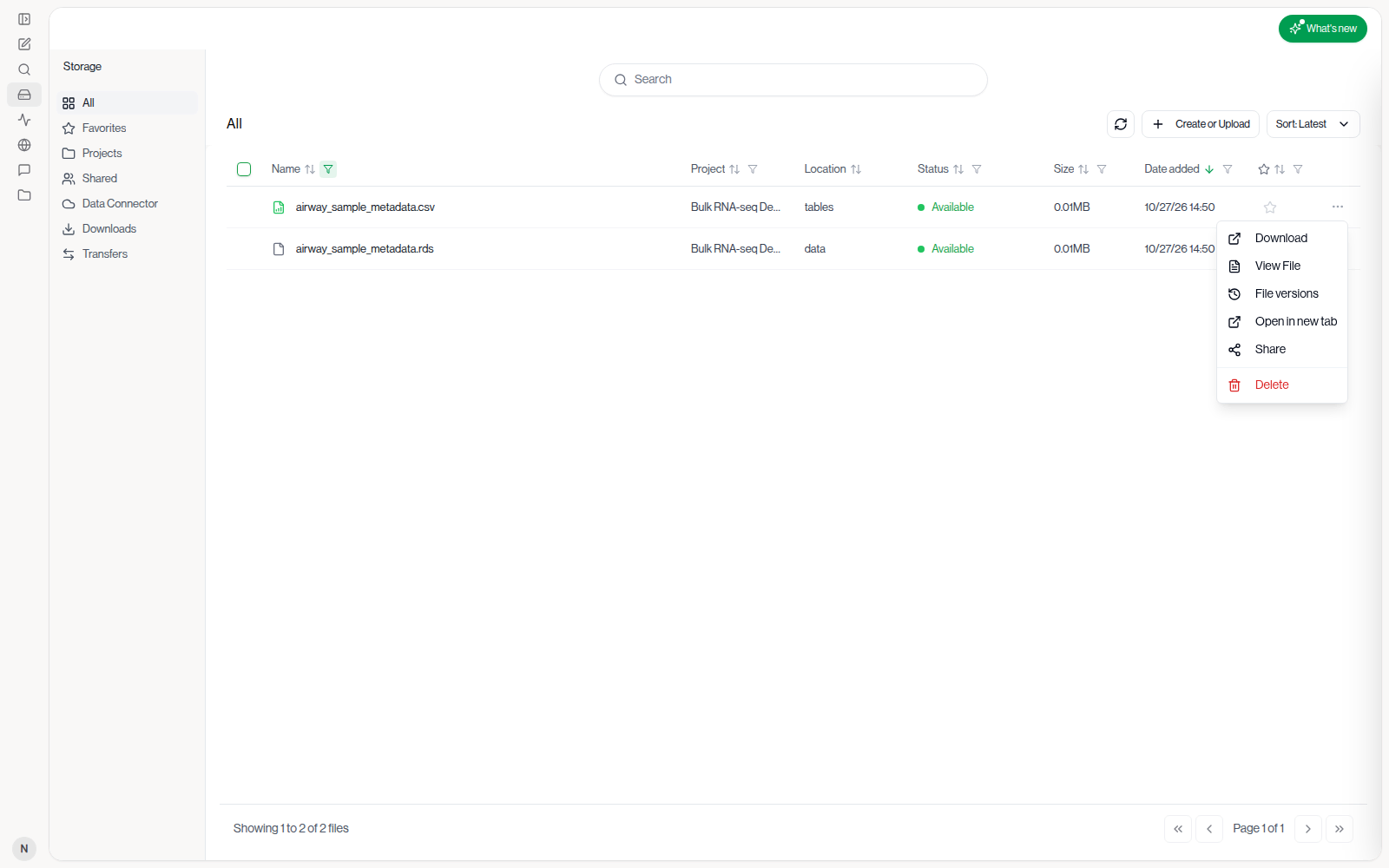
- Open Storage in the left sidebar and find the file.
- Click ... on the file's row and choose File versions.
In a chat in the web app, you can also hover over a file in the files panel and click the clock icon (Versions of the file). See Notebook and Files Panel.
Only files have versions; folders don't.
Find the version you need
The File versions window lists every version, newest first. Each row shows:
- Its number (v1 is the oldest one listed) and its name, if you gave it one.
- When it was saved, its size and the time of day.
- Current on the version the file has now.
Click a row to preview that version on the right. Tables, images, PDFs, notebooks, code and most other files you can open in Drylab can be previewed without downloading.
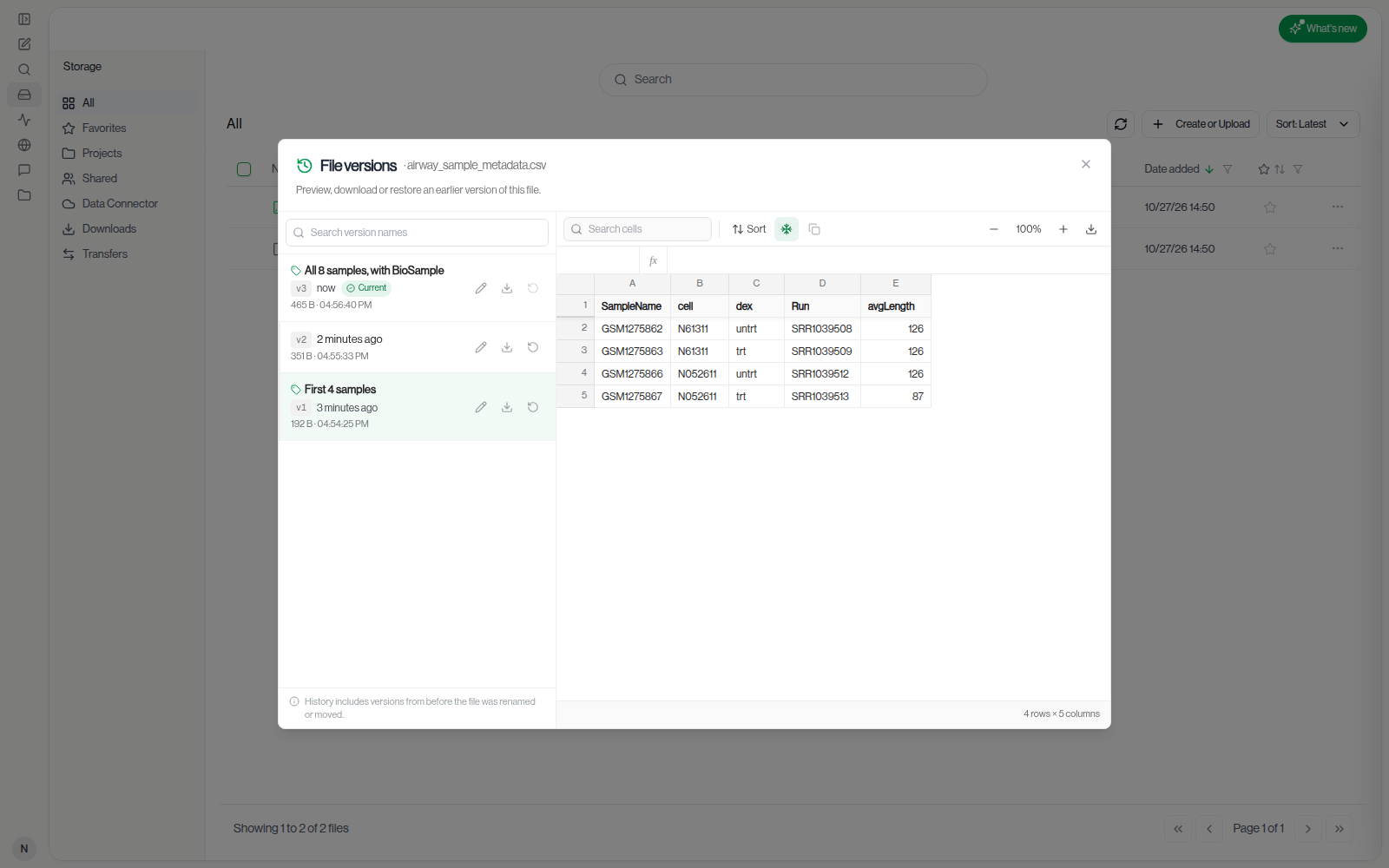
Once any version has a name, a Search version names box appears above the list. Type part of a name to show only the matching versions.
Drylab lists the most recent 100 versions of a file. If a file has more, the list says "Showing the most recent versions only. Older versions are not listed."
Restore an earlier version
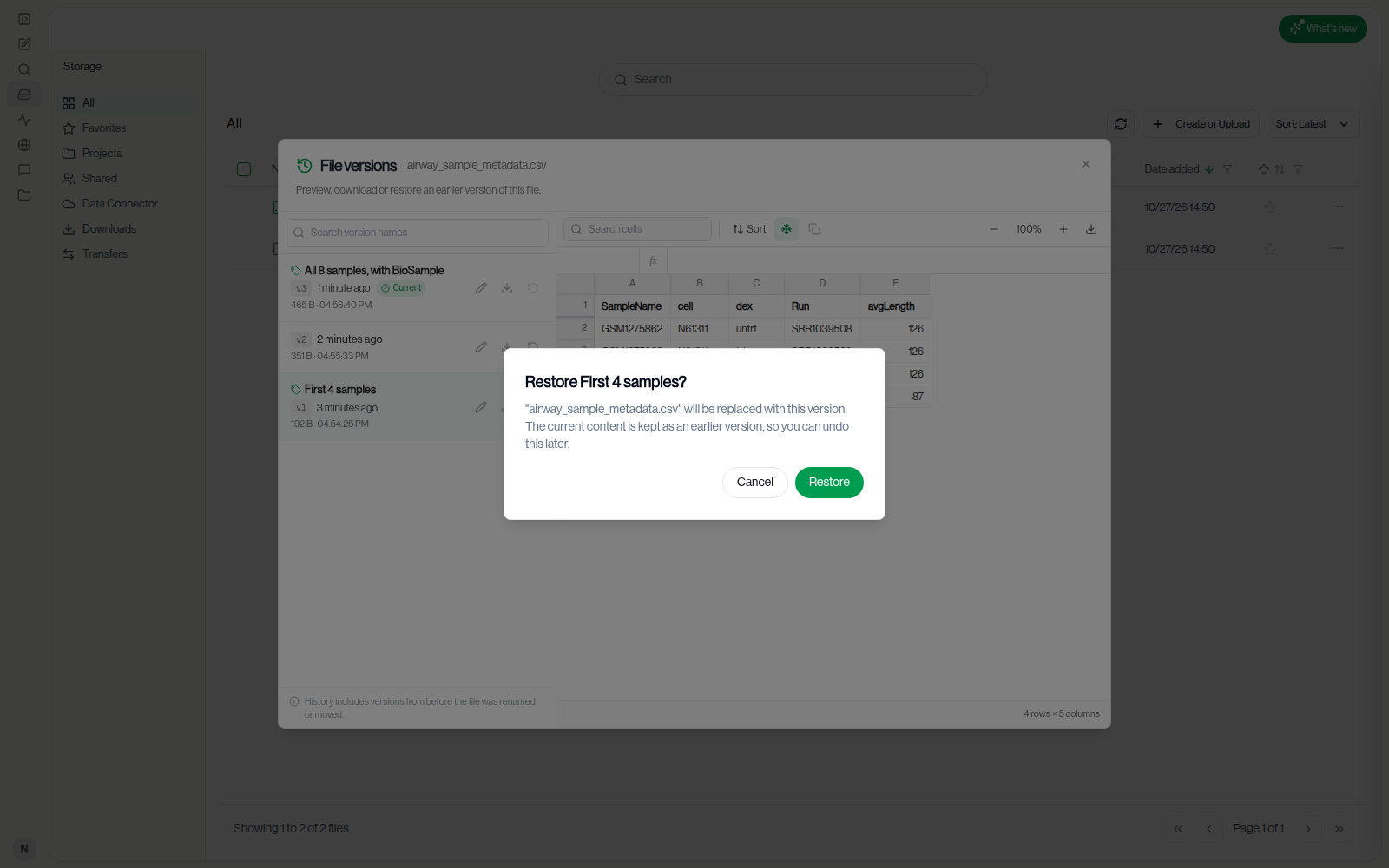
- In File versions, find the version you want back.
- Click its Restore this version icon (the circular arrow at the end of the row).
- Check the message and click Restore.
Drylab copies that version back as the newest one and marks it Current. The version you replaced stays in the list, so you can undo a restore by restoring it.
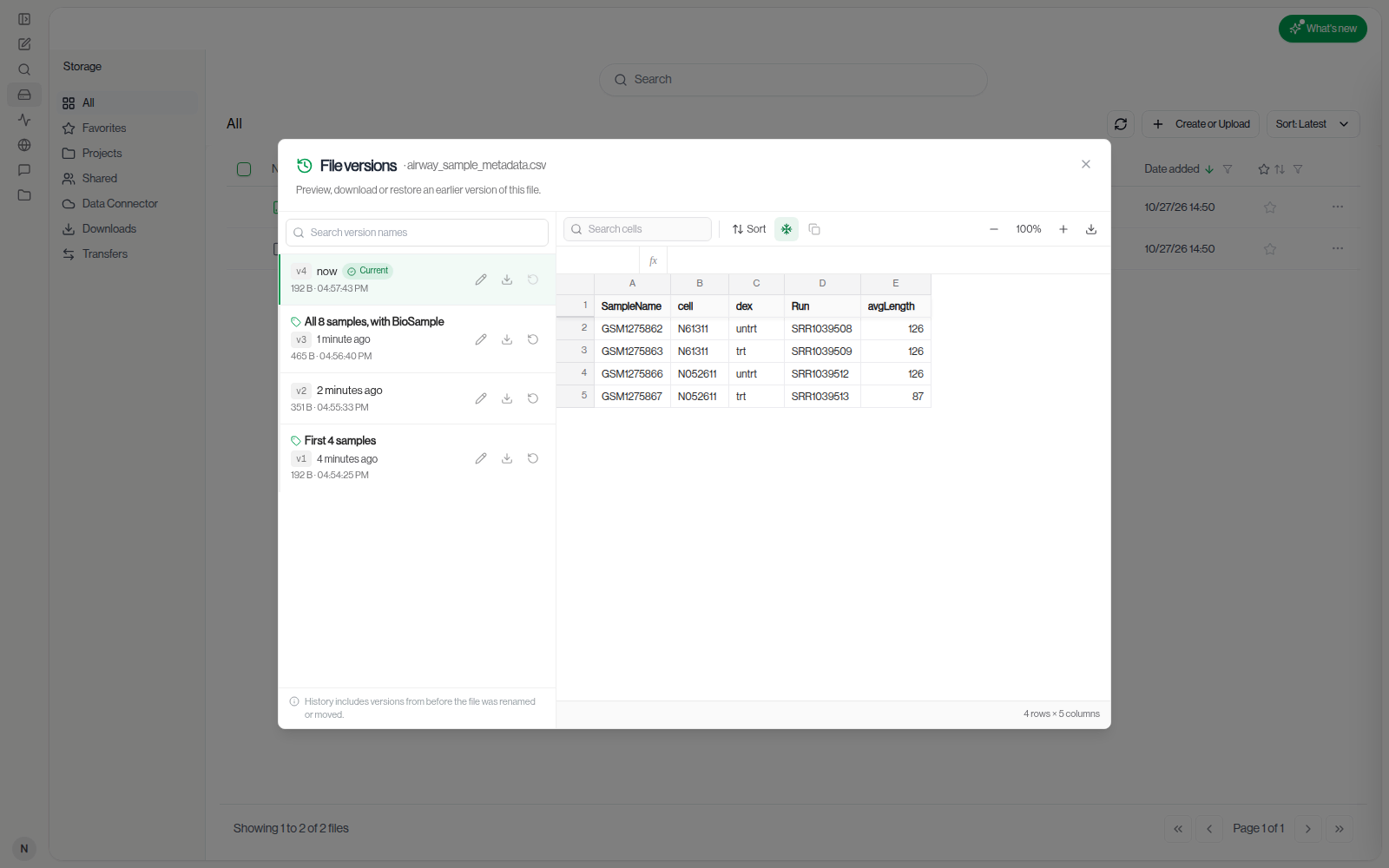
The current version can't be restored again, so its Restore this version icon is greyed out. It's also greyed out in folders you can only view ("You can only view versions here").
If you restore from Storage while the file is open in its viewer there, the viewer reloads with the restored content.
If you restore from a chat's files panel and the file is open in a tab there, the tab reloads too. If that tab has edits you haven't saved, Drylab leaves it alone and warns you: "This file has unsaved edits in an open tab. Saving them would overwrite the restored version."
Download a version
Click the Download this version icon on its row. The download opens in a new browser tab and gives you that version as it was, without changing the current file.
Name a version
Give a version a name, such as "Before batch correction", so you can find it again without remembering dates.
- Click the pencil icon on the row (Name this version, or Rename version if it already has a name).
- Type the name and press Enter. Press Esc to cancel.
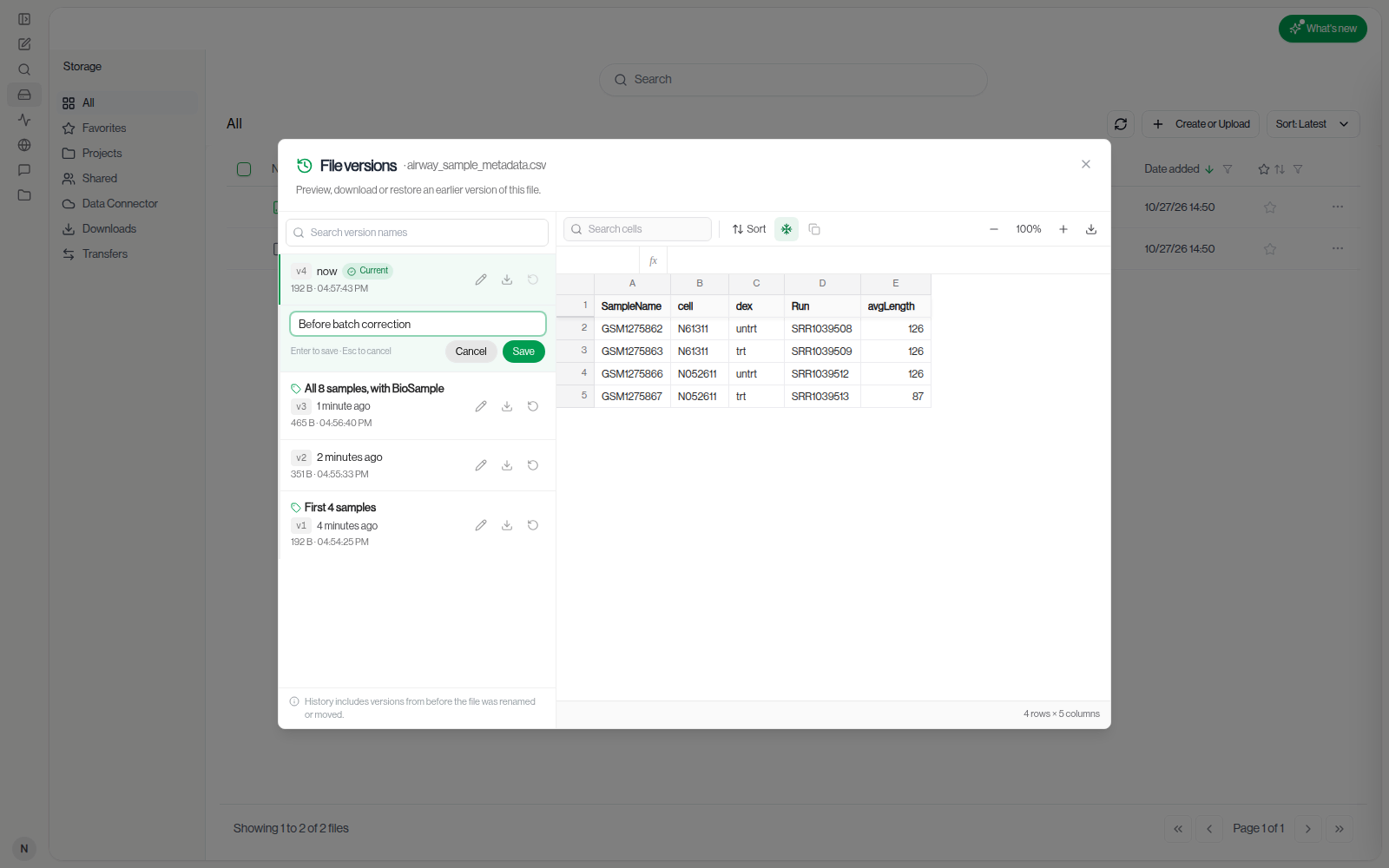
- Names can be up to 80 characters, on one line.
- Each name can be used only once per file. If it's taken, Drylab says "This name is already used for another version of this file."
- To remove a name, clear the text and press Enter.
You can also name a version as you create it. When you upload one file that already exists and choose Replace existing file, type a name in Name this version (optional) before clicking Upload. When several files clash at once, the field isn't shown; name the versions afterwards in File versions.
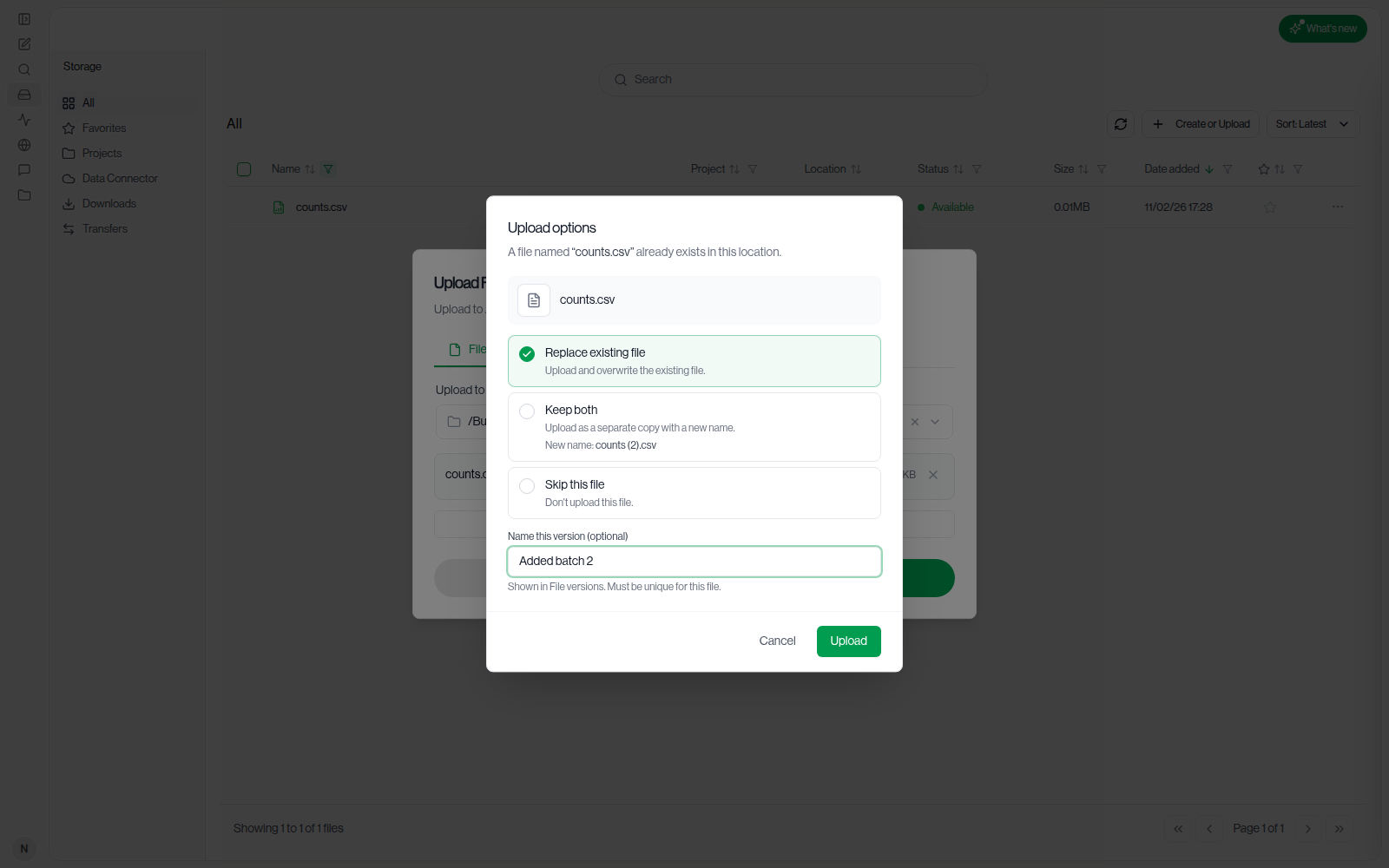
If that name is already used for the file, the upload still completes and the new version stays unnamed: "Upload complete, but that version name is already used for this file, so the new version was left unnamed."
If something doesn't work
| Message | What to do |
|---|---|
| "This file is still being processed. Try again in a moment." | The file is still uploading or being processed. Wait until it shows Available, then restore. |
| "This file changed while you were viewing its history. The list has been refreshed; try again." | Someone or something replaced the file while the window was open. Check the refreshed list and restore again. |
| "Version history is turned off for this storage, ..." | New changes aren't being kept and Restore is unavailable. You can still preview and download the versions already listed. |
| "Couldn't load file versions. Please try again." | Click Retry. If it keeps happening, contact support. |