
Storage
Find and Open Files
Search your Drylab Storage, preview files without downloading them, and add a file to a chat so Drylab can analyze it.
Search
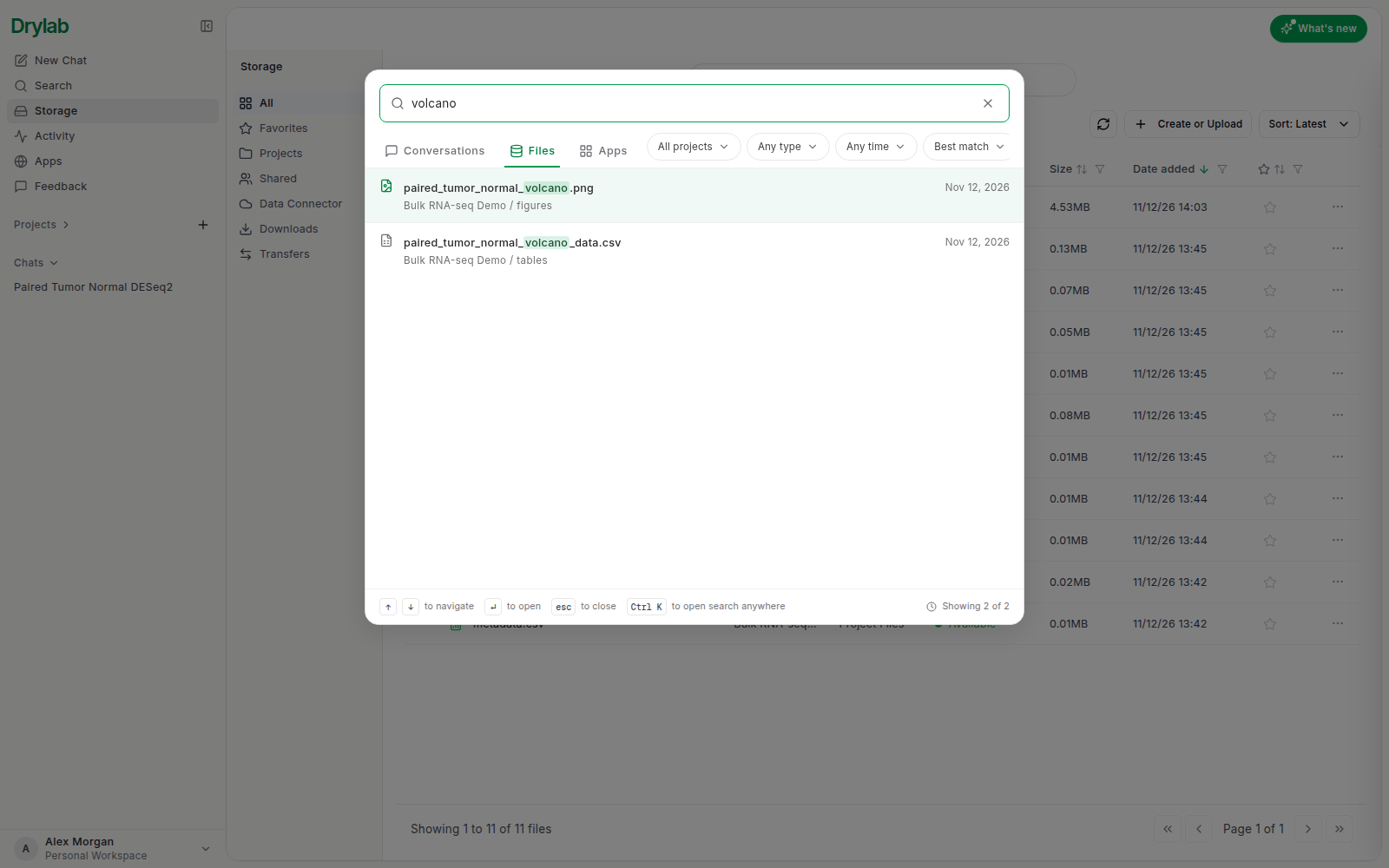
Click Search at the top of Storage (or Search in the left sidebar, or press Ctrl + K) and type part of a file name. Results update as you type. The Files tab lists matching files, Conversations lists matching chats and Apps lists matching apps. Narrow the results by project, file type or date with the filters under the search box.
Press Enter or click a file to open its folder in Storage with the preview already open.
You can also browse: open Projects, then click through the project, History and chat folders.
Preview a file
Click a file (or choose View File from its ... menu) to preview it next to the file list. To open it on a page of its own, choose Open in new tab.
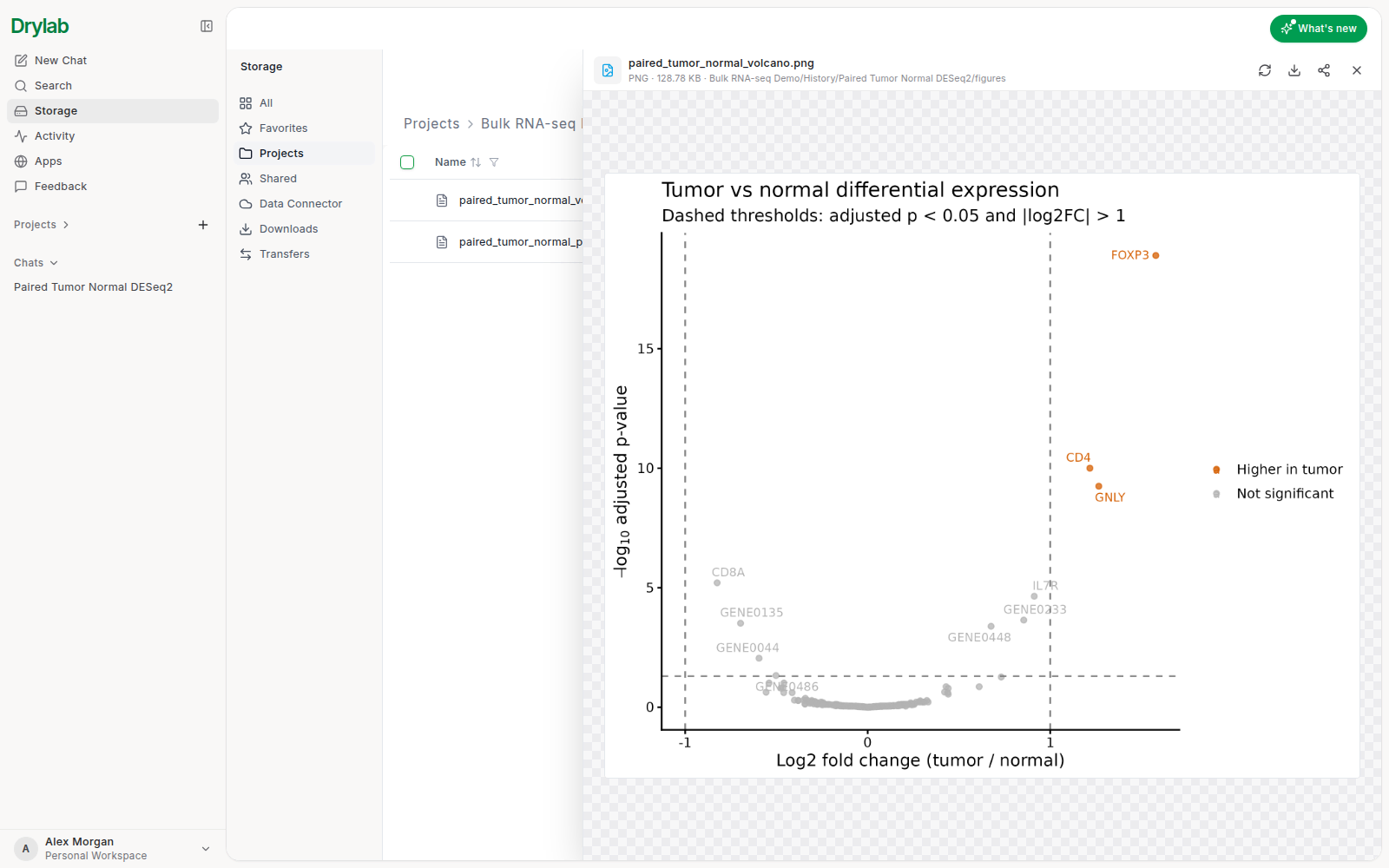
The preview supports the most common research formats, including:
- Images (PNG, JPG, SVG) and PDFs
- Tables (CSV, TSV, Excel)
- Code and text (Python, R, shell, Markdown, JSON)
- Notebooks (
.ipynb) - Documents and slides (Word, PowerPoint)
- Molecular structures (PDB, mmCIF) and sequences (FASTA, GenBank)
- Genomics files (BAM, VCF, BED, bigWig) and phylogenetic trees
Large files may load slowly, and files over 100 MB can't be previewed. In a chat's File panel, text and table files over 20 MB don't open either. Download larger files instead.
Use a file in a chat
To analyze a file, mention it with @ in the chatbox, or select it in Storage and click Start analysis. On a project page you can also drag a file from Sources onto the chatbox.