
Run Cells
Run a single notebook cell or the whole notebook, stop a running cell, and fix errors with AI.
Switch the notebook to Edit mode to run cells. See Overview.
Run a single cell
Click a code cell to select it, then hover it to show its toolbar and click the play button (Run cell). You can also click inside the cell and press Shift + Enter.
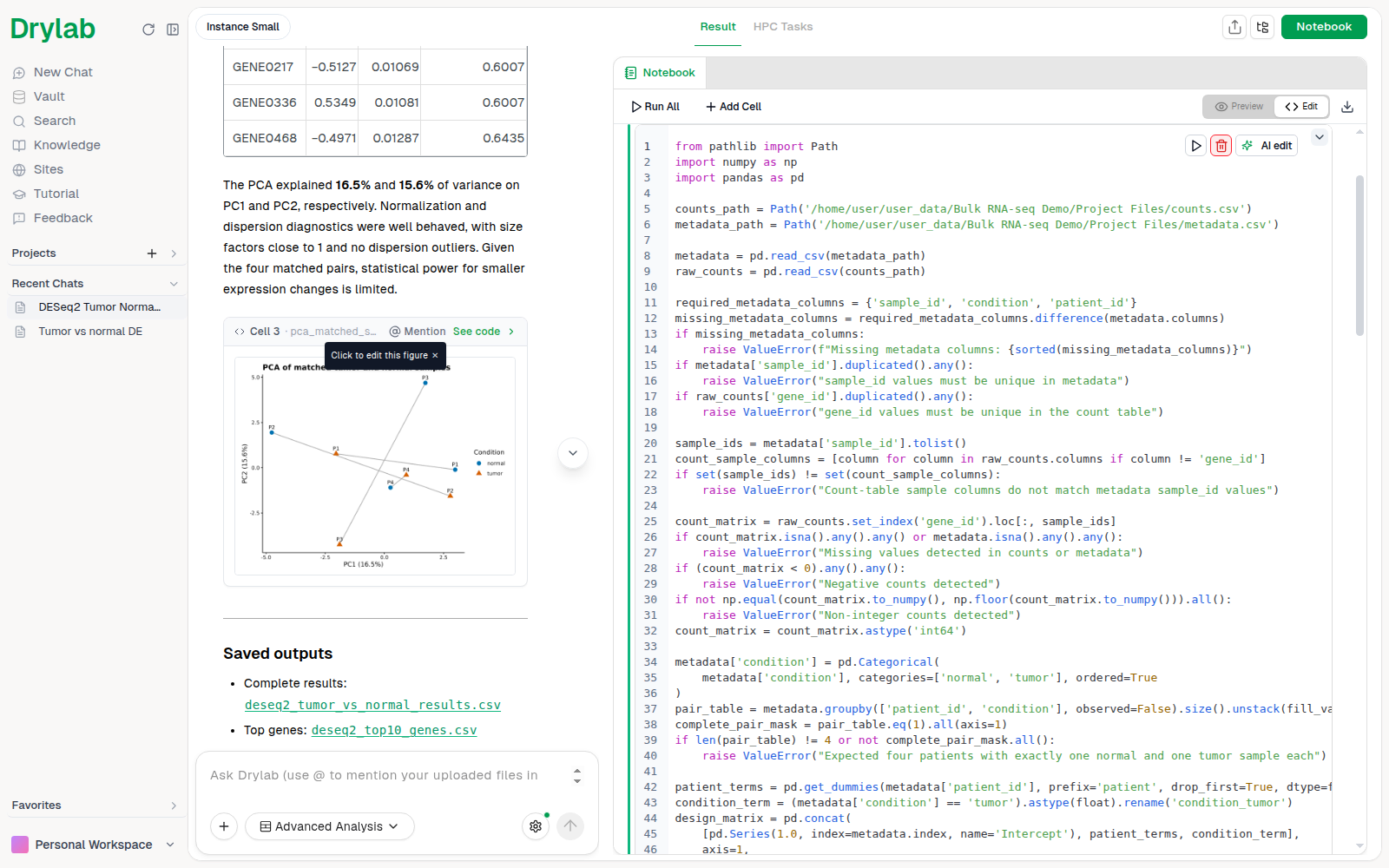
While a cell runs, the button changes to Interrupt execution. Click it to stop the cell.
Run all cells
Click Run All at the top of the notebook to run every cell from top to bottom. Use it after editing an earlier step, or to confirm the whole analysis reproduces from scratch.
When a cell fails
If a cell shows an error, click the cell to select it, then click AI Fix under the error output. Drylab reads the error and rewrites the cell ("AI Fixing..." then "AI Fix Complete!"). Run the cell again to check the result. To describe a change yourself and review it first, use AI Code Edit.
When to use each
| Situation | Action |
|---|---|
| Testing a change to one step | Run cell |
| Fixing an error in one step | AI Fix, then run the cell |
| Reproducing the analysis end to end | Run All |
| Reviewing results without changing anything | Preview mode |
Keep the notebook reproducible
Cells run in the order you run them, and variables persist between runs. If you change a cell in the middle, run the cells below it again (or use Run All) so every output matches the current code.