
AI Code Edit
Change a notebook cell by describing the edit in plain language, review the diff, and approve it.
AI edit lets you change an existing cell without rewriting it yourself. Describe the change, review a side-by-side comparison, and approve it.
Edit a cell with AI
-
Switch the notebook to Edit mode.
-
Click the cell to select it, then hover it and click AI edit (sparkles icon) in the cell toolbar.
-
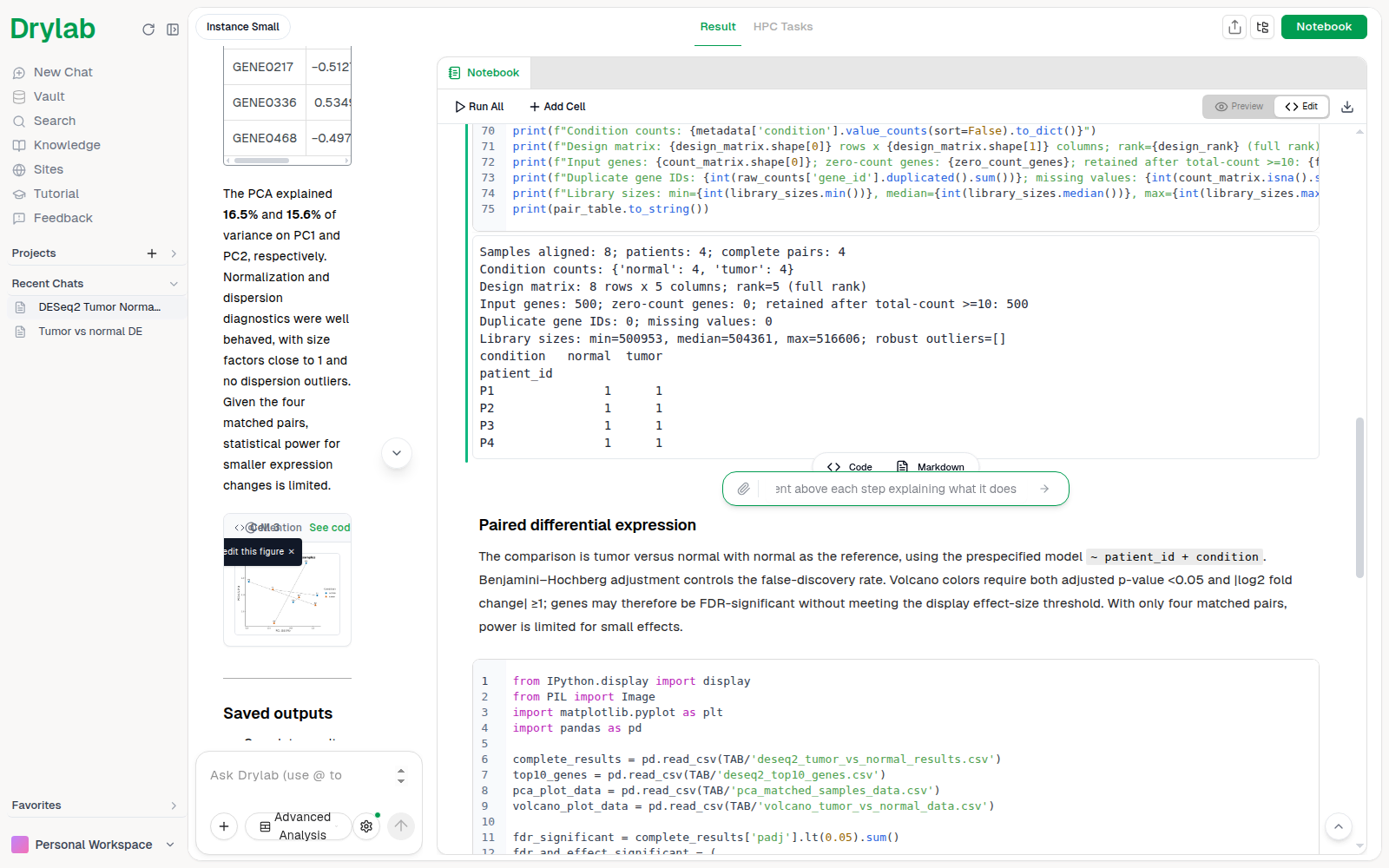
Type what you want in "How should AI edit this cell?" and press Enter. You can attach images with the paperclip button or paste them with Ctrl + V, for example a reference plot.
-
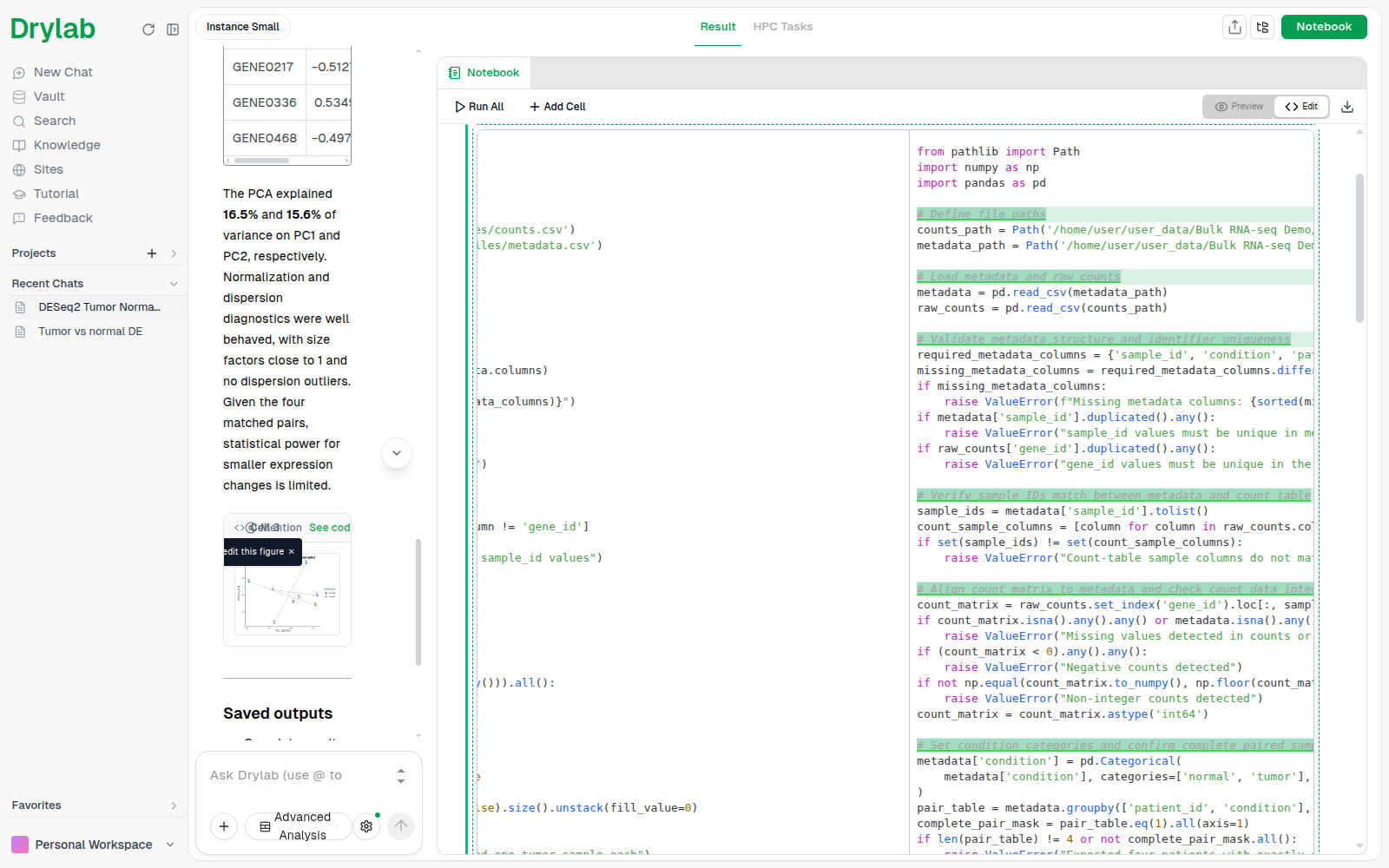
Drylab shows the original code and the edited code side by side, with changes highlighted.
-
Choose what to do with the change:
Button What it does Discard changes Throw the change away and keep the original cell. Approve Keep the change without running it. Approve and Run Keep the change and run the cell. 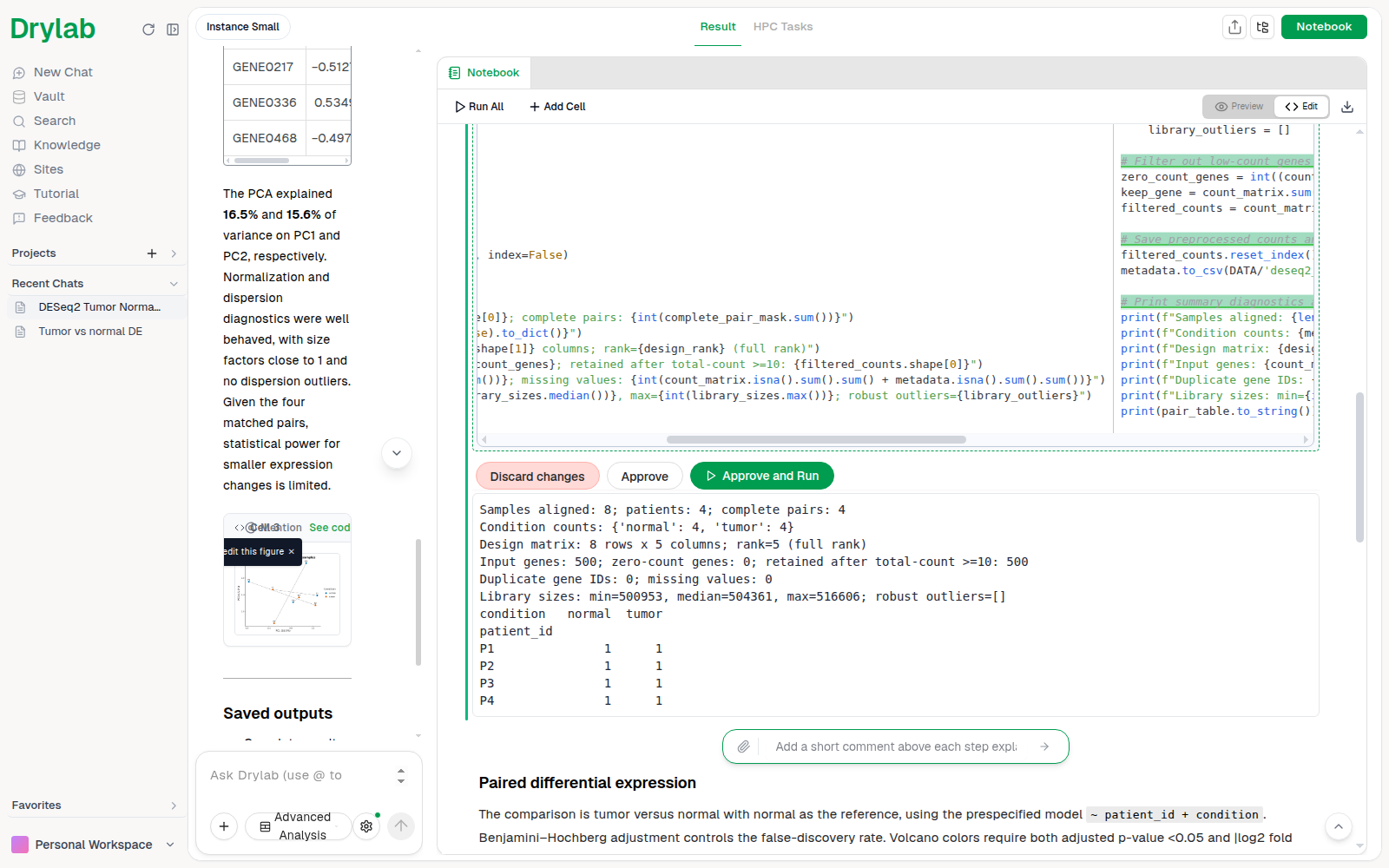
Markdown cells have the same AI edit button, for example to rewrite a note or add a figure caption. For markdown cells the change isn't shown side by side; choose Approve or Discard changes.
Fix an error with AI
When a cell fails, click the cell to select it, then click AI Fix under the error output. Drylab uses the error message to rewrite the cell directly, then you run it again to check. Use AI edit instead when you want to review the change before it is applied.
What you can ask for
| Task | Example instruction |
|---|---|
| Fix a bug | "Fix the KeyError on column 'gene_id'" |
| Change parameters | "Use an adjusted p-value cutoff of 0.01 instead of 0.05" |
| Restyle a plot | "Use a colorblind-safe palette and larger axis labels" |
| Add comments | "Add a short comment above each step explaining what it does" |
| Make it faster | "Read the file in chunks to use less memory" |
| Add safety checks | "Raise a clear error if the file is missing" |
Best practices
- Be specific: "Change alpha to 0.05" works better than "fix the stats".
- Keep edits targeted. For a new step, ask for a new cell in the chat instead.
- Check the output after Approve and Run, and rerun the cells below if the change affects later steps.