
Portal Apps
Shared Files
Browse the files a Portal App shares, stop sharing items, change the selection, and keep the contents up to date.
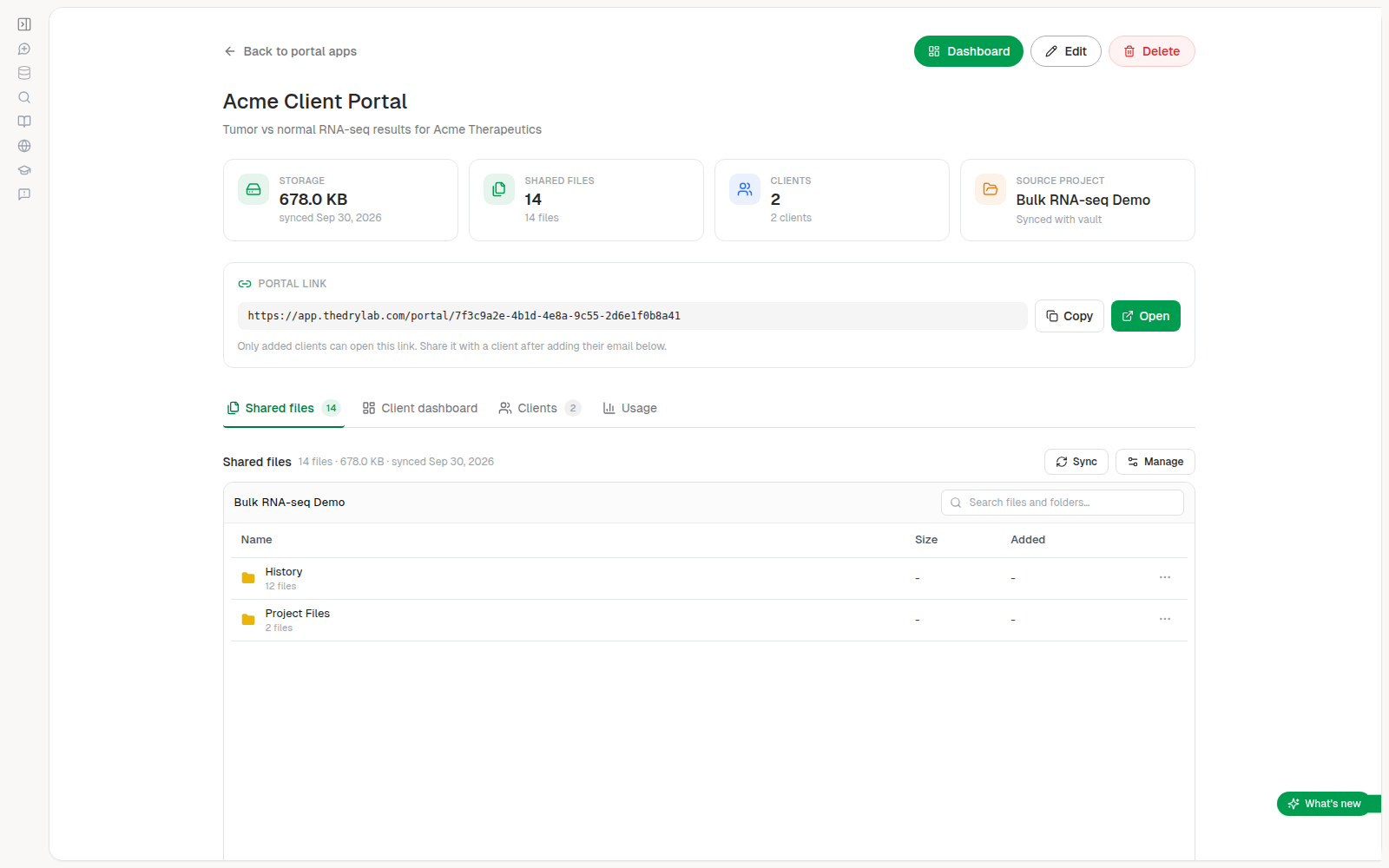
The Shared files tab of a Portal App lists the files your clients can see.
Browse the shared files
The tab works like the Vault: click a folder to open it and use the breadcrumb to go back. Search finds files by name in the current folder and everything below it.
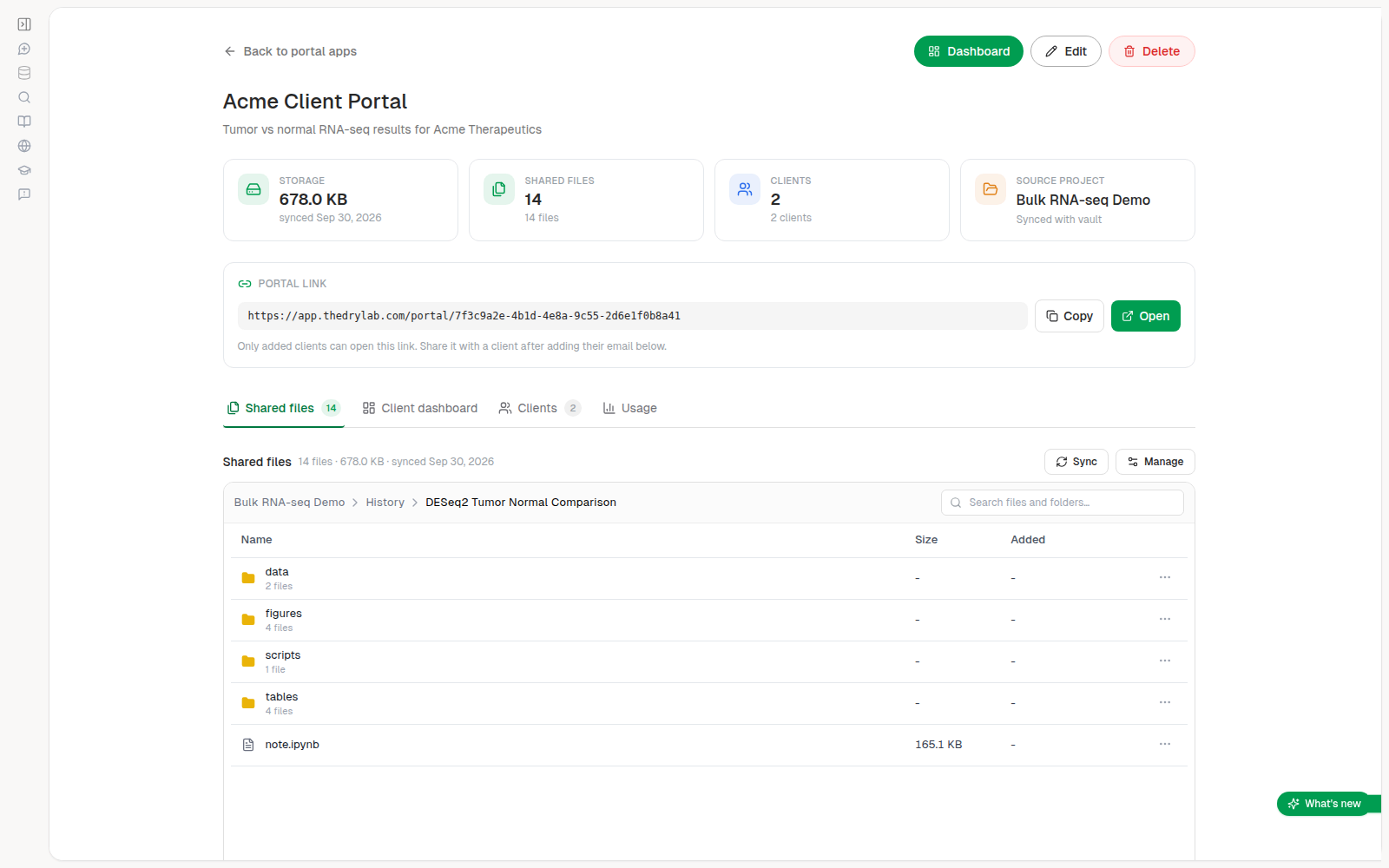
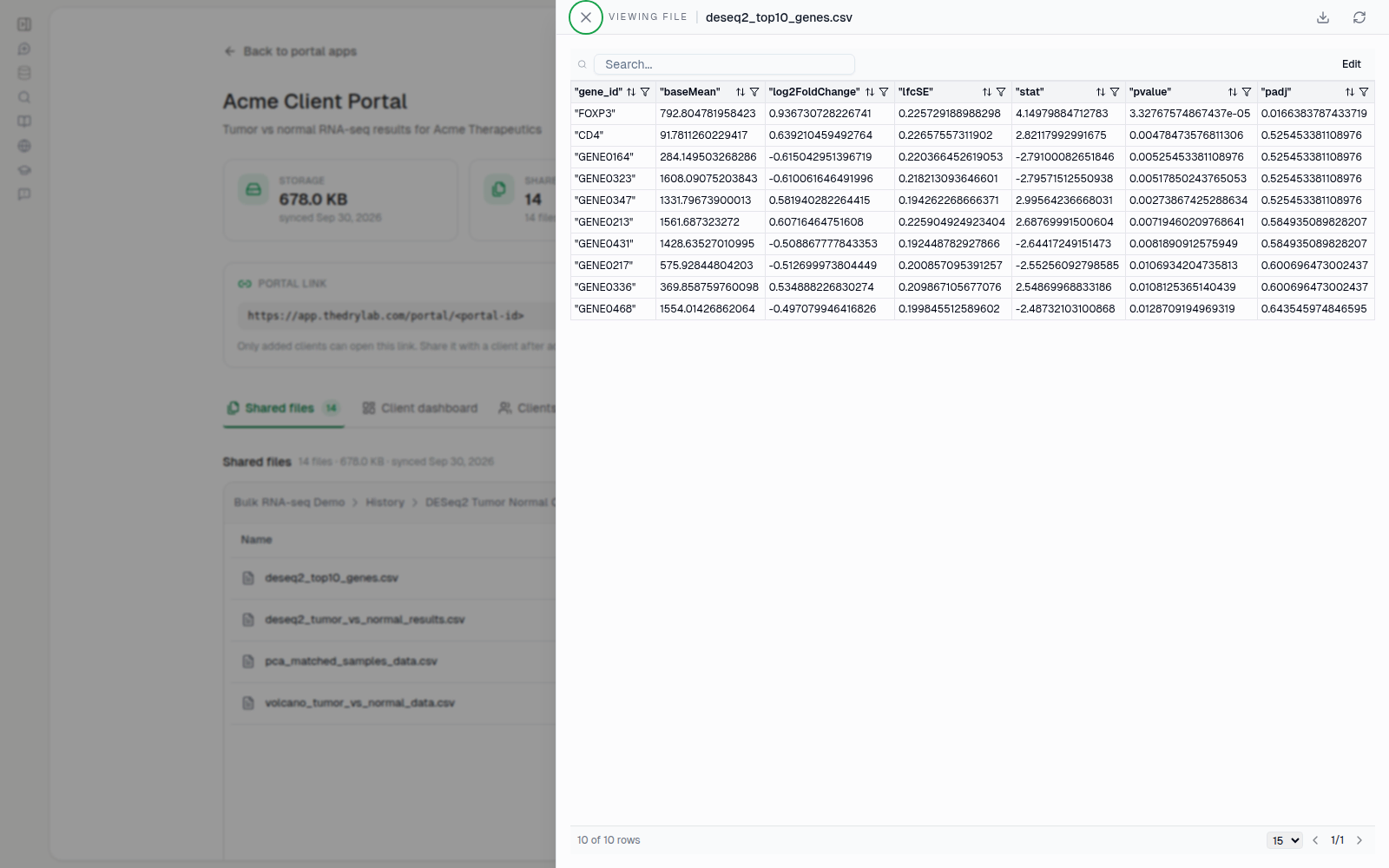
Click a file to preview it in a side panel.
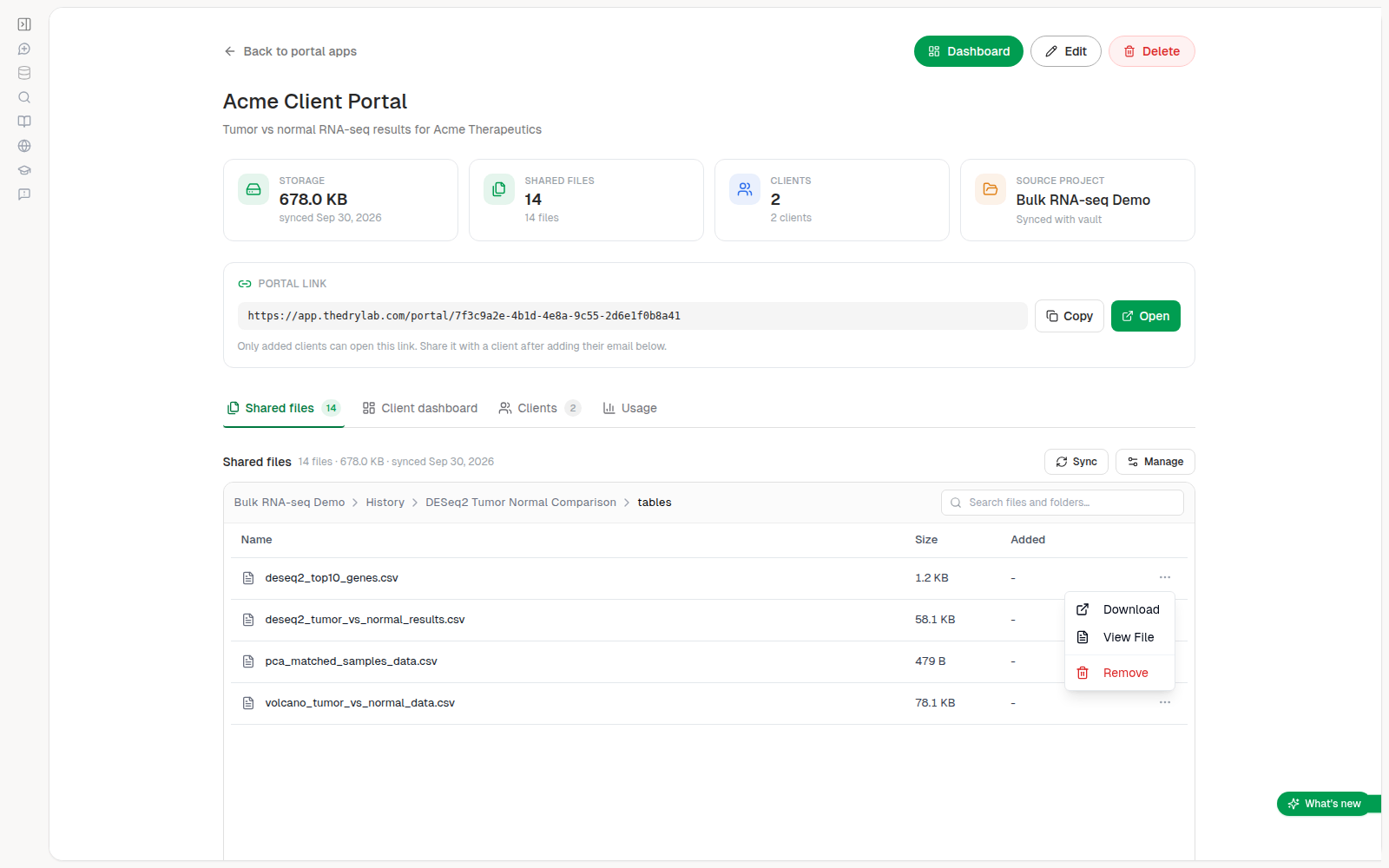
Stop sharing a file or folder
- Click the three-dot menu at the end of the row.
- Choose Remove.
This only stops sharing the item: the original file in your project is not deleted. Removing a folder stops sharing every file inside it. To share it again, use Manage.
Change which files are shared
- Click Manage at the top right of the tab.
- Select or clear files in the tree.
- Click Save changes.
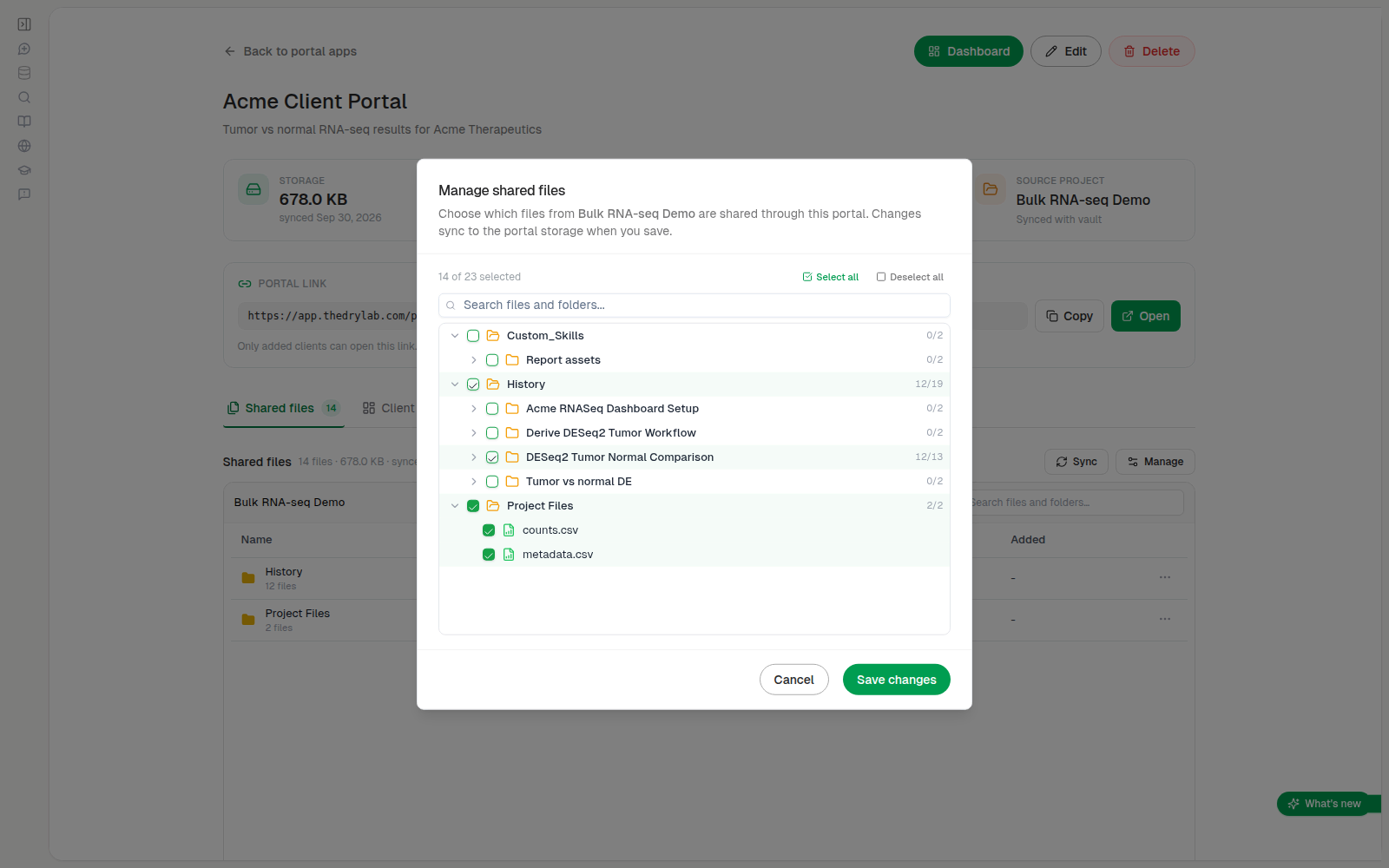
Keep files up to date
If you change a shared file in your project, click Sync so clients see the latest version. A message summarizes what changed, or says "Portal already up to date".
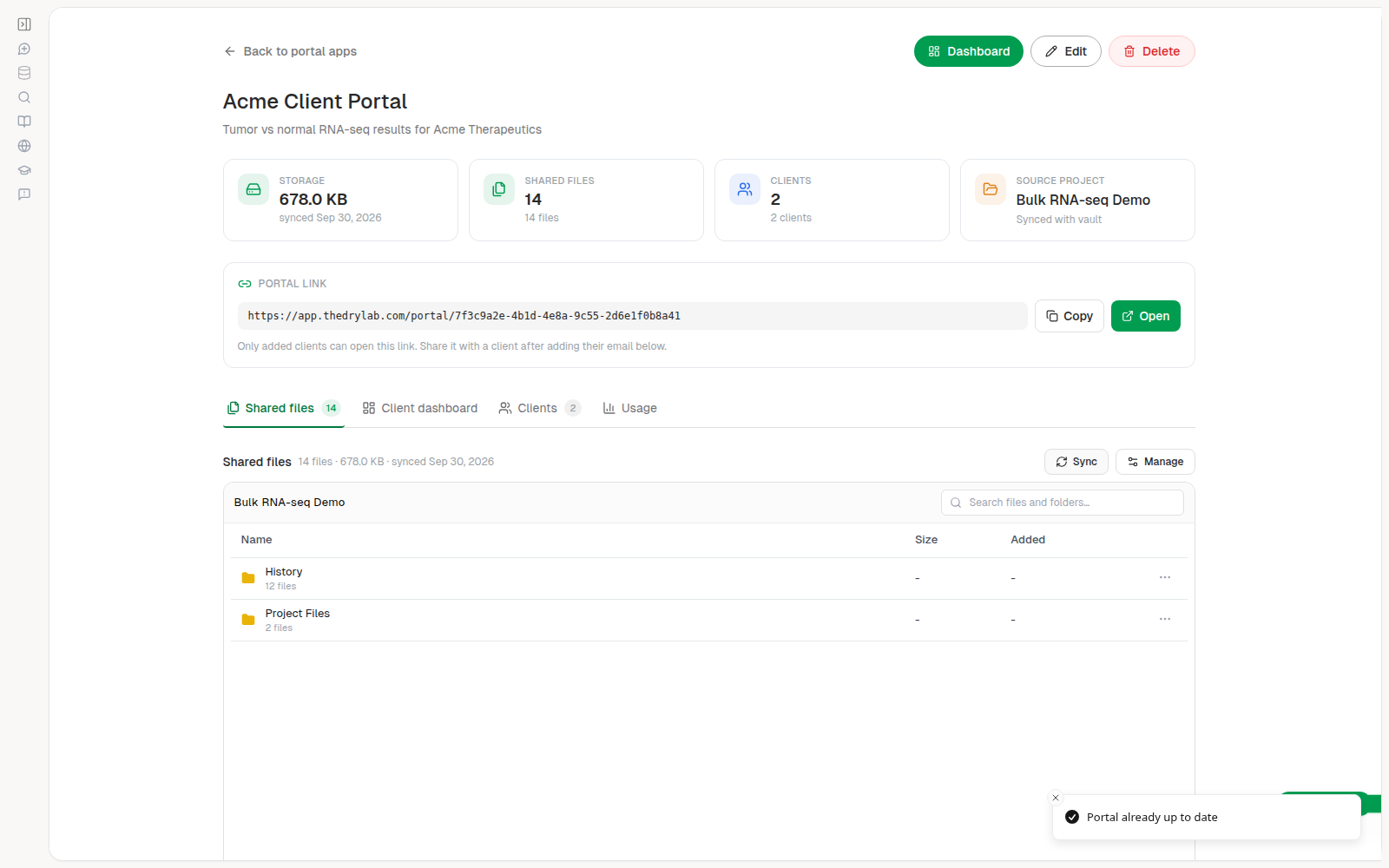
Manage changes which files are shared. Sync refreshes the contents of files that are already shared. Files you add to the project later are not shared automatically; add them with Manage.