
Guide for Clients
For people invited to a Drylab portal: open the portal, read the report, browse files and ask the assistant questions.
This page is for the people you invite to a Portal App. You can send them the link as-is.
Open your portal
- Open the invitation email from Drylab.
- If you're new to Drylab, the email contains your sign-in details. Sign in, then set your own password when asked.
- If you already have a Drylab account, sign in as usual.
- Sign in with the email address the invitation was sent to.
- Click the link in the invitation email.
Read the dashboard
When the owner has published a report, the portal opens on the Dashboard tab. The report is interactive: hover over charts for details and scroll to see every section.
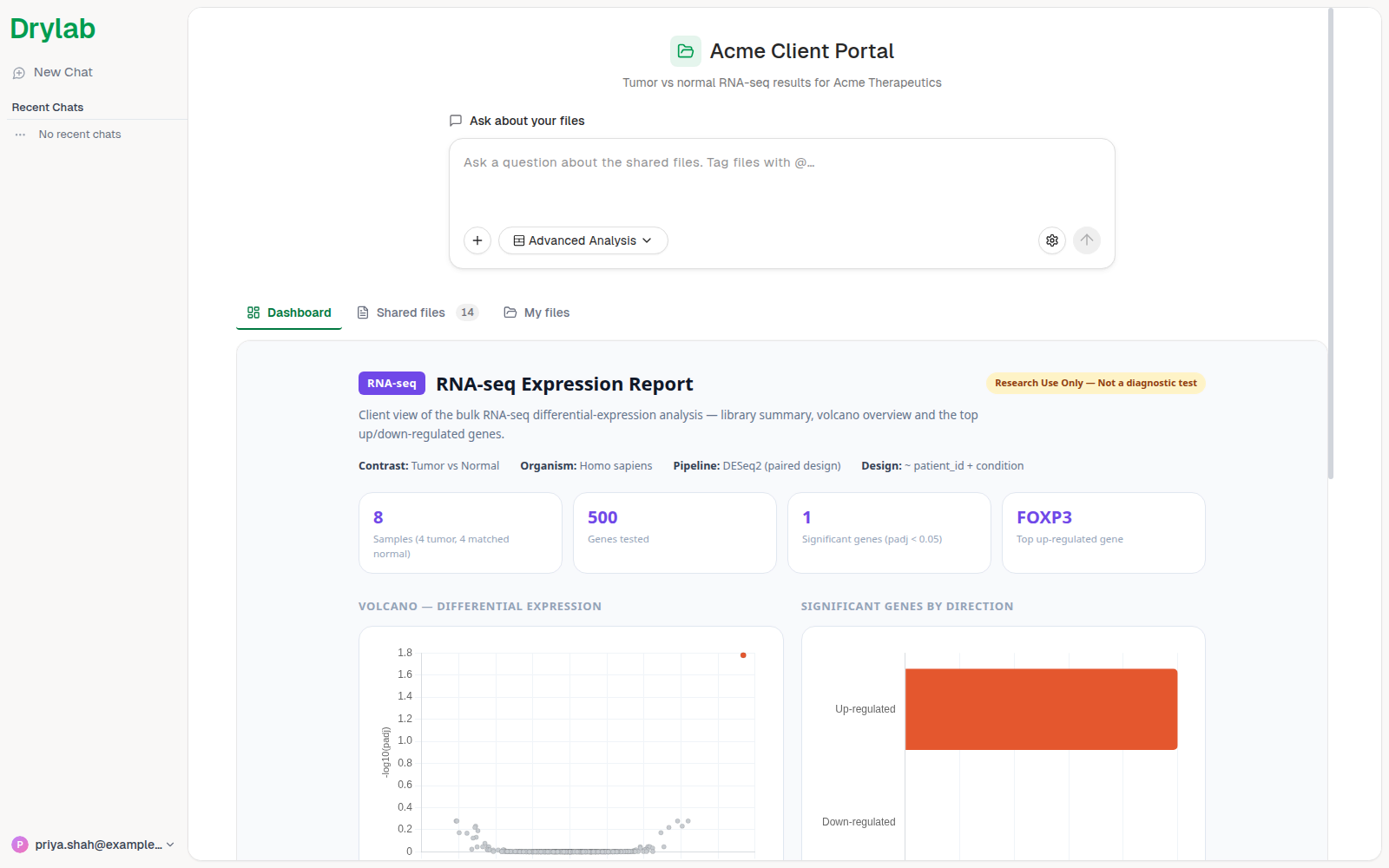
The portal has:
- Ask about your files: a box to ask the assistant questions.
- Dashboard: the published report. This tab appears once the owner publishes one.
- Shared files and My files: described below.
Browse the shared files
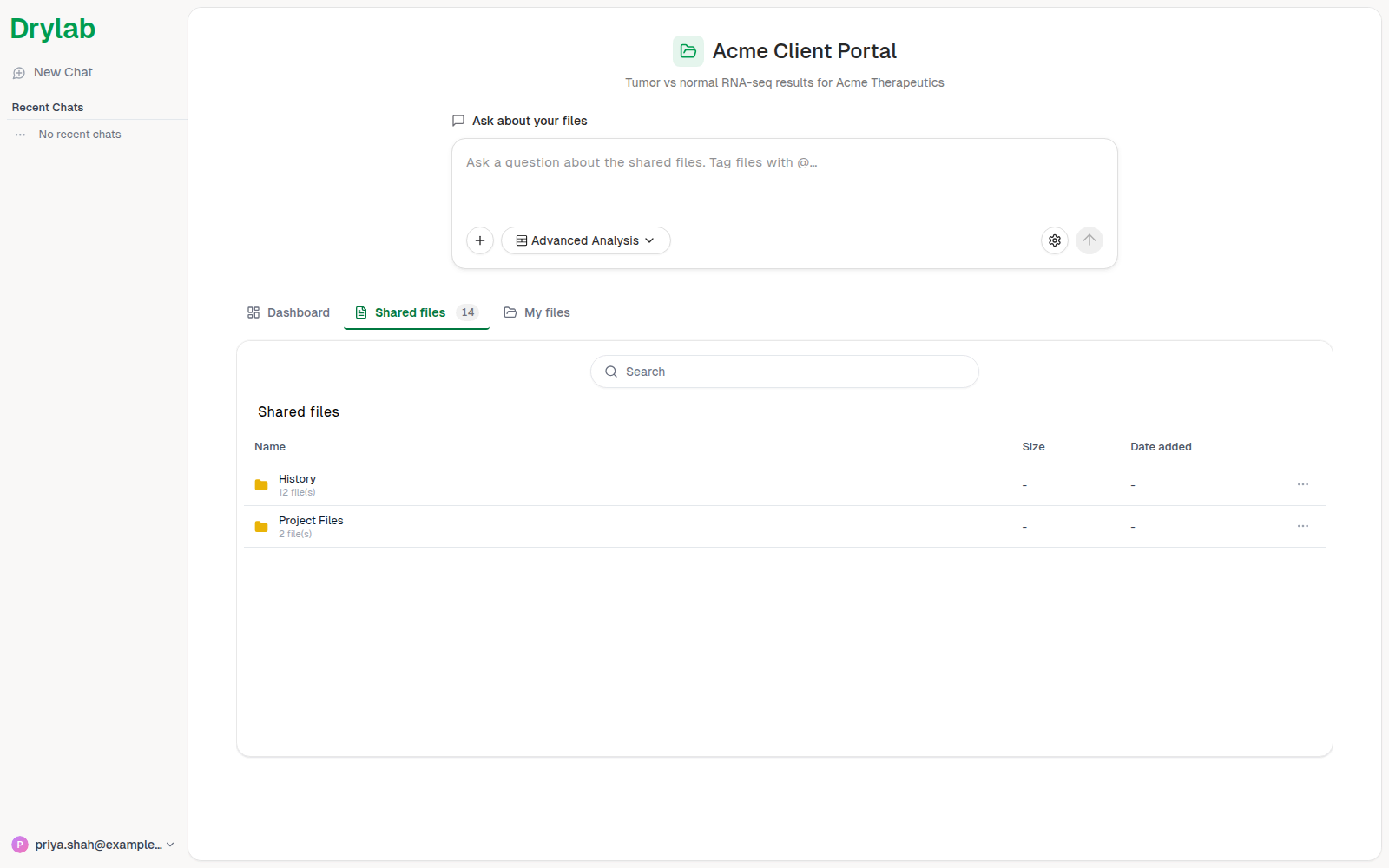
Open Shared files to see the files the owner shared with you. The number next to the tab is how many files there are. Click a folder to open it, and click a file to preview it.
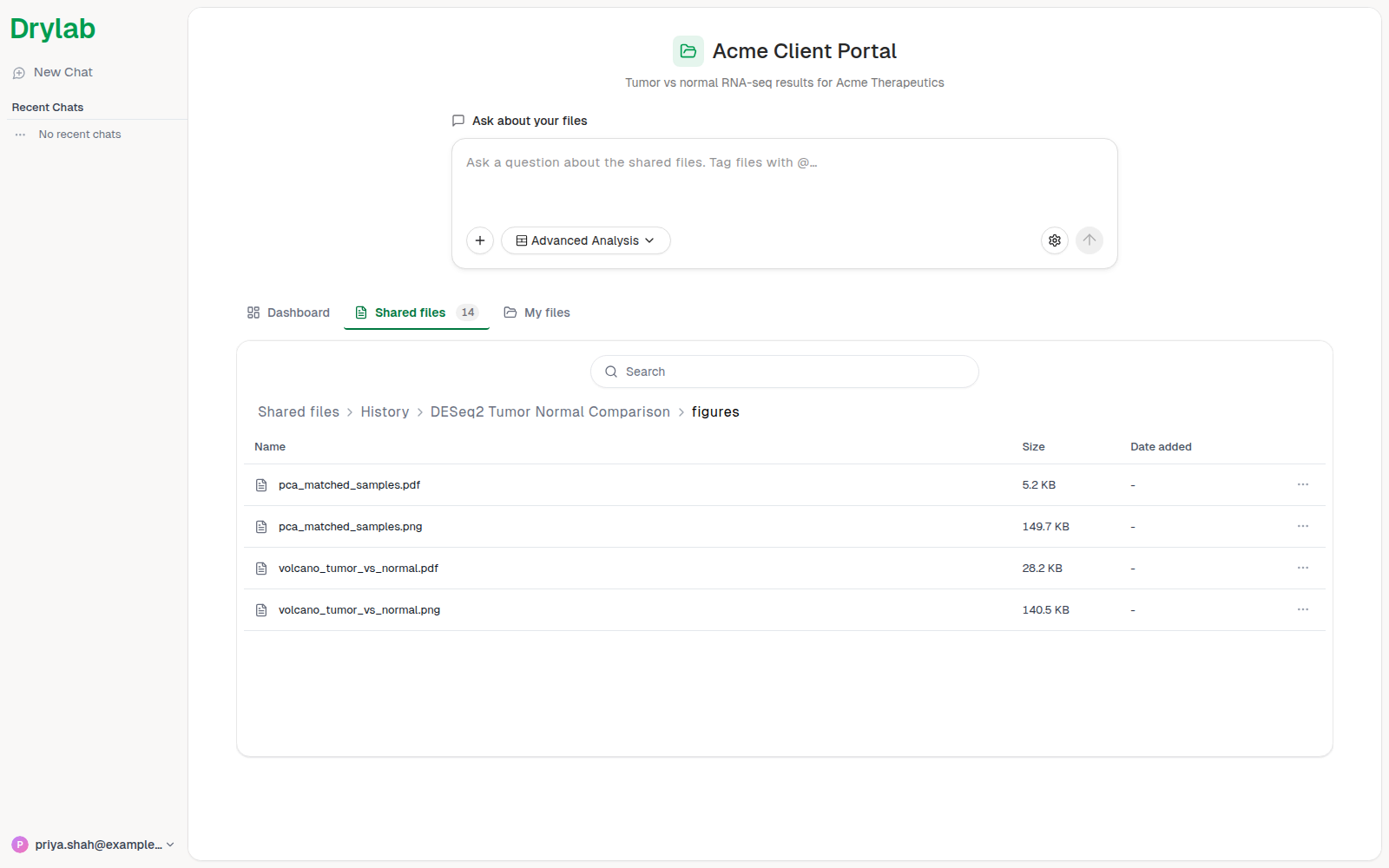
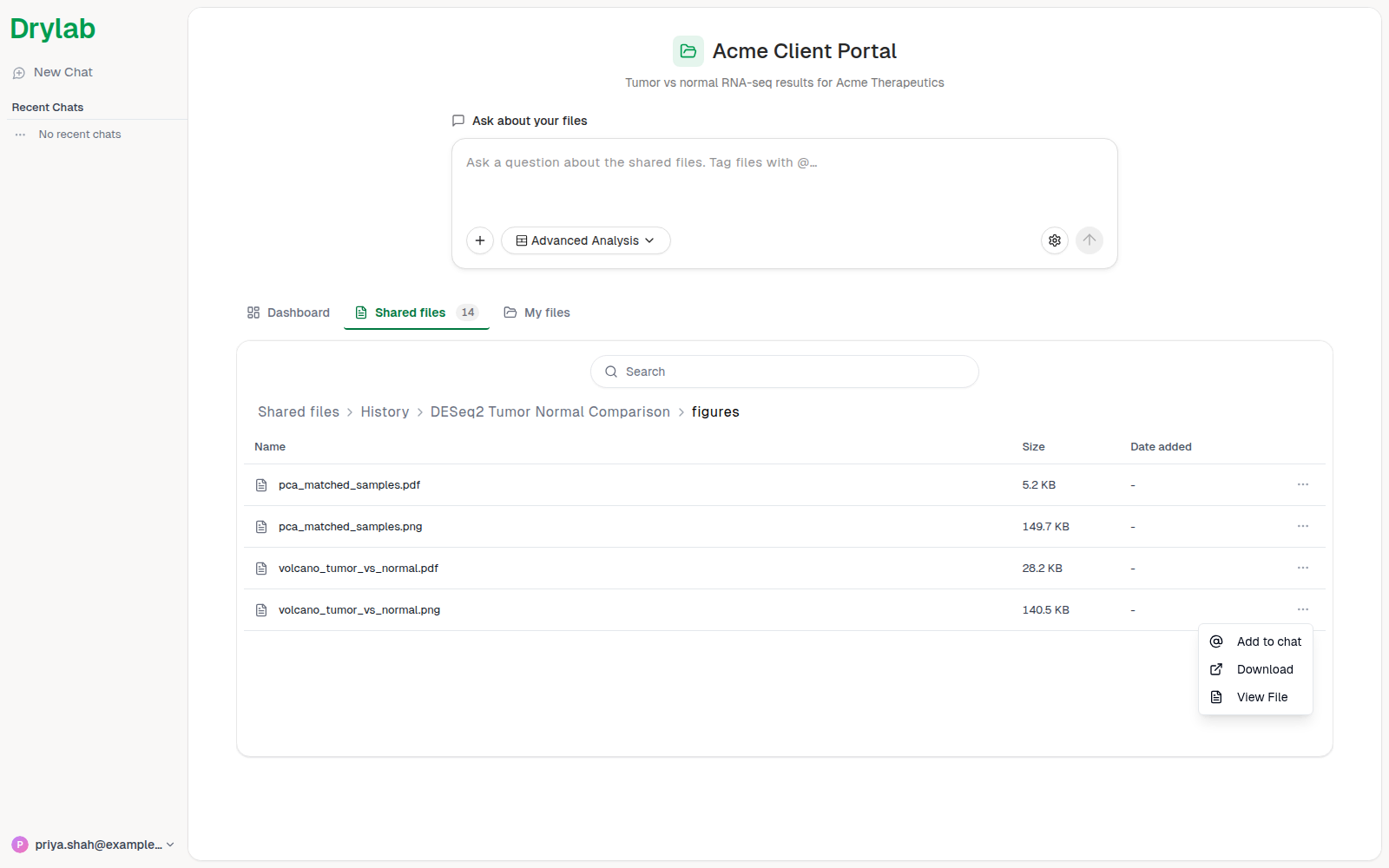
To download a file or add it to your question, use the three-dot menu at the end of its row: Download, Add to chat or View File.
Shared files are read-only. They belong to the portal owner, who keeps them up to date.
Use My files
My files is your own space in this portal. Files you upload, and files the assistant creates for you (for example exported tables or plots), are stored here. Download anything you want to keep.
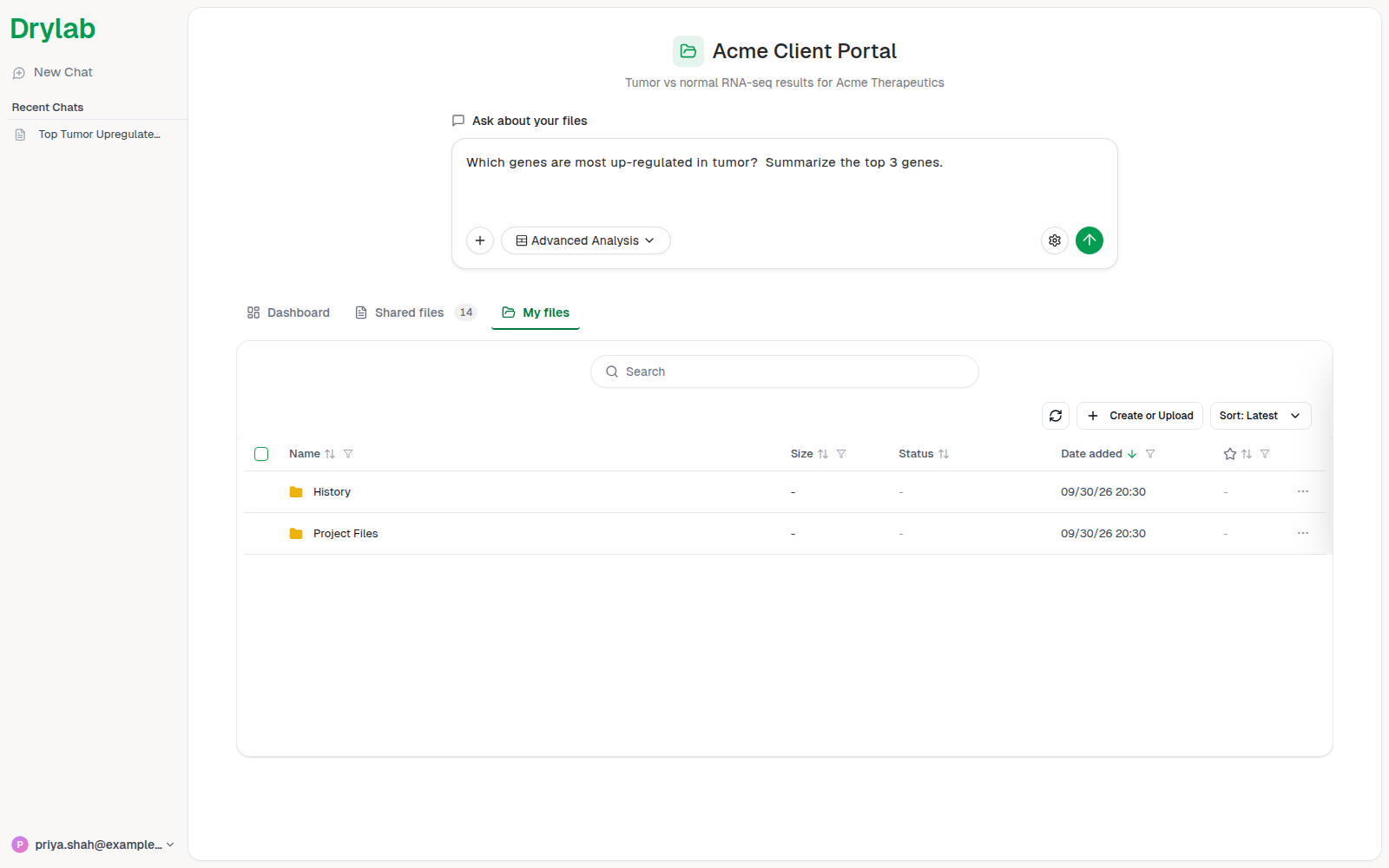
Ask questions about the files
- Click the box under Ask about your files and type your question.
- To point the assistant at a specific file, type
@, choose Files, start typing the file name, and pick the file.
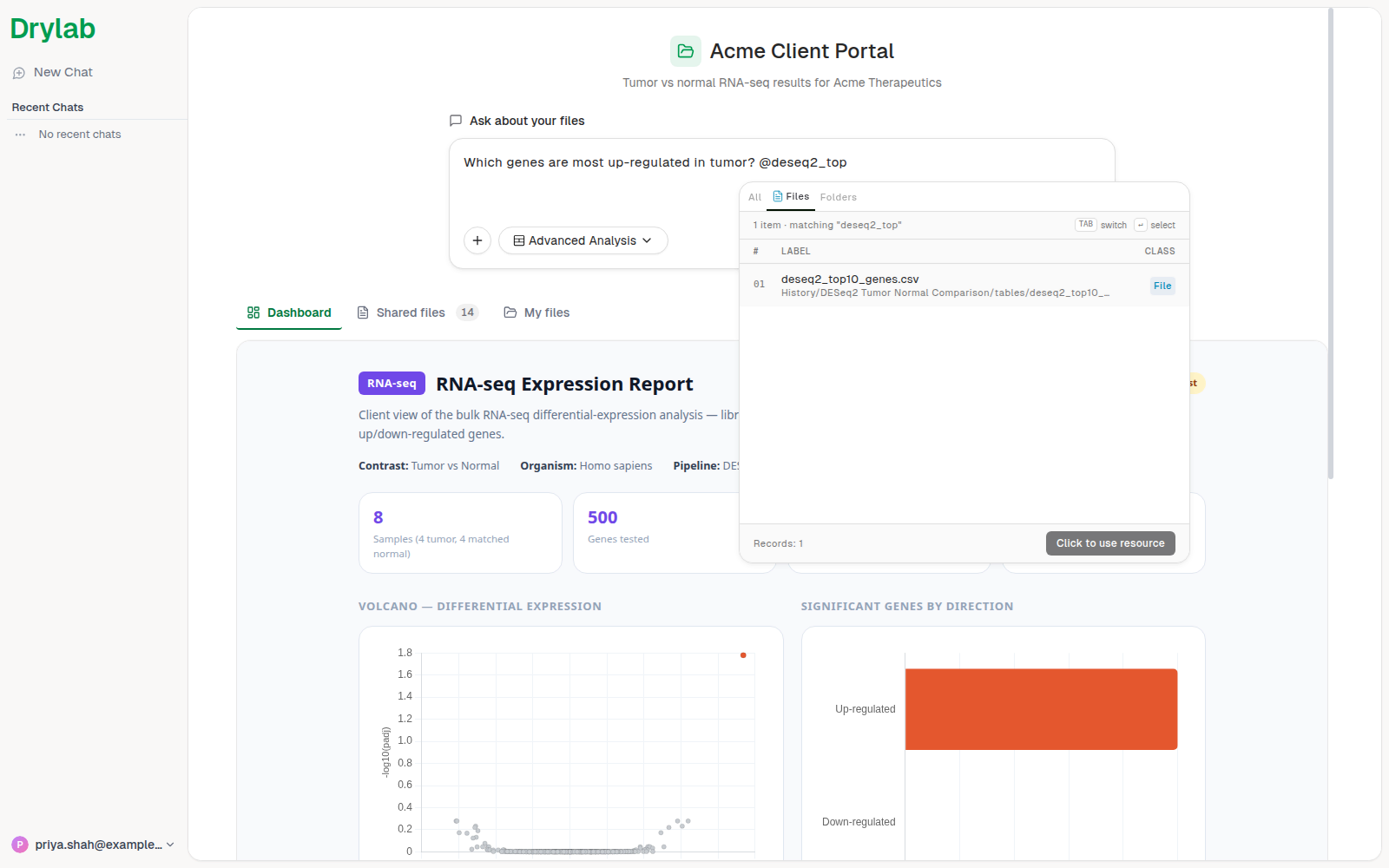
- The file is attached to your question. Finish typing and click the send (arrow) button.
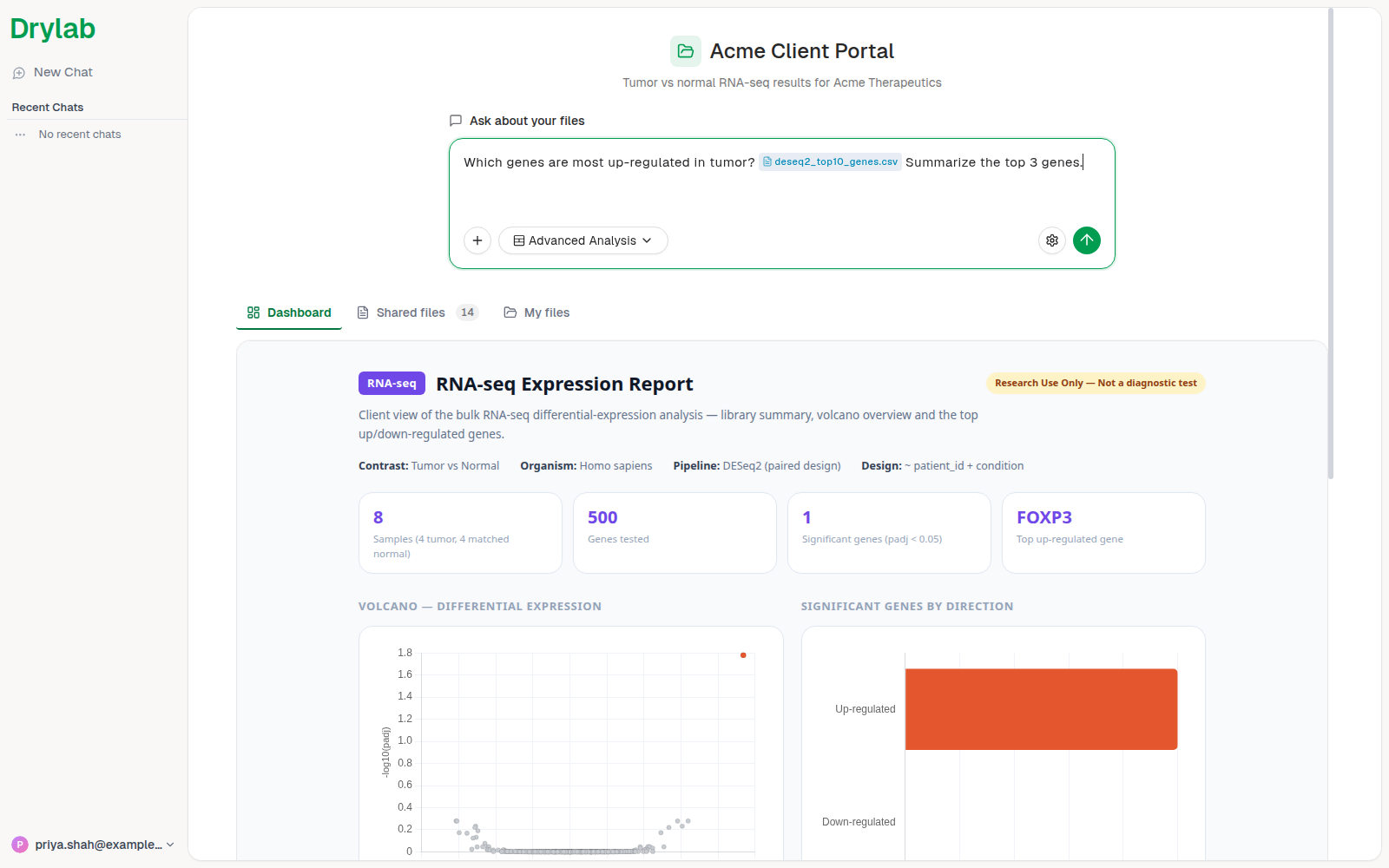
The conversation opens in a chat view, and the assistant answers using the shared files. The first time you open a chat, a short guided tour may appear; follow it with Next or close it.
Your conversations for this portal are listed under Recent Chats in the left sidebar. To start a new question, click New Chat or the Drylab logo at the top of the sidebar.
Check your usage and log out
Click your email address at the bottom of the sidebar to see your usage in this portal and to Log out. If the owner set a limit for you, it's shown here, for example 50 / 2,000 tokens.
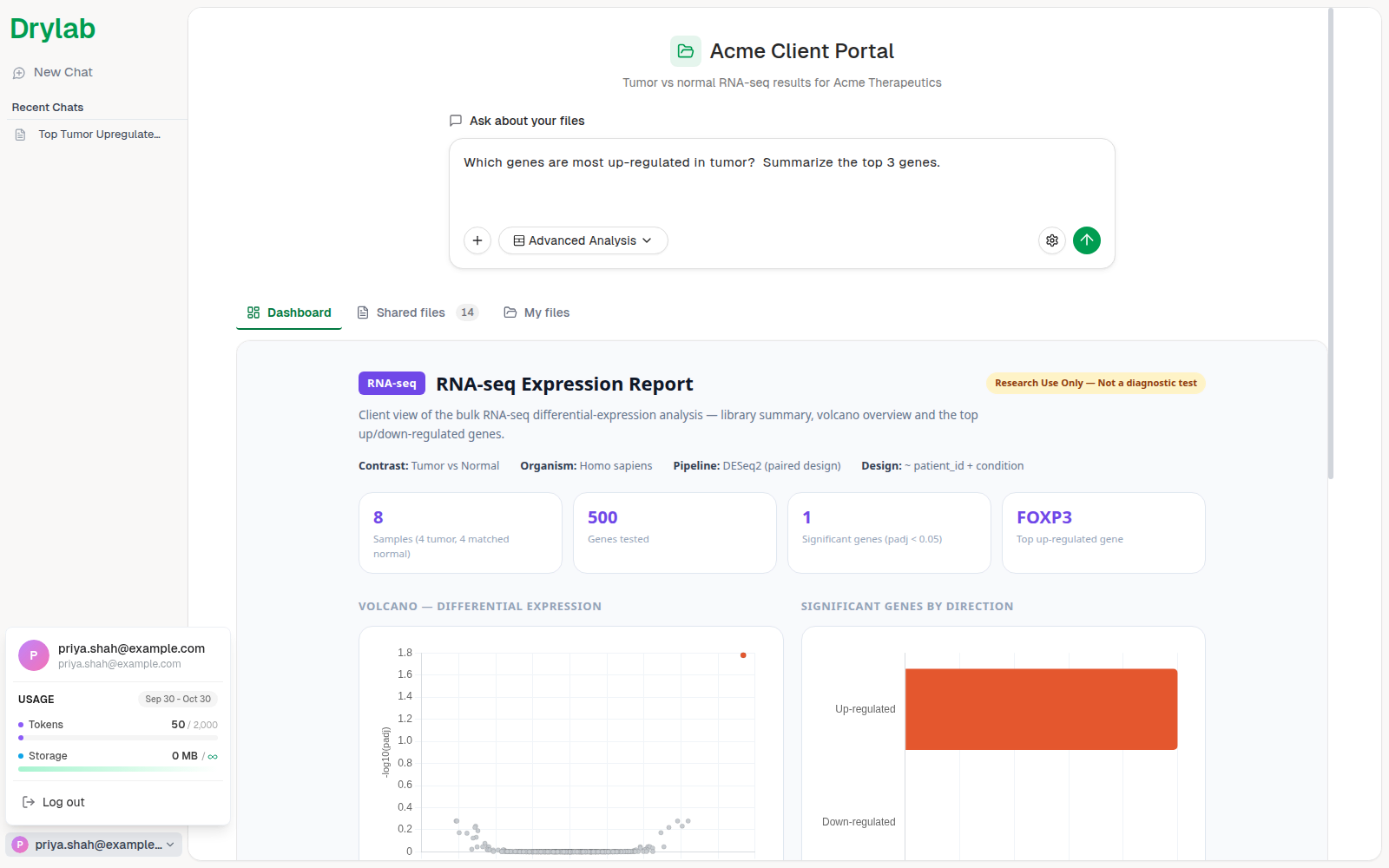
When you reach a limit, contact the person who invited you. Only the portal owner can raise it.
Messages you might see
Access denied. The email you're signed in with isn't a client of this portal. Sign in with the address the invitation was sent to, or ask the owner to invite the address you use.
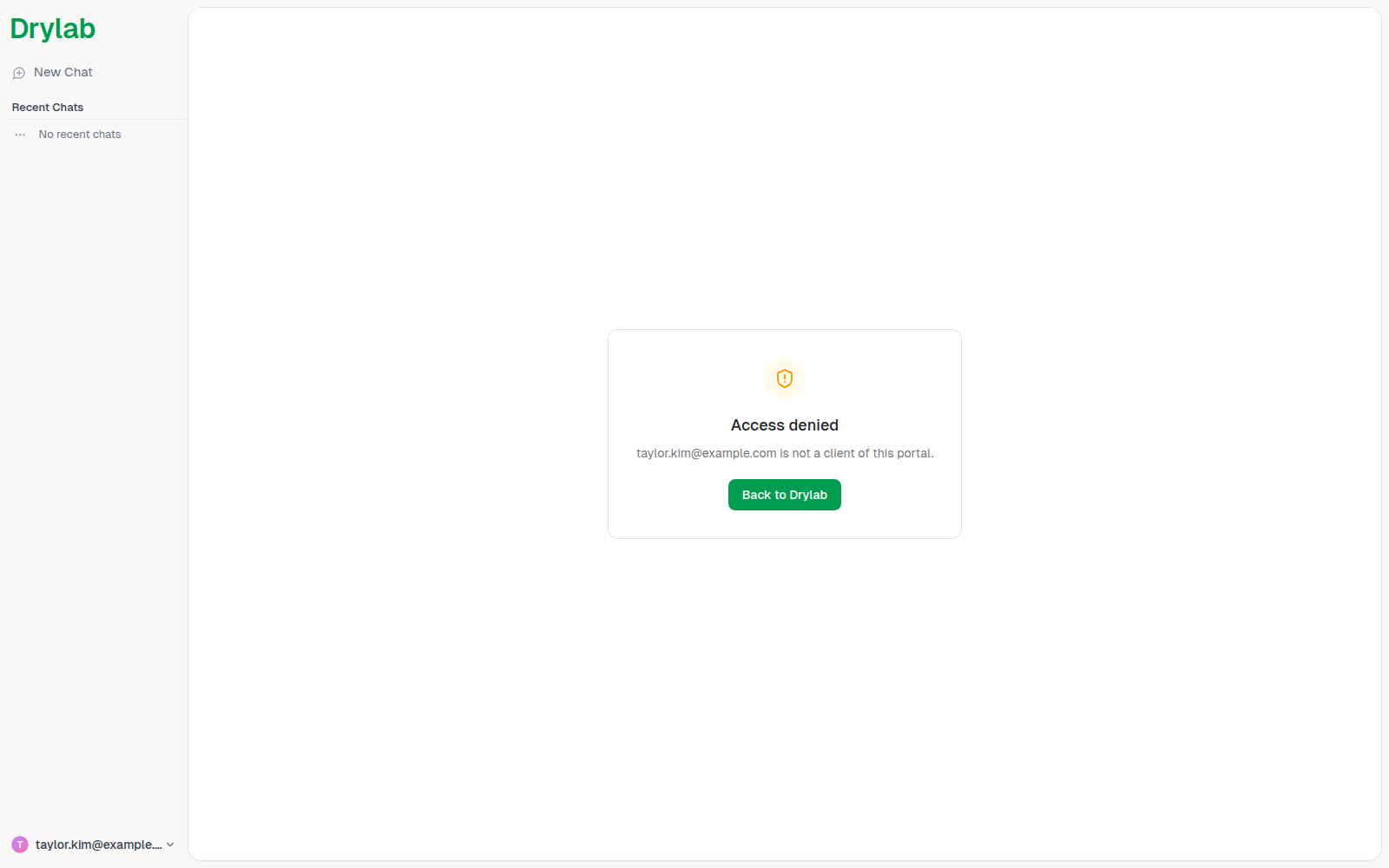
This portal is not available. You're still a client, but the organization that shared the portal can no longer host it. Contact the person who invited you if you still need the files.