
Client Dashboard
Build an interactive results report with Drylab's assistant, save versions, and publish it to your clients.
The client dashboard is an interactive report (charts, tables, key numbers) that clients see on the Dashboard tab of their portal, which opens by default. You build it with Drylab's assistant, starting from a template.
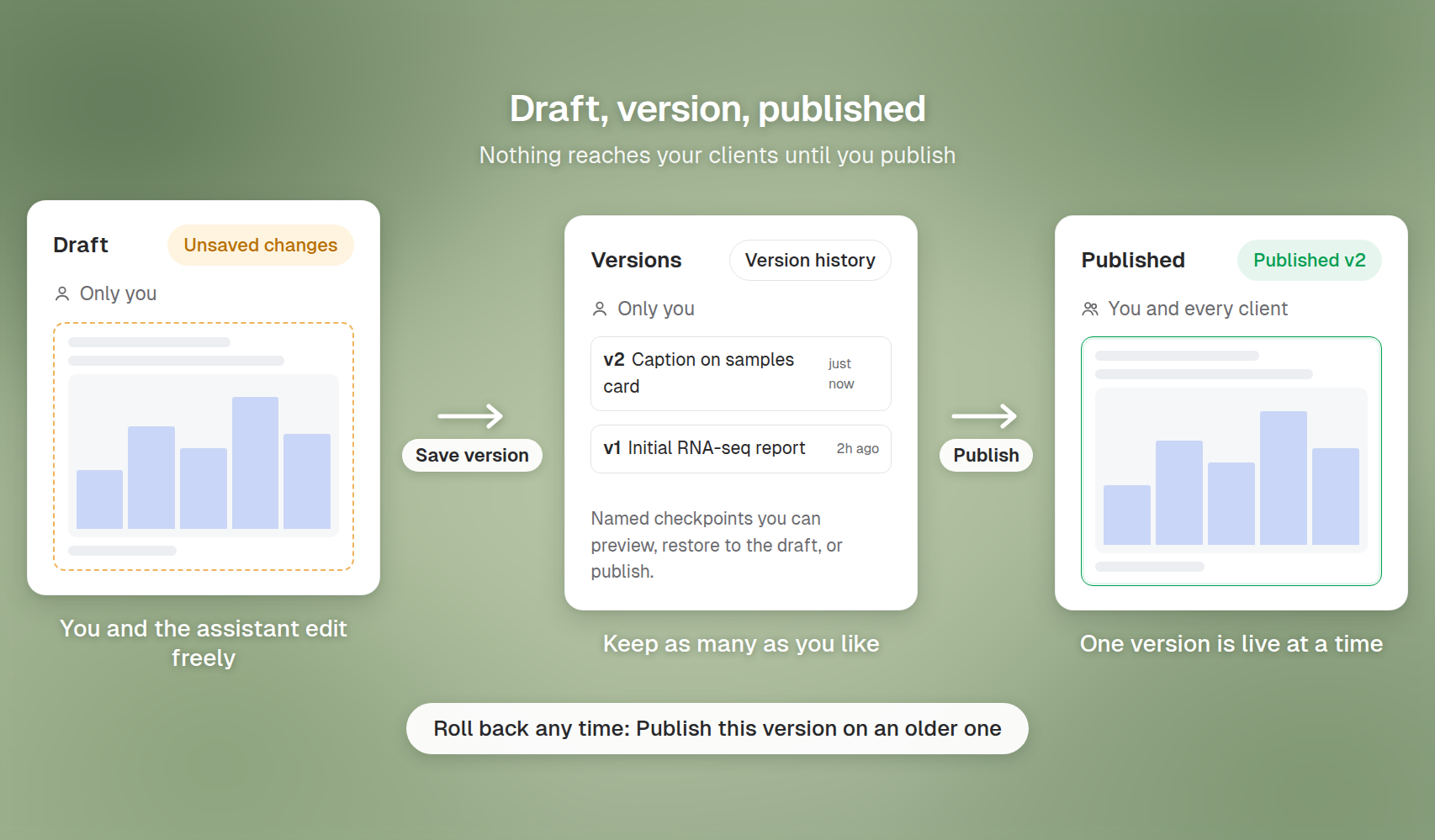
Drafts, versions and publishing
| Term | What it is | Who sees it |
|---|---|---|
| Draft | The dashboard you and the assistant are working on | Only you |
| Version | A saved, named checkpoint of the draft (v1, v2, ...) | Only you, in Version history |
| Published | The one version your clients currently see | You and every client of this portal |
Nothing reaches your clients until you publish. You can edit the draft freely, save as many versions as you like, and switch clients to an older version at any time.
Pick a template
- Open the Client dashboard tab and click Set up dashboard.
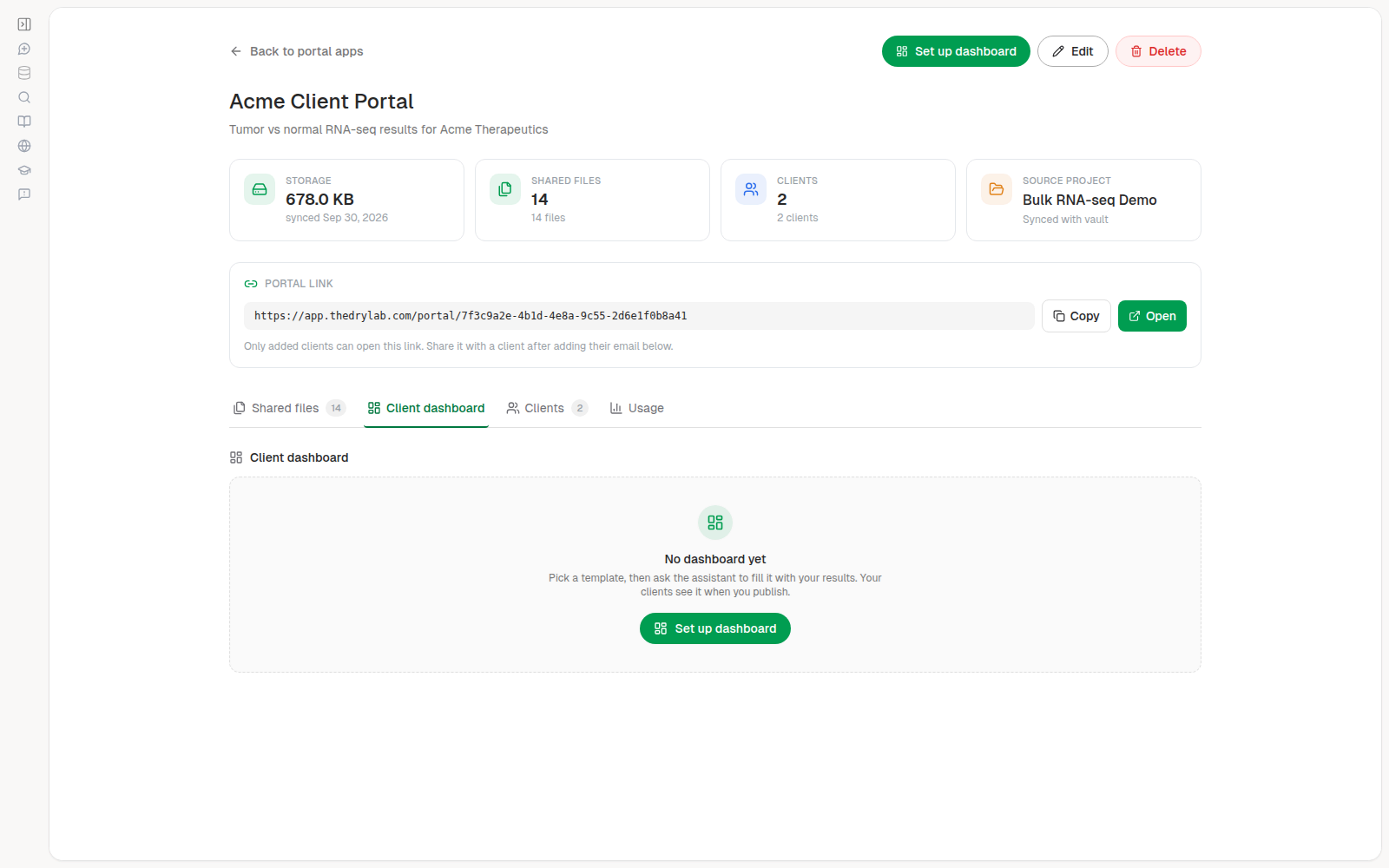
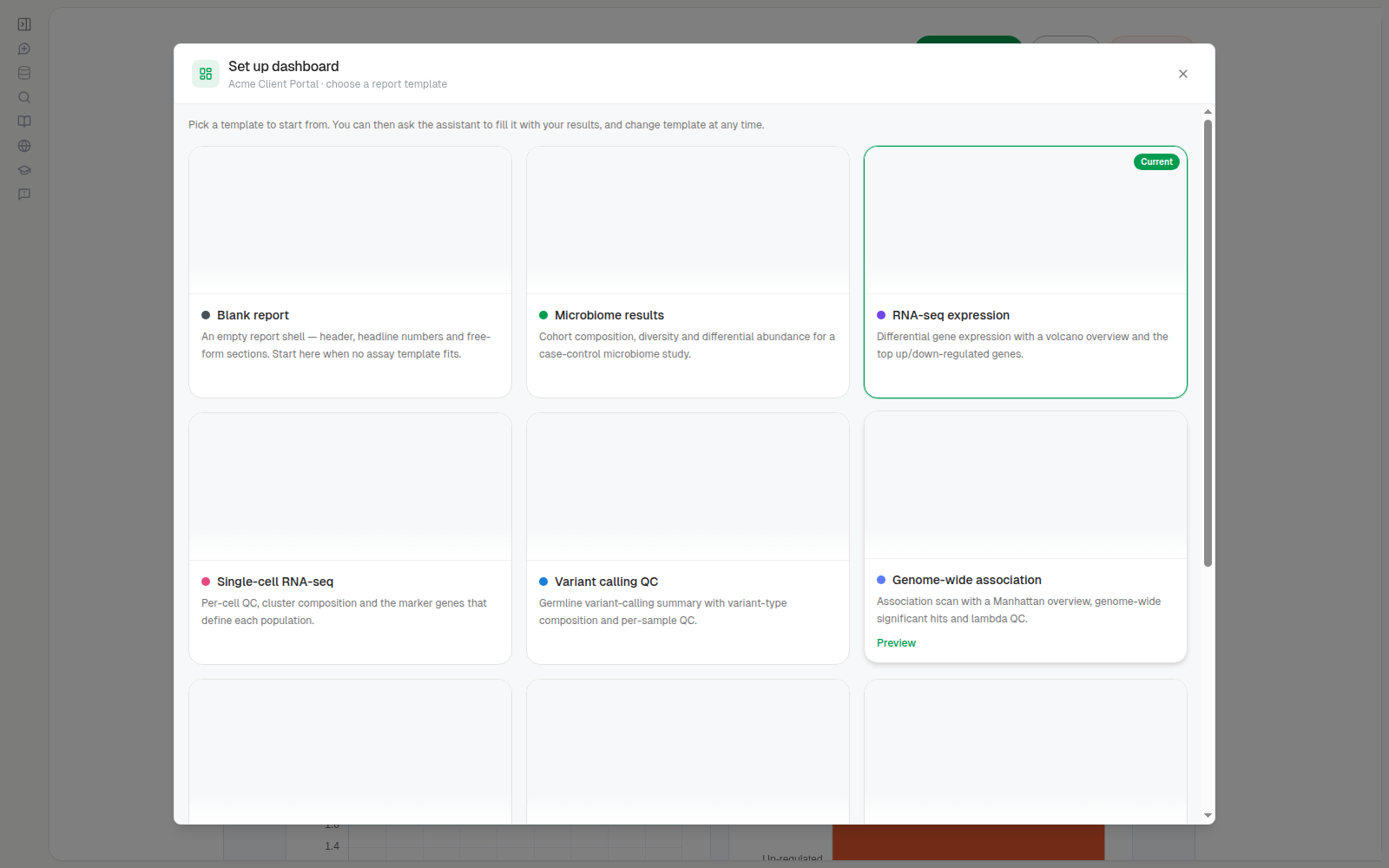
- Browse the templates. They cover common study types: Blank report, Microbiome results, RNA-seq expression, Single-cell RNA-seq, Variant calling QC, Genome-wide association, ChIP/ATAC-seq peaks, Proteomics abundance, Metabolomics profiling, CRISPR screen, Clinical biomarker cohort and Sequencing QC.
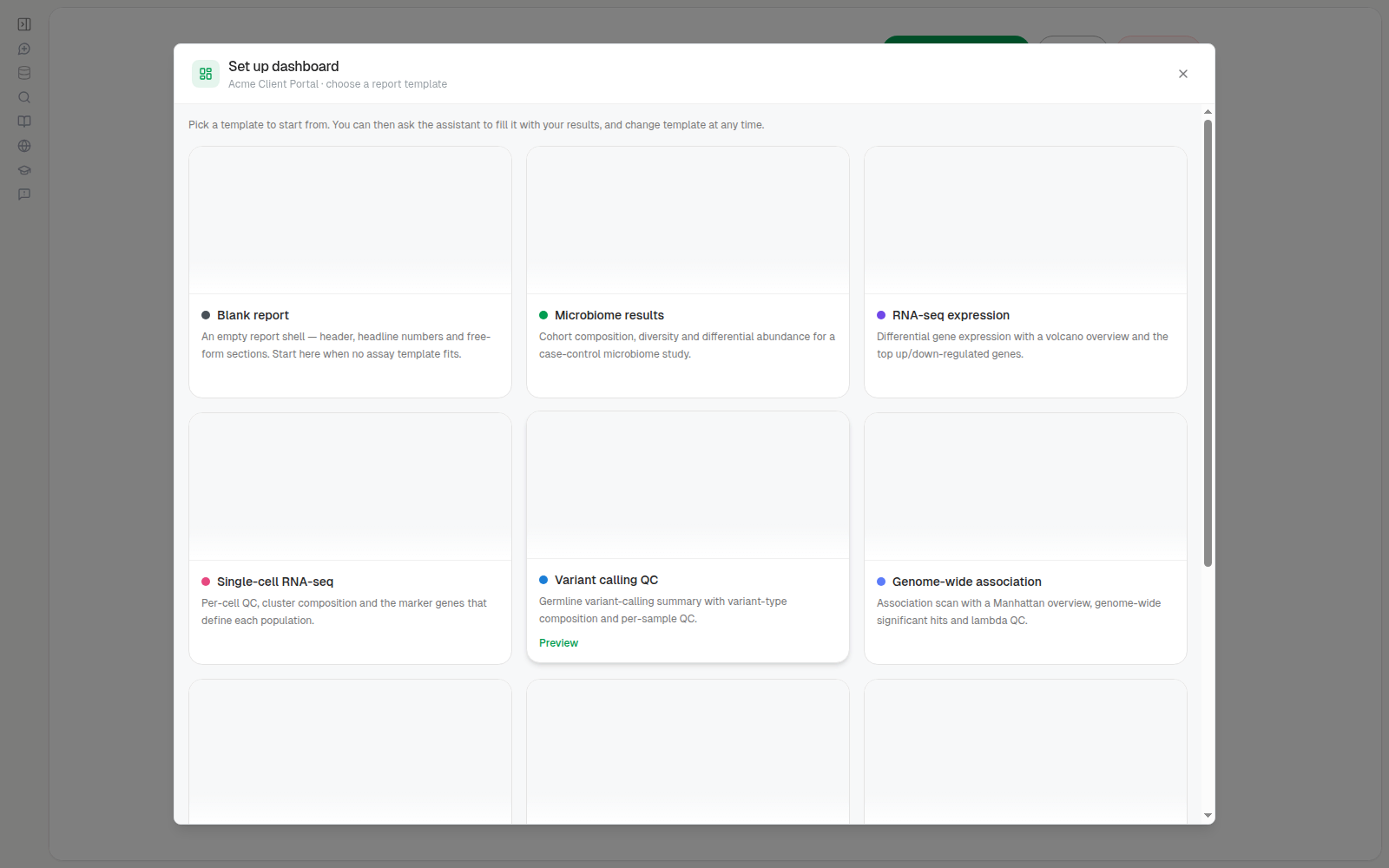
- Click a template to see it at full size with example data, then click Use this template. Click All templates to go back. The example numbers are only for the preview and are never shown to clients.
Let the assistant fill it in
Use this template opens the dashboard editor:
- Left: a chat with the assistant, already asked to set up your dashboard with the chosen template.
- Right: the Client dashboard panel with a live preview, the Preview, Code and History tabs, and Save version and Publish.
The assistant reads the files in your source project, computes the numbers and fills in the template. If it needs to know which files to use, it asks you in the chat. Answer by describing them or tagging them with @.
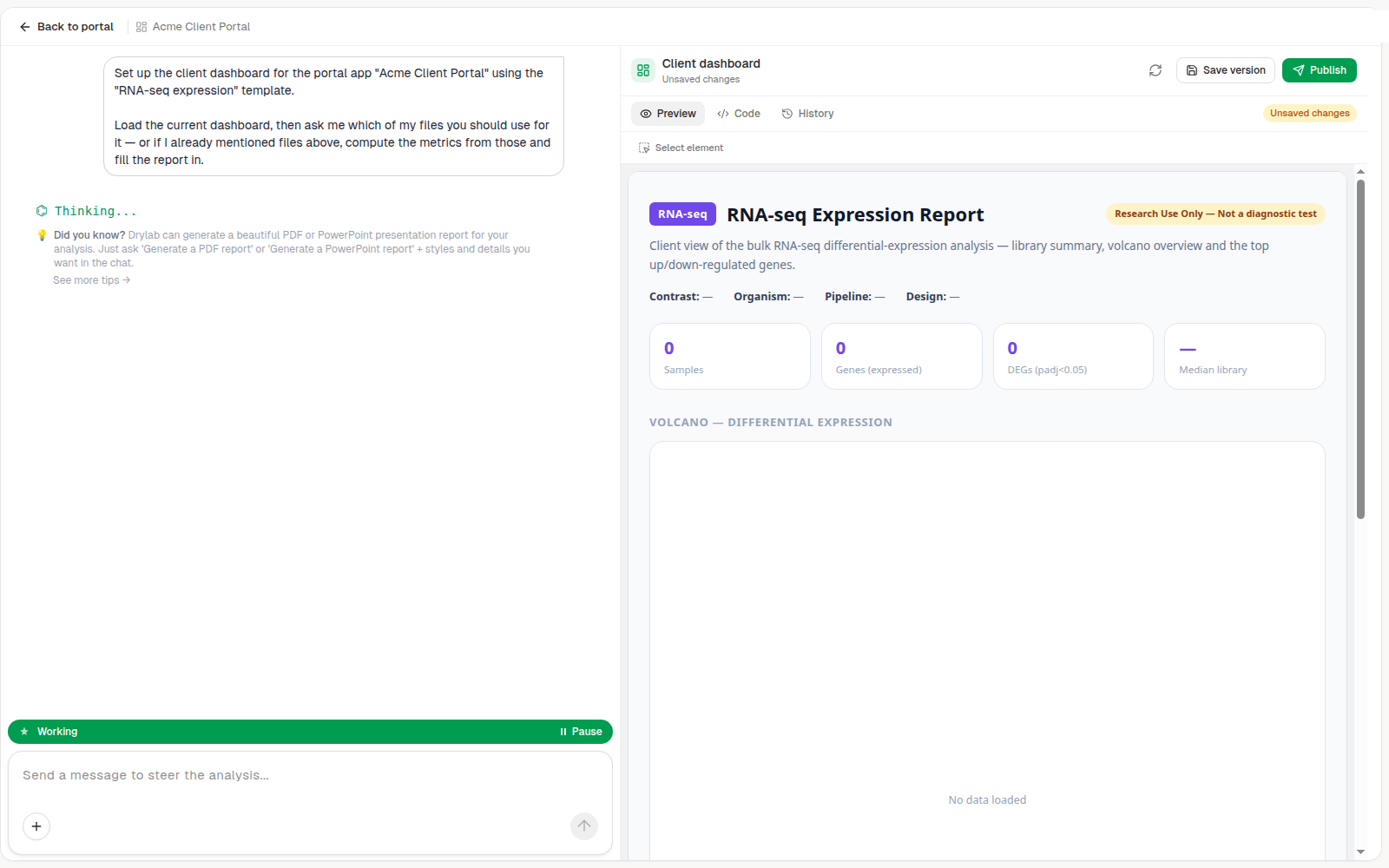
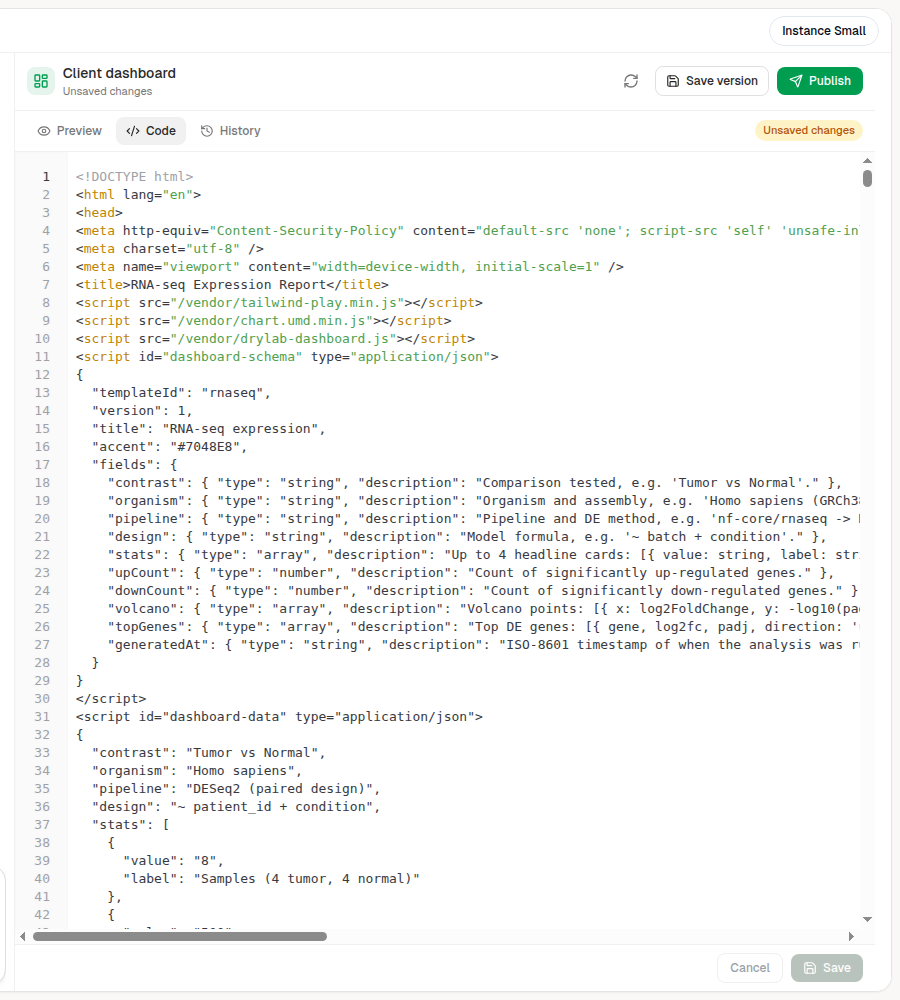
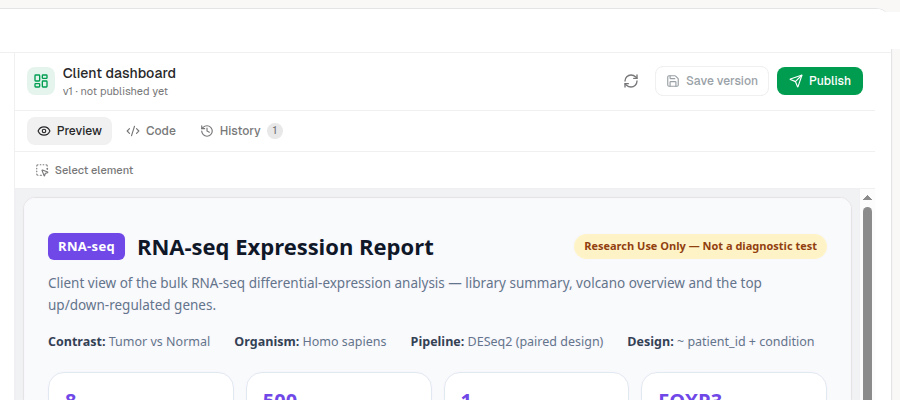
When it finishes, the preview shows your filled-in dashboard. The status under the panel title shows where the draft stands, for example Unsaved changes or v1 · not published yet.
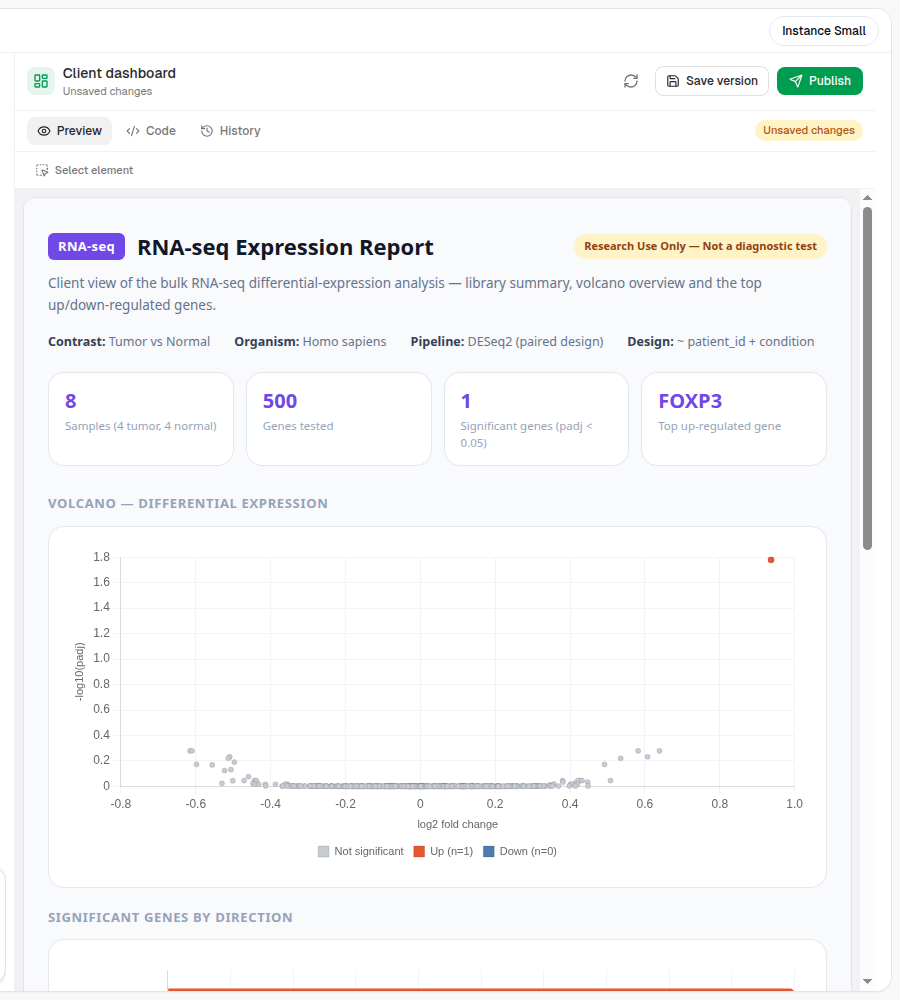
Building a dashboard can take a few minutes. The preview refreshes each time the assistant saves; click the refresh icon to reload it yourself.
Refine it with the assistant
Describe any change in the chat, such as "add a chart of samples per batch" or "rename the title". To point at a specific part of the report:
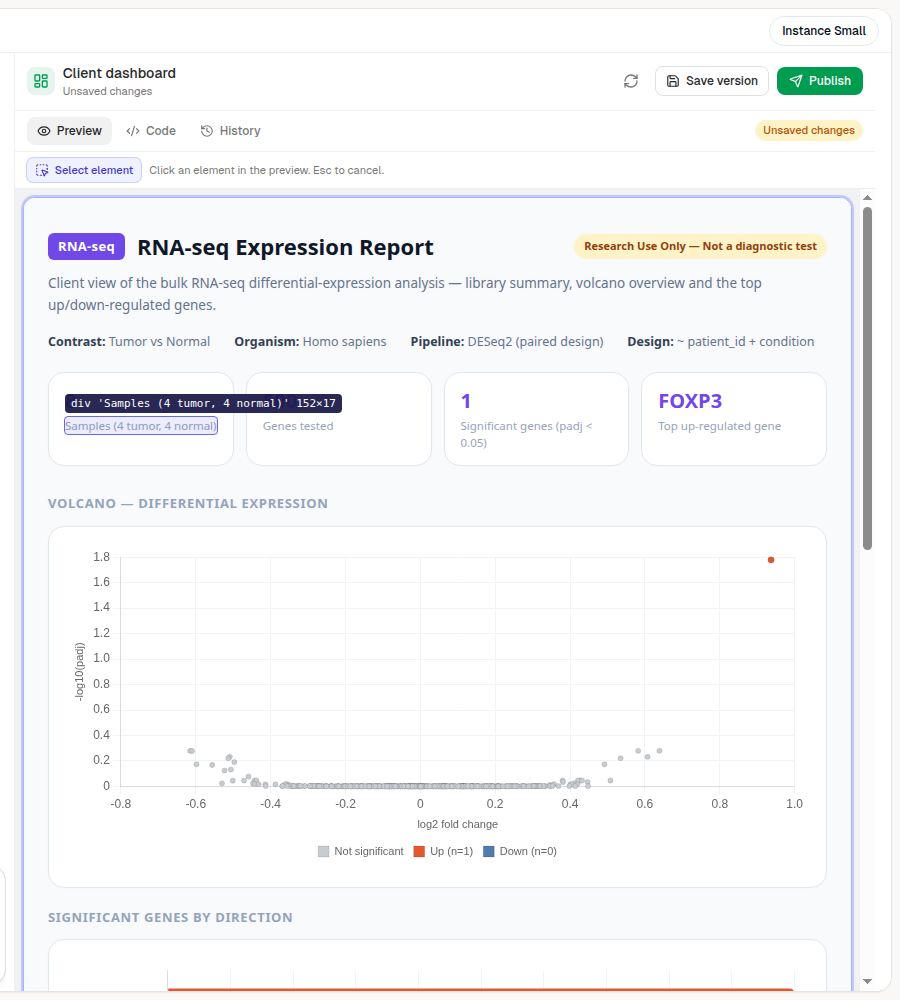
- Click Select element above the preview.
- Hover over the preview (the element under the pointer is highlighted) and click the part you want to change. Press Esc to cancel.
- A Selected bar appears above the preview. Click Mention in chat.
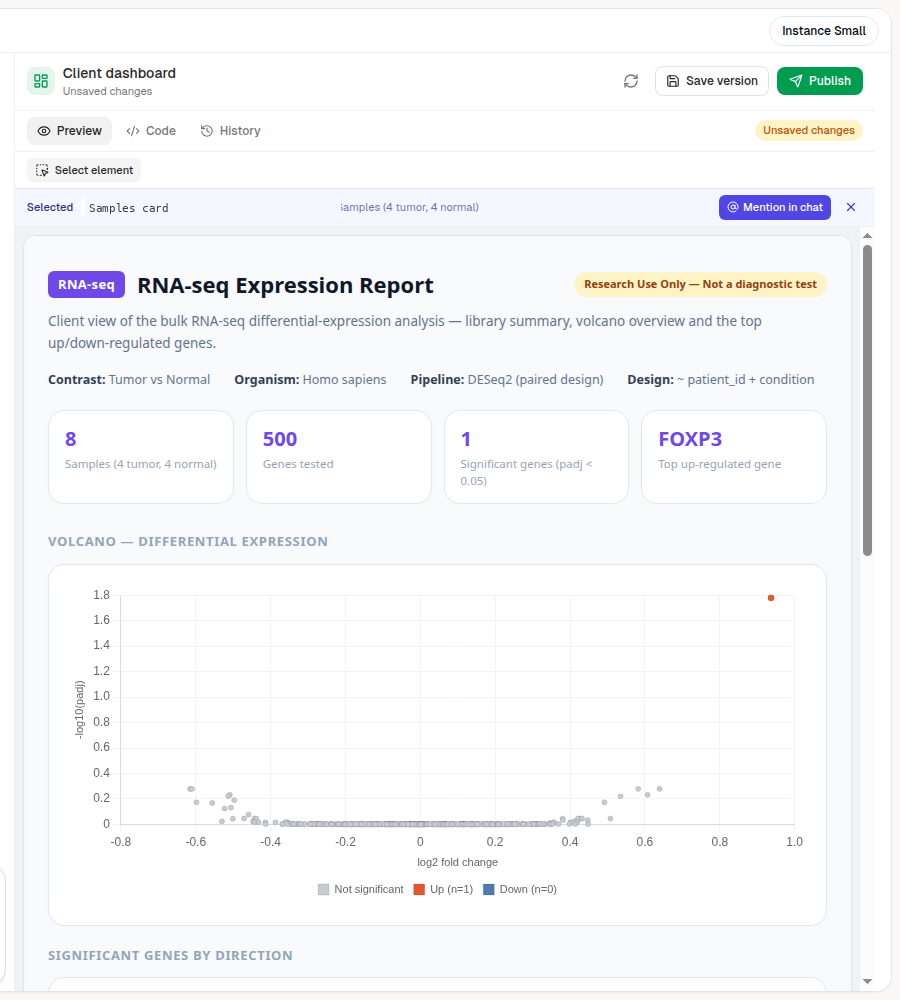
- The element is attached to your message. Type what you want changed and send it.

The assistant updates the draft and the preview refreshes.
Advanced users can also edit the report directly in the Code tab, then click Save. If the assistant saves a new draft while you're editing, you're asked to choose Keep mine or Load theirs.
Save a version
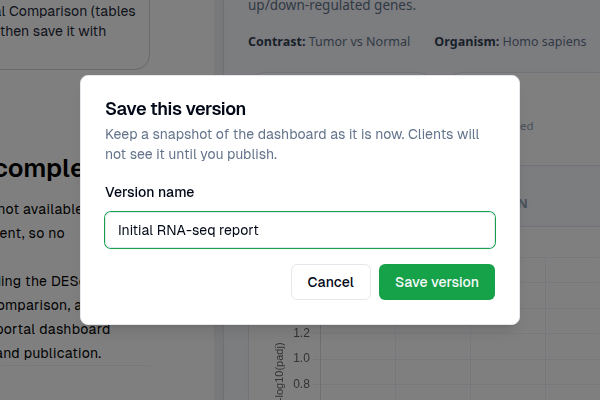
A version is a named checkpoint you can return to. Saving a version does not show it to clients.
- Click Save version. If the button is greyed out, the draft has nothing new since the last version (hover over it to see "Nothing new to save").
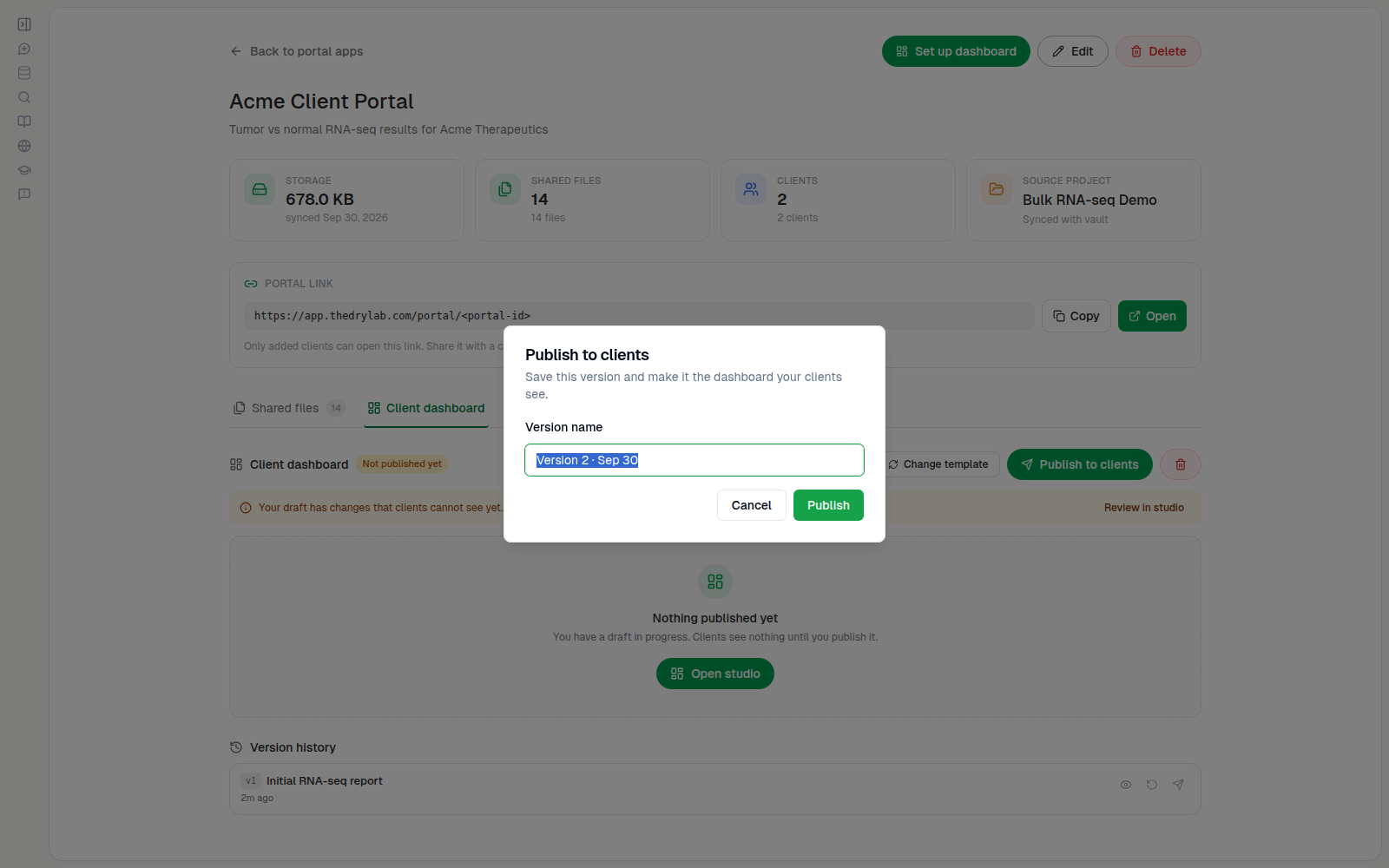
- Give it a meaningful name, such as "Initial RNA-seq report", or keep the suggested one.
- Click Save version.
Publish to your clients
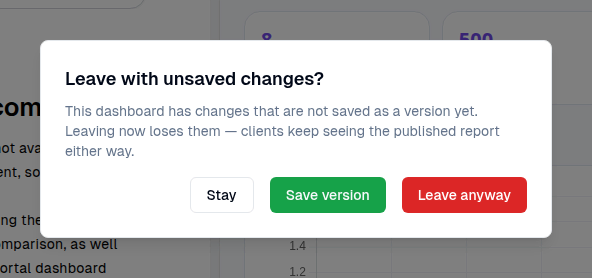
- Click Back to portal at the top left. If the draft has changes that aren't saved as a version, you're asked Leave with unsaved changes?: choose Save version to keep them, Stay to keep editing, or Leave anyway.
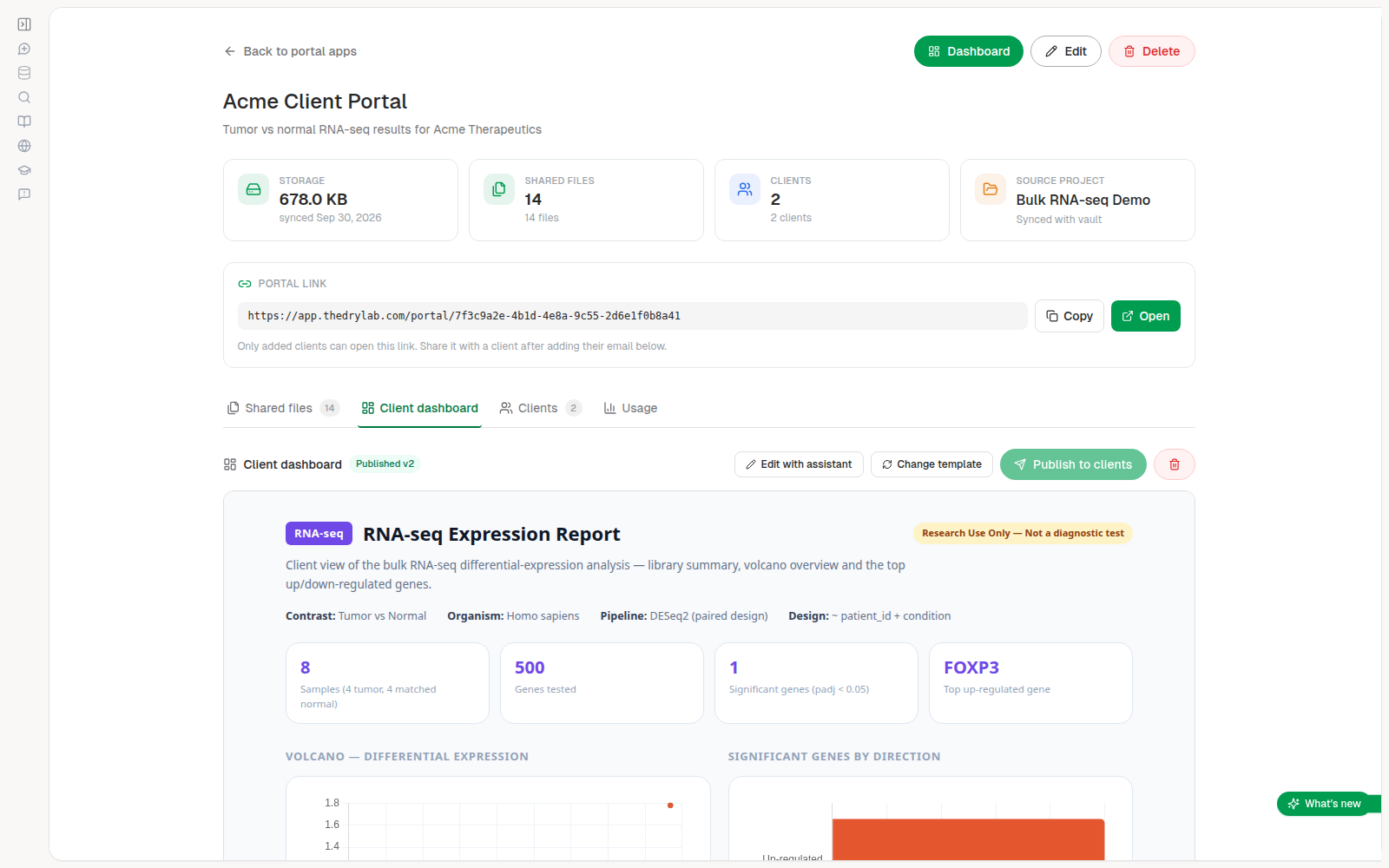
- Open the Client dashboard tab. The badge reads Not published yet and clients see nothing. Your saved versions are listed under Version history.
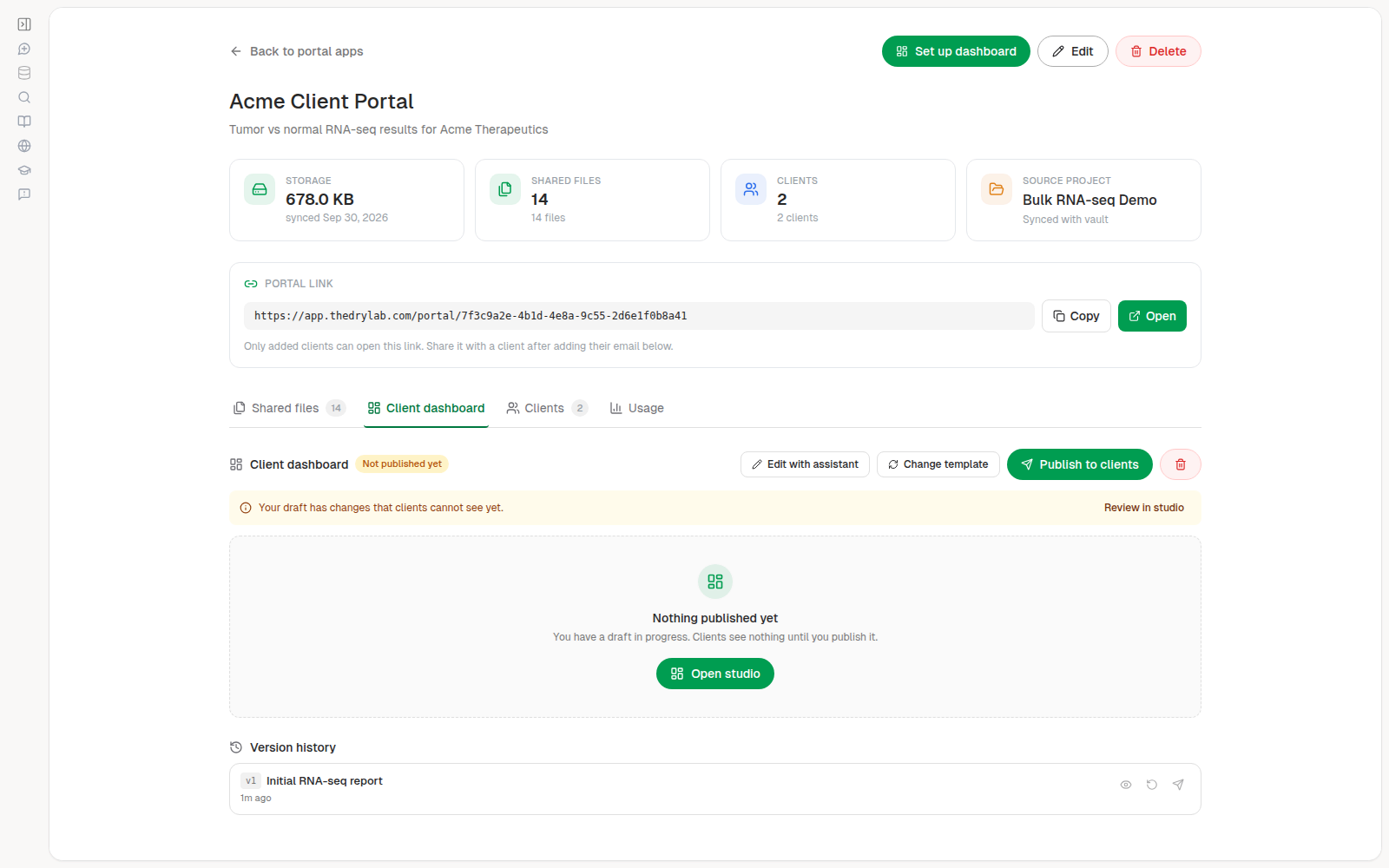
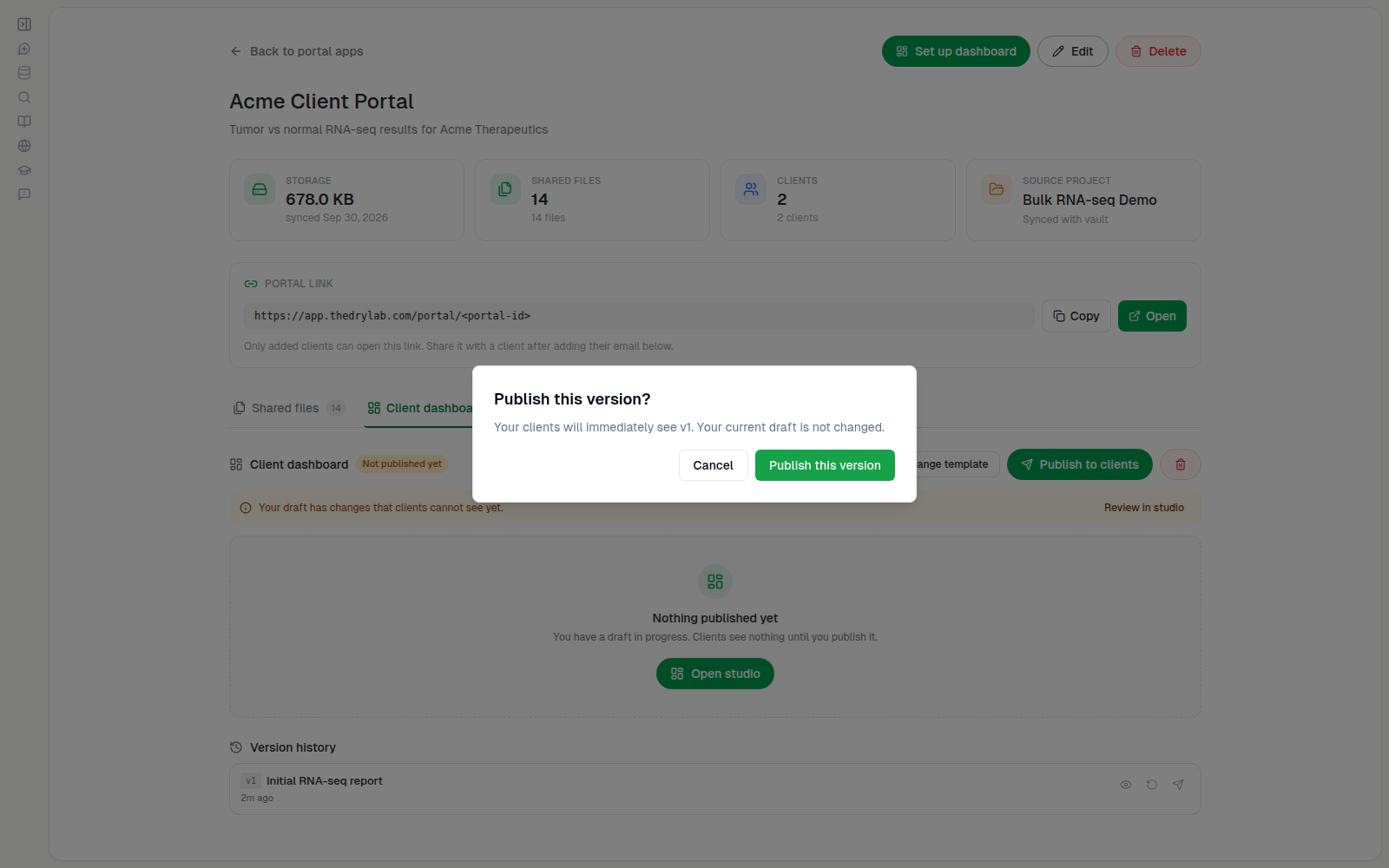
- Click Publish to clients. If the draft isn't saved as a version yet, name it and click Publish; if it is, confirm in the Publish vN to clients? dialog. To publish an older saved version, use Publish this version on its row in Version history.
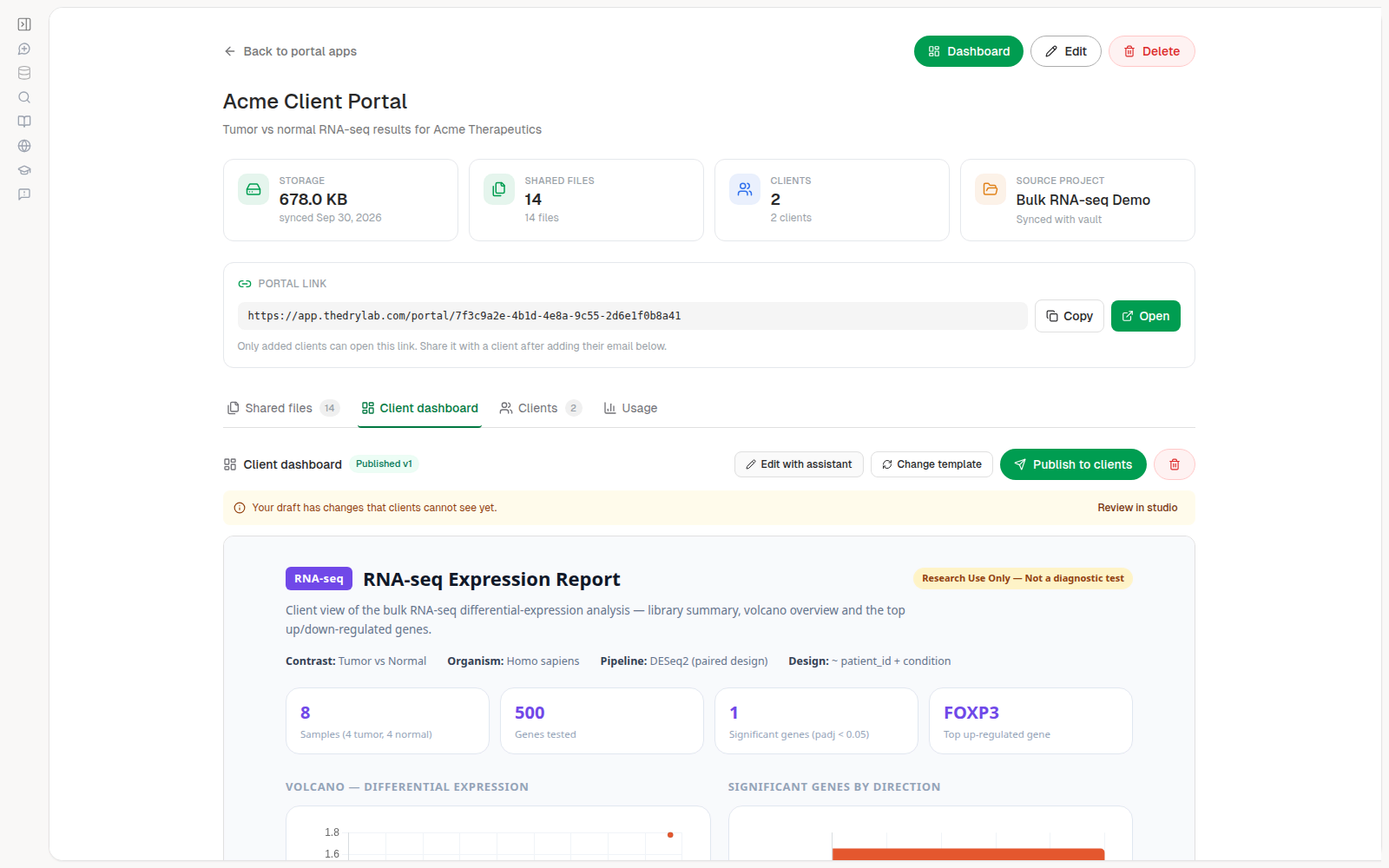
The badge changes to Published v1, and the tab shows exactly what your clients see. The top Set up dashboard button becomes Dashboard.
You can also click Publish directly in the dashboard editor. If the draft isn't saved as a version yet, you're asked to name it first, so every publish has an entry in the version history.
Update a published dashboard
- On the Client dashboard tab, click Edit with assistant to reopen the editor. It resumes your previous conversation, so the assistant remembers how the report was built.
- Make your changes, then Save version.
While the draft differs from what clients see, the tab shows Your draft has changes that clients cannot see yet. Click Review in studio to keep editing, or Publish to clients to release them.
Use version history
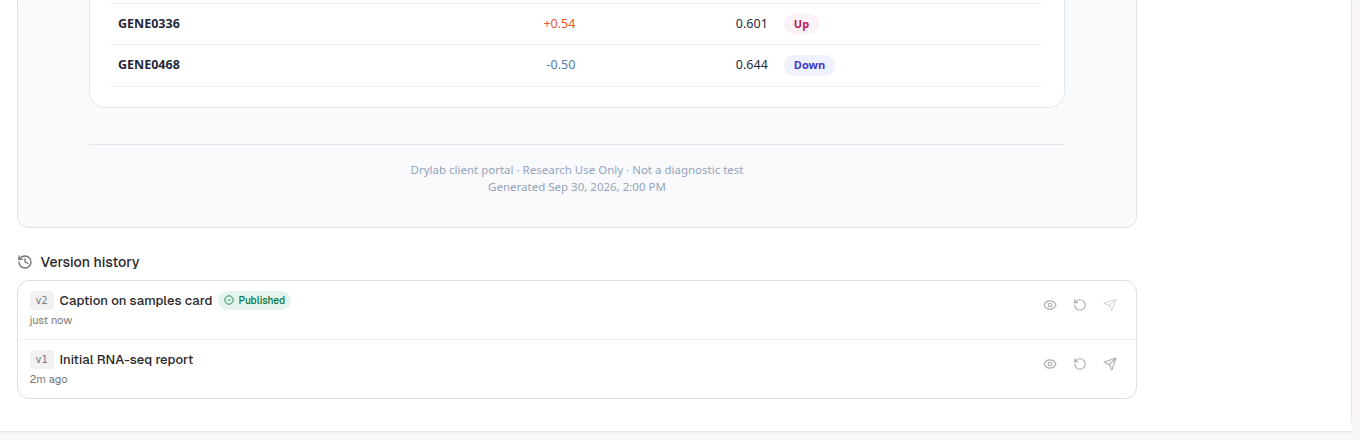
Version history, under the dashboard on the Client dashboard tab, lists every saved version, newest first. Each row has three icon buttons; hover over one to see its name.
| Action | What it changes |
|---|---|
| Preview (eye icon) | Nothing. Shows that version in place of the published one so you can review it. |
| Restore to draft (circular arrow) | Your draft, which is replaced by that version. Clients are not affected. |
| Publish this version (send icon) | What clients see. Your draft is not changed. Use it to publish a new version or go back to an older one. It's disabled on the version that is already published. |
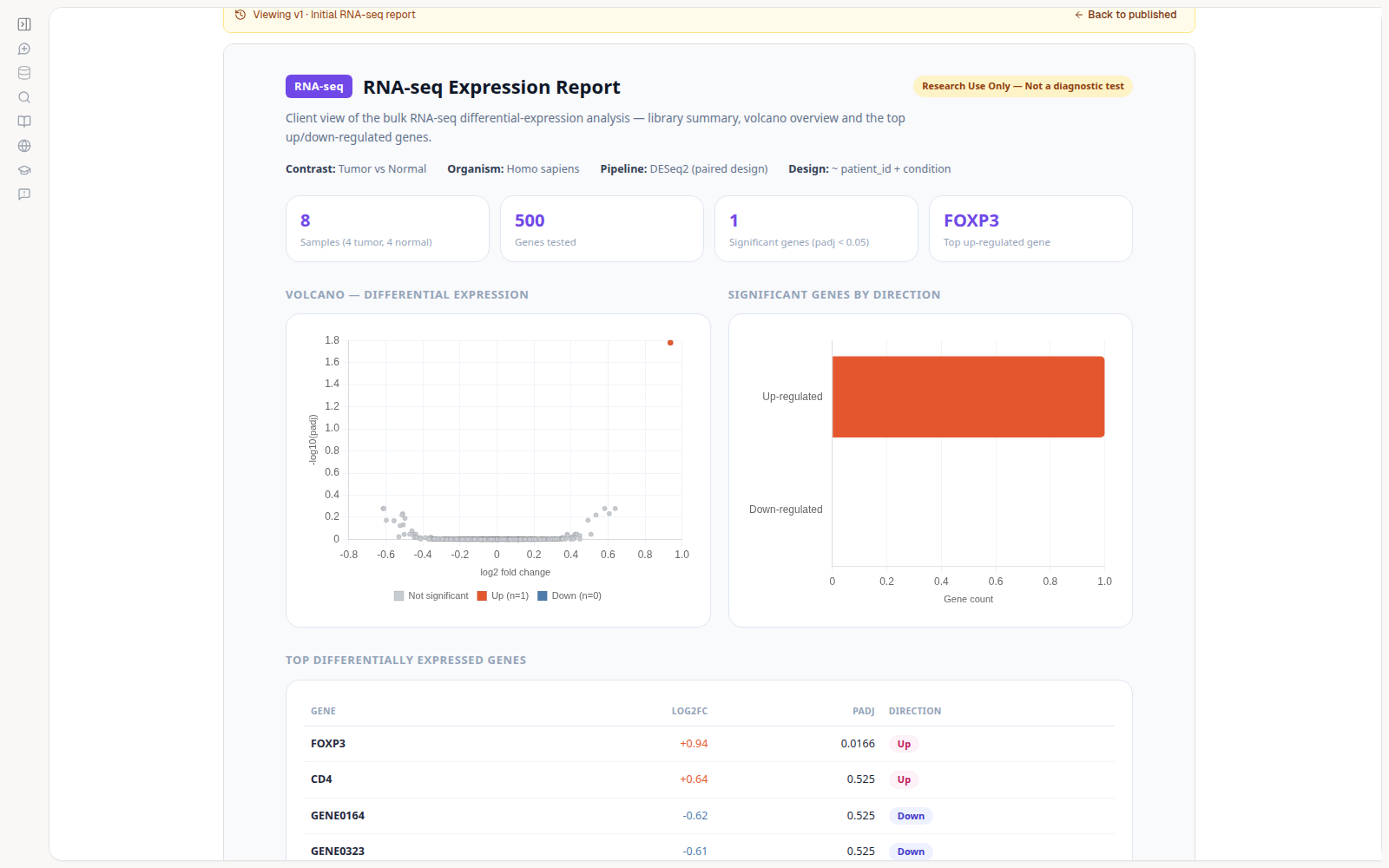
Preview a version. A banner shows which version you're viewing, for example Viewing v1 · Initial RNA-seq report. Clients still see the published version. Click Back to published to return.
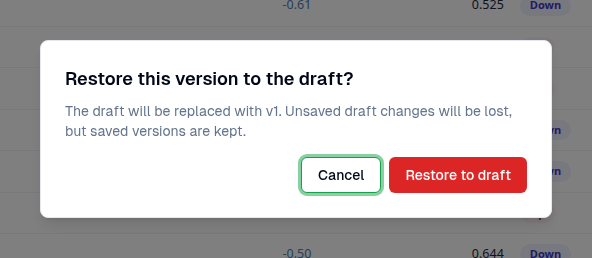
Restore a version to the draft. Click Restore to draft on its row and confirm. Unsaved draft changes are lost, but every saved version is kept.
Change the template
Click Change template and pick a different template. The one you're using now is marked Current. The editor opens so the assistant can fill in the new template from the same files. Clients keep seeing the published version until you publish again.
Remove the dashboard
Click the red trash button (Remove dashboard) on the Client dashboard tab. The dashboard, its draft and all saved versions are deleted, and clients then see only the shared files.