
Clients
Invite clients to a Portal App, cap their usage, see what they use, and remove access.
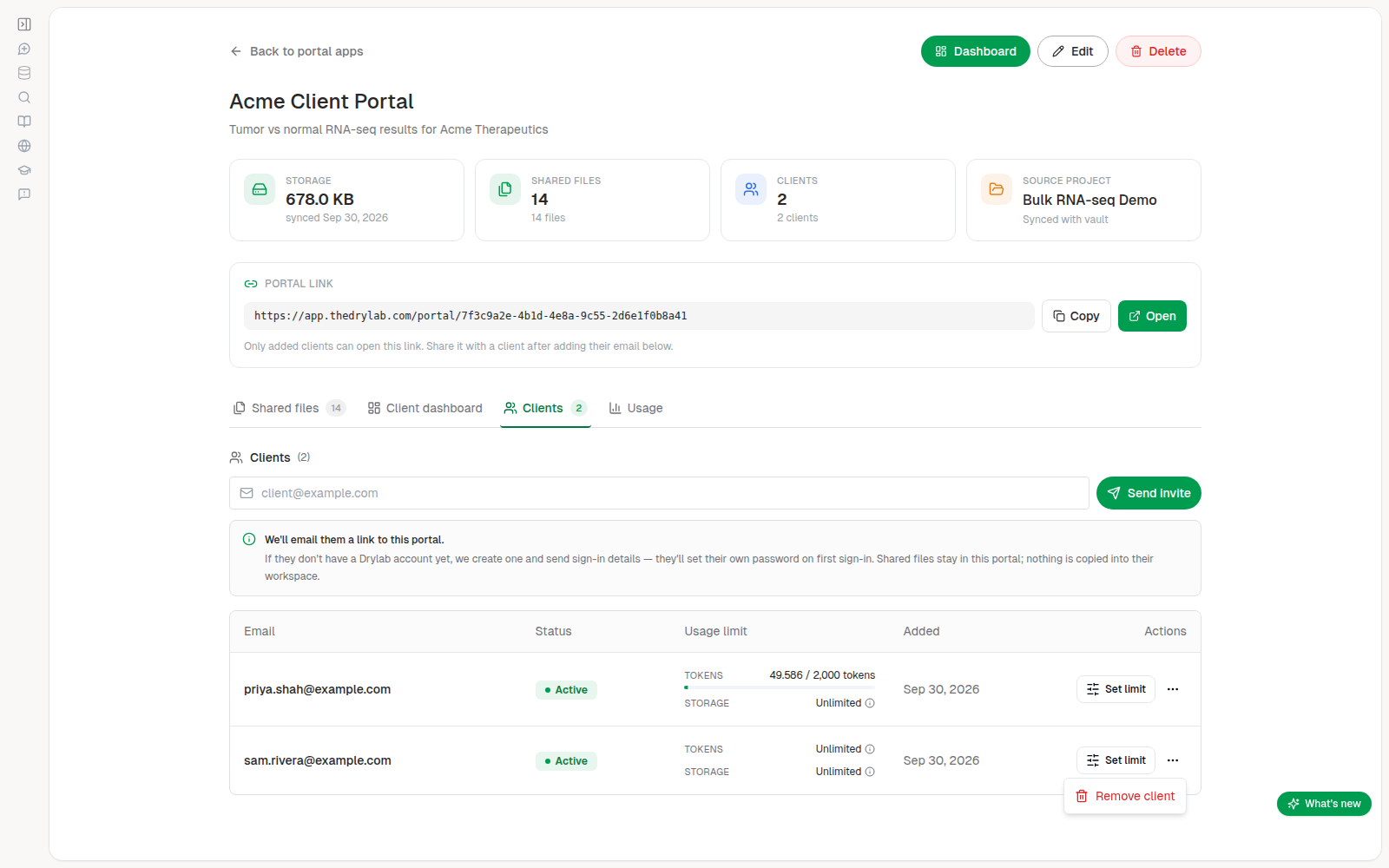
Clients are people outside your team who can open one Portal App. Manage them on the portal's Clients tab.
Invite a client
- Open the Clients tab.
- Enter the client's email address.
- Click Send invite.
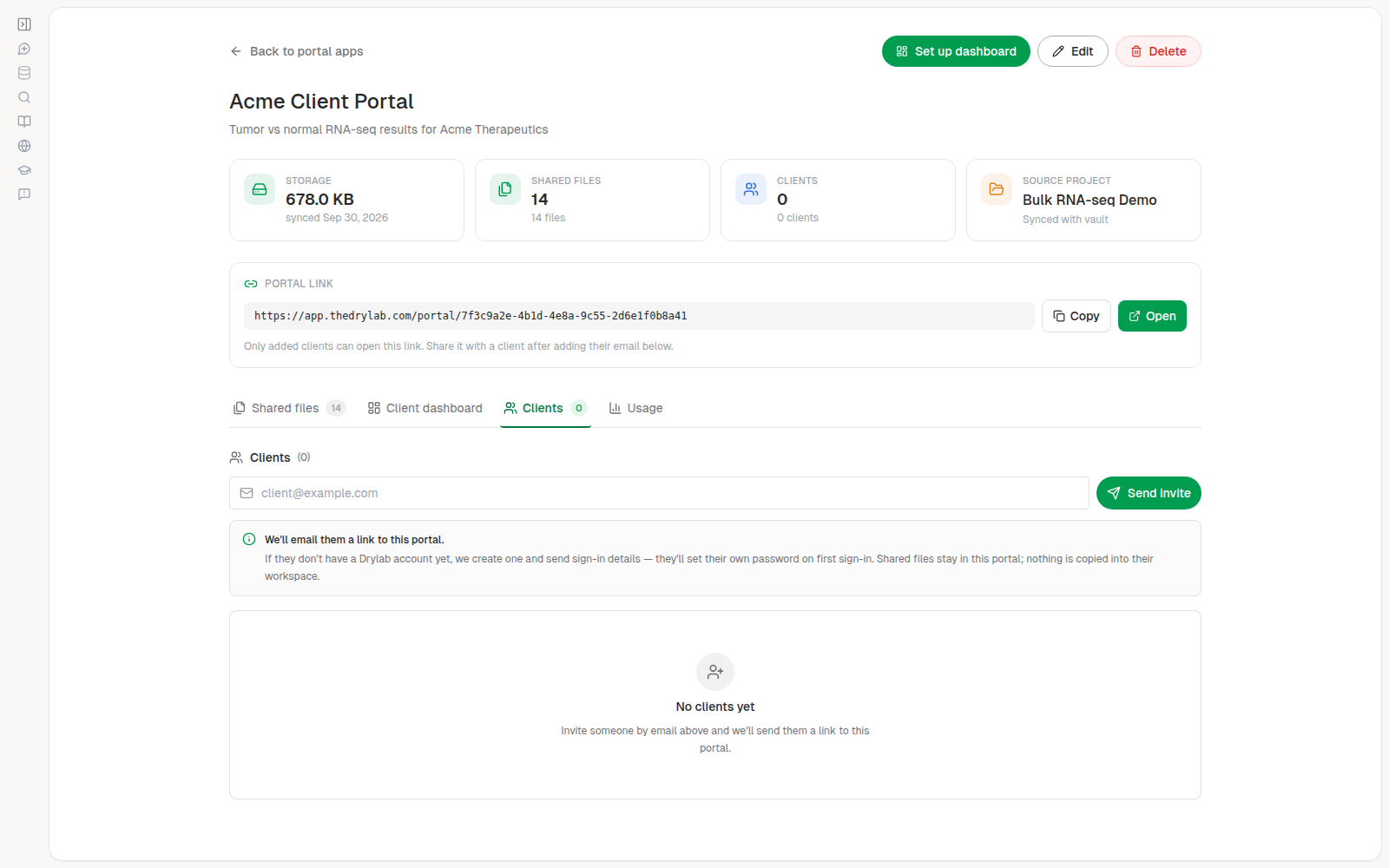
A message tells you what happened:
| Message | What it means |
|---|---|
| Invite sent | The person already had a Drylab account. They received the portal link by email. |
| Invite sent — account created | The person had no Drylab account. One was created, and they received sign-in details plus the portal link by email. They set their own password on first sign-in. |
| Client added, but the invite email could not be sent | The client has access, but the email failed. Copy the Portal link and send it yourself. A new client can use Forgot password on the sign-in page to set a password. |
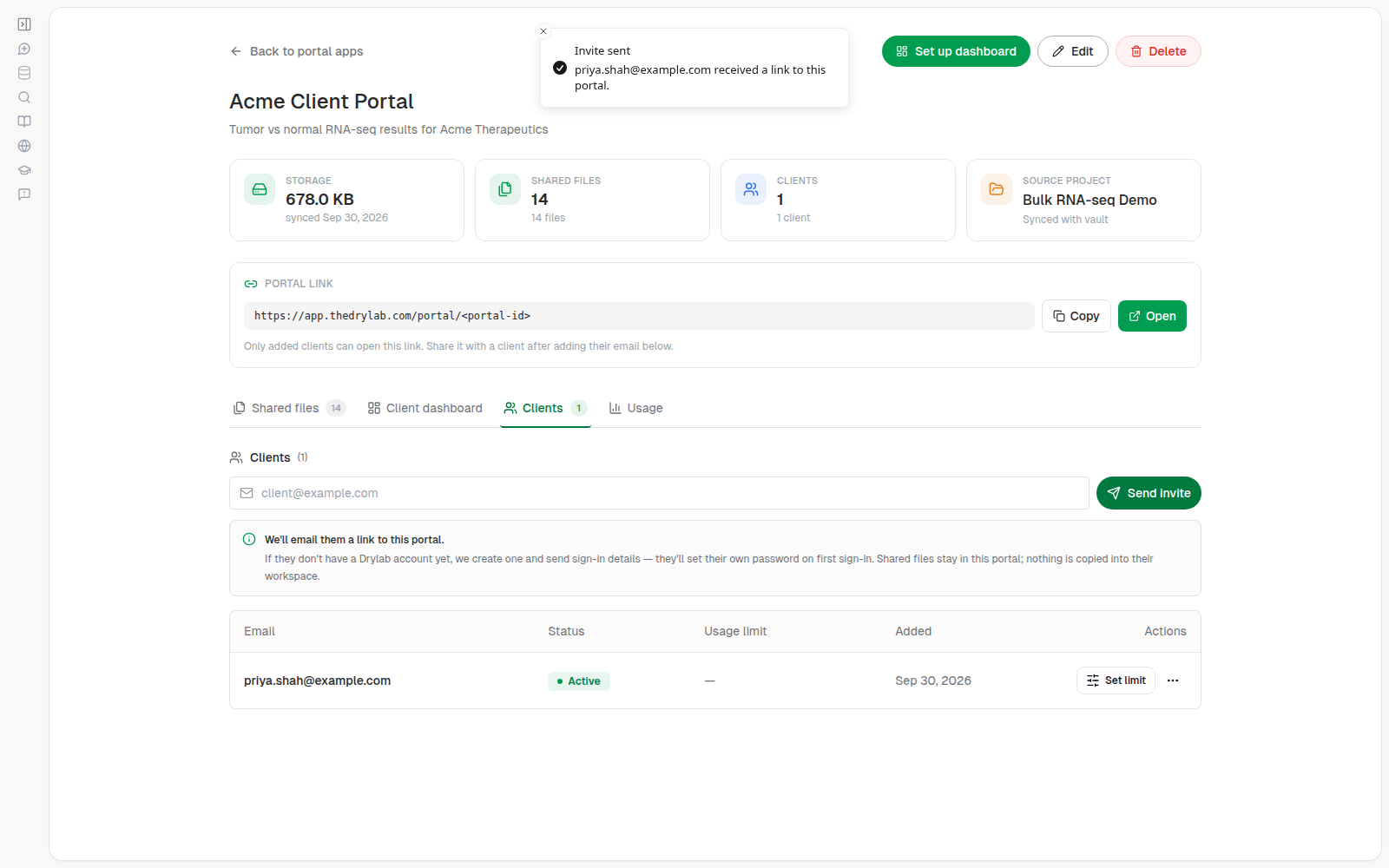
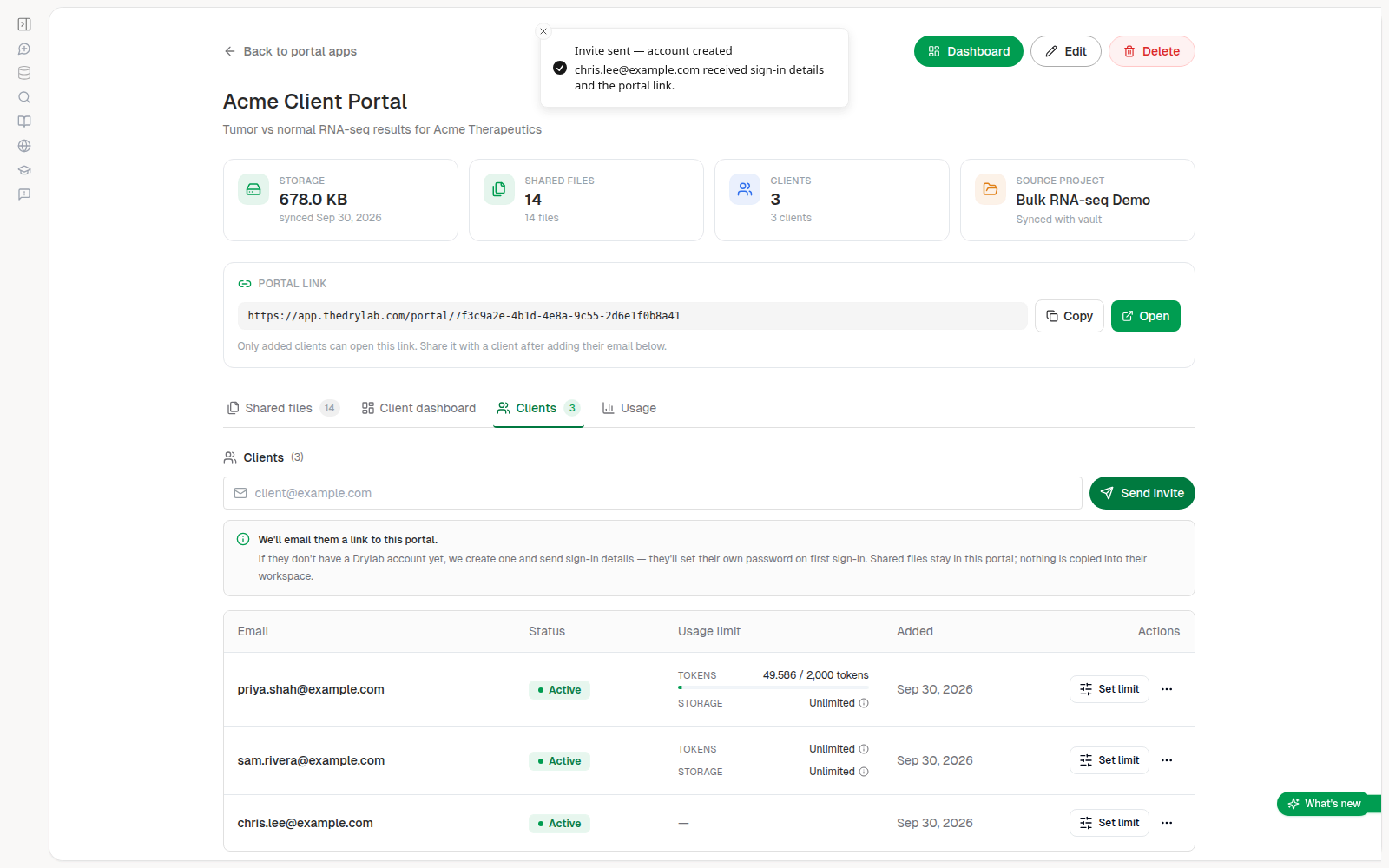
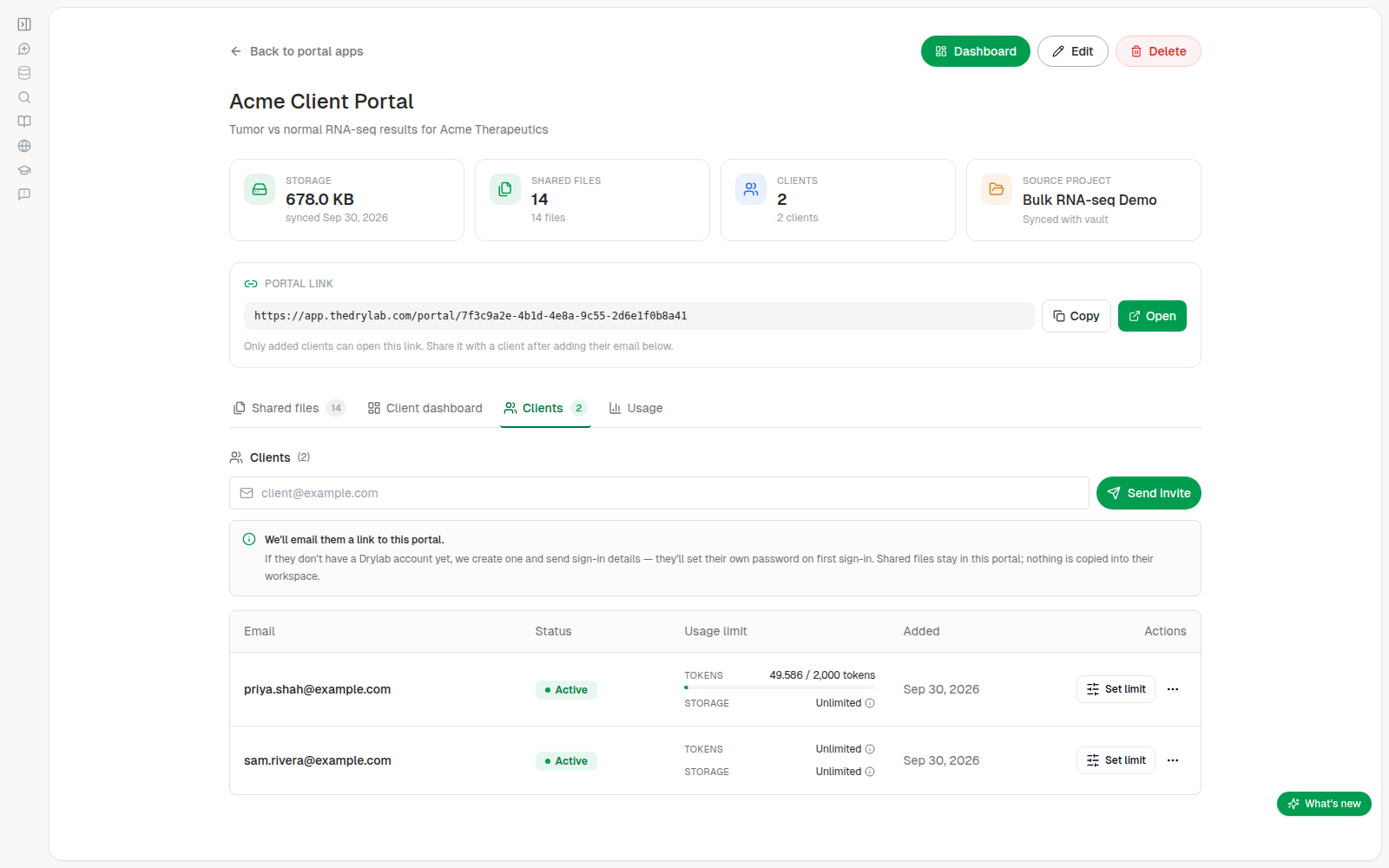
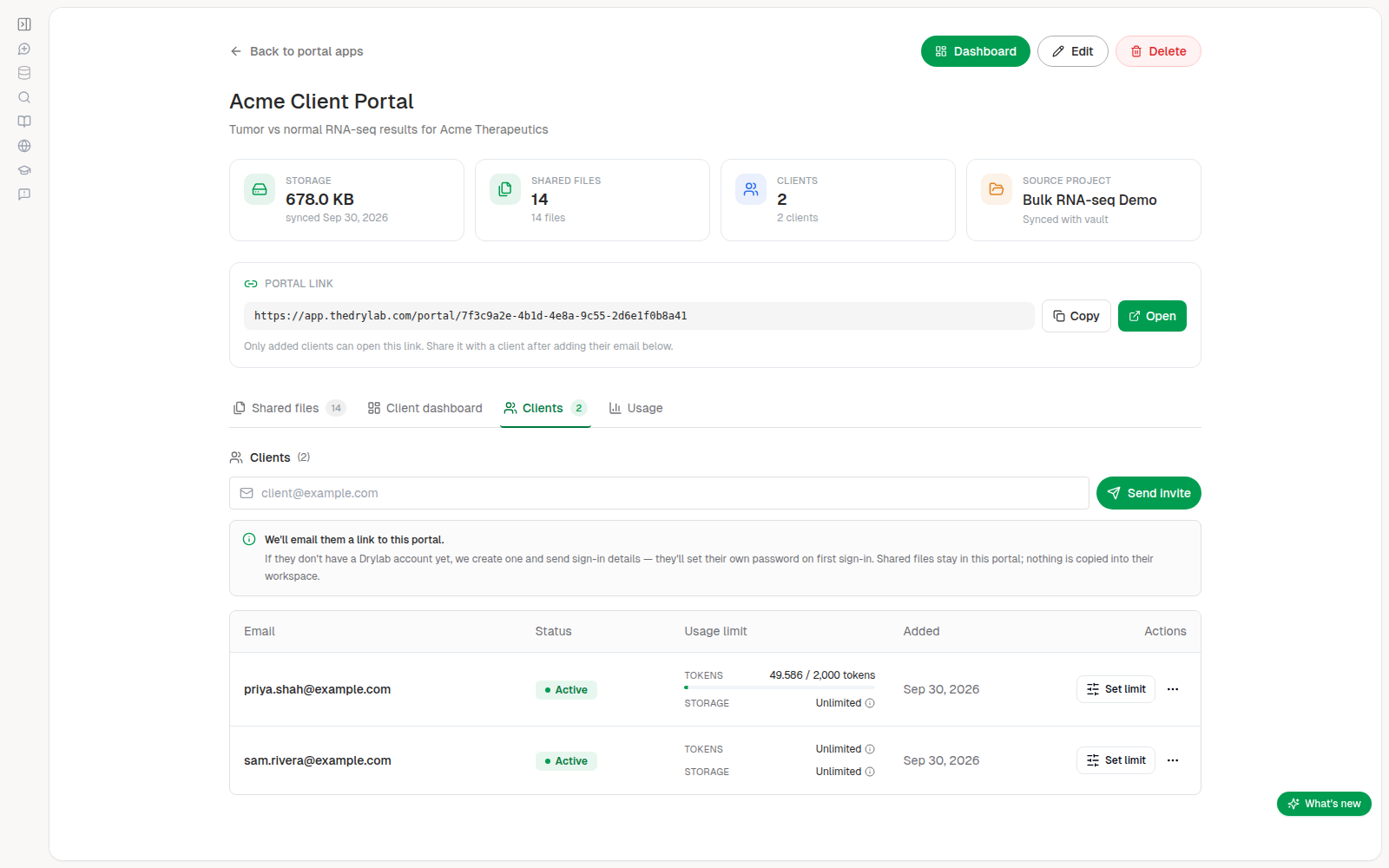
Each client gets a row with their email, status, usage limit and the date they were added.
Set a usage limit
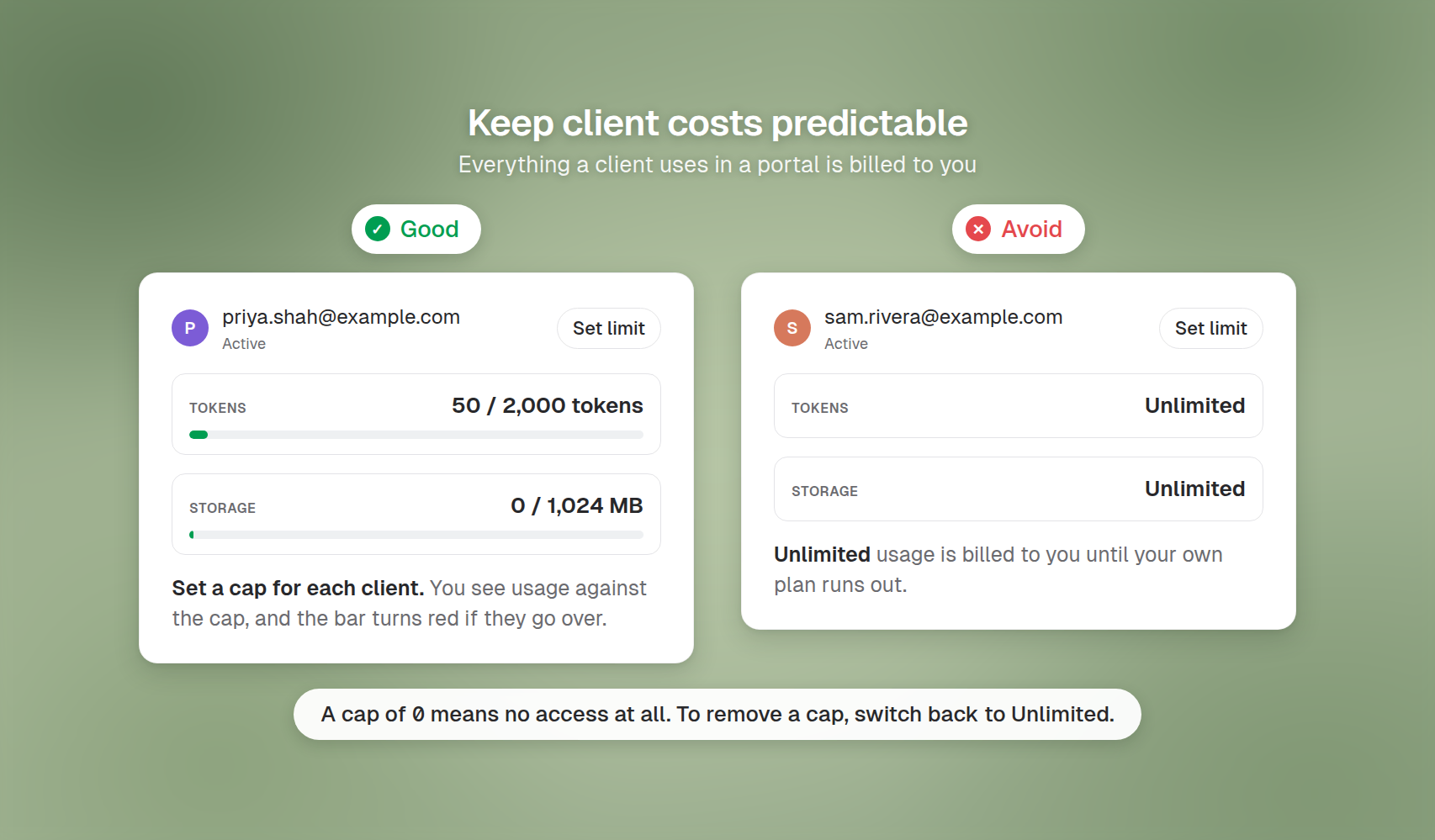
By default a client is Unlimited: they can use the assistant and storage until your own plan runs out, and all of it is billed to you. To cap a client:
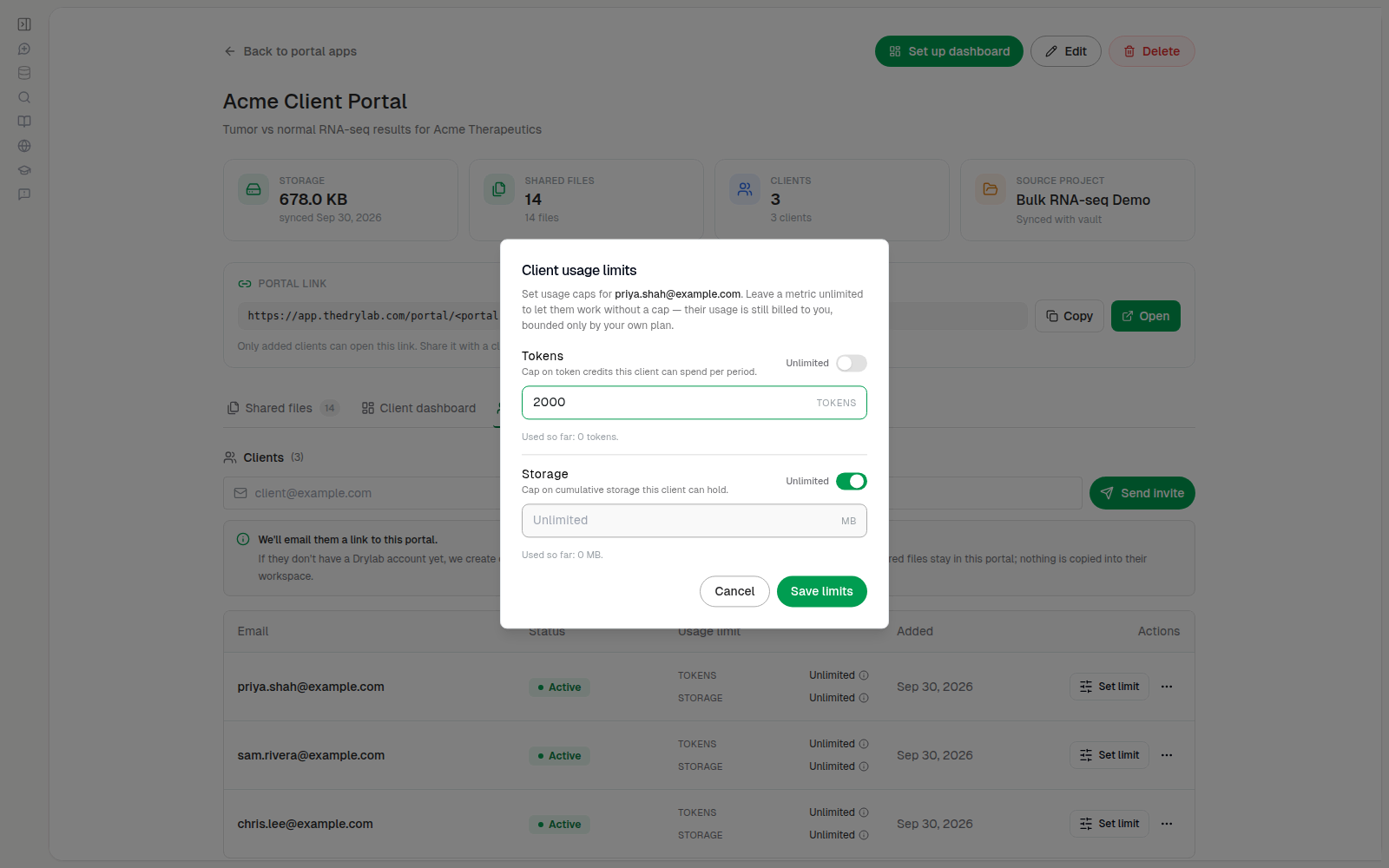
- Click Set limit in their row.
- Turn off Unlimited for Tokens (credits per billing period) or Storage (total storage).
- Enter a whole number: Tokens in token credits, Storage in MB (for example
1024for 1 GB). - Click Save limits.
The row then shows usage against the cap. It turns red if the client goes over.
0 means the client can't use that resource at all. It doesn't mean unlimited. To remove a cap, switch the metric back to Unlimited.See a client's usage
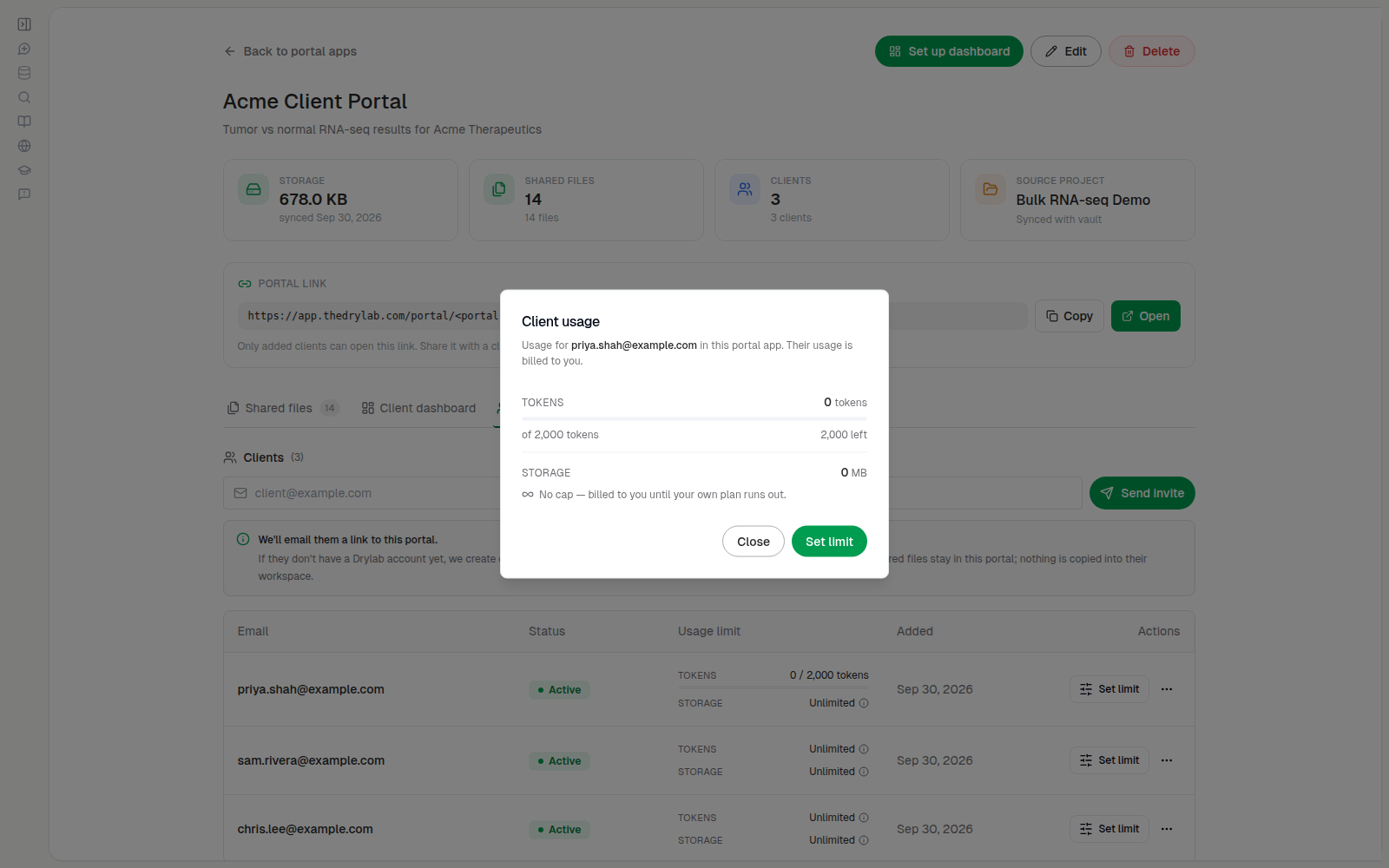
Click a client's email to see how much they've used against each cap and how much is left. You can go straight to Set limit from there.
Remove a client
- Click the three-dot menu in the client's row.
- Choose Remove client.
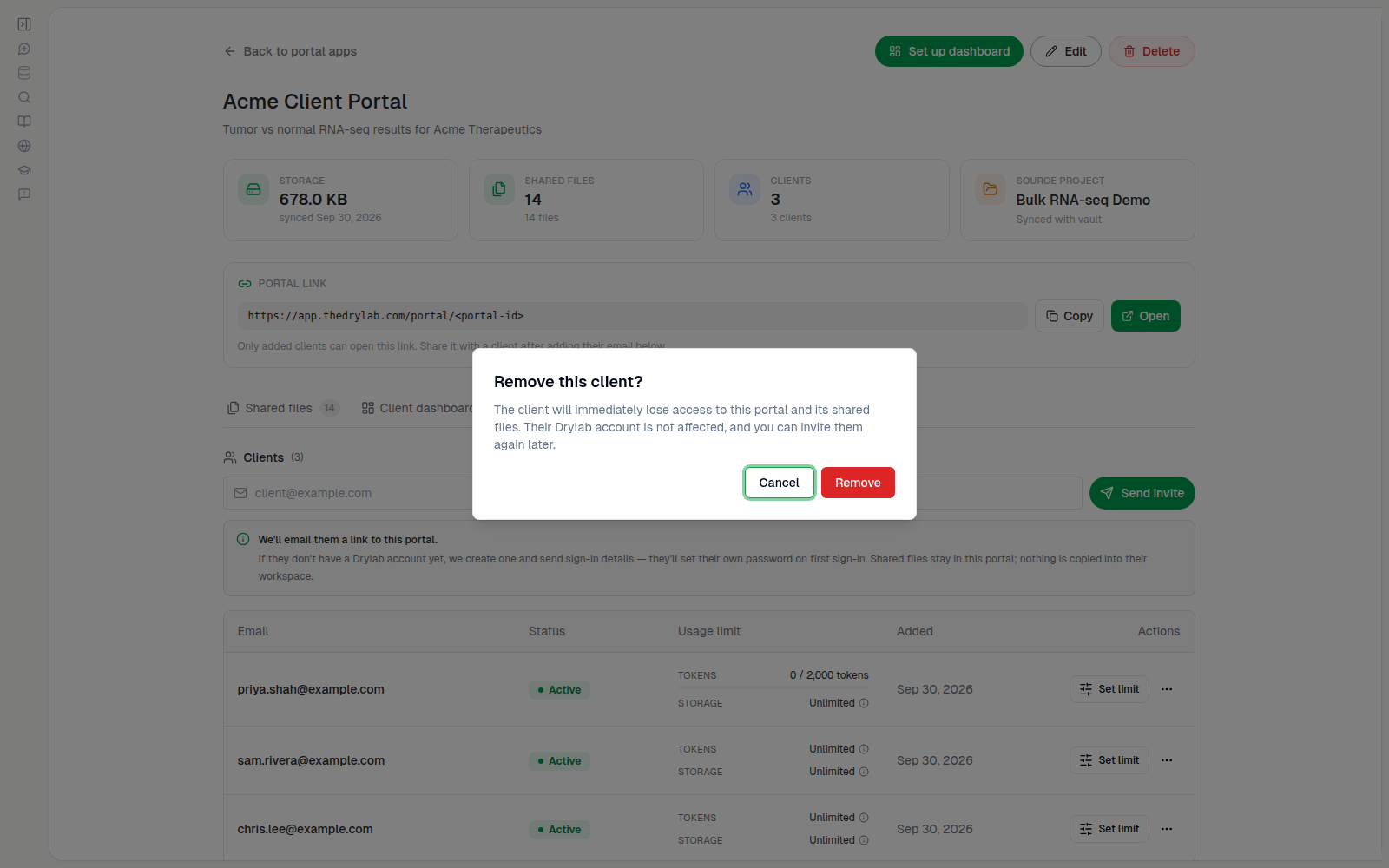
- Confirm with Remove.
The client loses access to this portal immediately, including their My files for this portal. Their Drylab account is not affected, and you can invite them again later.
Track what the portal costs
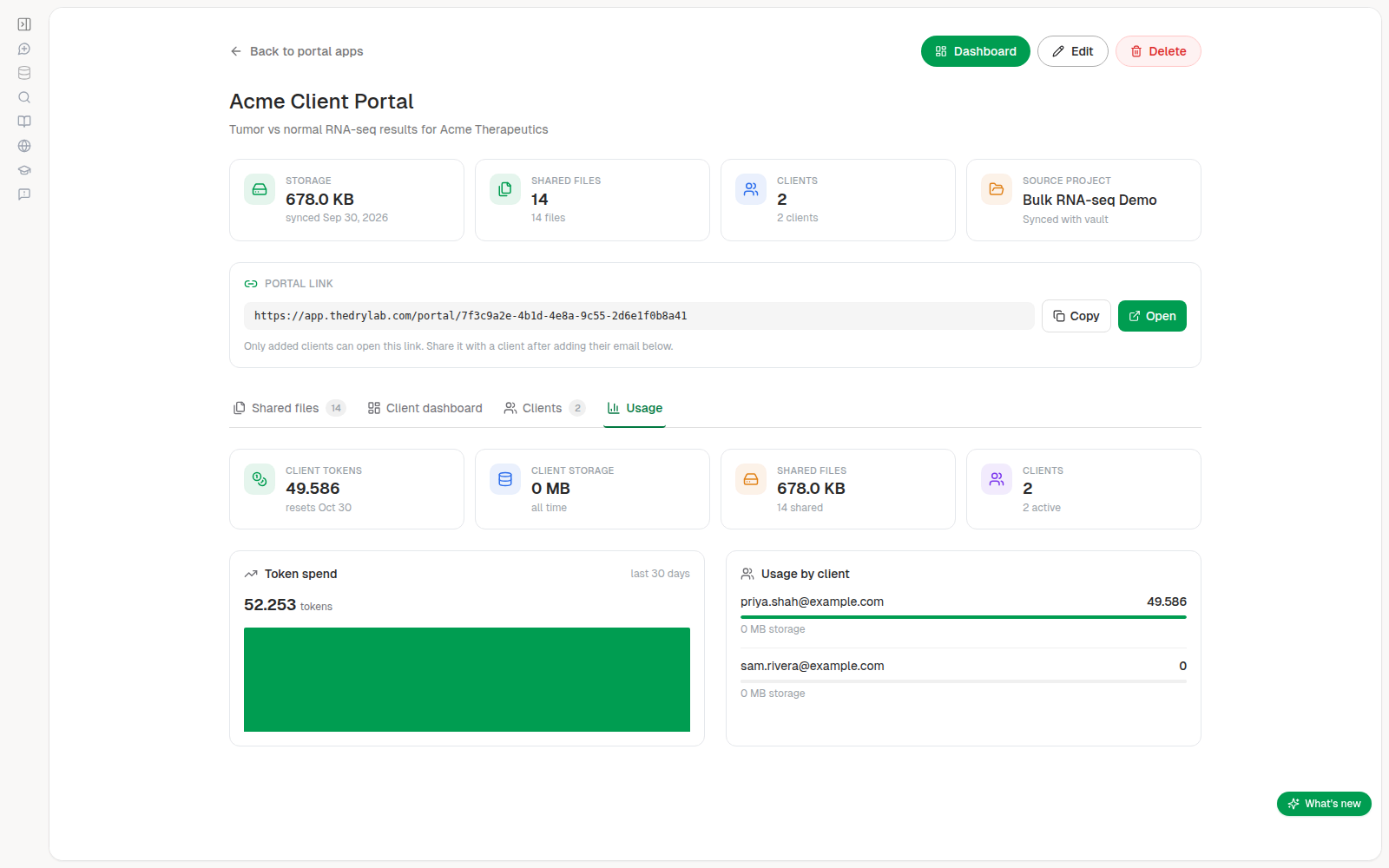
The Usage tab summarizes the portal's consumption:
- Client tokens: token credits your clients spent in the current billing period (the card shows when it resets).
- Client storage: storage your clients have used in total.
- Shared files: the size and number of the files you share.
- Clients: how many clients the portal has, and how many are active.
- Token spend: token use over the last 30 days.
- Usage by client: who uses the most. Click a client to open their usage.
If usage figures don't load, click Retry. A dash (—) means a figure is temporarily unavailable, not zero.