
Sync from Platforms
Copy files from another bioinformatics platform, such as Seven Bridges, into your Vault.
If your data sits in a project on another bioinformatics platform, you can copy the files you need into your Vault without downloading them yourself. The files on the source platform are never modified or removed.
| Platform | Status |
|---|---|
| Seven Bridges | Available |
| More platforms | Coming soon |
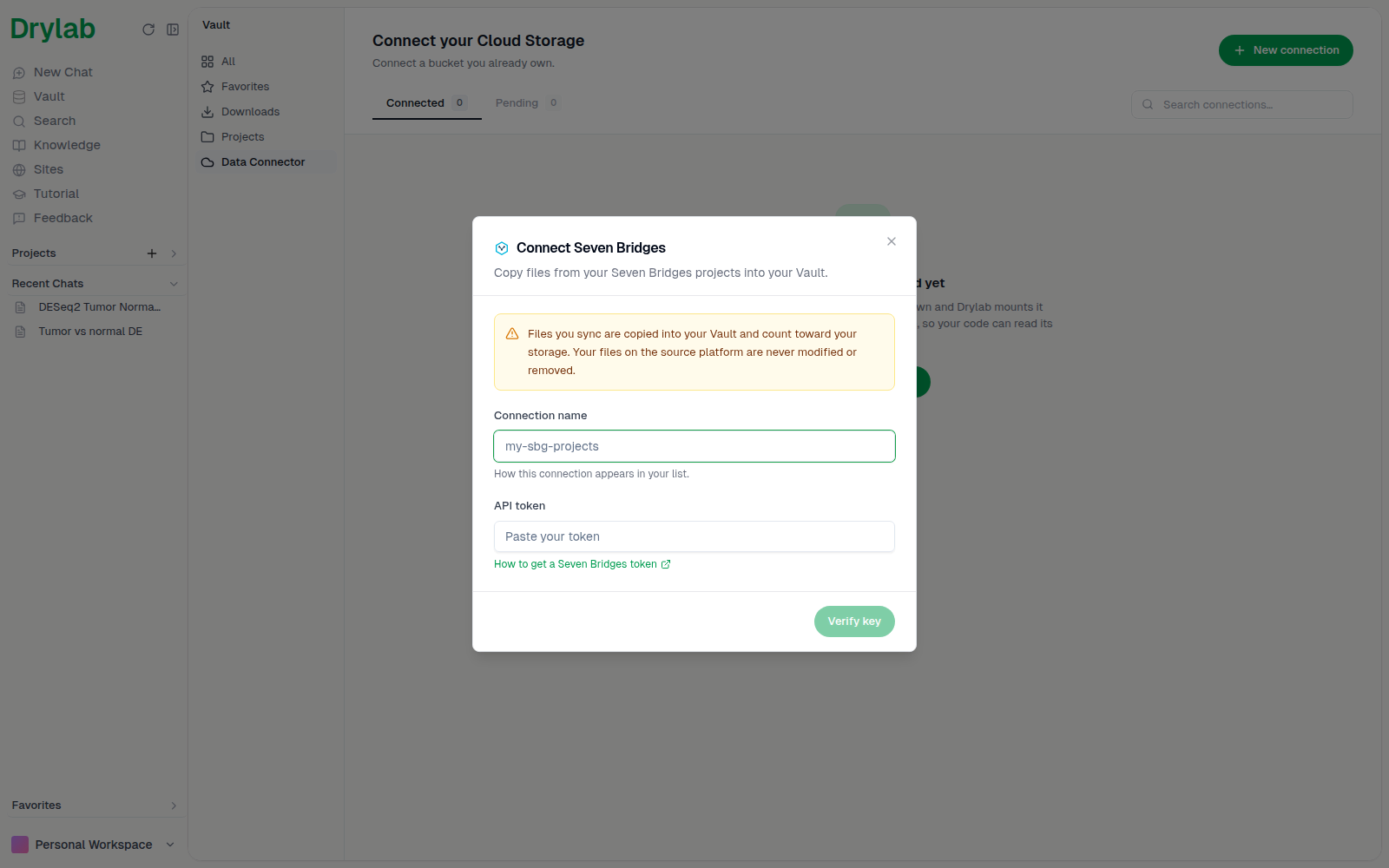
Synced files are copied into your Vault and count toward your Vault storage.
Connect Seven Bridges
- Open Vault > Data Connector, click New connection and choose Seven Bridges.
- Enter a Connection name, for example
my-sbg-projects. This is how the connection appears in your list. - Paste your Seven Bridges API token. The How to get a Seven Bridges token link explains where to find it.
- Click Verify key. Check that the Account and Email shown are the ones you expect.
- Click Connect.
Choose files and sync them
- On the connection, click Browse & sync.
- Open a project, then select the files or folders you want. Use Search files in this project to find them. The bar at the bottom shows how many are selected.
- Click Sync to Vault.
- Choose a Destination folder in your Vault.
- Choose what happens If a file already exists:
- Skip it: leave the existing file untouched.
- Replace it: overwrite the existing file with the source copy.
- Click Start sync.
Follow a sync
When you start a sync, Drylab opens the Syncs tab with your new sync at the top. Each sync shows what it is doing, for example "Waiting to start · #2 in queue", "Getting ready…", "Copying from the source…" or "Saving to your vault…", and its progress ("12 of 40 files"), plus how many files were skipped or failed. To stop a sync that is still running, click Cancel.
If you're still on the page when it ends, you'll get a message:
| Message | Meaning |
|---|---|
| "Sync complete — 40 files copied." | Every file was copied. |
| "Sync finished with warnings — 38 copied, 2 failed." | Some files were copied and some failed. |
| "The sync failed." | Nothing could be copied. The message usually gives the reason. |
| "Sync cancelled." | You cancelled it. |
See what a sync did
Click a sync to open its details: where the files came From, where they went To, when it Started, and the status of each file (Pending, Copying, Saving, Done, Skipped or Failed; a failed file shows its error instead). Failed files are listed first, and the first 20 files are shown.
Run a sync again
Once a sync has stopped, its details show Retry sync. It runs the same selection again, into the same folder, with the same choice for files that already exist. The old sync stays in the list as a record. With Skip it, files that already arrived complete are left alone, so a retry only copies files that are missing or incomplete.
Once synced, the files are ordinary Vault files: find them in the destination folder, or mention them with @ in a chat.